
Overview
Unallocated funds occur when:- A client sends funds that are insufficient to pay any of their invoices
- Payment amounts don’t exactly match any outstanding invoice
- Funds are received but cannot be automatically applied
How to Capture Unallocated Funds
Step 1: Access the Capture Feature
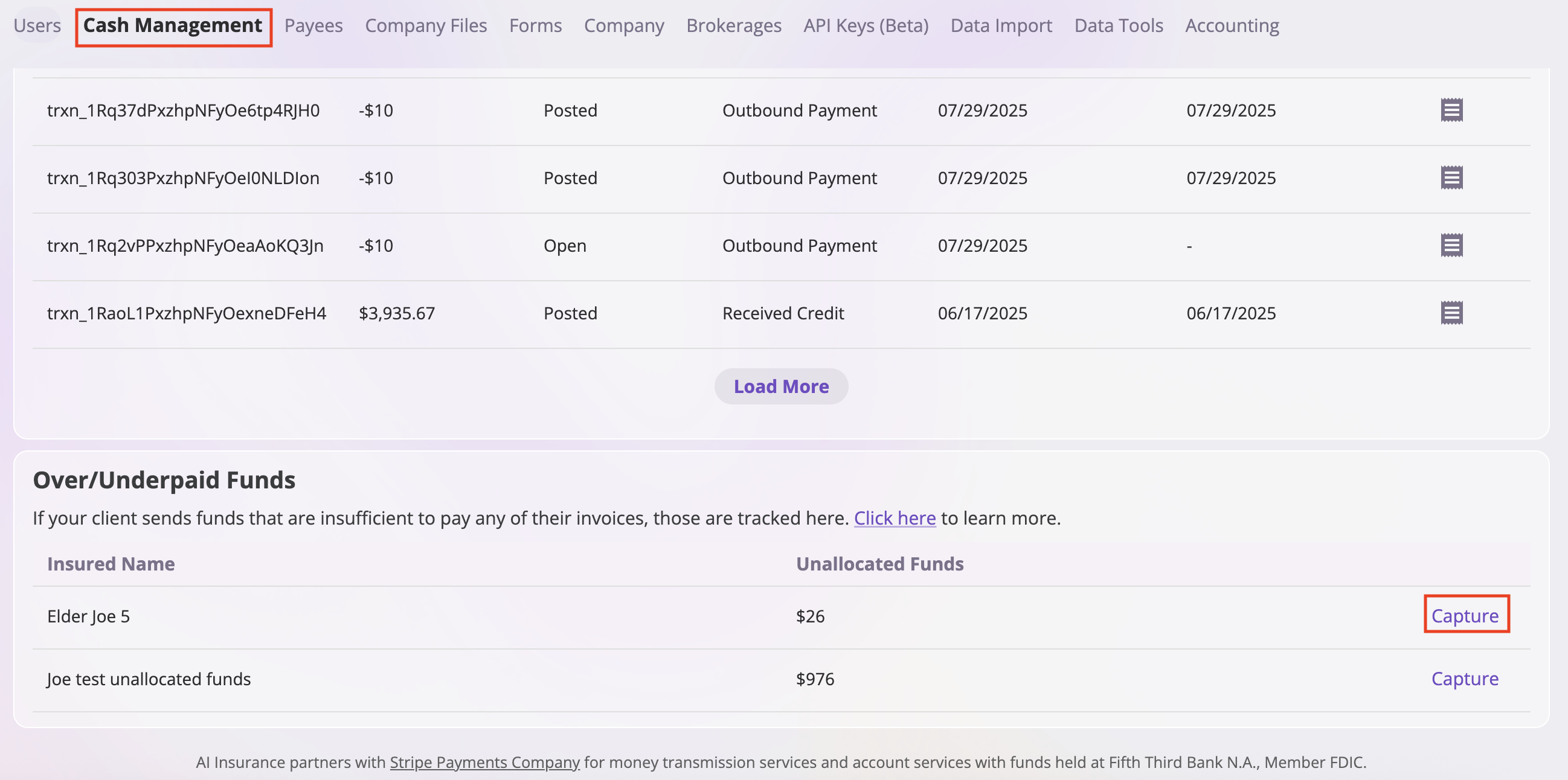
- Navigate to Company → Cash Management tab
- Scroll down to the Over/Underpaid Funds section
- Find the insured with unallocated funds
- Click the Capture button next to the unallocated funds amount
Step 2: Select an Invoice
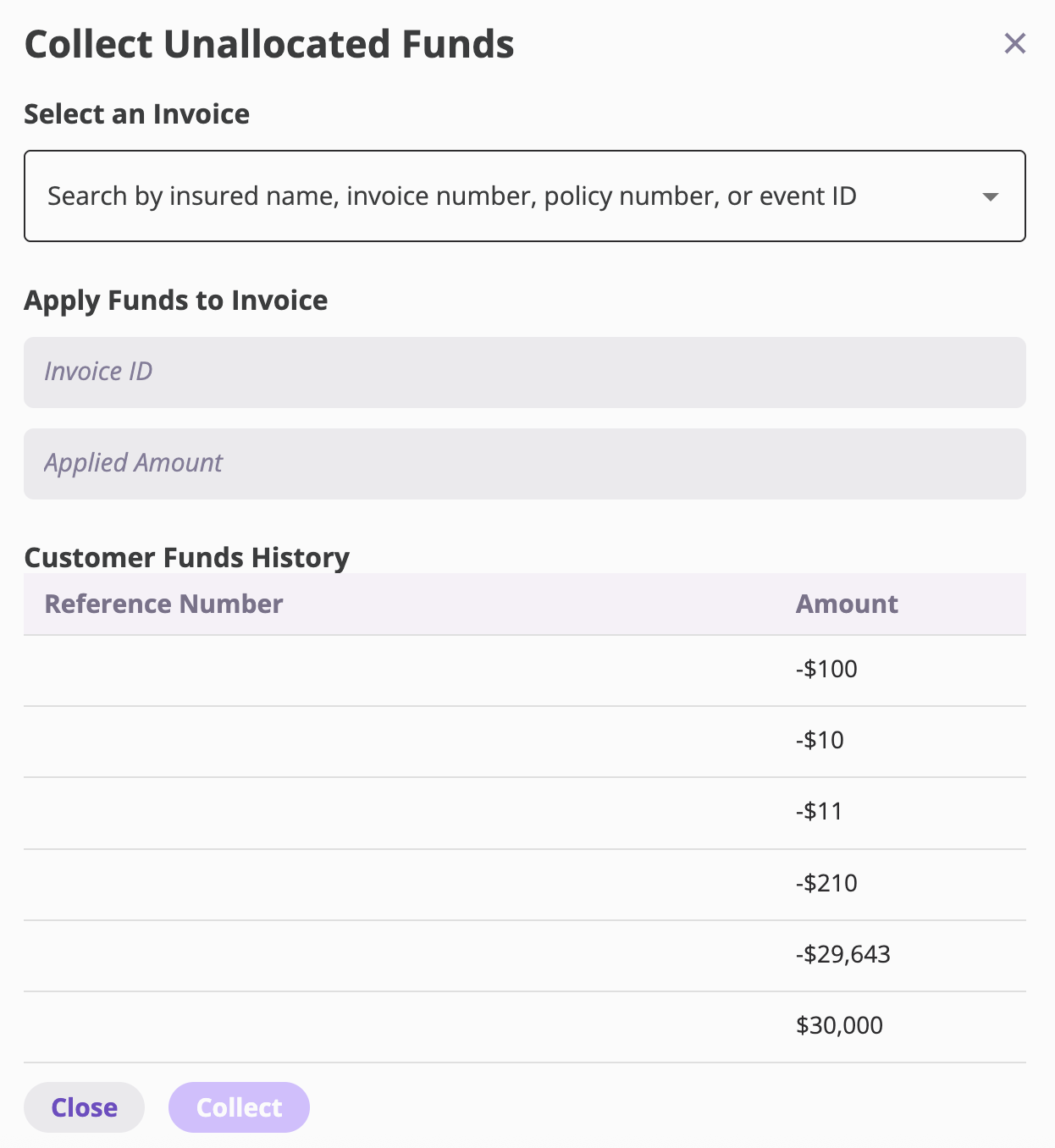
The Collect Unallocated Funds modal will open. Use the searchable dropdown to find the invoice you want to apply the funds to:- Click in the “Select an Invoice” search field
- Search by:
- Insured name
- Invoice number
- Policy number
- Event ID
- Select the invoice from the dropdown results
Step 3: Apply Funds to Invoice
-
In the Apply Funds to Invoice section, enter:
- Invoice ID: Input the invoice number or identifier
- Applied Amount: Enter the amount you want to apply from the unallocated funds
-
Review the Customer Funds History table to see the transaction history for this customer, including:
- Reference Number: Transaction reference numbers
- Amount: Transaction amounts (positive for credits, negative for debits)
- Click Collect to apply the funds to the specified invoice, or click Close to cancel
Minimum Capture Amount
Stripe requires a minimum payment amount of $0.50 USD. If a customer’s unallocated balance is less than $0.50, the Capture button will be disabled. You will need to wait until additional funds are received to bring the balance above the minimum before capturing. If you need to resolve a balance under $0.50, contact support at support@aiinsurance.io for assistance.Handling Overpaid Unallocated Funds
If you have overpaid unallocated funds that you want to capture, you’ll need to create an invoice first, then contact support to have the funds allocated to that invoice.Step 1: Create an Invoice
- Generate a one-off invoice for the amount you want to capture
- For detailed instructions on creating one-off invoices, see Generating One-Off Invoices
Step 2: Contact Support
After creating the invoice, reach out to support at support@aiinsurance.io to request that the unallocated funds be allocated to the newly created invoice. Support will handle the allocation process for you.Note: This process requires support assistance to complete the allocation. Make sure to have the invoice number ready when contacting support.
Note: For more information about the Over/Underpaid Funds section and how unallocated funds work, see Cash Management.