
Overview
This guide describes how to collect a one-off payment when an invoice has already been issued, or when you need to collect money directly from the insured using a payment form.When to Use This Workflow
Use this process when you need to collect a single payment directly from the insured but do not want to change the billing method on the policy. This process is also used when an invoice was already sent and you need to re-collect payment. For example If you are changing a policy from agency bill to direct bill, the workflow is different and involves voiding the invoice and creating a new manual invoice. That use case is described separately.Step-by-Step Process
Step 1: Confirm the Existing Invoice
If the invoice has already been sent, do not void it. You will continue to use the existing invoice record in the system. If no invoice exists for the amount you need to collect, create one manually before continuing. To do this:- Go to Financials → Transactions
- Click the “New Transaction” button
- Select the appropriate transaction type from the dropdown (e.g., Policy Invoice, Commission Invoice, etc.)
- Fill in the invoice details
- Save the transaction
Step 2: Generate a Payment Form
- Open the policy associated with the invoice
- Go to the Forms section
- Create a new form with billing information and ACH fields. For detailed instructions, see Creating and Validating Forms
- Apply the form to the policy through an endorsement. For detailed instructions, see Endorse a Policy
- The form will be sent to the insured so they can submit payment directly to the bank account specified in the form
Important: There is no form type called “Invoice.” The form is only used to collect payment.
Step 3: Mark the Invoice as Paid Once Funds Arrive
The payment collected through the form goes directly to the financial account entered in the form. When the payment is deposited, return to the invoice inside AI Insurance and manually mark it as paid:- Navigate to Financials → Transactions
- Find the invoice
- Select the checkbox next to the invoice
- Click the “Mark As” dropdown button
- Select “Paid” to mark the invoice as paid
Re-Sending an Invoice
You can resend an invoice in two ways, depending on how it was originally created:For AI-Generated Invoices
If the invoice was generated automatically by AI Insurance:- Navigate to Financials → Transactions
- Open the invoice you want to re-send
- Copy the invoice link
- Email the link directly to the insured
For Manual Invoices
If the invoice was created manually or does not include a link, follow the step-by-step process above (Steps 1-3) to generate a payment form and collect payment.Converting Agency Bill to Direct Bill
If you are changing a policy from agency bill to direct bill, you need to void the existing invoice and create a new manual invoice. Follow these steps:Note: This is the only scenario where you should void an existing invoice. For all other cases, keep the existing invoice and use the process above.
Step 1: Void the Agency Bill Invoice
- Navigate to Financials → Transactions
- Find the agency bill invoice you need to void
- Select the checkbox next to the invoice
- Click the “Mark As” dropdown button
- Select “Void” from the options
- Confirm the void action
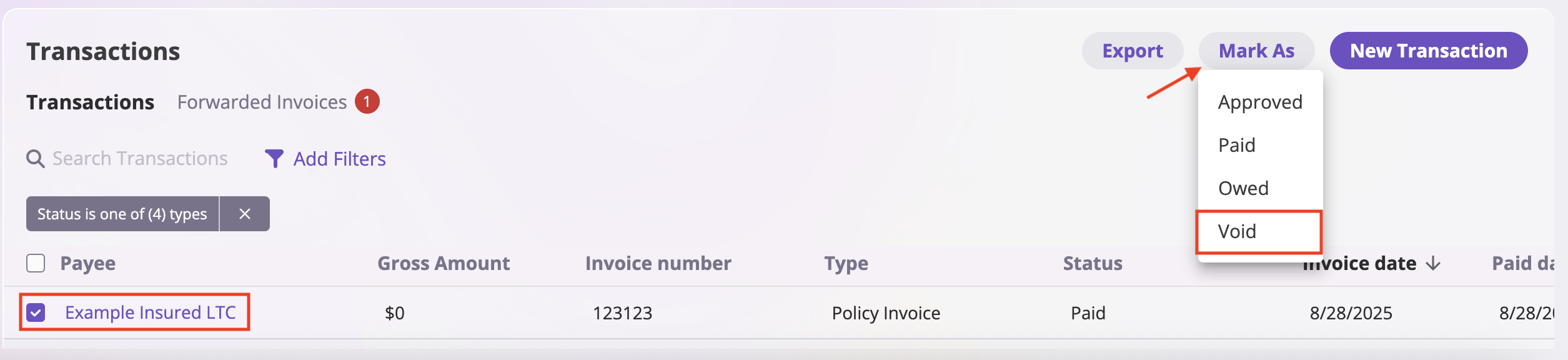
Important: Voiding an invoice cannot be undone. The original invoice will be marked as cancelled and will no longer be active for billing purposes.
Step 2: Generate a Payment Form
- Open the policy associated with the original invoice
- Navigate to the Forms section
- Create a new form with billing details and ACH information. For detailed instructions, see Creating and Validating Forms
- Apply the form to the policy through an endorsement. For detailed instructions, see Endorse a Policy
- The form will be sent directly to the client (insured) instead of the broker
Important: Generating a form does not create an invoice. You need to manually create a new transaction in the Financials tab (see Step 3 below).
Step 3: Create a New Transaction (Manual Invoice)
Follow the manual invoice creation steps from Step 1 above to create a new transaction. Fill in the invoice details matching the voided invoice. For detailed instructions on creating manual financial transactions, including all available fields and transaction types, see Financial Transactions.Step 4: Mark Invoice as Paid
Once payment has been received in your bank account:- Navigate to Financials → Transactions
- Find the invoice you created
- Select the checkbox next to the invoice
- Click the “Mark As” dropdown button
- Select “Paid” to mark the invoice as paid