
Overview
The Insureds page allows you to view and manage all insured entities within your organization. With built-in filtering and sorting tools, you can quickly find specific records based on status, relationship type, dates, and more—making it easy to stay organized and efficient.How to access the Insured Filters
Follow these steps to find and use the filtering options on the Insureds page:-
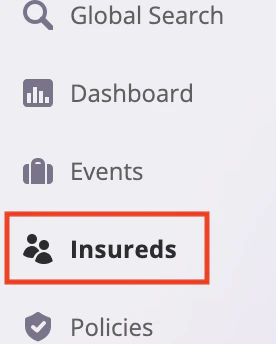
On the left-hand sidebar, locate and click on the Insureds section.
-
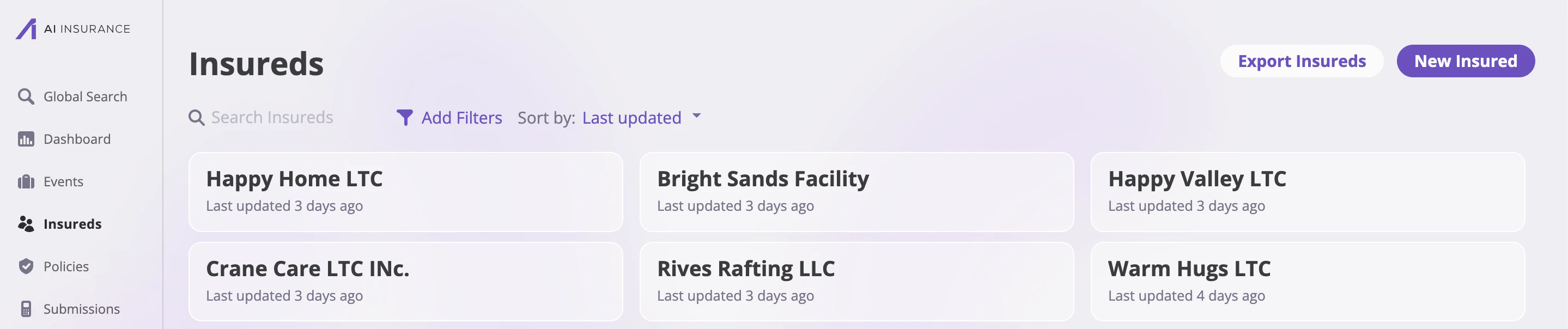
This will bring you to the Insureds page, where you can view all existing insured entries.
-
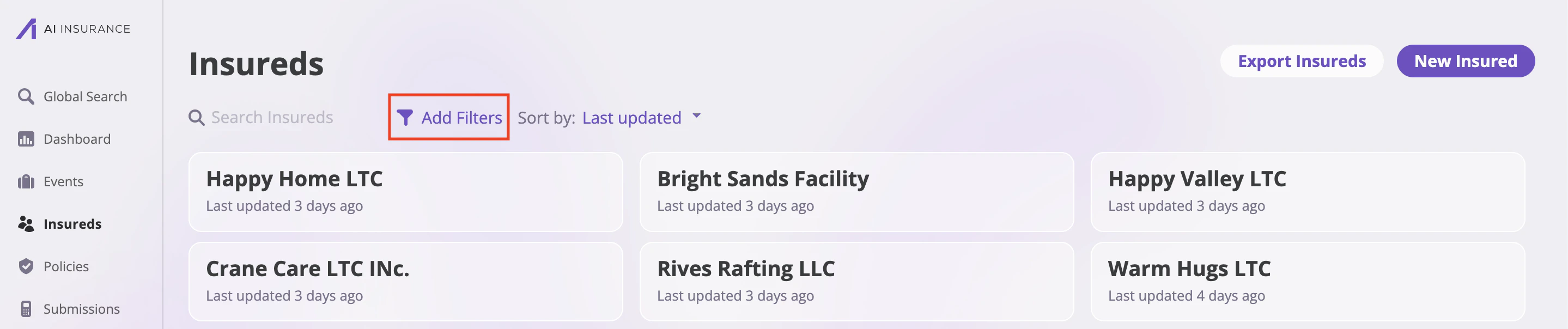
To filter the list, click on the Add Filters icon located near the top of the page.
-
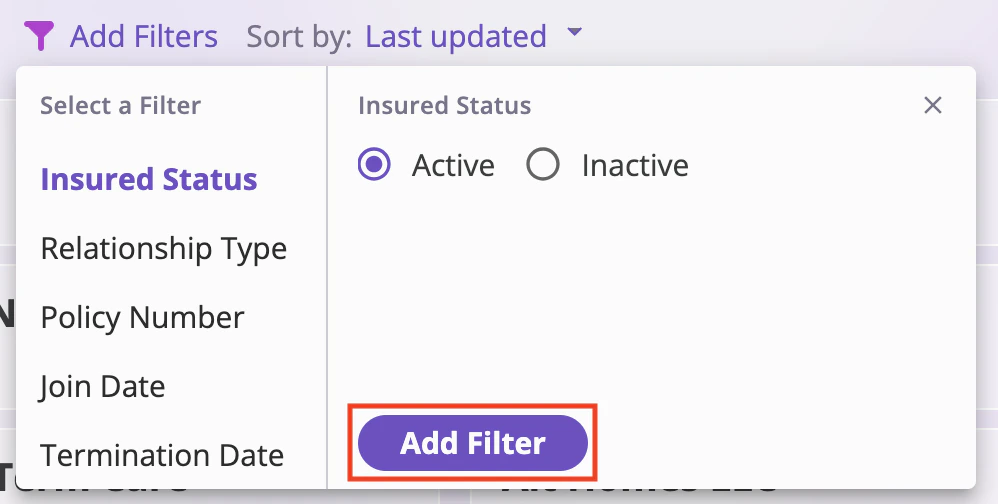
A dropdown menu will appear with filter options such as Insured Status, Relationship Type, Policy Number, Join Date, and Termination Date.
Available filters include:- Insured Status: This filter lets you view insureds based on their current status. Options include: Active and Inactive.
- Relationship Type: This filter helps categorize insureds by their relationship to the policy. Options include: Primary, Named, Additional, and Related Entity.
- Policy Number: This filter allows you to find insureds by a specific policy number. You can choose from the following conditions: Matches, Contains, or Does not Contain.
- Join Date: Use this filter to narrow down insureds based on when they were added. Options include: On, Before, or After a selected date.
- Termination Date: This filter works the same way as Join Date, allowing you to filter by On, Before, or After a specified termination date.
-
Select your desired filter, configure the conditions, and click Add Filter to apply it.
Sort filters
On this page, you will see a list of all your insureds. You can search through them using the search bar at the top of the page. You can also sort the insureds by:- Alphabetical: Sorts insureds by name from A to Z.
- Last updated (default): Organizes entries based on the most recent changes made.
-
Days until renewal: Sorts entries based on how soon each insured’s associated policy is up for renewal.
