Accessing the Contacts Tab
- To create a contact, navigate to an entity (Policy, Insured or Claim) in this example we’ll add a contact to an Insured.
- After that, from the navigation tabs near the top of the page, click Contacts.

“No contacts have been added yet.”
Adding a New Contact
To add a contact to the current entity:-
Click the Add Contact button on the right side of the Contacts table.
- This will open a dropdown with options to either:
- Add New Contact
- Link Existing Contact (if available)

- This will open a dropdown with options to either:
- Select Add New Contact.
-
Fill in the contact details in the form:
- Contact Name
- Title
- Phone Number
- Address
- Apartment or Suite Number
- Description (optional notes or context)
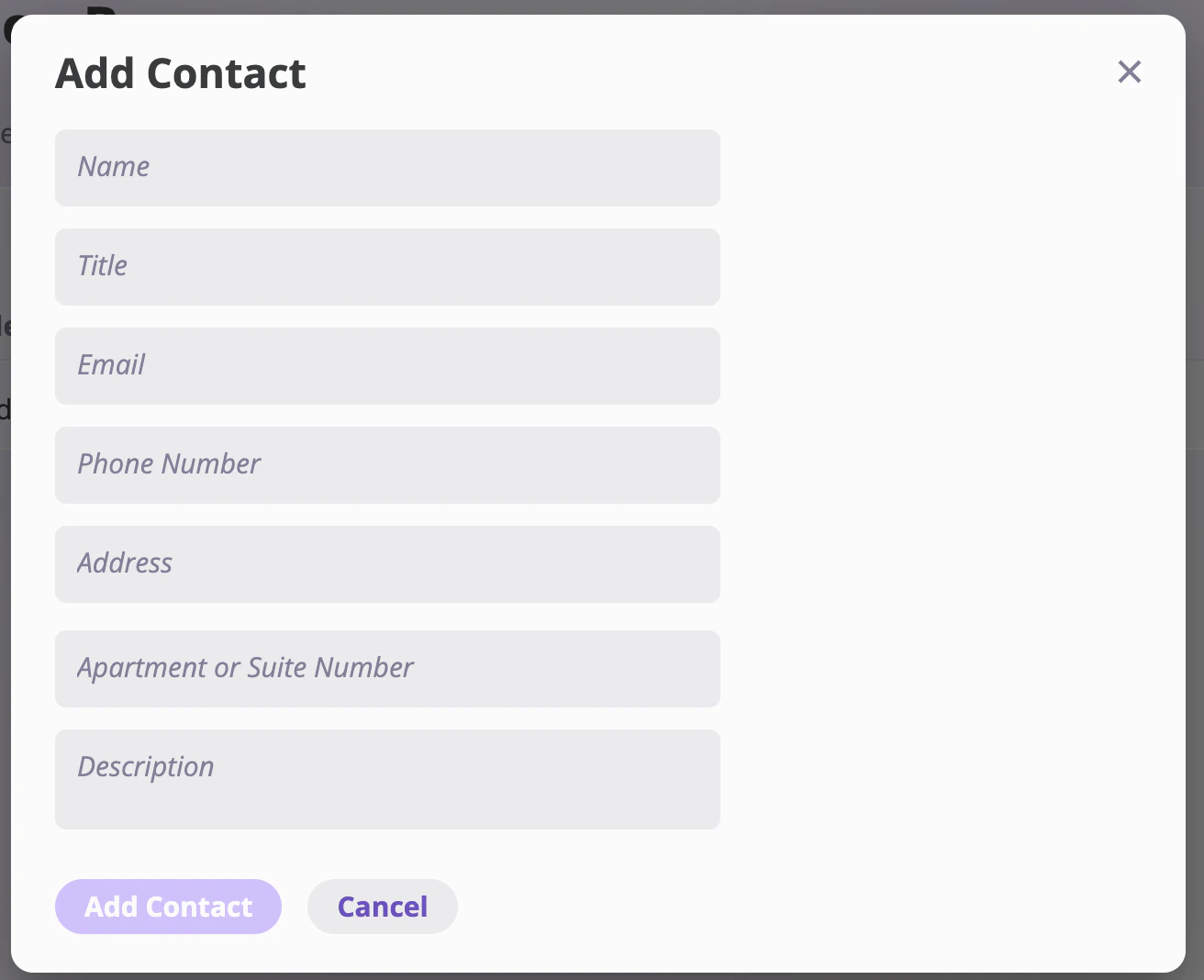
- Click Add Contact to add the contact.
Adding an Existing Contact
If a contact already exists in your system (e.g. previously added to another policy, insured, or claim), you can quickly associate them with this entity using the Existing Contact option:Steps to Add an Existing Contact
- Navigate to the entity’s Contacts tab (e.g. for an insured, policy, or claim).
- Click the Add Contact button in the top-right of the Contacts table.
-
From the dropdown, select Existing Contact.

-
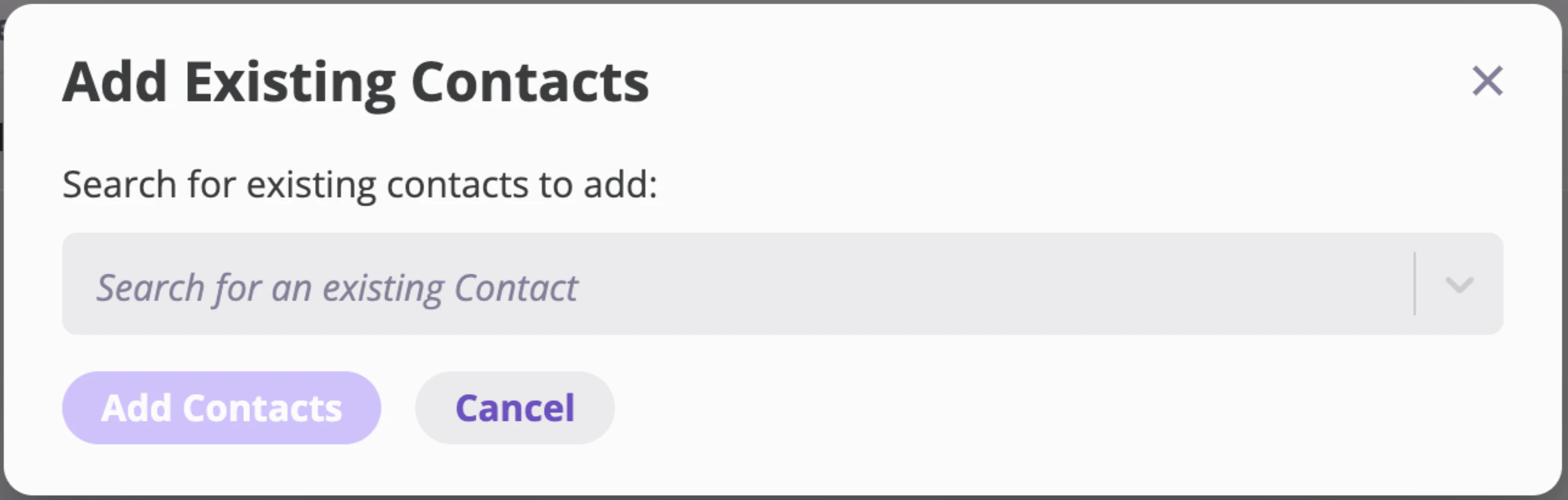
In the Add Existing Contacts modal:
- Use the dropdown to search for an existing contact by name.
- Select the desired contact(s).
- Click Add Contacts to associate the selected contact(s) with this entity.