

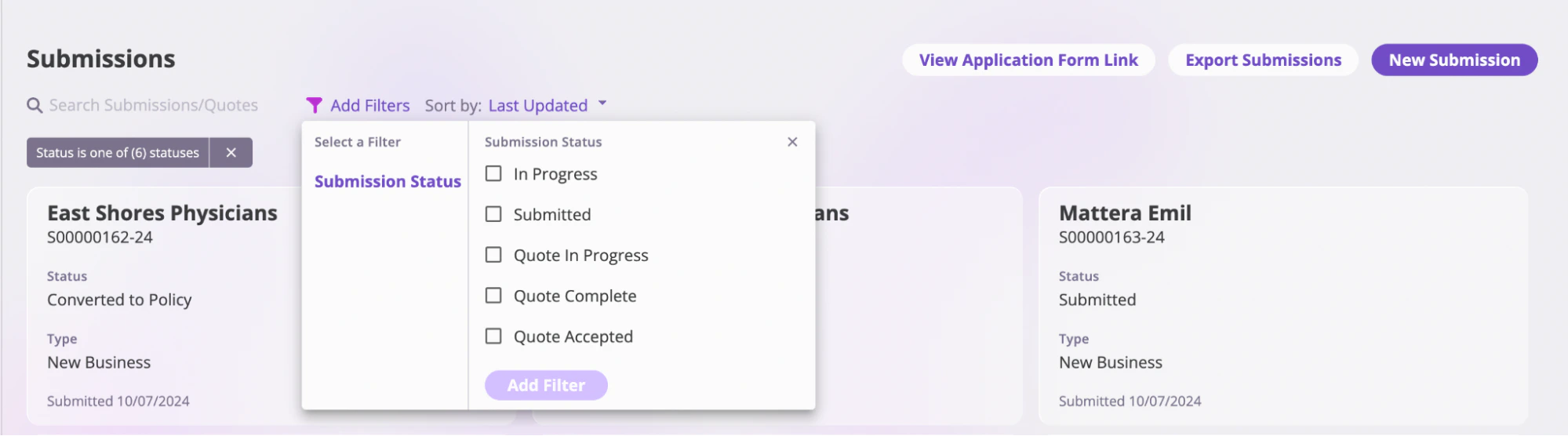
- In Progress: The submission is still ongoing; the applicant has not yet completed their application or provided all necessary details.
- Submitted: The application has been fully submitted for processing.
- Quote In Progress: A quote is currently being prepared for submission.
- Quote Complete: A quote has been finalized but has not yet been sent to the applicant.
- Quote Sent: A quote has been sent to the applicant for review.
- Quote Accepted: The applicant has accepted the quote.
- Converted: The submission has been successfully converted into an active policy.
- Declined: The submission has been declined and will not proceed further.
If there are multiple quotes pertaining to a single policy, the submission status will reflect on the quote that is furthest along the process.
View a submission
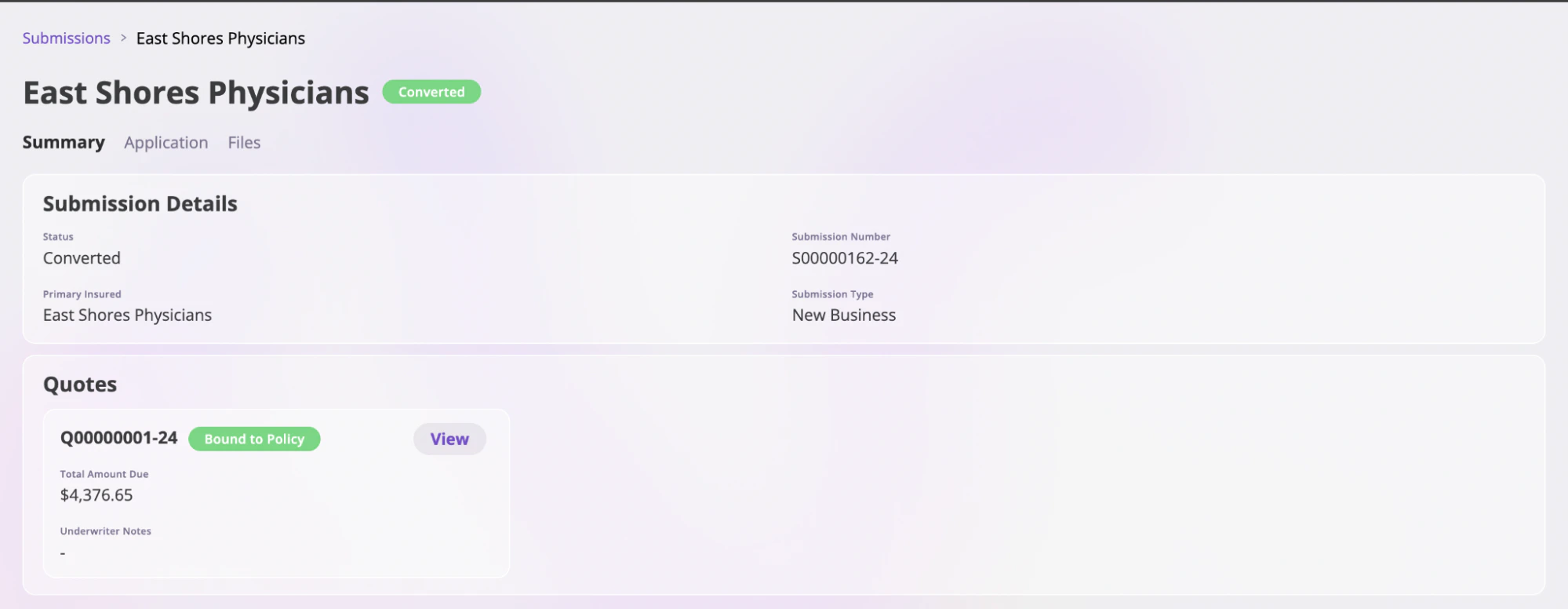
To view more details about a submission, click on the specific submission to open its page. Depending on the submission’s status, the page will typically have two or three tabs:- For statuses like Quote Accepted, Quote in Progress, or Quote Sent, the page will have two tabs: Summary and Files.
- For statuses like In Progress, Submitted, Converted, or Declined, the page will have three tabs: Summary, Application, and Files.
- Summary: This tab holds an overview of the specific Submission, including its status, submission number, and quotes created on this submission.
- Application: This tab holds the application sent in for Submission, the answers to the questions
- Files: This tab holds all the files associated with a particular submission. For more about files, see the Files documentation.
Decline a Submission
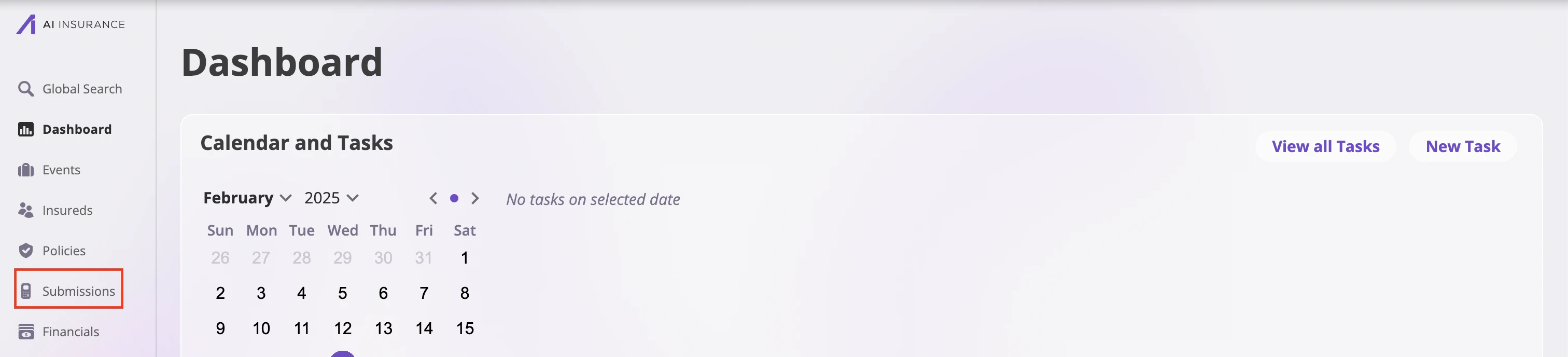
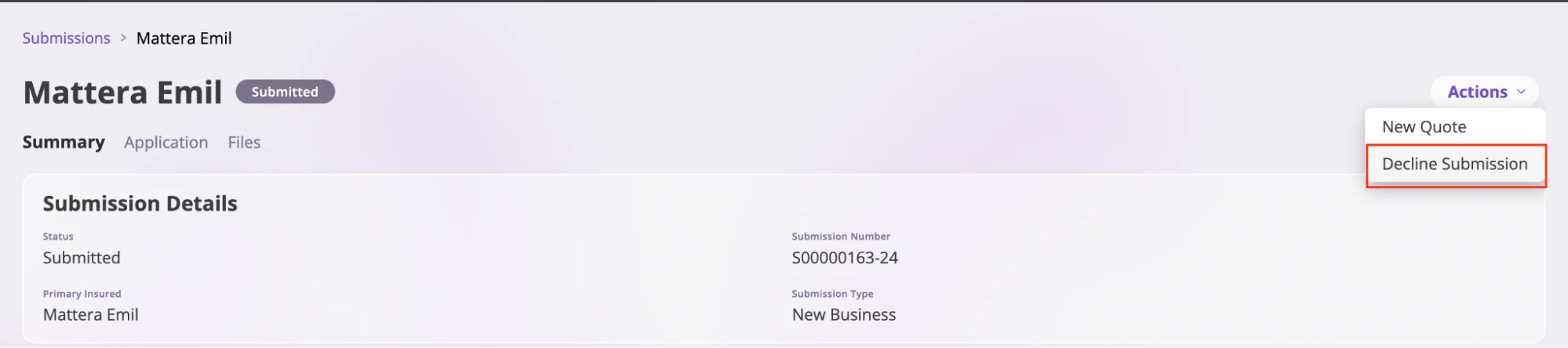
To decline a submission:- Click to open up the specific Submission you want to decline.
- Navigate to the Actions dropdown at the top right, and select the Decline Submissions option from the options. This action opens up the Decline Submission modal.
- Input your reason for declining the submission.
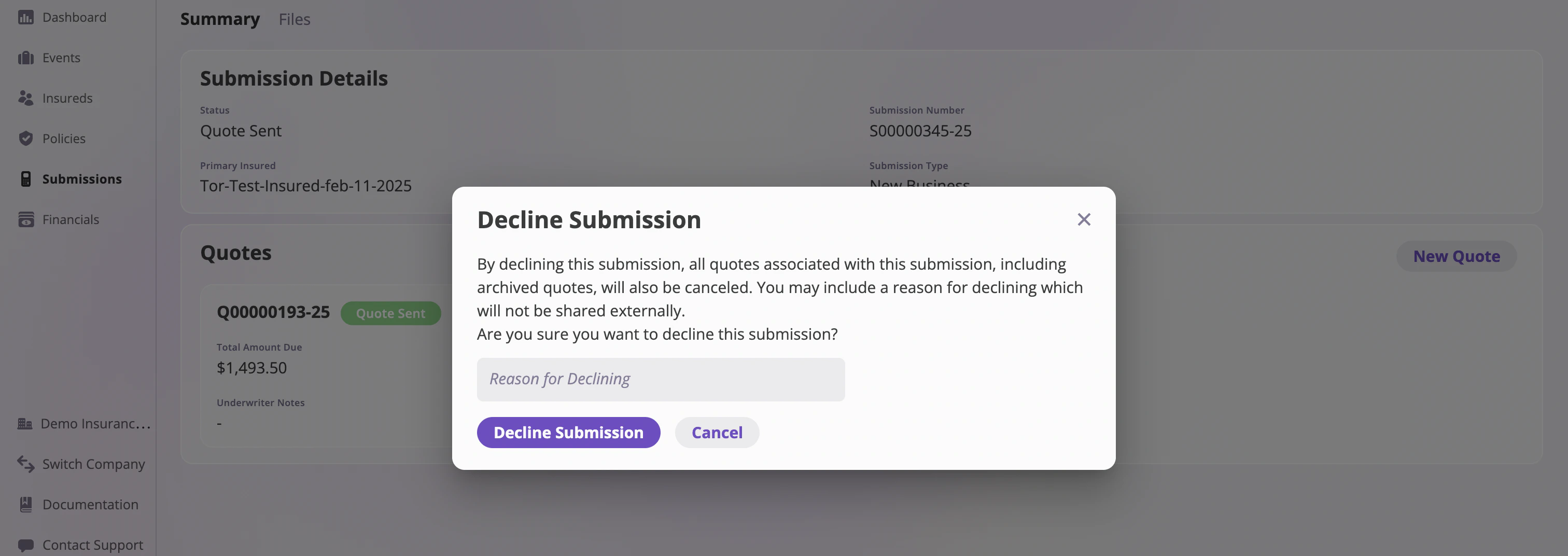
- Select the Decline Submission button.
You cannot decline a Submission that has been converted to a policy.
Create a Quote
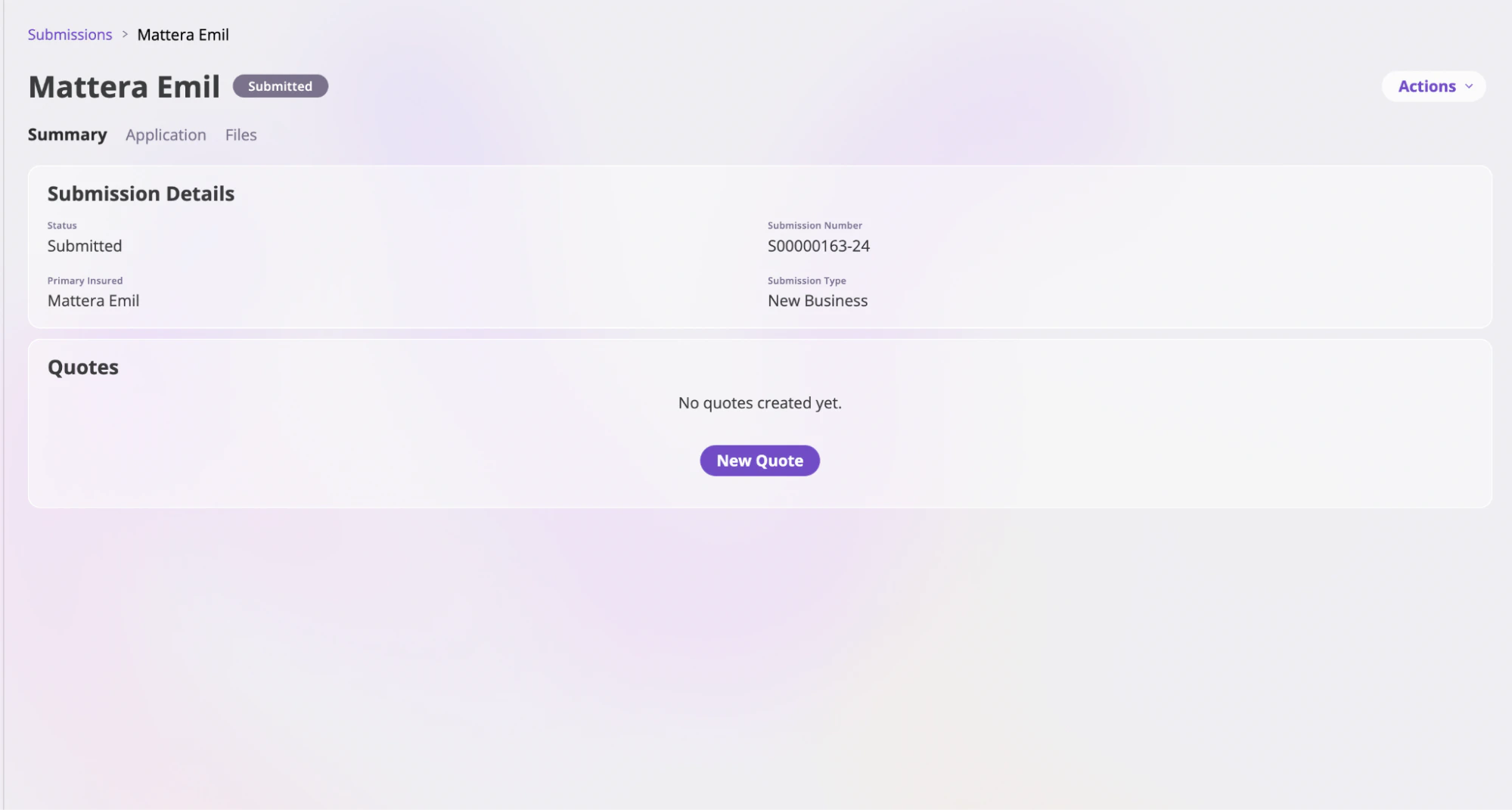
A quote is created automatically at the end of the submission process. However, you can create additional quotes or a new quote for a Submission by doing the following:- Open the Submission you want to create a Quote for
- Click the New Quote button to create a Quote in the Quotes section. This action redirects you to create a submission as a carrier application. Refer to the Create a new Submission as a carrier to learn more about filling out this application.
View a Quote
To view all quotes for a Submission, go to the designated Submission page. Click on the Submission you want to review. In the Quote section, you’ll find all associated quotes along with their current status.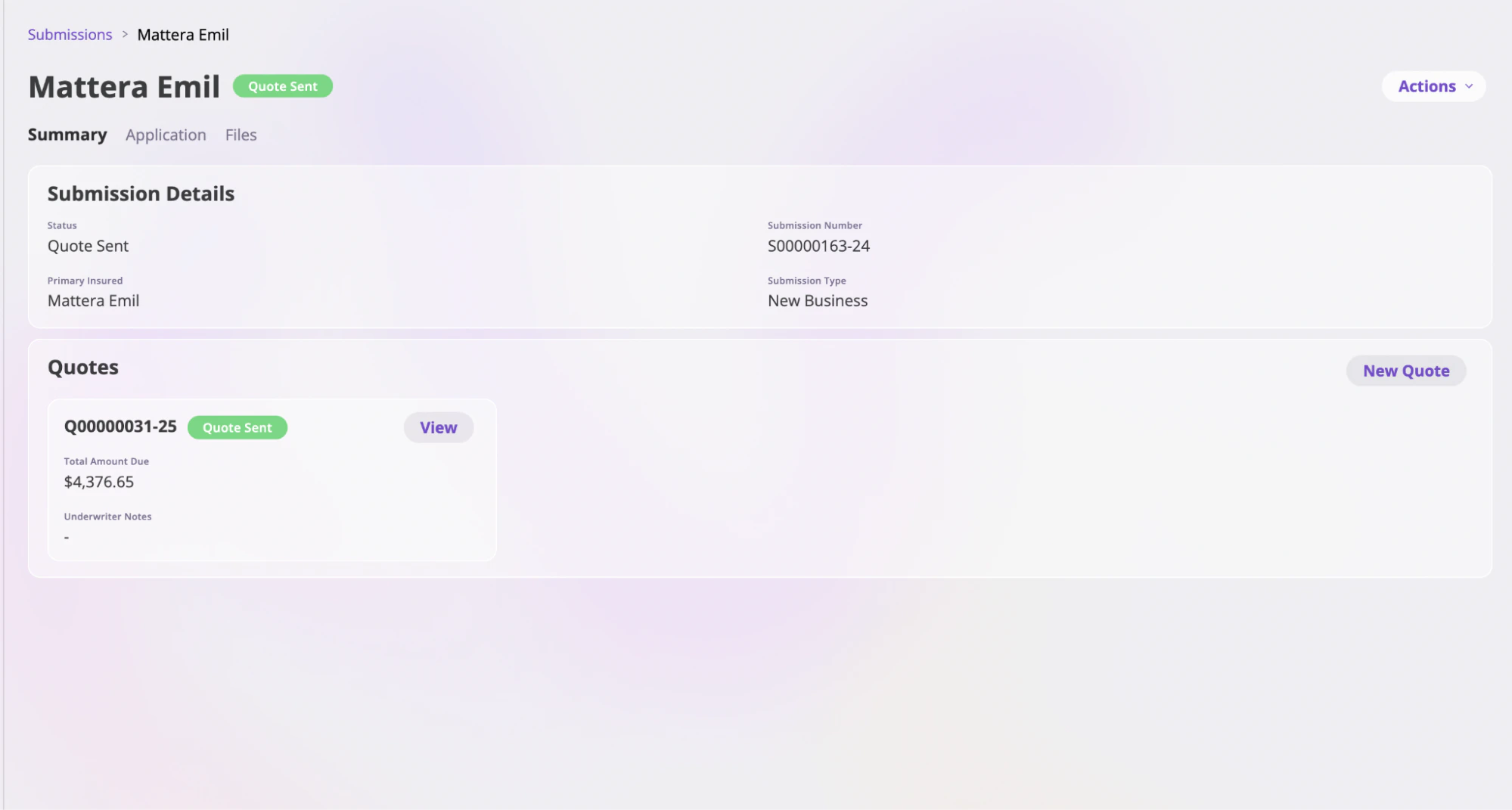
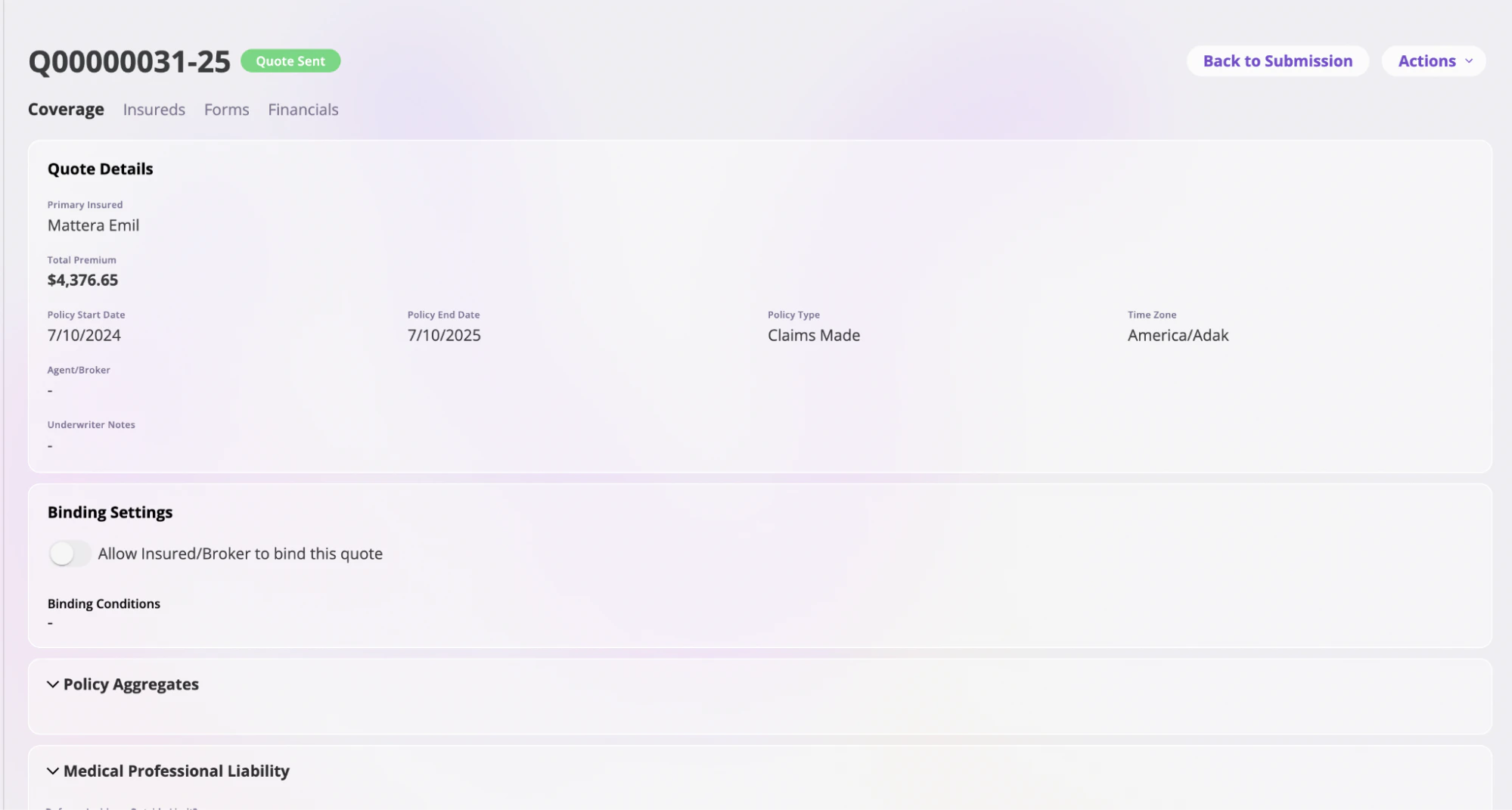
- Coverage: Specifies the line of coverage for the Quote, which is split into four sections: Quote Details, Binding Settings, Policy Aggregates, and Type of the Line of Coverage.
- Insureds: Holds information on the Insured covered in the Quote. Click on an Insured to see more information on that Insured.
- Forms: Holds all the forms associated with a Quote. You can only see these forms when a policy has been bound.
- Financials: Holds the financial overview information on the Quote, including the premium an insured is to pay, including fees, taxes, and custom adjustments. It also shows information on the premium payment period and the billing email.
Copy, edit, and delete a Quote
Once you have created a Quote, you can copy, edit, or delete it. Copying a Quote To copy a specific Quote, open the Quote page and click on the Actions dropdown menu in the top-right corner. From the dropdown options, select Copy Quote. This action will take you to the Quote Details page, where you can update the information for the new Quote copy. Refer to Edit a Quote for details on editing a quoteEdit a Quote
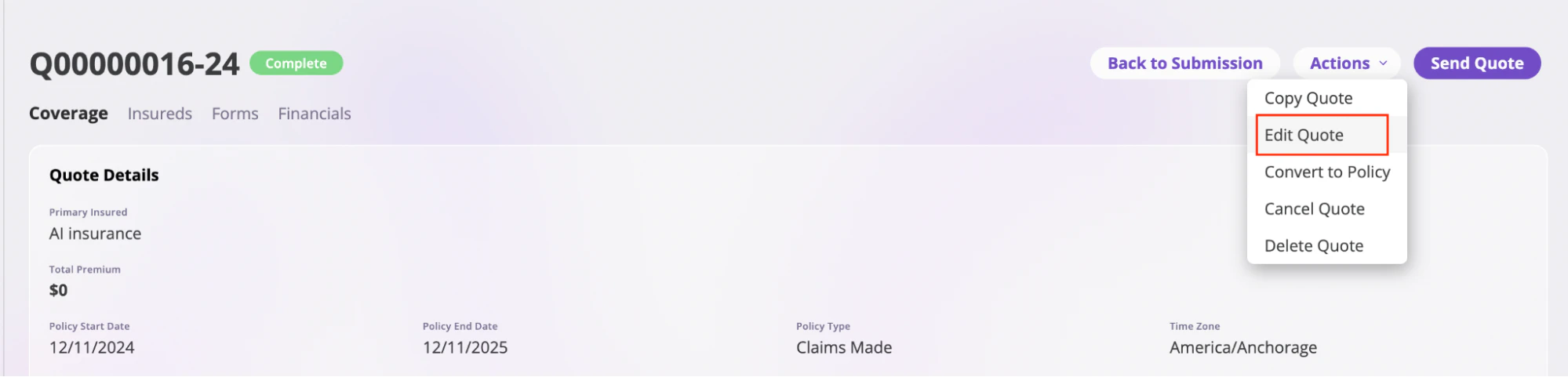
Depending on a Quote’s status, you can edit a Quote to modify information on the Quote. To edit a Quote, do the following:- Open the specific Quote you want to edit.
- Navigate to the Actions dropdown at the top of the Quote page.
- Click the Actions dropdown and select Edit Quote.
- Save the Quote: Click the Save Quote button at the top of the page to save your changes.

- Send the Quote: To send the Quote, click the Actions button at the top right of the page and select Send Quote from the dropdown. This will open the Send Quote modal. In the modal:
- Specify the recipient of the Quote.
- If you select the Broker and Primary Insured option, you’ll need to provide the email address of the Primary Insured.
- To add additional recipients, check the Copy additional recipient for forms box and input the additional email addresses.

- Create a Policy:
After reviewing the Quote and obtaining agreement from all relevant parties (e.g., the broker and the insured), you can bind the Quote into a policy. To do so:
- Click the Create Policy button at the top of the page.
-
This opens the Create Policy modal, where you’ll:
- Confirm the recipients of forms and bills related to the policy.
- If you select the Broker and Primary Insured option, provide the Primary Insured’s email address.
- To add additional recipients, check the Copy additional recipient for forms box, input their email addresses, and then click Create Policy.

You cannot edit a Quote already sent to a recipient or bound into a policy.
Delete a Quote
To delete a Quote, Open the specific Quote and navigate to the Actions dropdown at the top of the Quote page. In this dropdown, select the Delete Quote option and click the Confirm button in the Delete Quote modal.