
How to Generate API Keys
API keys allow you to programmatically access your AI Insurance data and integrate with external systems. This guide shows you how to generate API keys from your company settings.Step-by-Step Instructions
Step 1: Access Company Settings
- Log into your AI Insurance account at https://app.aiinsurance.io
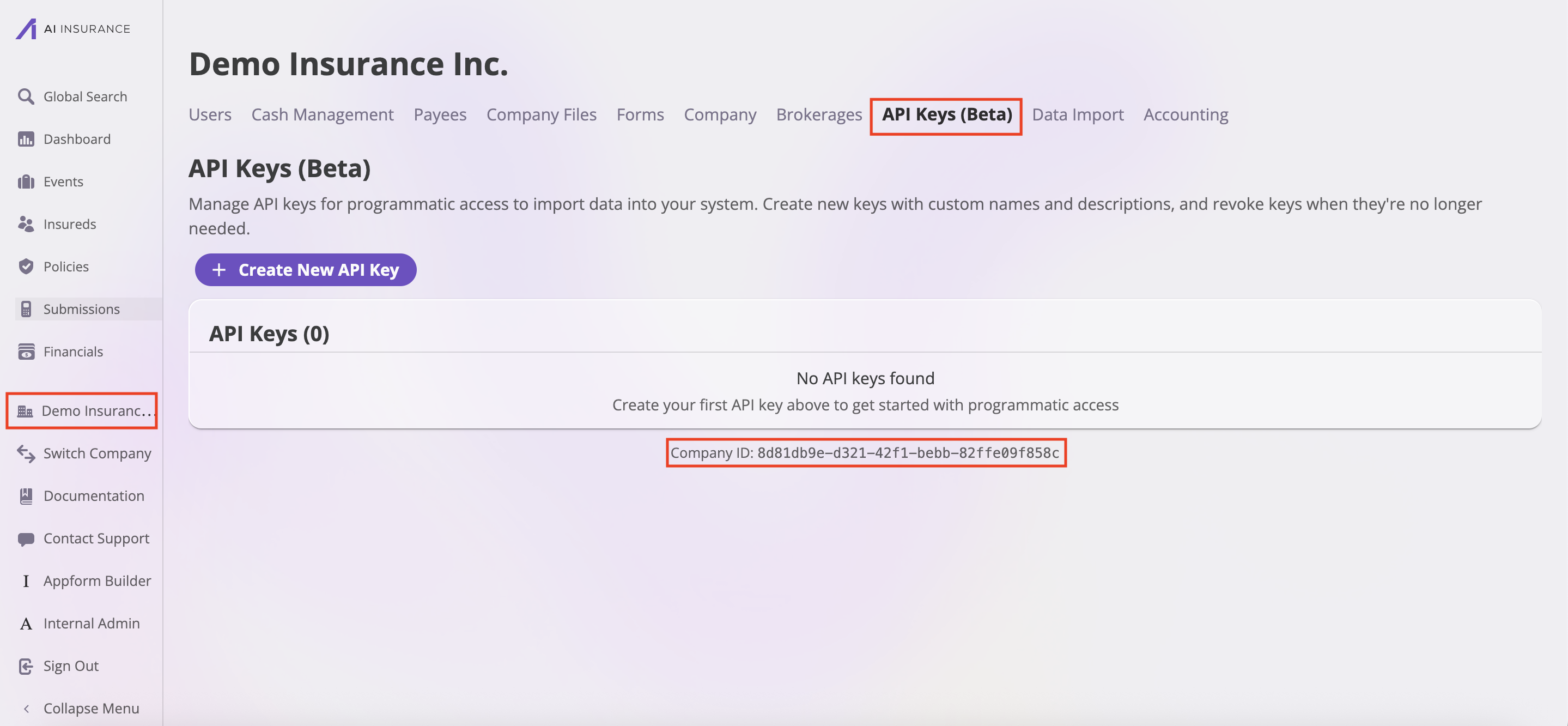
- In the left sidebar, find and click on your company name (e.g., “Demo Insurance Inc.”)
- This will open the company settings page
Step 2: Navigate to API Keys
- In the company settings, look for the navigation bar
- Click on the “API Keys” tab
- Once you’re on the API Keys page, you will see:
- A table of any existing API keys
- A button to create a new API key
- Your Company ID at the bottom of the page (this ID is required in most API requests)
Step 3: Create Your API Key
- Click the purple ”+ Create New API Key” button
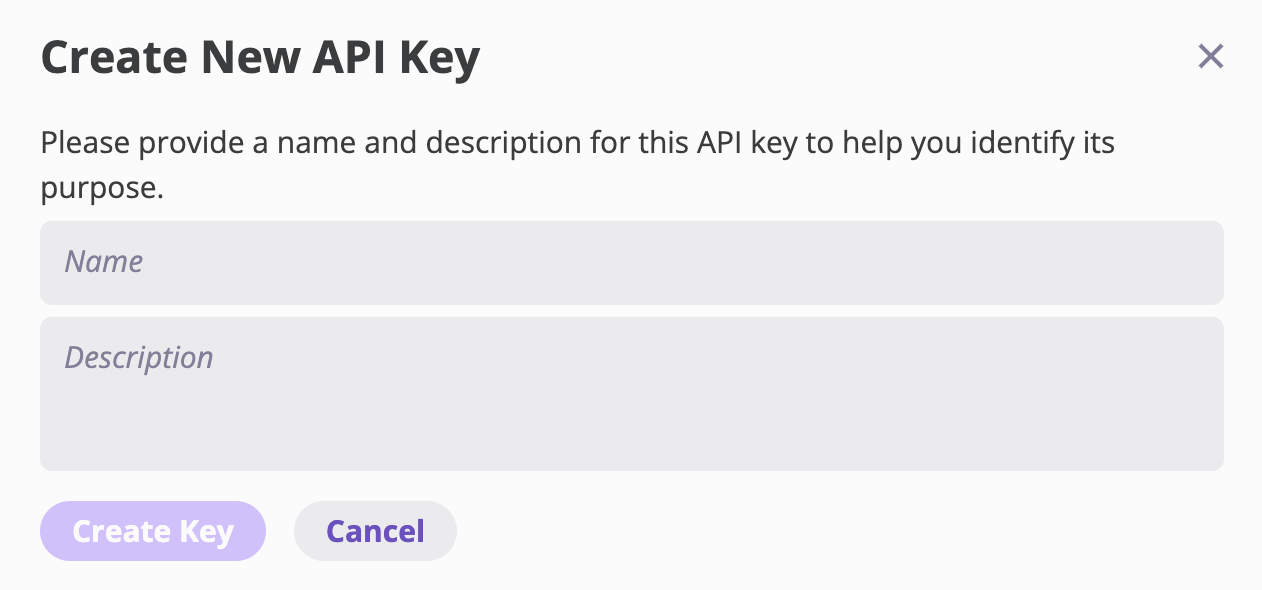
- You’ll be prompted to enter:
- Key Name: A descriptive name for your API key (e.g., “Production Integration”, “Testing API”)
- Description: Optional description of what this key will be used for
Step 4: Save Your API Key
- After creating the key, you’ll receive your API key
- Store it securely - API keys grant access to your company’s data
Authentication Header FormatWhen making API requests, include your API key in the Authorization header:Correct:Incorrect: