
What is Field Mapping?
When creating objects such as Policies, Events, or Insureds on the AI Insurance platform, you must gather data specific to each object. To simplify this process, the platform provides hundreds of preset data fields to help you collect, store, organize, and retrieve information effectively. Field mapping is the process of aligning your existing data fields with AI Insurance’s data model. This ensures that your current data structure integrates seamlessly with our platform’s configuration.Why is Field Mapping Important?
Many fields in the AI Insurance platform are configurable, meaning we can customize them to match your specific business needs and data requirements. By mapping your existing fields to our data model, we can:- Accurately configure your system to match your workflows
- Ensure data consistency across all objects
- Reduce onboarding delays
- Maintain data integrity when importing historical data
- Optimize your workflows
Step-by-Step Field Mapping Process
Step 1: Receive and Review the Field Data Model Form
The first step is to receive the Field Data Model form from AI Insurance via Rocketlane. This form contains the standard fields, their locations, and usage in our system. Once you receive the form, review it to understand the structure and fields available in the AI Insurance platform. You can also reference the original AI Insurance Fields Data Model spreadsheet for additional context: View Fields Data Model TemplateUnderstanding the Spreadsheet Structure
The Field Data Model spreadsheet is organized into multiple tabs, with each tab representing a different section or page in the AI Insurance application. To add custom fields, add a new row in the appropriate tab and fill in the required columns. We will use this information to configure your instance to match your specific needs and workflows.Spreadsheet Tabs Explained
- Read Me First!
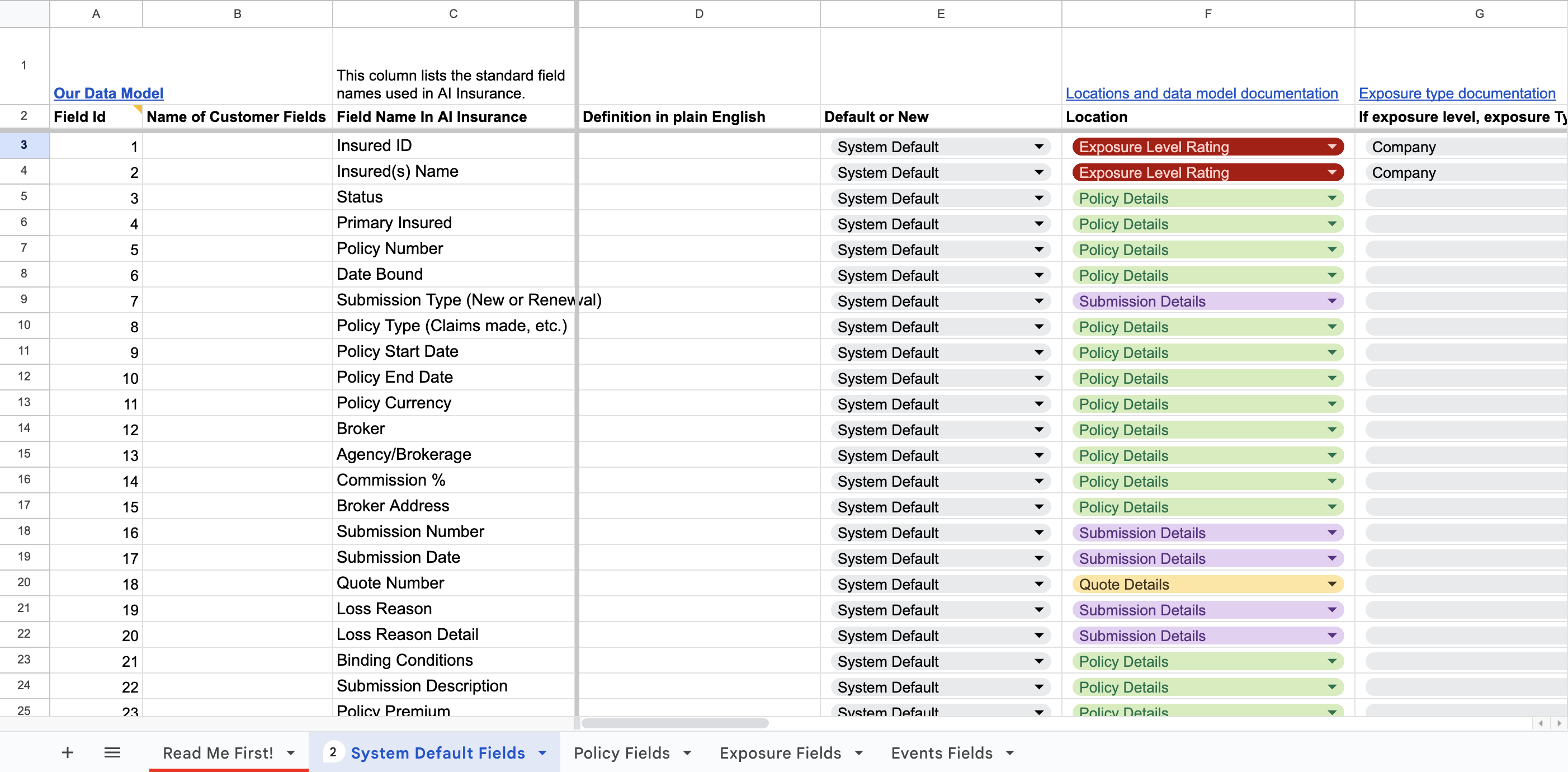
- System Default Fields
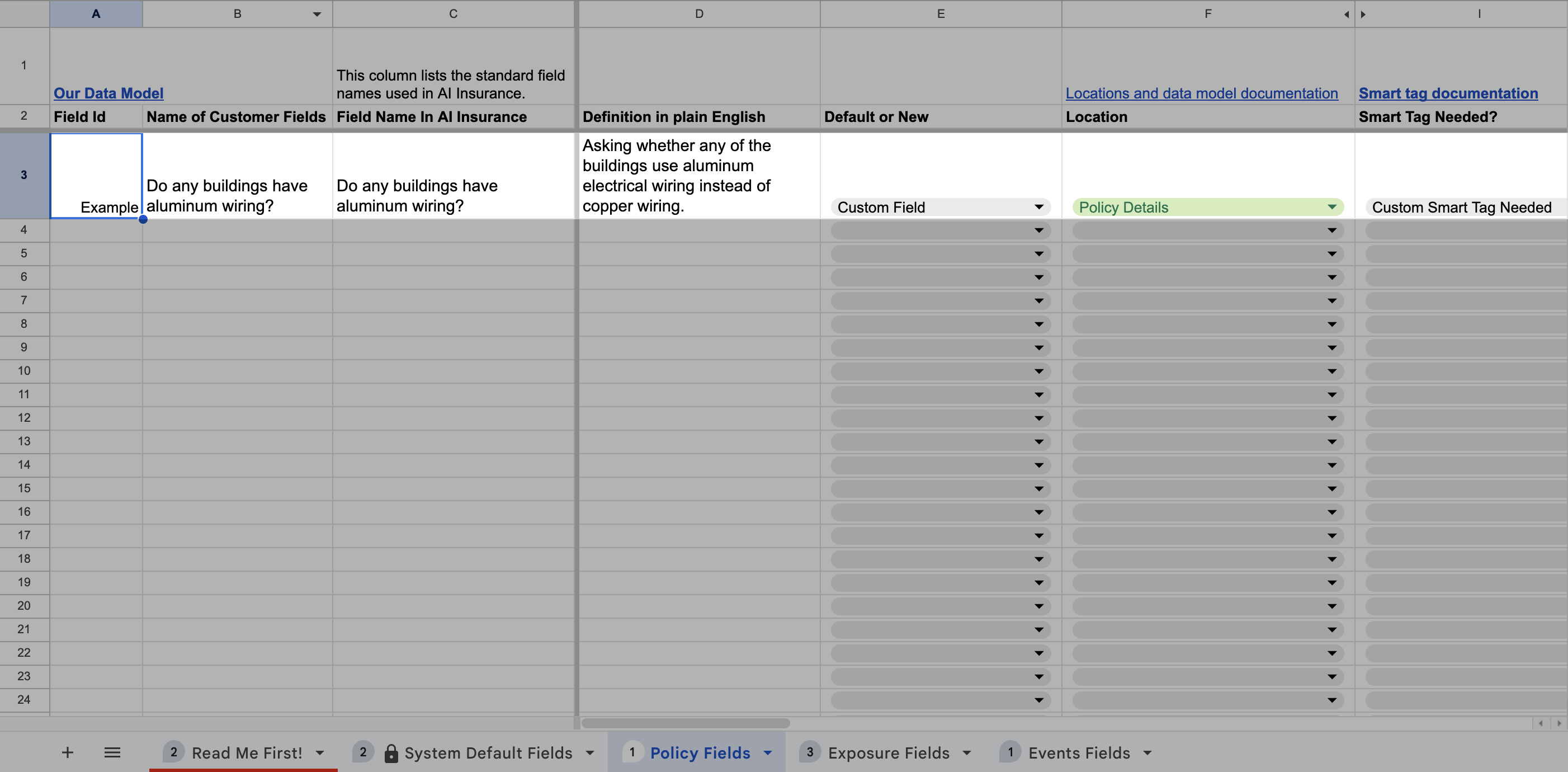
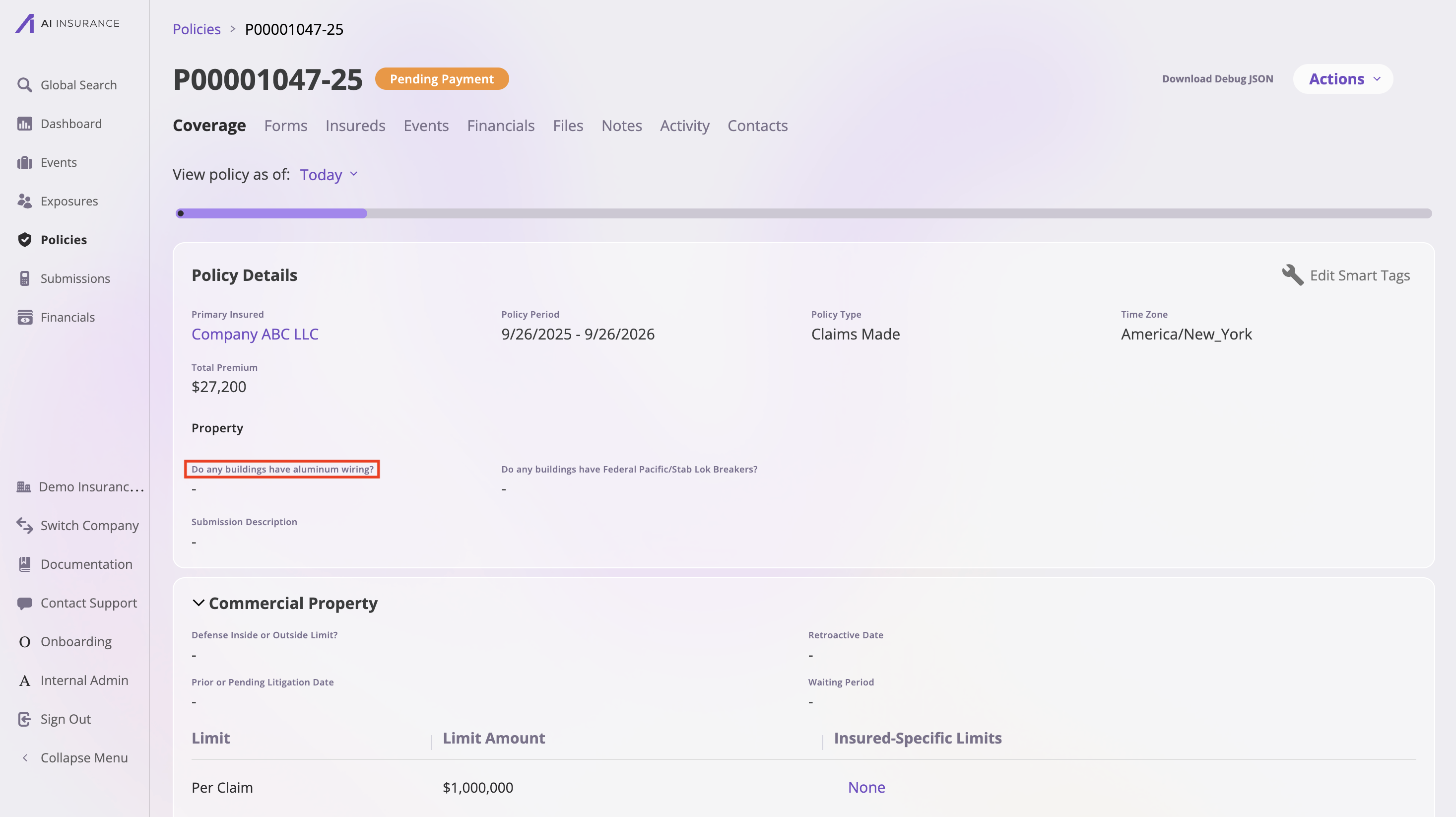
- Policy Fields
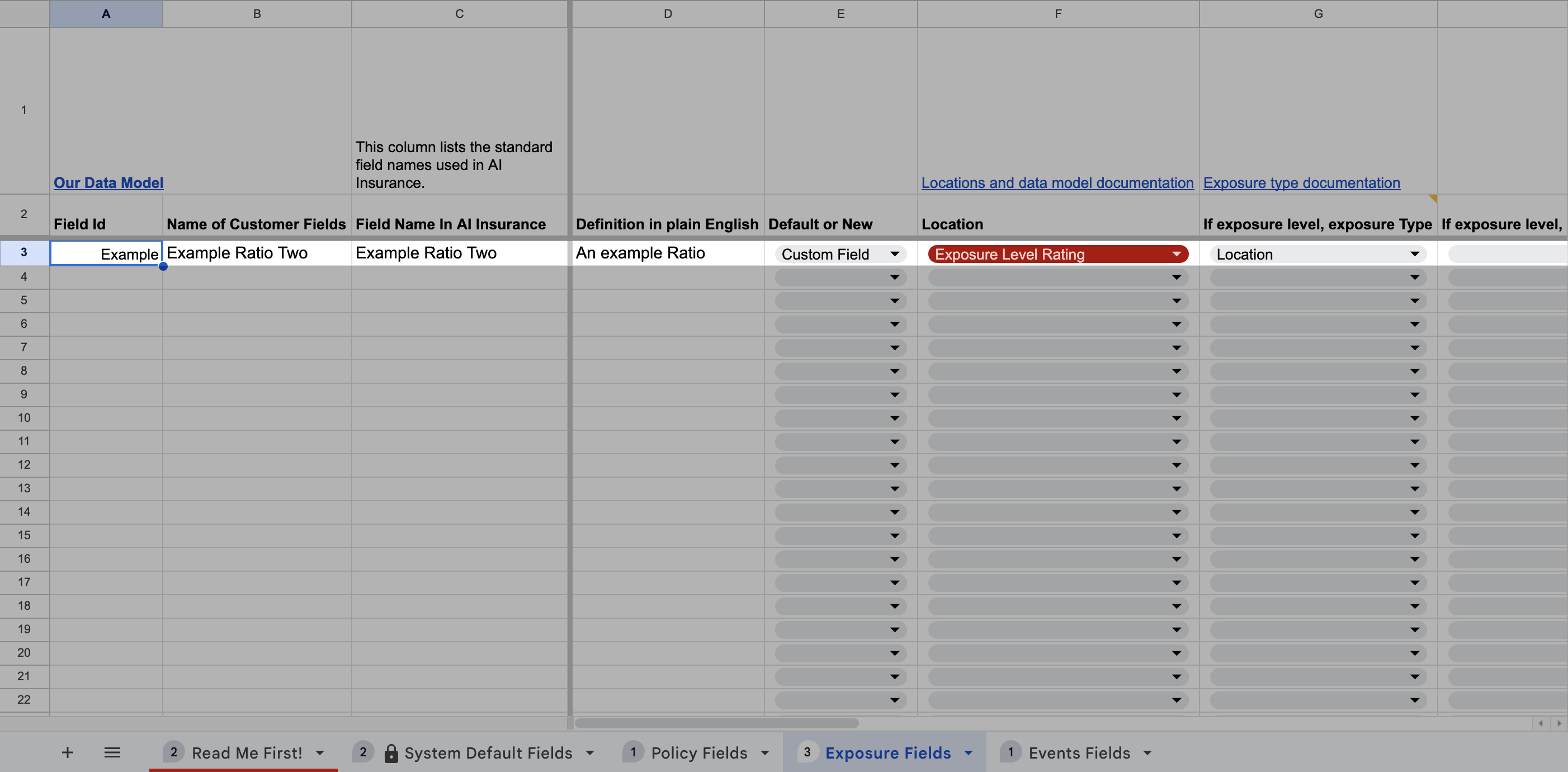
- Exposure Fields
- Event Fields
This tab contains detailed instructions on how to fill out the spreadsheet. Be sure to read this tab first before adding any fields to your spreadsheet. It provides essential guidance on column meanings, data types, and formatting requirements that will help you complete the form accurately.
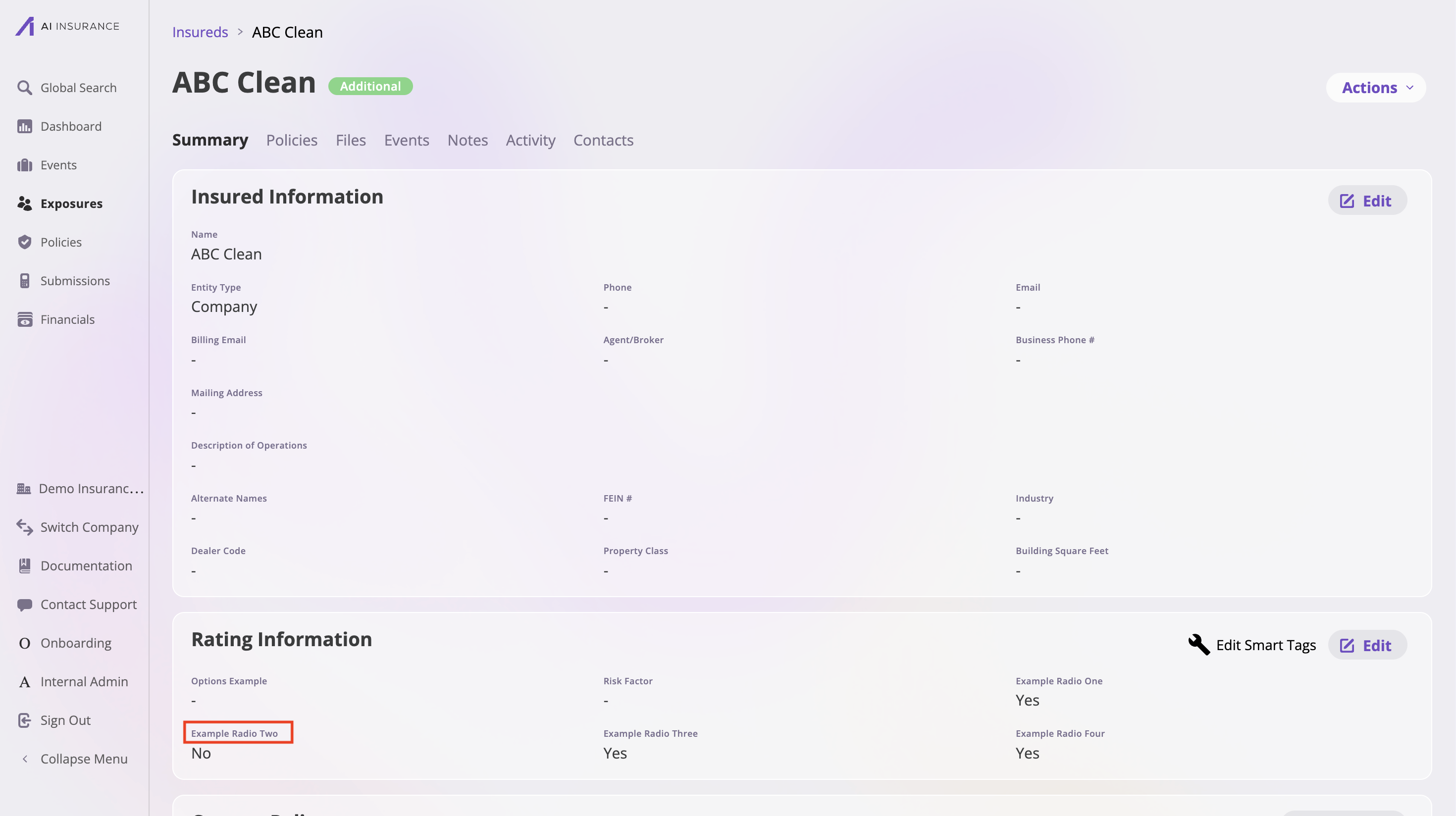
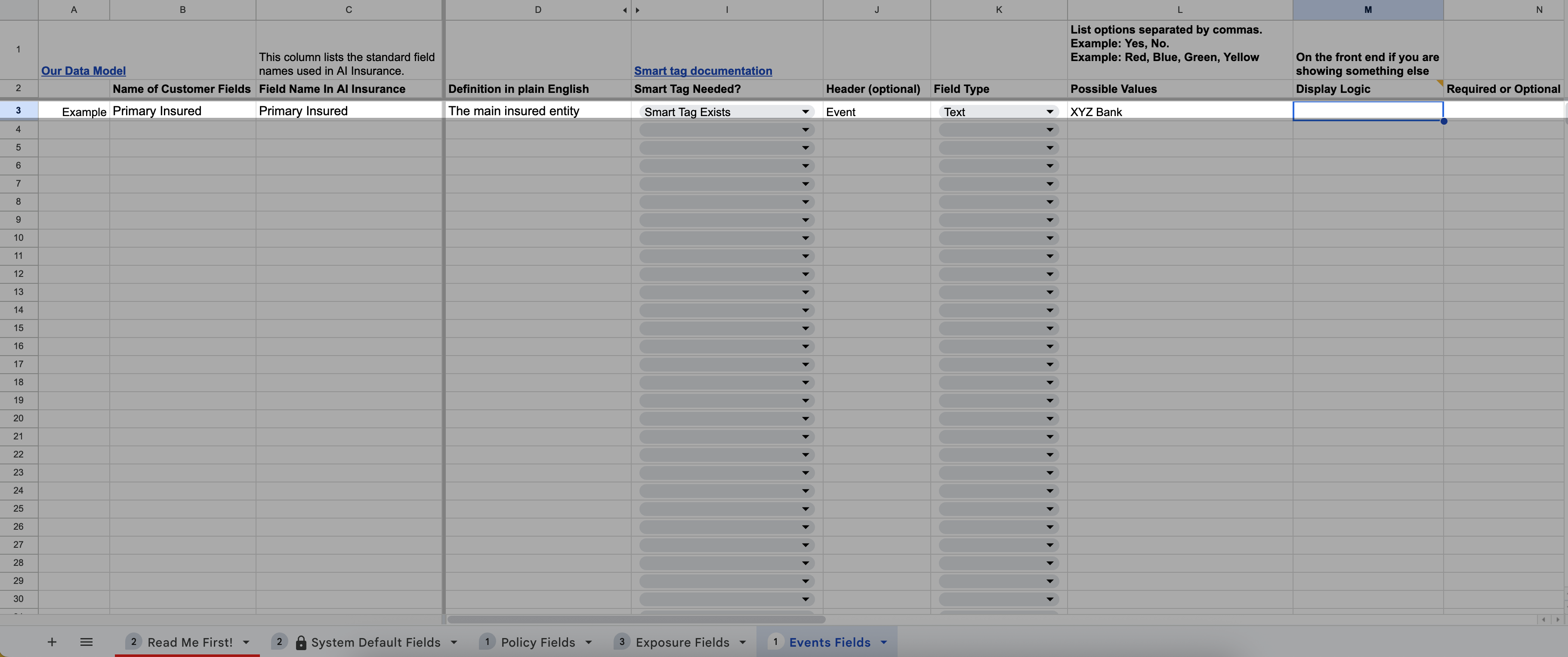
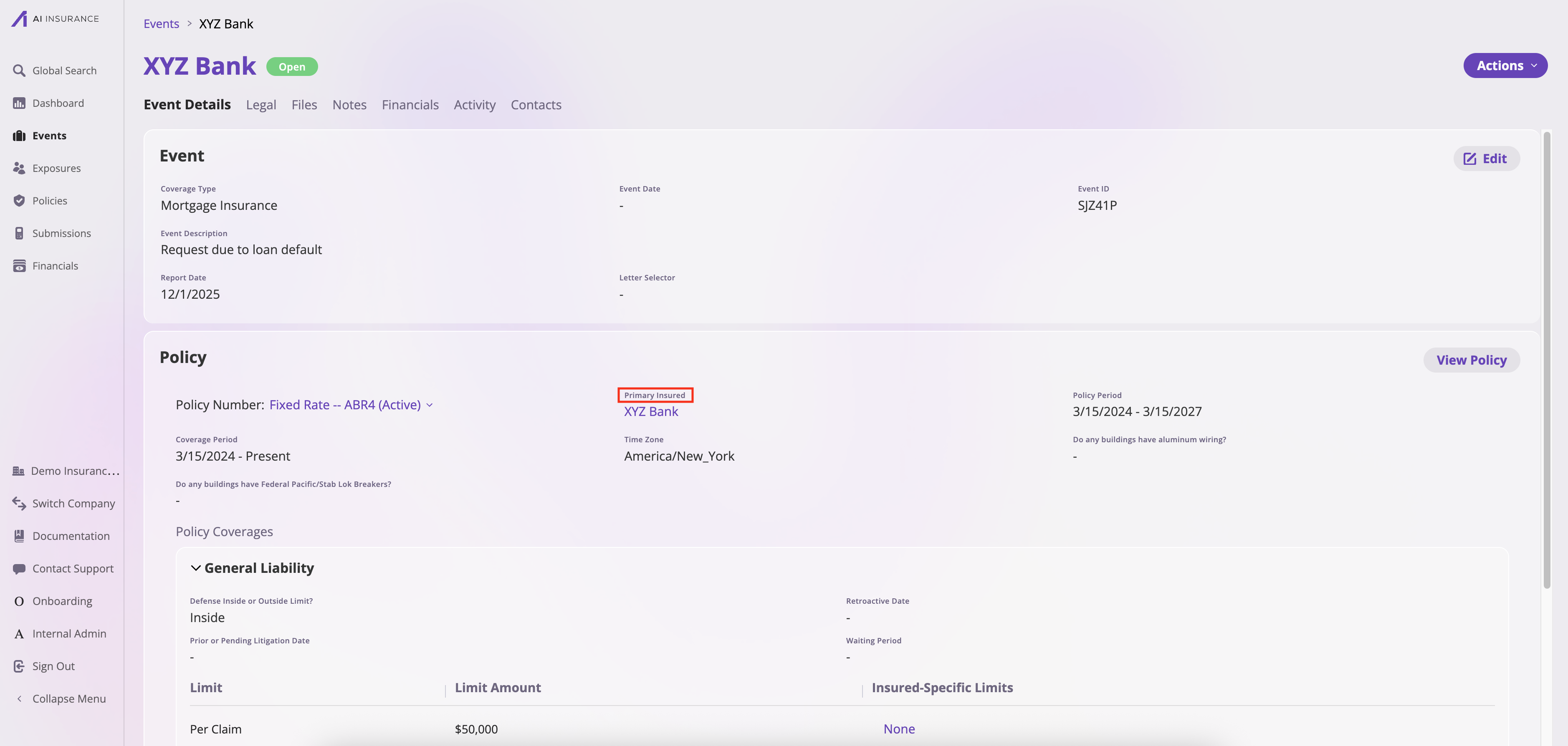
Tip: If you have questions about what a specific column is for, check the comments in the header row of each tab. These comments provide detailed explanations for each column’s purpose and requirements.
Step 2: How to Fill Out Each Tab
This section provides detailed instructions on how to fill out each tab in the Field Data Model spreadsheet. For each tab, we will explain it column by column.- System Default Fields Tab
- Policy Fields Tab
- Exposure Fields Tab
- Event Fields Tab
The System Default Fields tab displays all the standard fields that already exist in the AI Insurance platform. This tab is for reference only—do not fill out or modify this tab. Understanding the columns in this tab will help you understand how to fill out the other tabs when adding custom fields.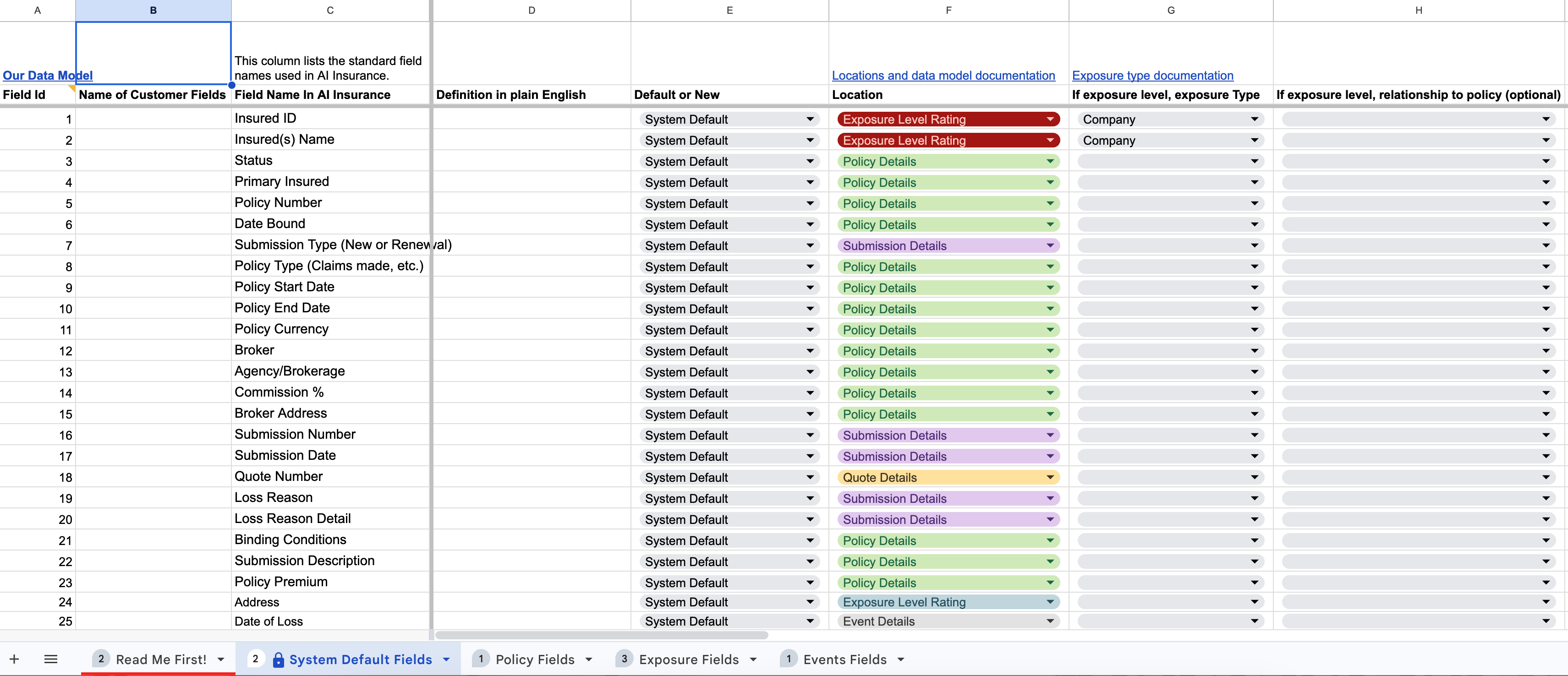
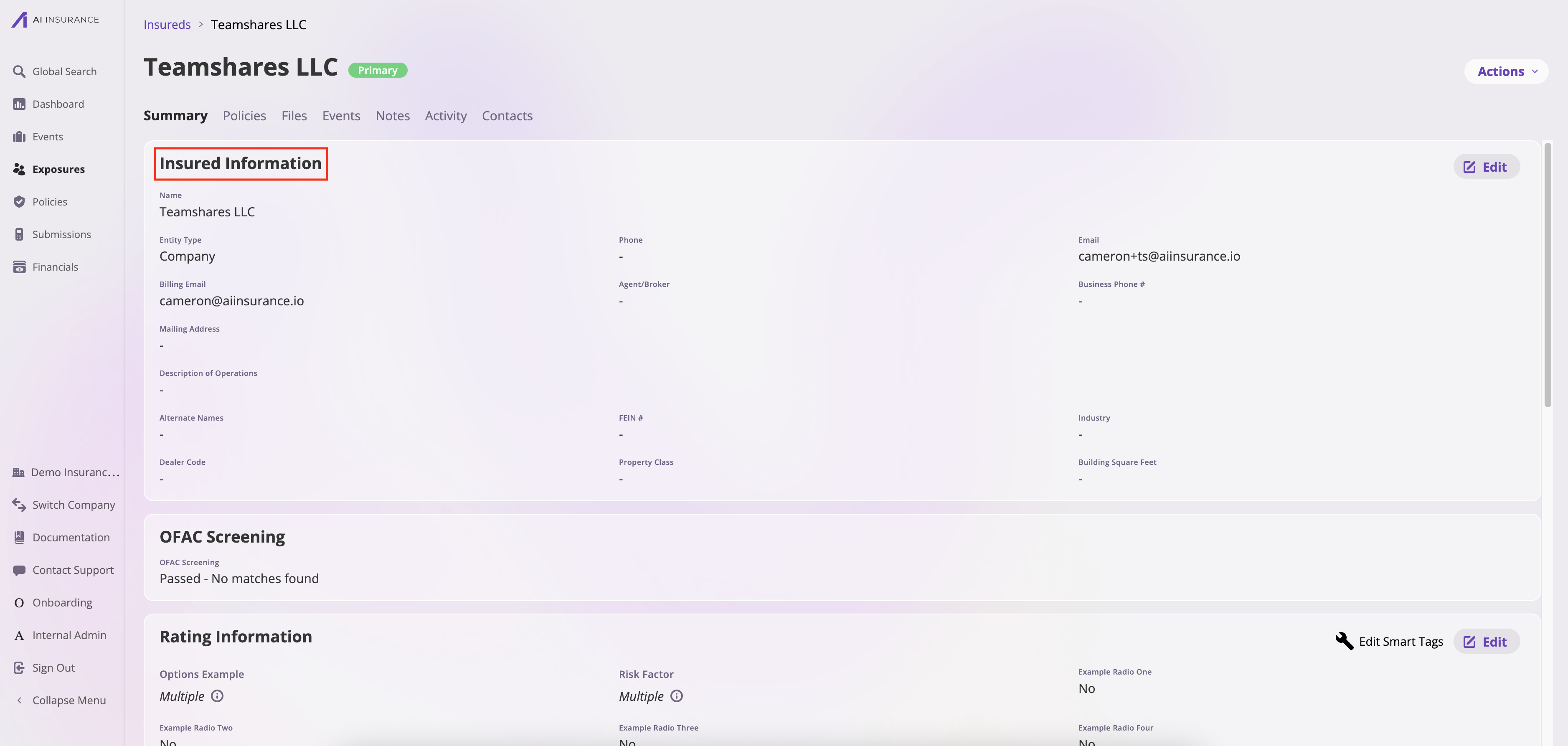
- Field ID: This is a sequential number assigned to each field for quick reference. Use this number when discussing specific fields with the AI Insurance team.
- Name of Customer Fields: This shows the name of the field as it appears in your existing data or system. This helps identify which of your fields corresponds to each AI Insurance standard field.
- Field Name In AI Insurance: This is the standard field name used in the AI Insurance platform. This is how the field will be displayed in your AI Insurance instance.
- Definition: This provides a plain English definition of what each field represents and how it’s used in the system.
- Default or New: In the System Default Fields tab, all fields are marked as “System Default”, indicating these are predefined fields that come standard with the platform. You do not need to add these fields again as custom fields.
-
Location: This indicates where the field is located in the AI Insurance data model. The location determines where the field appears and how it’s used in the application. You can select from the dropdown menu to see all available options. The available locations are:
- Policy Details: Information that applies to the entire policy—regardless of how many items (or “exposures”) it covers. This is like the cover sheet of the folder—it applies to everything inside. Policy details is information that is NOT used for rating.
- Policy Ratings: Information that applies to the entire policy but IS used for rating.
- Exposure Level Rating: For information at the exposure level (sometimes known as the risk or insured level). You can find the difference between policy vs. exposure level in the Understanding the AI Insurance Model documentation. This is always a rating field, so you need to tell us which entity types the exposure field applies to. For more info on what entity types are, see the Exposure Type documentation.
- Submission Details: Information that goes into a submission but NOT a policy. If it also goes into a policy, use Policy Details instead.
- Quote Details: Information that goes into a quote but NOT a policy. If it also goes into a policy, use Policy Details instead.
- Event Details: For information for operational records such as claims or incidents.
-
If exposure level, exposure Type: This is only relevant when the Location is set to “Exposure Level Rating”. An entity type refers to the classification of exposures covered under an insurance policy based on their roles, characteristics, or exposure profiles. These classifications help determine the nature of coverage, exposure assessment, and premium calculation.
For example, consider a company providing comprehensive insurance to a hospital. This insurance covers not only the hospital itself but also the doctors working within it and potentially the hospital’s vehicles. In this scenario, the hospital might have an entity type of Company, the doctors an entity type of Healthcare Provider, and the vehicles an entity type of Auto.
Common entity types include:
- Company: For organizational entities
- Healthcare Provider: For medical professionals
- Property: For physical properties or locations
- Auto: For vehicles
- Location: For specific geographic locations
-
If exposure level, relationship to policy (optional): This is optional and is only relevant when the Location is set to “Exposure Level Rating”. This defines the relationship between the exposure and the policy, helping to clarify how the exposure relates to the overall policy structure.
Use the dropdown box to select the appropriate relationship type. Available options include:
- First Named Insured: The primary insured party listed first on the policy
- Named Insured: A party specifically named in the policy
- Additional Insured: A party added to the policy who receives coverage under the policy
- Related Entity/Exposure: An entity or exposure that is related to the policy but may not be directly named
- Smart Tag Needed: If you would like a custom smart tag for this specific field to add information about it in your forms, select “Customer Smart Tag Needed”. Smart tags are variables that can be inserted into your forms to pull data from objects such as policies, insureds, or events. For more information about smart tags and how they work, see the Smart Tags documentation. For information about coverage-specific smart tags, see the Coverage Smart Tags documentation.
-
Header: The header is used to group related fields together to help organize the details. For example, if you want a group of basic policy detail fields to be under the header “Policy Detail”, you would place a header field here. Headers help organize fields into logical sections, making it easier to navigate and manage related information.
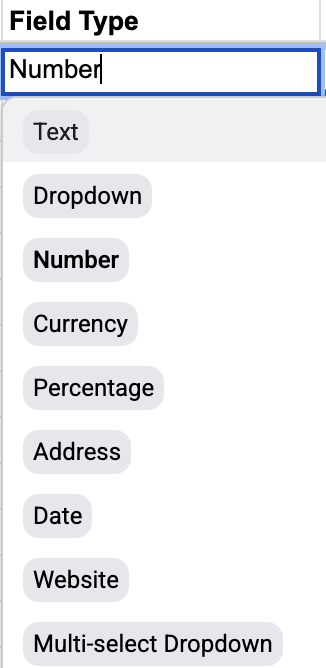
- Field Type: The field type determines how each field is presented and what kind of data it accepts.
- Text: Free-form text input. Example: “ABC Insurance Company” or “Medical Professional Liability”
-
Number: Numeric values. Example:
123421(policy number) or5000(quantity) -
Currency: Monetary values. Example:
$1,000.00orUSD 50,000 -
Percentage: Percentage values. Example:
12.5%or5% -
Date: Date values. Example:
01/15/2024or12/31/2025 -
Address: Address information. Example:
123 Main St, New York, NY 10001 -
Website: URL or website links. Example:
https://example.comorwww.company.com - Dropdown: Single selection from a list. Example: Select “Active” from [Active, Inactive, Pending]
- Multi-select Dropdown: Multiple selections from a list. Example: Select “General Liability” and “Property” from coverage options
-
Possible Values: Provide an example value that demonstrates what data would be entered in this field. This serves as a reference to help understand the expected input format and content.
Example: If the field is called “Insured ID” and it’s a number field, the possible value would be
123123123. If it’s a text field called “Company Name”, the possible value might beABC Insurance Company. -
Display Logic: AI Insurance supports the following display logic options:
- Conditional Field Display: If field 1 equals X, show field Y. Multiple conditions can be combined using AND and OR operators.
- Default Values: Set default values for fields, including default values based on other fields. For example, if field X equals a specific value, pre-fill field Y with a corresponding value.
- Validation Logic: Define numerical range validation. For example, a field must fall within a specific numerical range (e.g., between 0 and 100).
- Export Required: This section indicates whether this field is required when exporting policies, events, or exposures. Specify if the field should be included in exports by default. For more information about adding fields for export, see the Export Customization and Configuration documentation.
Step 3: Review and Submit the Spreadsheet
Once you have completed filling out the Field Data Model spreadsheet:- Review the spreadsheet to ensure all information is accurate and complete
- Send it back to the onboarding team via the designated channel (typically Rocketlane)
- Schedule a meeting with the onboarding team to review your field mapping and move forward with the configuration