> ## Documentation Index
> Fetch the complete documentation index at: https://docs.aiinsurance.io/llms.txt
> Use this file to discover all available pages before exploring further.
# Create a Submission with the Submission Parsing feature
Another way to add a Submission to the platform is the Submission Parsing feature. With Submission Parsing, you can forward a submission via email, and AI Insurance will automatically read and extract the information from the email to create a submission.
To use the Submission Parsing feature:
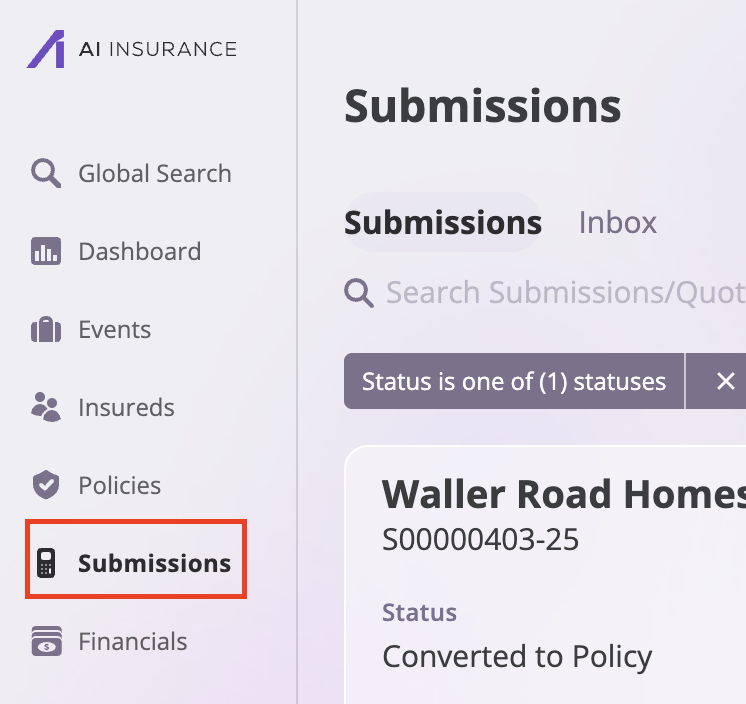
1. Navigate to the **Submissions** page by clicking the **Submissions** tab on the sidebar.
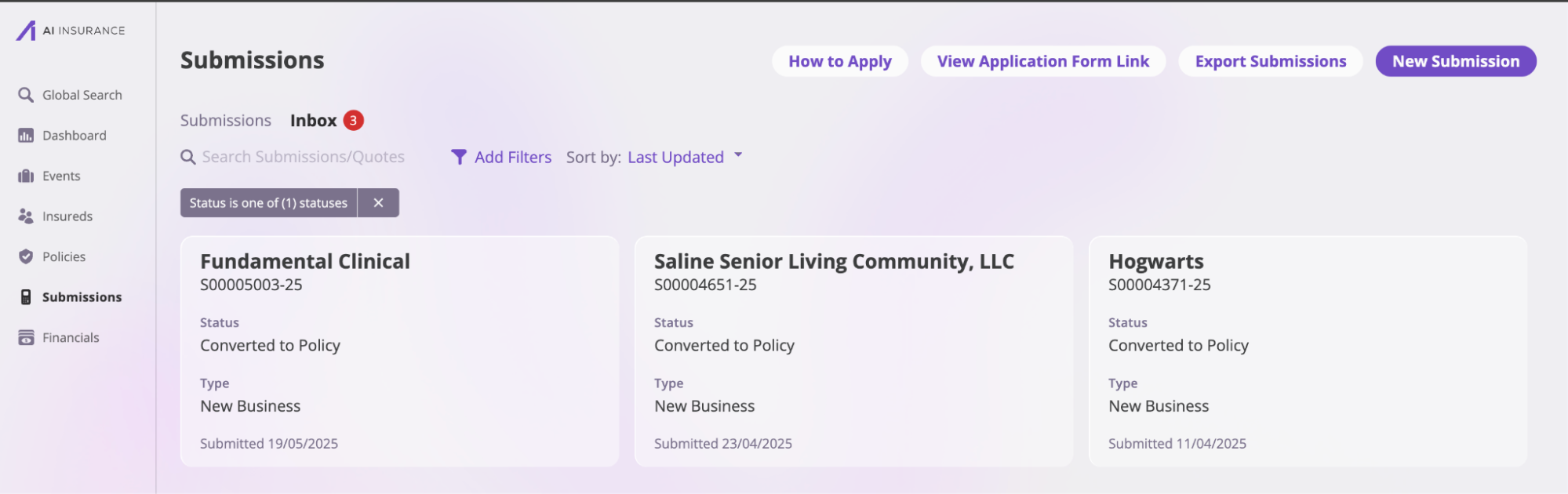
 2. Click the **Inbox** tab on the Submissions page.
 3. Select the **How to Apply** button to get the email address where you'll send your submission.
 4. Copy the email address from the **How to Apply** modal.
 5. Send your submission email to that address. A draft submission will appear in your inbox.
 6. Select the draft submission, review it, and make any necessary edits.
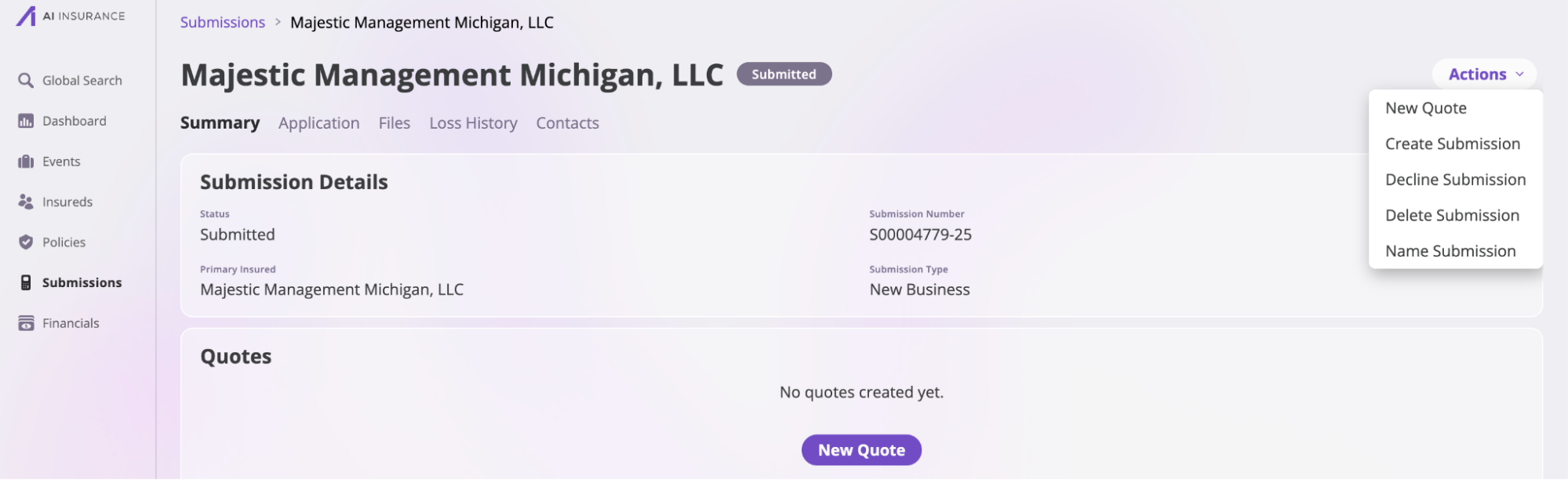
Once you’ve reviewed the draft, you can choose to either create an official Submission, decline it, or delete the draft. To do this:
1. Select the newly created draft.
2. Navigate to the **Actions** tab and choose one of the following options: **New Quote**, **Create Submission**, **Decline Submission**, or **Delete Submission**.
6. Select the draft submission, review it, and make any necessary edits.
Once you’ve reviewed the draft, you can choose to either create an official Submission, decline it, or delete the draft. To do this:
1. Select the newly created draft.
2. Navigate to the **Actions** tab and choose one of the following options: **New Quote**, **Create Submission**, **Decline Submission**, or **Delete Submission**.