> ## Documentation Index
> Fetch the complete documentation index at: https://docs.aiinsurance.io/llms.txt
> Use this file to discover all available pages before exploring further.
# Bind a Quote to Policy
This guide explains how to convert a finalized quote into a bound policy. The process involves navigating from a submission, reviewing quote details, entering policy information, selecting forms, and confirming the binding.
## 1. Locate the Submission
* On the left sidebar, select **Submissions**.
* Find and open the desired submission.
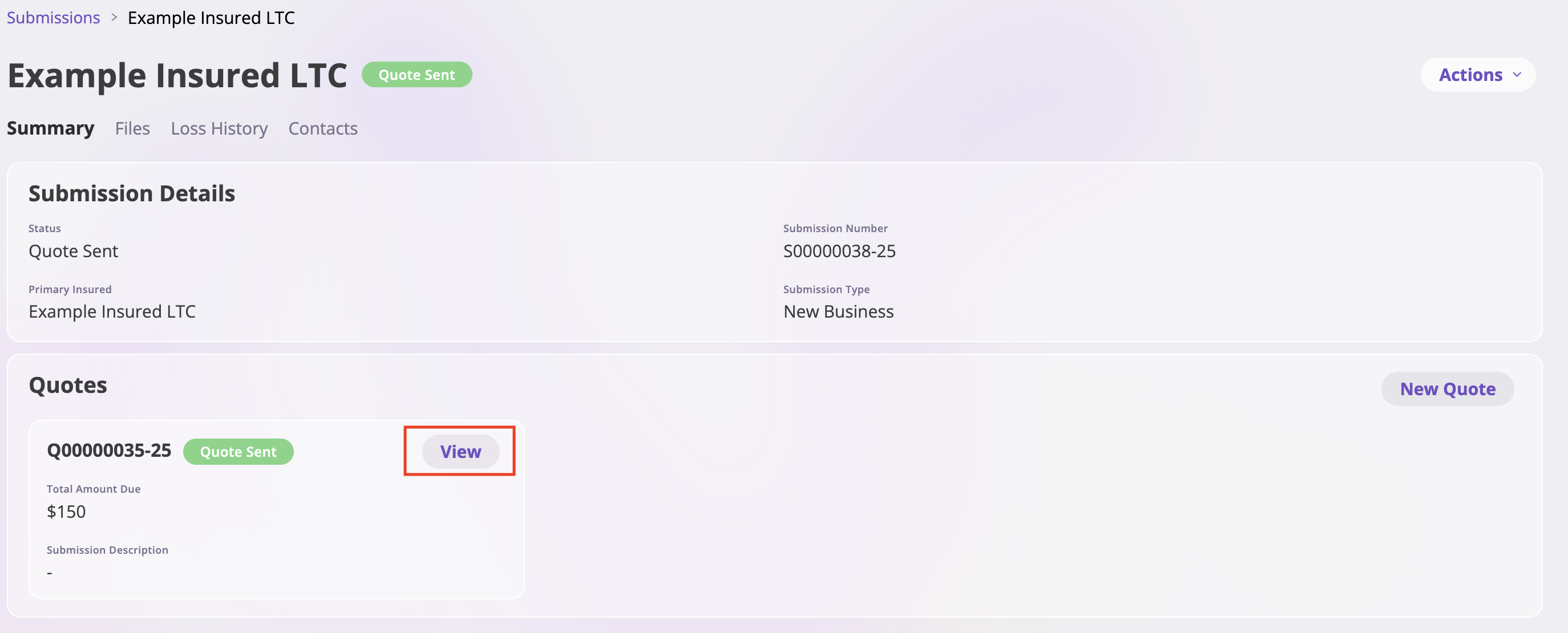
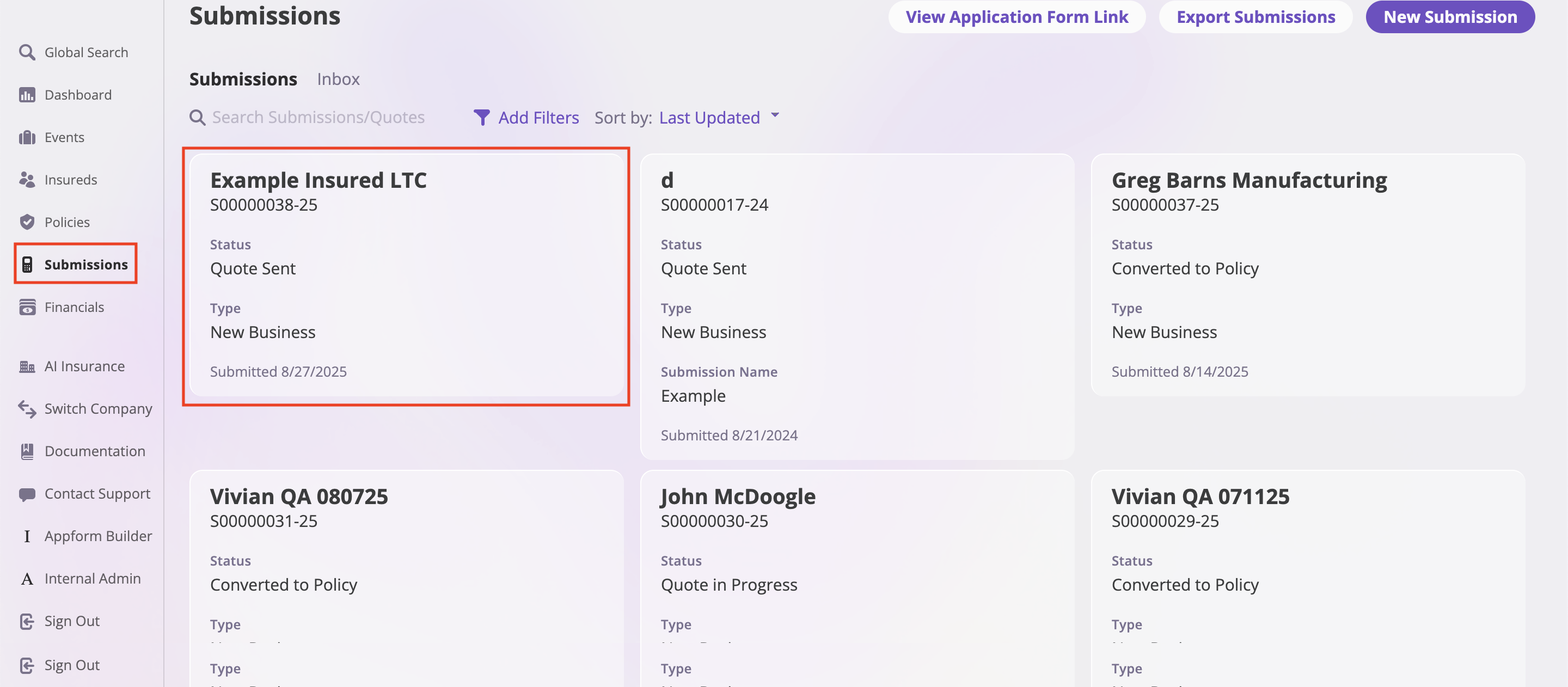 * Within the submission page, locate the **Quote** section.
* Click **View** on the quote you want to bind into a policy.
* Within the submission page, locate the **Quote** section.
* Click **View** on the quote you want to bind into a policy.
 ## 2. Start Binding
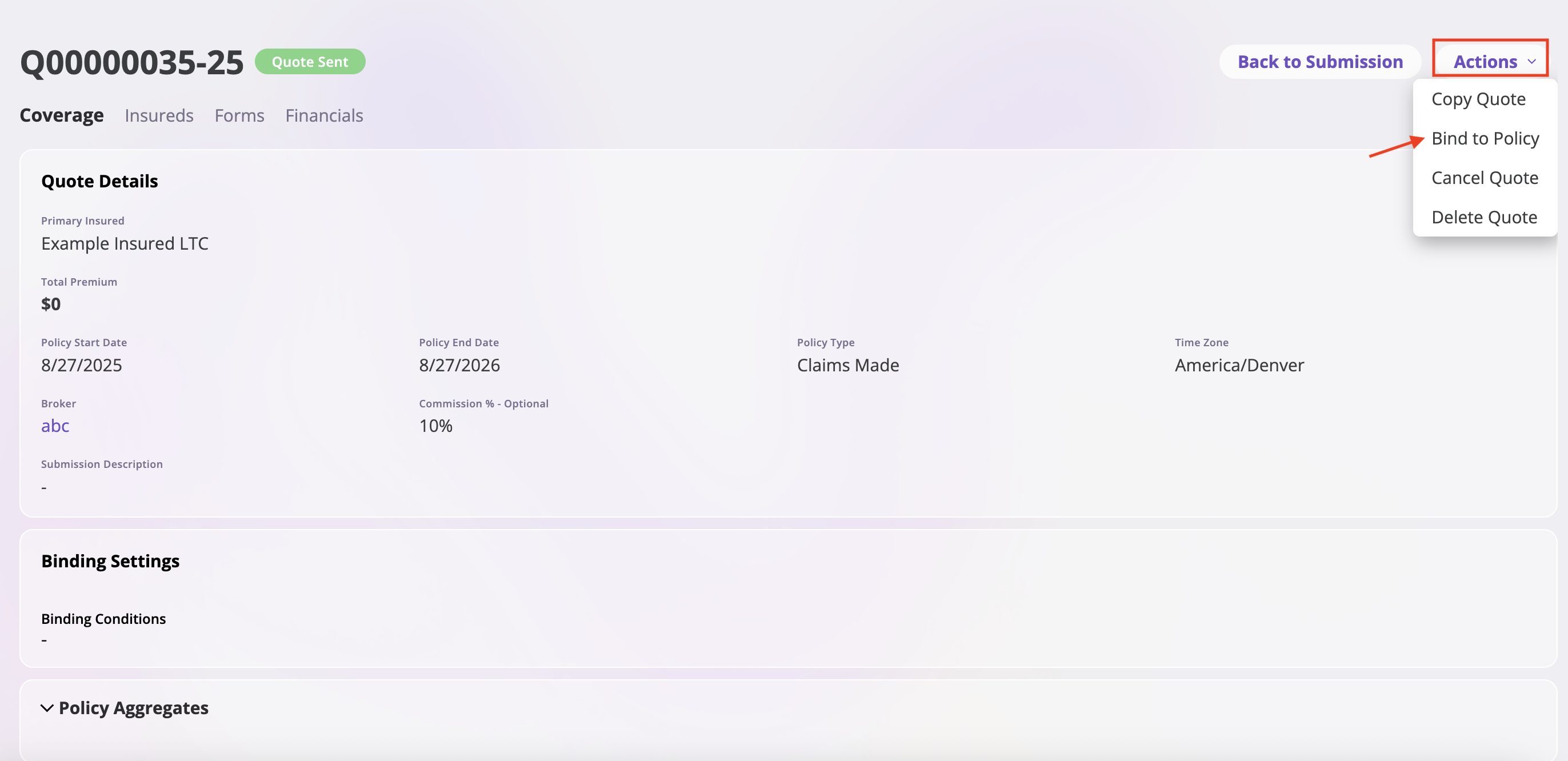
* Once inside the quote view, go to the **top-right corner**.
* Click **Actions** → **Bind into Policy** from the dropdown menu.
## 2. Start Binding
* Once inside the quote view, go to the **top-right corner**.
* Click **Actions** → **Bind into Policy** from the dropdown menu.
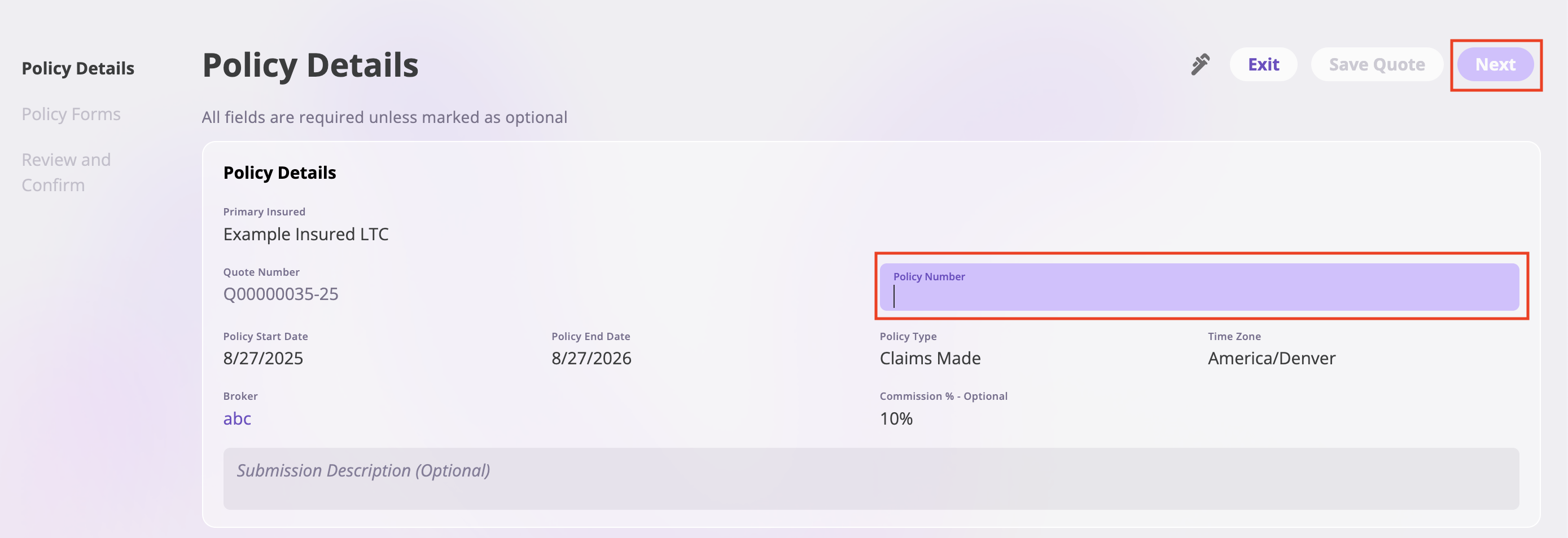
 ## 3. Policy Details Page
You will first be taken to the **Policy Details** page.
* Enter the **Policy Number** in the provided field.
* Click **Next** in the top-right corner to proceed.
## 3. Policy Details Page
You will first be taken to the **Policy Details** page.
* Enter the **Policy Number** in the provided field.
* Click **Next** in the top-right corner to proceed.
 ## 4. Policy Forms Page
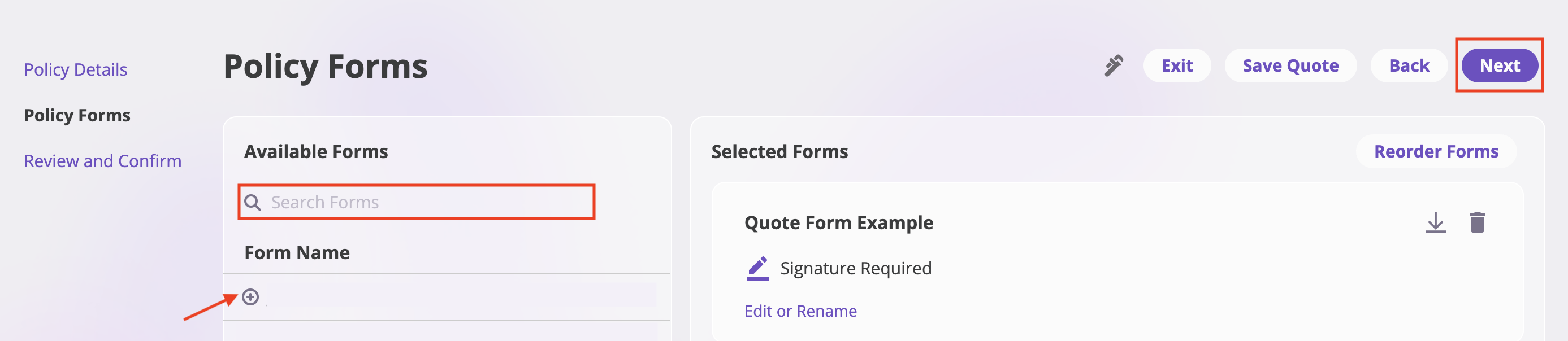
On the **Policy Forms** page:
* Select or search the form(s) you want to include in the policy.
* The selected form(s) will appear on the right-hand side.
* You can rename or reorder forms if needed.
* **Edit or download the documents** to view them before binding:
* Use the **Edit** option to modify form details or rename forms.
* Use the **download icon** (downward arrow) to download and review documents before finalizing the binding.
* Preview forms using the view icon in the Available Forms section.
* Once done, click **Next**.
## 4. Policy Forms Page
On the **Policy Forms** page:
* Select or search the form(s) you want to include in the policy.
* The selected form(s) will appear on the right-hand side.
* You can rename or reorder forms if needed.
* **Edit or download the documents** to view them before binding:
* Use the **Edit** option to modify form details or rename forms.
* Use the **download icon** (downward arrow) to download and review documents before finalizing the binding.
* Preview forms using the view icon in the Available Forms section.
* Once done, click **Next**.
 ## 5. Review and Confirm Page
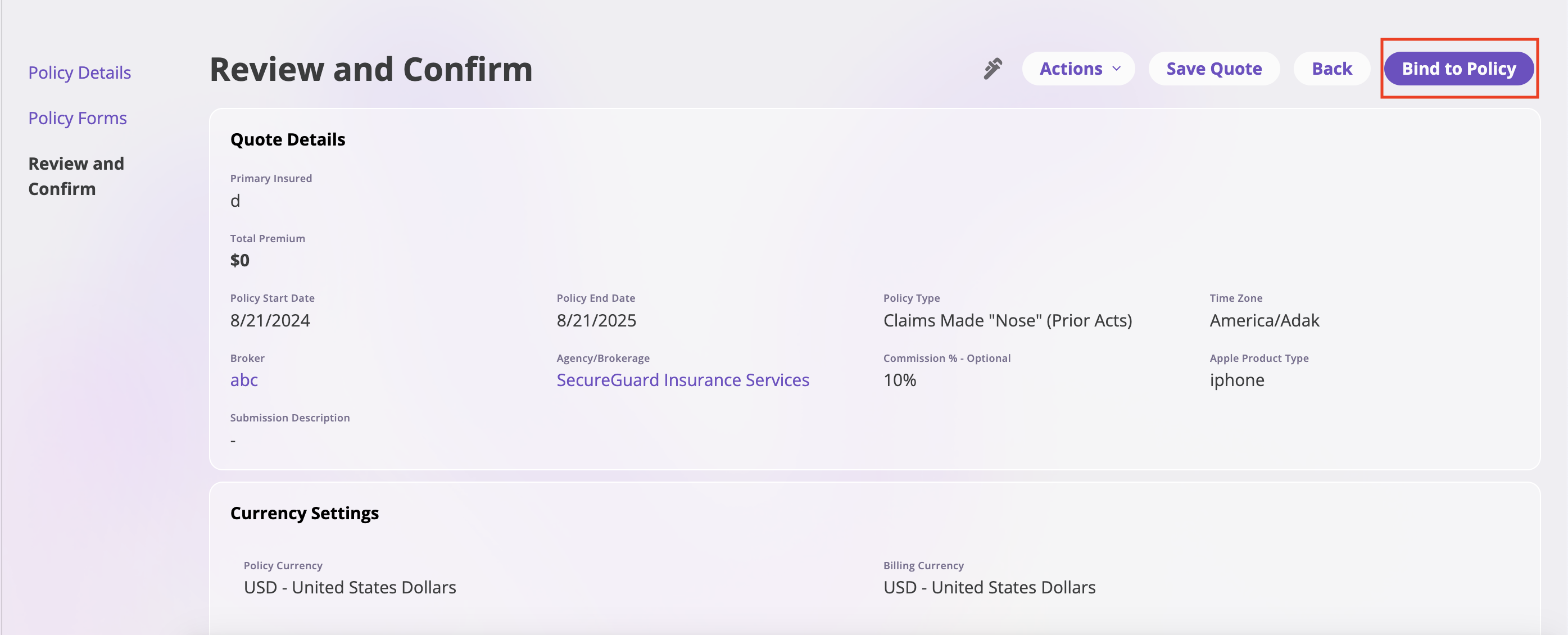
Finally, you will arrive at the **Review and Confirm** page.
* Review all details carefully:
* Primary Insured
* Policy Dates
* Broker / Agency
* Policy Type
* Currency Settings
* Underwriting Workbench (premium, fees, taxes, total amount due)
* Ensure everything is accurate.
## 5. Review and Confirm Page
Finally, you will arrive at the **Review and Confirm** page.
* Review all details carefully:
* Primary Insured
* Policy Dates
* Broker / Agency
* Policy Type
* Currency Settings
* Underwriting Workbench (premium, fees, taxes, total amount due)
* Ensure everything is accurate.
 ## 6. Bind a Quote to a Policy
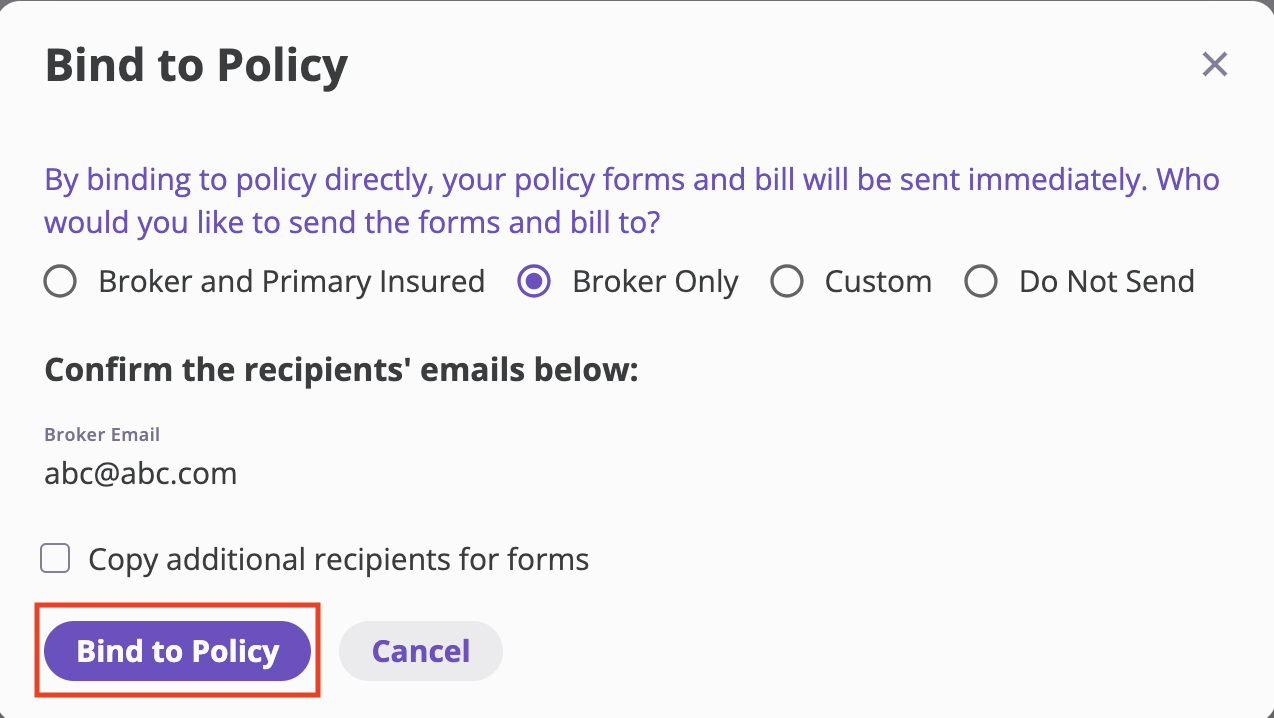
When you click **Bind to Policy**, a confirmation pop-up will appear.
Here you must configure how policy forms and billing information are sent:
* **Broker and Primary Insured** → Sends the policy forms and bill to both the broker and the insured.
* **Broker Only** → Sends only to the broker.
* **Custom** → Allows you to define custom recipients.
* **Do Not Send** → No forms or billing are sent out automatically.
You will also need to:
* Confirm the **Broker Email** (displayed by default).
* Optionally check **Copy additional recipients for forms** to include other recipients.
Once everything is set, click **Bind to Policy** to finalize the binding.
## 6. Bind a Quote to a Policy
When you click **Bind to Policy**, a confirmation pop-up will appear.
Here you must configure how policy forms and billing information are sent:
* **Broker and Primary Insured** → Sends the policy forms and bill to both the broker and the insured.
* **Broker Only** → Sends only to the broker.
* **Custom** → Allows you to define custom recipients.
* **Do Not Send** → No forms or billing are sent out automatically.
You will also need to:
* Confirm the **Broker Email** (displayed by default).
* Optionally check **Copy additional recipients for forms** to include other recipients.
Once everything is set, click **Bind to Policy** to finalize the binding.