> ## Documentation Index
> Fetch the complete documentation index at: https://docs.aiinsurance.io/llms.txt
> Use this file to discover all available pages before exploring further.
# View Policies
To view all the policies in your organization, navigate to the **Policies** page by clicking the **Policies** tab on the sidebar to open up its designated **Policies** page.
## Filter and sort policies
On this page, you will see all your policies, and you can search through them using the search bar at the top of the page. You can sort the policies by: **Alphanumeric increasing**, **Alphanumeric decreasing**, **Recently Modified**, **Time Until Renewal**, and **Time Since Start**.
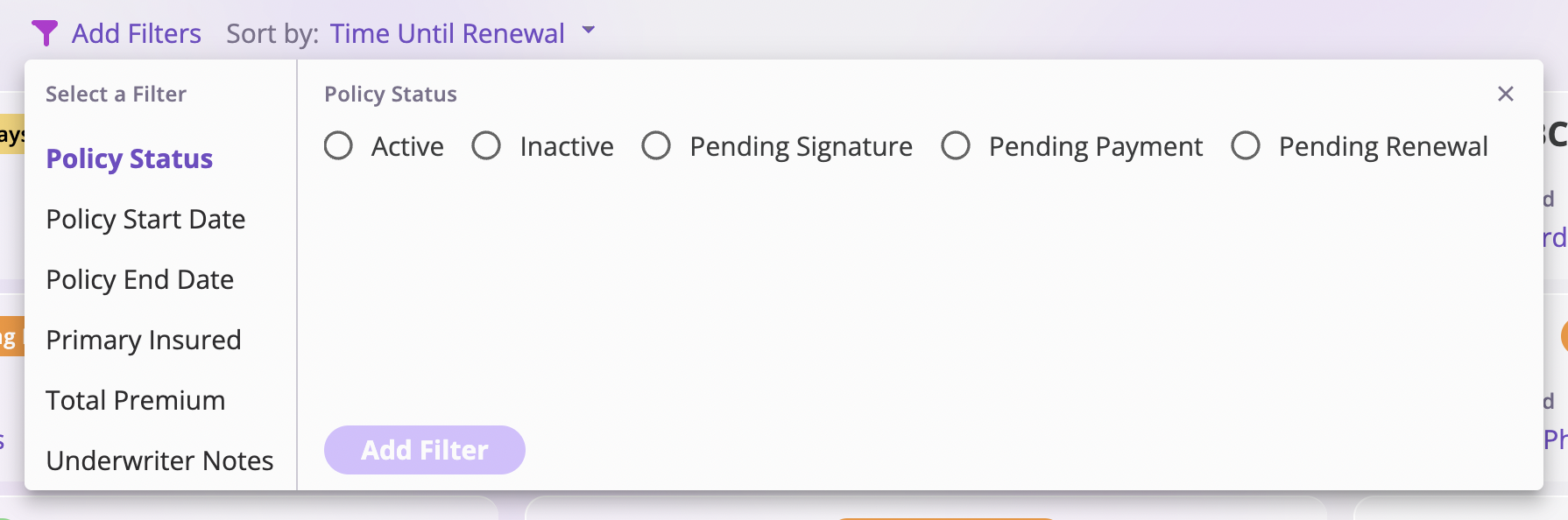
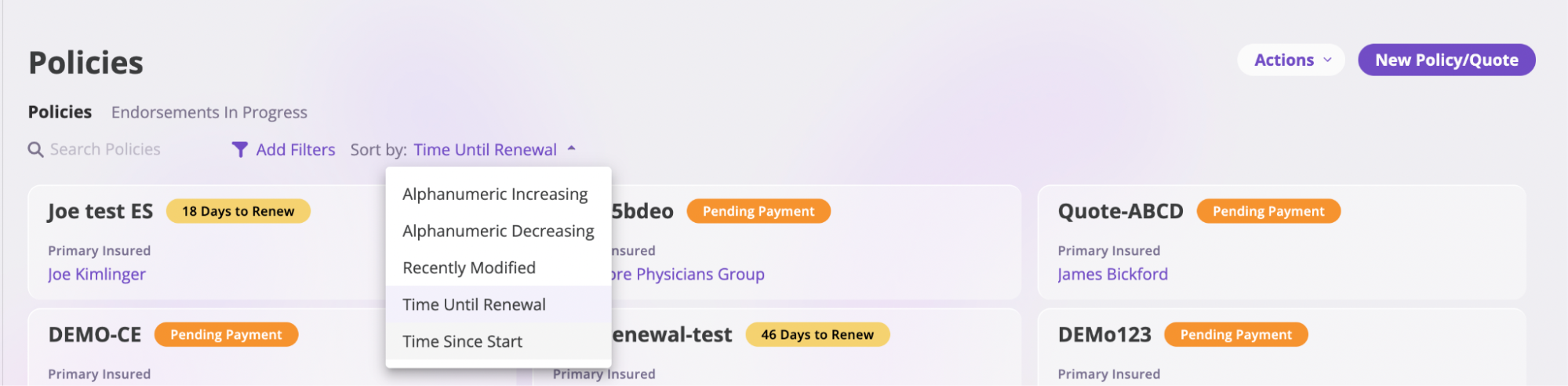 Additionally, you can filter through the policies page by different filters, such as:
* **Policy Status**: This filter filters the list of policies by their current status; a policy can have one of the following statuses: **Active**, **Cancelled**, **Renewed**, **Expired**, **Not Started**, **Pending Signature**, **Pending Payment**, and **Pending Renewal.**
* **Policy Start Date**: This filter helps you find only the policies created **On**, **Before**, or **After** a stipulated date.
* **Policy End Date**: This filter helps you filter and get only the policies that ended **On**, **Before**, or **After** a stipulated date.
* **Primary Insured**: This filter helps you get only the policies that either **Match**, **Contain**, or **do not Contain** a specified insured.
* **Total Premium**: This filter helps you filter and get only the policies that either **Equals**, **Is Less Than**, or **Is More Than** a stipulated premium amount.
* **Underwriter Notes**: This filter helps you filter and get only the policies that either **Matches**, **Contains**, or **Does not Contain** a specified underwriter note.
Additionally, you can filter through the policies page by different filters, such as:
* **Policy Status**: This filter filters the list of policies by their current status; a policy can have one of the following statuses: **Active**, **Cancelled**, **Renewed**, **Expired**, **Not Started**, **Pending Signature**, **Pending Payment**, and **Pending Renewal.**
* **Policy Start Date**: This filter helps you find only the policies created **On**, **Before**, or **After** a stipulated date.
* **Policy End Date**: This filter helps you filter and get only the policies that ended **On**, **Before**, or **After** a stipulated date.
* **Primary Insured**: This filter helps you get only the policies that either **Match**, **Contain**, or **do not Contain** a specified insured.
* **Total Premium**: This filter helps you filter and get only the policies that either **Equals**, **Is Less Than**, or **Is More Than** a stipulated premium amount.
* **Underwriter Notes**: This filter helps you filter and get only the policies that either **Matches**, **Contains**, or **Does not Contain** a specified underwriter note.
 ## View a Policy
To view information on a specific policy, search through the list of policies and select to open the specific policy.
### Policy Status
Previously, policies that had not yet started and policies that had already expired were both displayed as "Inactive", which made it unclear why a policy was not active.
This feature removes the generic "Inactive" status and replaces it with two explicit, time-based statuses:
* **Not Started** – shown when a policy's start date is in the future relative to the current date in the policy's timezone
* **Expired** – shown when a policy's end date is in the past relative to the current date in the policy's timezone
Policy status is now calculated using a clear priority order to ensure the most accurate state is always displayed:
**Cancelled → Active → Renewed → Expired → Not Started**
This change provides clearer visibility into a policy's lifecycle and removes ambiguity around non-active policies.
Depending on the status of the policy, a specific policy page will have all or some of these page sections, and here is what the sections do:
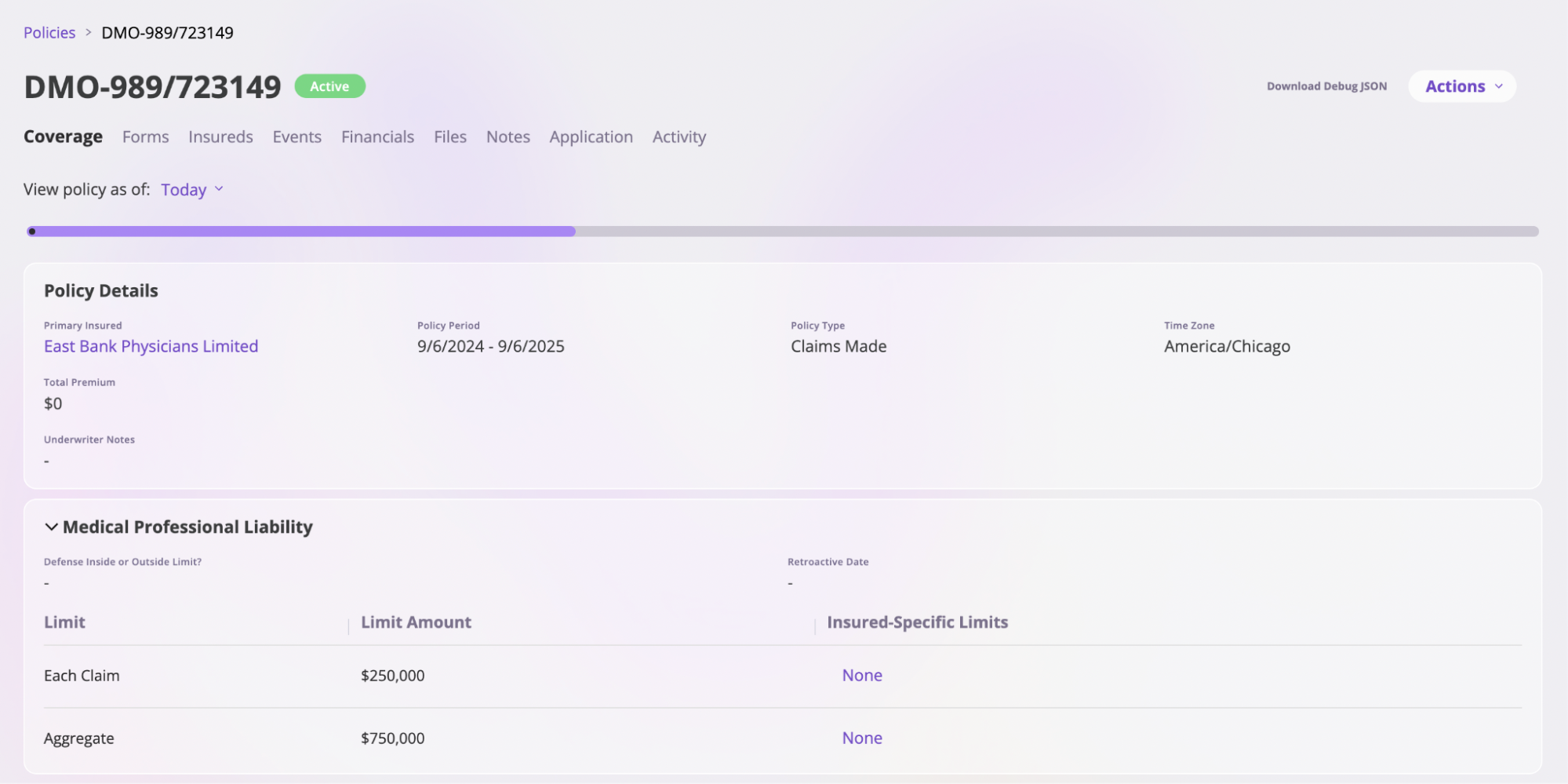
* **Coverage**: This section gives an overview of the policy and its Line of coverage. It is split into two sections: **Policy Details** and **Line of Coverage sections**. The Policy Details section describes the policy, including information like **primary insured**, **policy period**, **policy type**, **time zone**, and the **total premium**.
The Line of coverage specifies what type of coverage is in the policy, the policy limit types, and the limit amount. To change coverage limits, see the [Changing Coverage Limits](/policing/policy-management/changing-coverage-limits) documentation.
* **Forms**: This section displays all the forms associated with the policy.
* **Insureds**: This section displays all the insureds covered by the policy.
* **Events**: This section displays all the events that the policy had to take care of or cover, including incidents or claims.
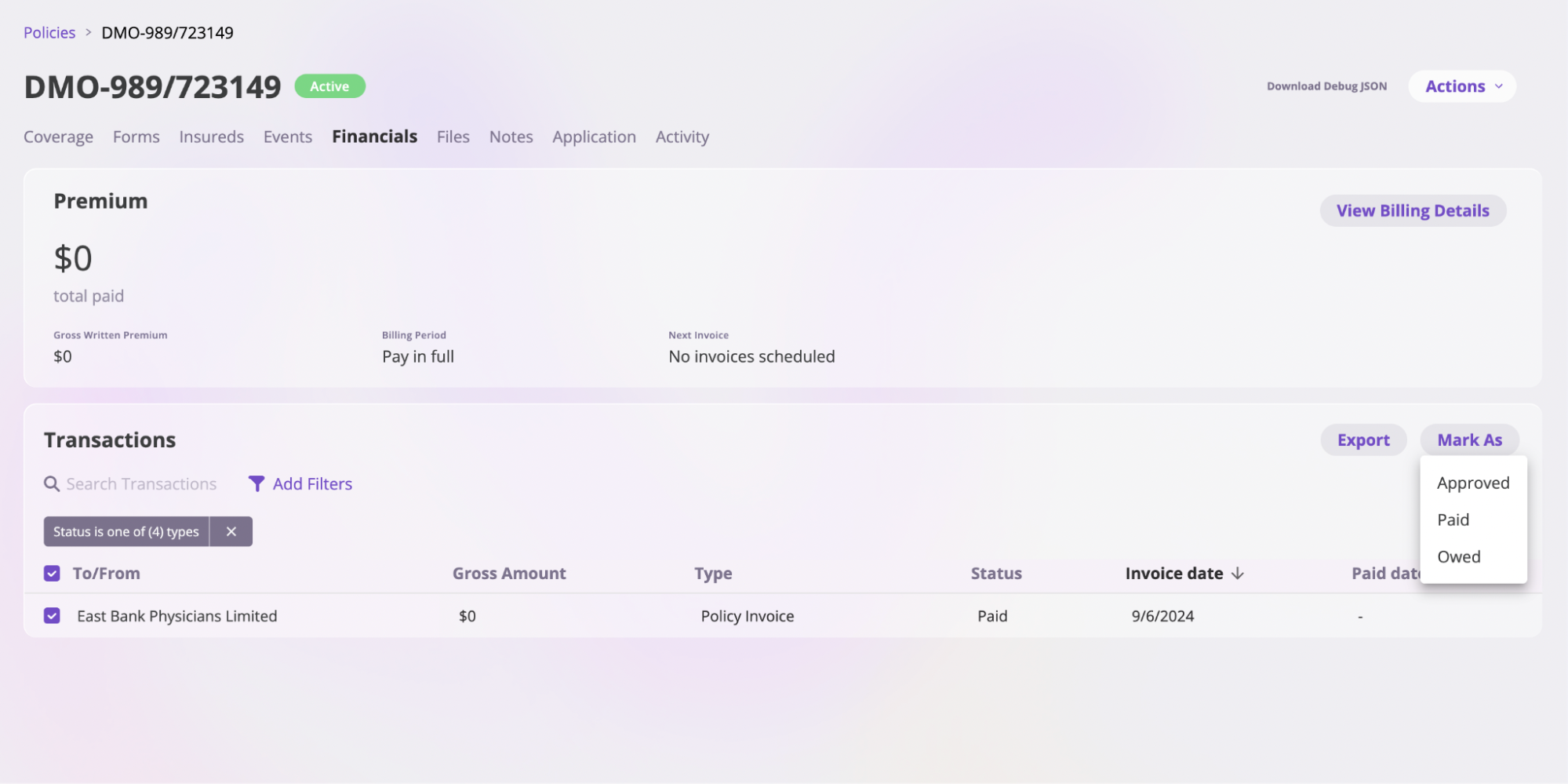
* **Financials**: This section shows all the transactions associated with this policy. This section is split into two: **Premium** and **Transactions**. In the Premium section you see the total amount of premium that has been paid on that policy, gross written premium, billing period, and the next scheduled invoice.
In the Transaction section, you can do the following:
* **Export transactions**: You can export the transactions on a policy by selecting the transactions you want to export and clicking the **Export** button. This action will open the **Export** modal. Select the items you want to export in this modal and click the **Finish Export** button.
* **Mark transactions**: You can mark transactions with the following statuses: **Approved**, **Paid**, or **Owed**. You can do this by selecting the transaction you want to mark, navigating to the **Mark As** dropdown at the top of the section, and selecting what status you would like to mark the transaction from the different options in the dropdown.
## View a Policy
To view information on a specific policy, search through the list of policies and select to open the specific policy.
### Policy Status
Previously, policies that had not yet started and policies that had already expired were both displayed as "Inactive", which made it unclear why a policy was not active.
This feature removes the generic "Inactive" status and replaces it with two explicit, time-based statuses:
* **Not Started** – shown when a policy's start date is in the future relative to the current date in the policy's timezone
* **Expired** – shown when a policy's end date is in the past relative to the current date in the policy's timezone
Policy status is now calculated using a clear priority order to ensure the most accurate state is always displayed:
**Cancelled → Active → Renewed → Expired → Not Started**
This change provides clearer visibility into a policy's lifecycle and removes ambiguity around non-active policies.
Depending on the status of the policy, a specific policy page will have all or some of these page sections, and here is what the sections do:
* **Coverage**: This section gives an overview of the policy and its Line of coverage. It is split into two sections: **Policy Details** and **Line of Coverage sections**. The Policy Details section describes the policy, including information like **primary insured**, **policy period**, **policy type**, **time zone**, and the **total premium**.
The Line of coverage specifies what type of coverage is in the policy, the policy limit types, and the limit amount. To change coverage limits, see the [Changing Coverage Limits](/policing/policy-management/changing-coverage-limits) documentation.
* **Forms**: This section displays all the forms associated with the policy.
* **Insureds**: This section displays all the insureds covered by the policy.
* **Events**: This section displays all the events that the policy had to take care of or cover, including incidents or claims.
* **Financials**: This section shows all the transactions associated with this policy. This section is split into two: **Premium** and **Transactions**. In the Premium section you see the total amount of premium that has been paid on that policy, gross written premium, billing period, and the next scheduled invoice.
In the Transaction section, you can do the following:
* **Export transactions**: You can export the transactions on a policy by selecting the transactions you want to export and clicking the **Export** button. This action will open the **Export** modal. Select the items you want to export in this modal and click the **Finish Export** button.
* **Mark transactions**: You can mark transactions with the following statuses: **Approved**, **Paid**, or **Owed**. You can do this by selecting the transaction you want to mark, navigating to the **Mark As** dropdown at the top of the section, and selecting what status you would like to mark the transaction from the different options in the dropdown.
 * **Files**: This section holds all the files associated with a policy. Refer to the official [Files documentation](/platform/components/files) to learn more about the Files feature.
* **Notes**: This section holds all the notes associated with a policy. Refer to the official [Notes documentation](/platform/components/notes) to learn more about the Notes feature.
* **Application**: This section holds the application information submitted in request to be covered by a policy
* **Activity**: This section holds information on all the activities on the policy. Refer to the official [Activity documentation](/platform/components/activity-feed) to learn more about the activity feed.
* **Files**: This section holds all the files associated with a policy. Refer to the official [Files documentation](/platform/components/files) to learn more about the Files feature.
* **Notes**: This section holds all the notes associated with a policy. Refer to the official [Notes documentation](/platform/components/notes) to learn more about the Notes feature.
* **Application**: This section holds the application information submitted in request to be covered by a policy
* **Activity**: This section holds information on all the activities on the policy. Refer to the official [Activity documentation](/platform/components/activity-feed) to learn more about the activity feed.