> ## Documentation Index
> Fetch the complete documentation index at: https://docs.aiinsurance.io/llms.txt
> Use this file to discover all available pages before exploring further.
# Cancel a Policy
## How to Cancel a Policy
Follow these steps to cancel a policy in the system:
### Step 1: Navigate to the Policy
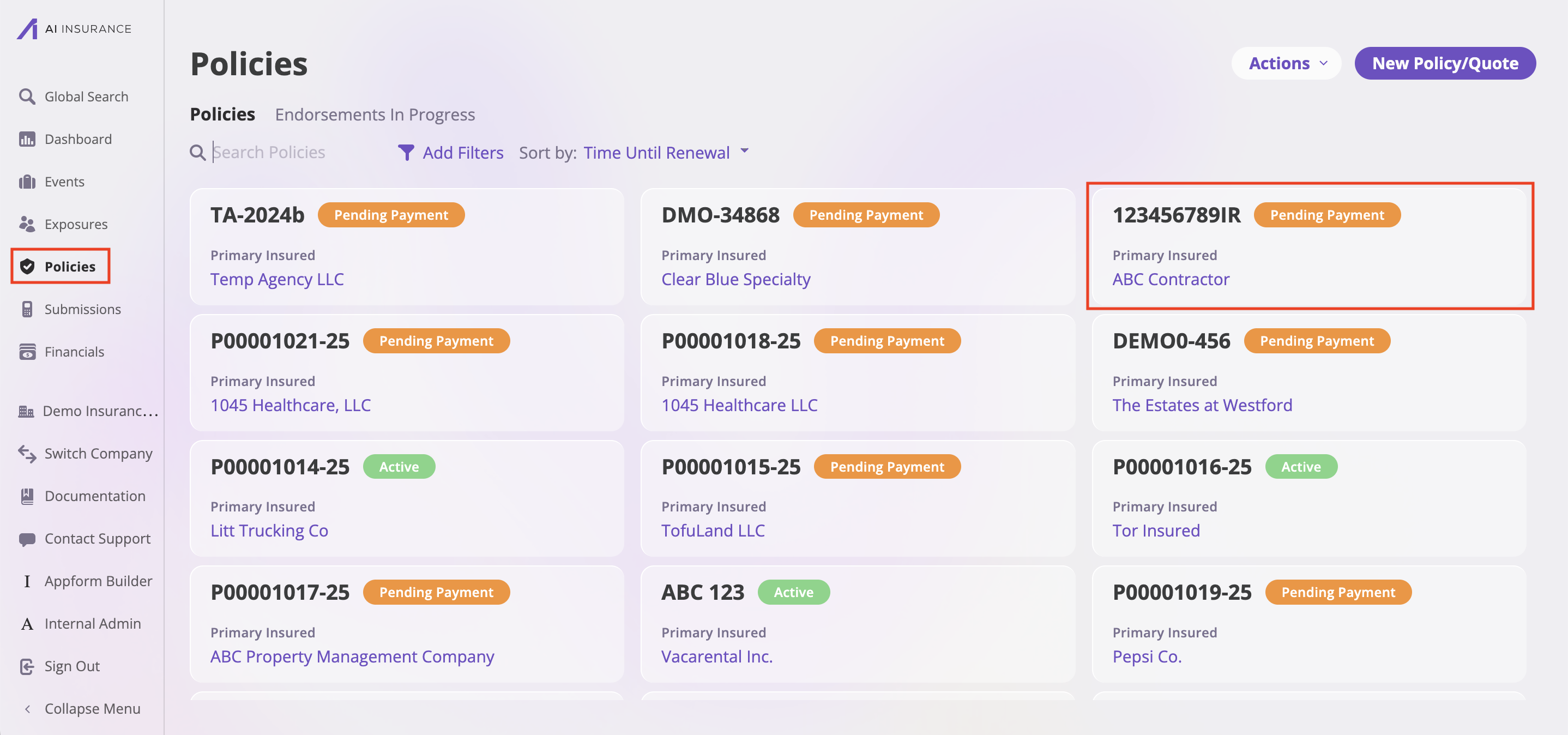
1. Select the **Policies** tab from the sidebar
2. Find and select the policy you would like to cancel
 ### Step 2: Access Cancel Action
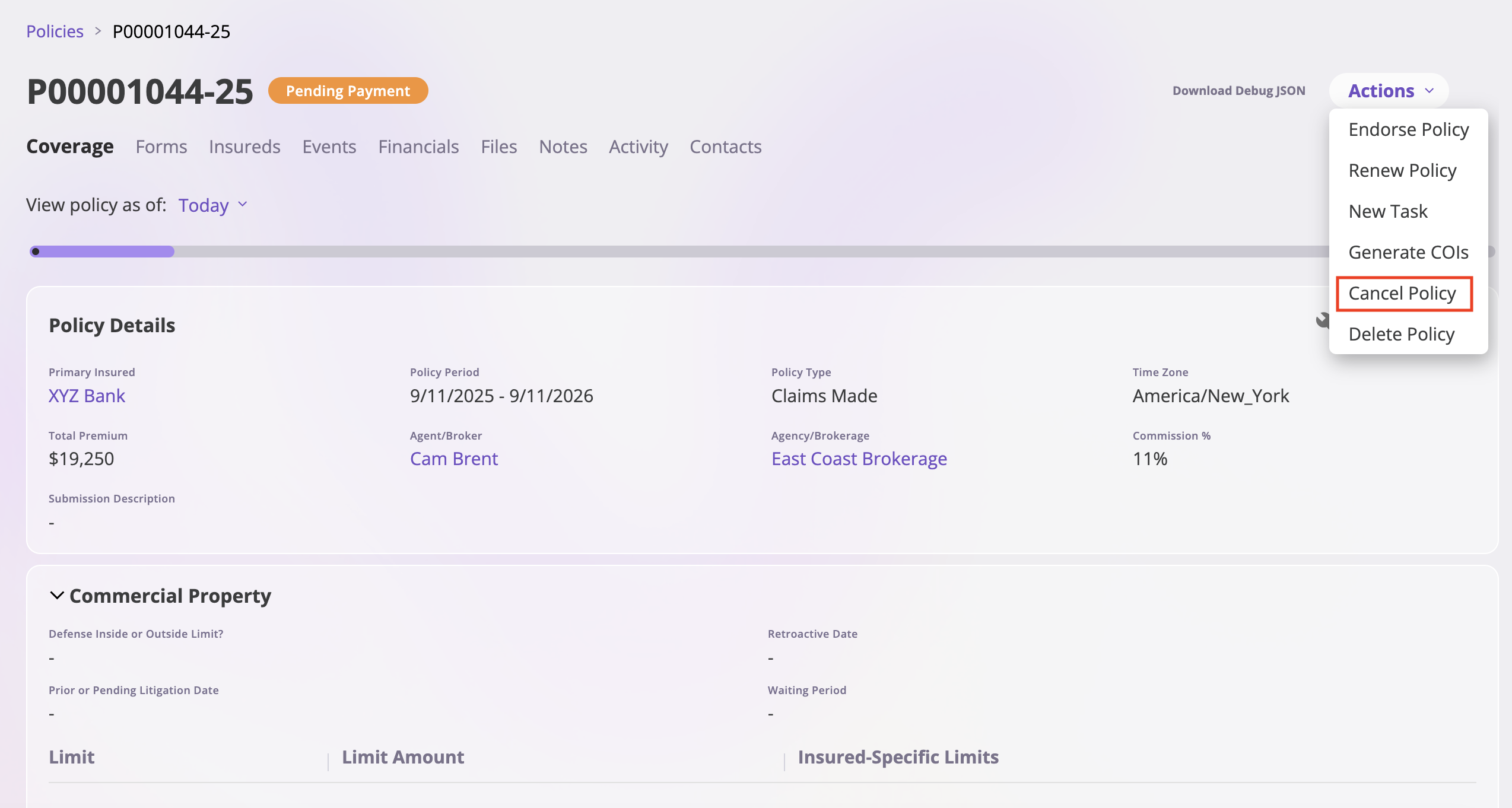
1. Click the **Actions** dropdown in the top right corner
2. Select **Cancel Policy** from the dropdown menu
### Step 2: Access Cancel Action
1. Click the **Actions** dropdown in the top right corner
2. Select **Cancel Policy** from the dropdown menu
 ### Step 3: Fill Out the Cancel Date Form
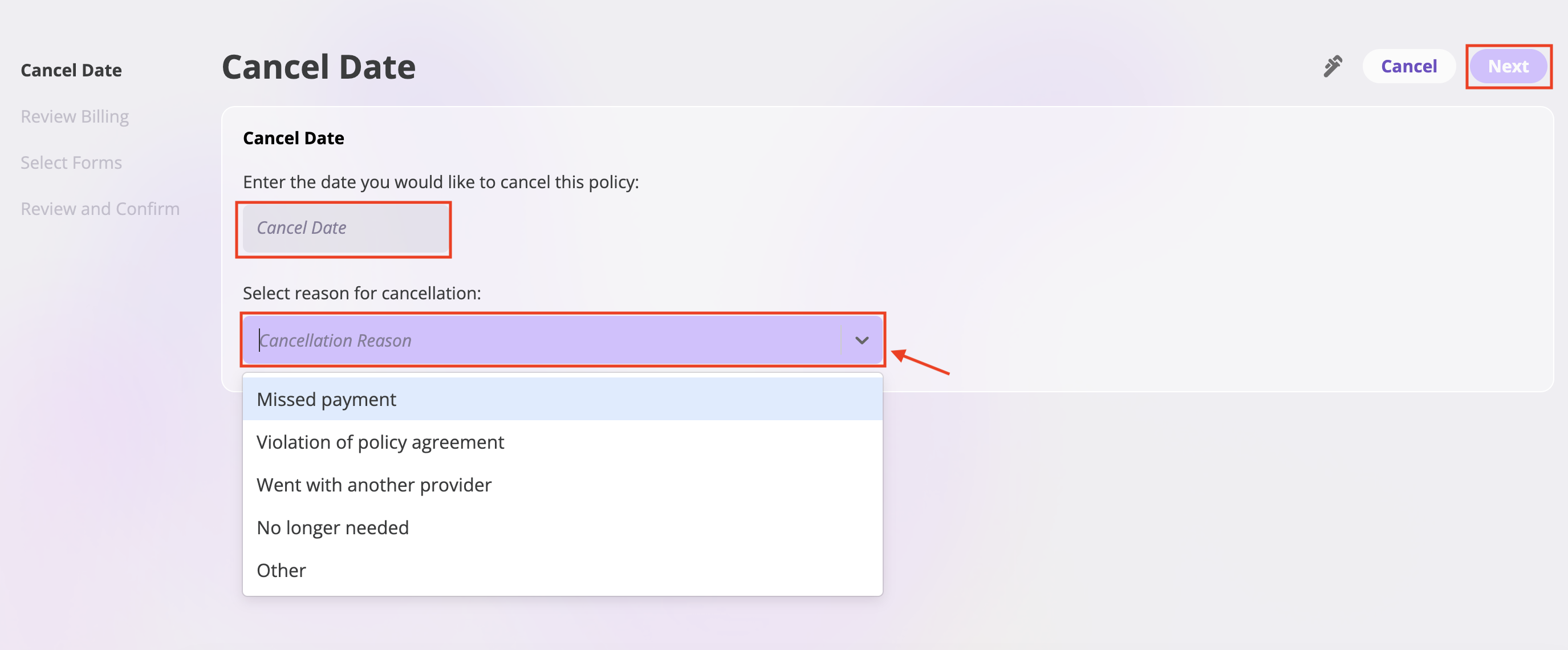
The system will open a "Cancel Date" form with the following steps:
#### Cancel Date Section
1. **Enter Cancel Date**
* Enter the date you would like to cancel this policy
* Use the date picker to select the cancellation date
2. **Select Cancellation Reason**
* Choose from the dropdown menu with the following options:
* **Missed payment**
* **Violation of policy agreement**
* **Went with another provider**
* **No longer needed**
* **Other**
### Step 3: Fill Out the Cancel Date Form
The system will open a "Cancel Date" form with the following steps:
#### Cancel Date Section
1. **Enter Cancel Date**
* Enter the date you would like to cancel this policy
* Use the date picker to select the cancellation date
2. **Select Cancellation Reason**
* Choose from the dropdown menu with the following options:
* **Missed payment**
* **Violation of policy agreement**
* **Went with another provider**
* **No longer needed**
* **Other**
 ### Step 4: Review Billing
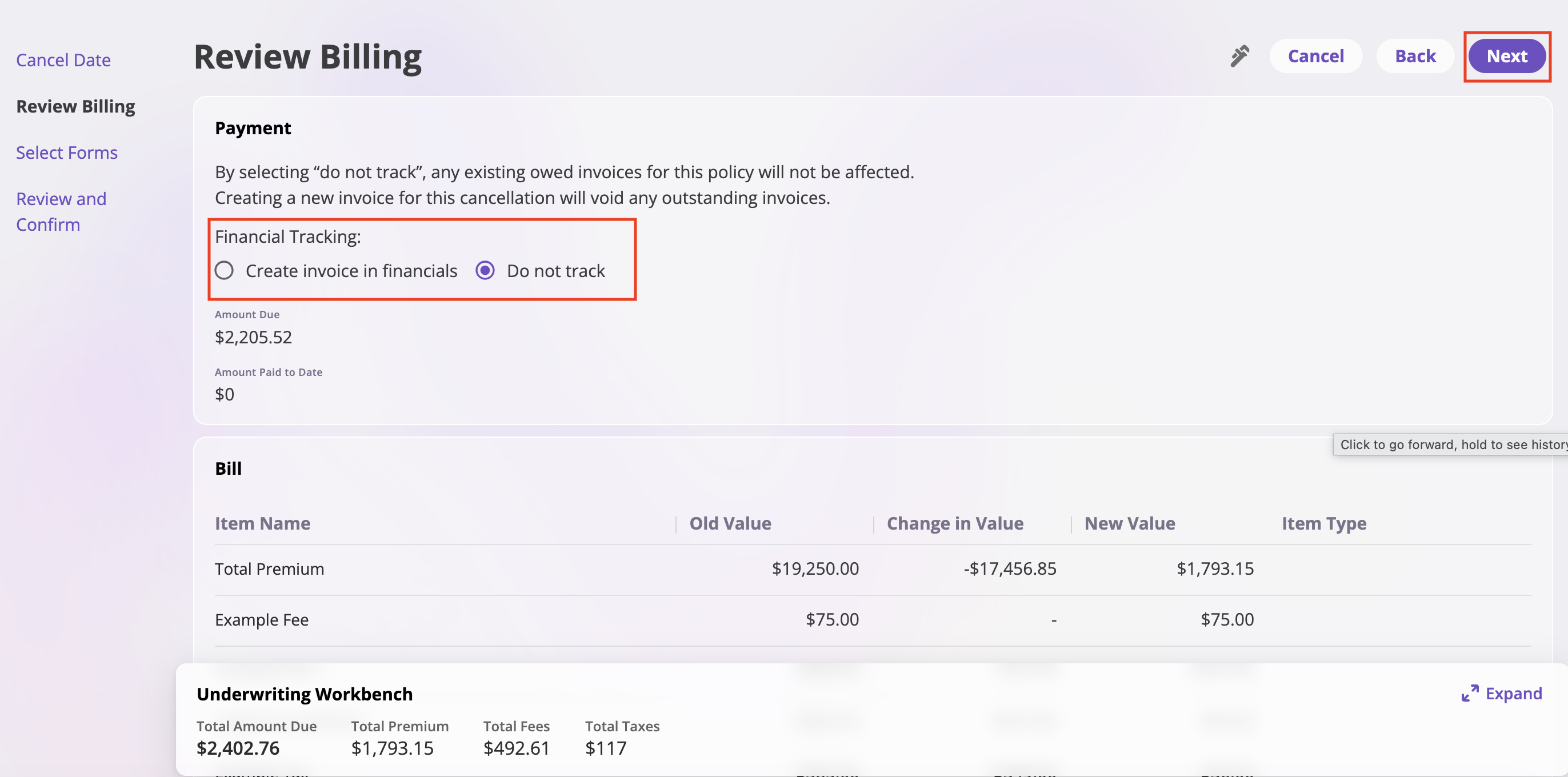
This page displays the financial impact of the cancellation and allows you to choose how to track the billing.
1. **Review Payment Information**
* The "Payment" section shows the "Amount Due" and "Amount Paid to Date."
2. **Select Financial Tracking Option**
* Choose one of the following:
* **Create invoice in financials**: To generate a new invoice for this cancellation.
* **Do not track**: To prevent the system from creating a new invoice or affecting existing ones.
3. **Review Bill Details**
* The "Bill" section provides a detailed breakdown of the "Total Premium" and any "Example Fee," showing the "Old Value," "Change in Value," and "New Value."
### Step 4: Review Billing
This page displays the financial impact of the cancellation and allows you to choose how to track the billing.
1. **Review Payment Information**
* The "Payment" section shows the "Amount Due" and "Amount Paid to Date."
2. **Select Financial Tracking Option**
* Choose one of the following:
* **Create invoice in financials**: To generate a new invoice for this cancellation.
* **Do not track**: To prevent the system from creating a new invoice or affecting existing ones.
3. **Review Bill Details**
* The "Bill" section provides a detailed breakdown of the "Total Premium" and any "Example Fee," showing the "Old Value," "Change in Value," and "New Value."
 ### Step 5: Select Forms
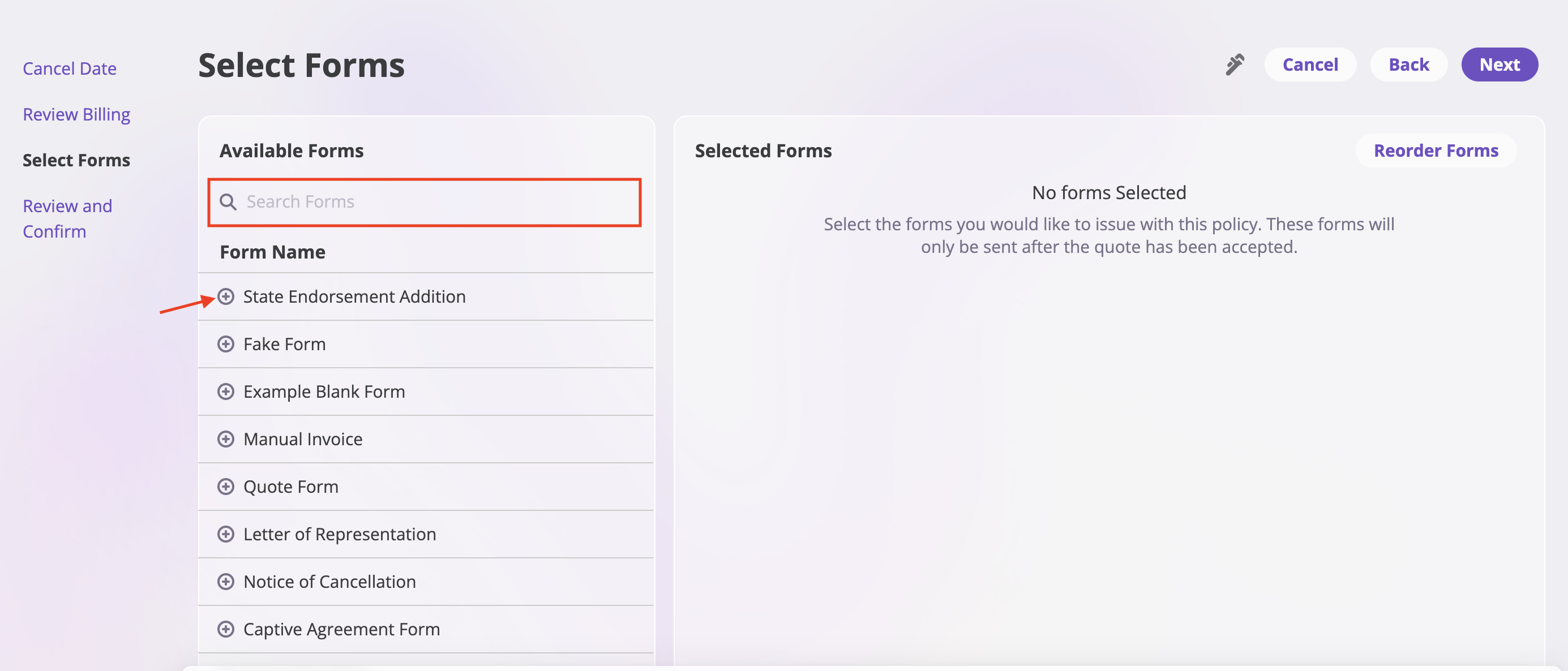
After reviewing the billing details, proceed to the next step to select forms.
1. **Search for Forms**
* Use the search bar to find the specific form you want to add
* Type the form name or keywords to filter available forms
2. **Add Forms**
* Click the **plus sign** beneath the search bar to add the selected form
* The form will be added to your cancellation package
### Step 5: Select Forms
After reviewing the billing details, proceed to the next step to select forms.
1. **Search for Forms**
* Use the search bar to find the specific form you want to add
* Type the form name or keywords to filter available forms
2. **Add Forms**
* Click the **plus sign** beneath the search bar to add the selected form
* The form will be added to your cancellation package
 3. **Reorder Forms**
* Once you've added forms, you can reorder them in your preferred format
* Click **"Reorder Form"** to enter reorder mode
* Click the **arrow** that appears to move the selected form up or down
* Arrange the forms in the order you want them to appear in the final package
3. **Reorder Forms**
* Once you've added forms, you can reorder them in your preferred format
* Click **"Reorder Form"** to enter reorder mode
* Click the **arrow** that appears to move the selected form up or down
* Arrange the forms in the order you want them to appear in the final package
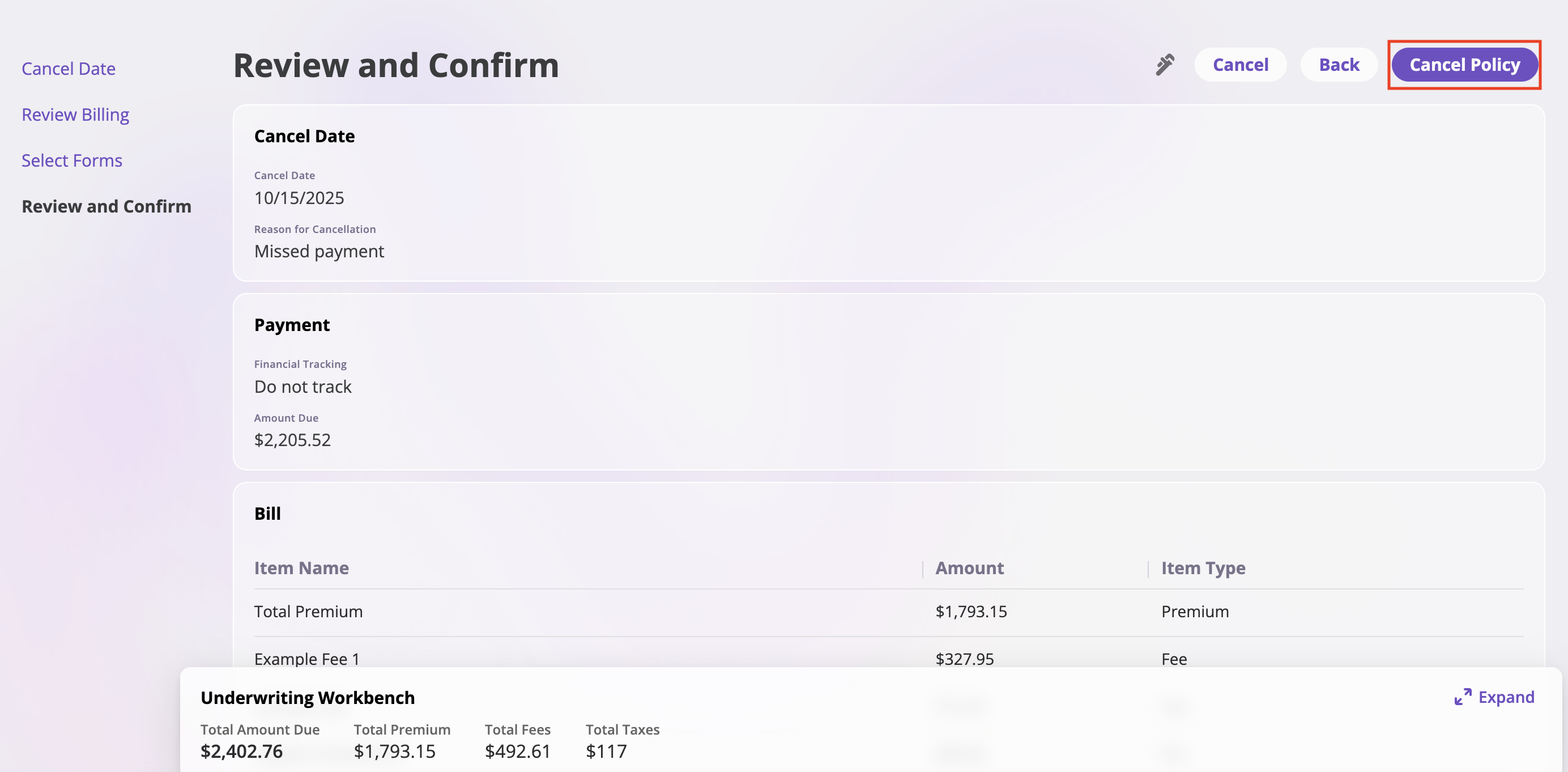
 ### Step 6: Review and Confirm
1. Review all cancellation details
2. Click **Confirm** to complete the policy cancellation
### Step 6: Review and Confirm
1. Review all cancellation details
2. Click **Confirm** to complete the policy cancellation