> ## Documentation Index
> Fetch the complete documentation index at: https://docs.aiinsurance.io/llms.txt
> Use this file to discover all available pages before exploring further.
# Calendar and Tasks
The Dashboard page is split into two sections: **Tasks** and **Company Overview**.
Tasks are a great way to set reminders and log activities that need to be completed by a specific date or time.
## Create a task
To create a new task:
1. **Log in** to the AI Insurance dashboard and navigate to the **Dashboard** tab.
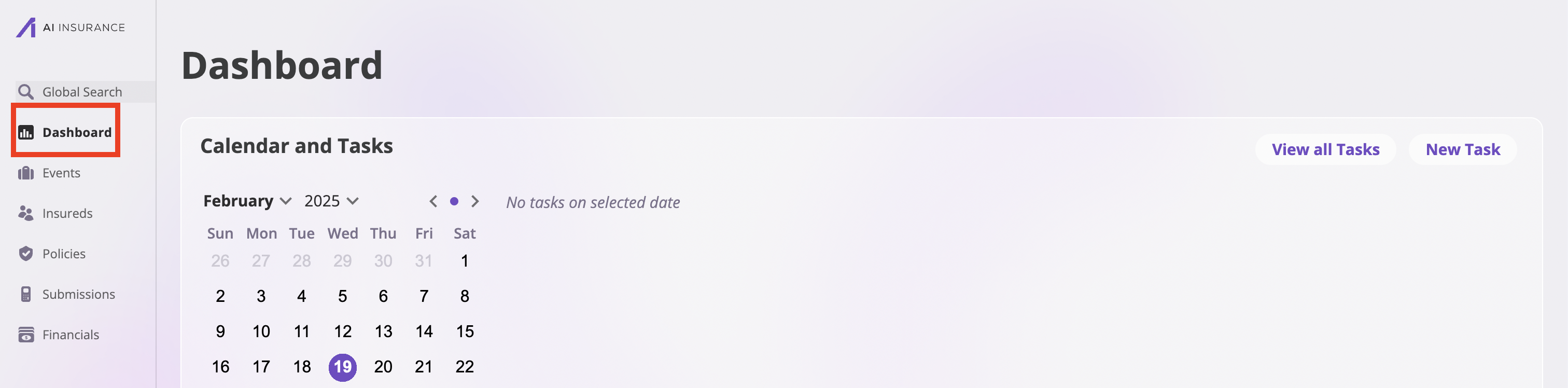 2. In the Dashboard, you'll find the **Calendar and Tasks** section.
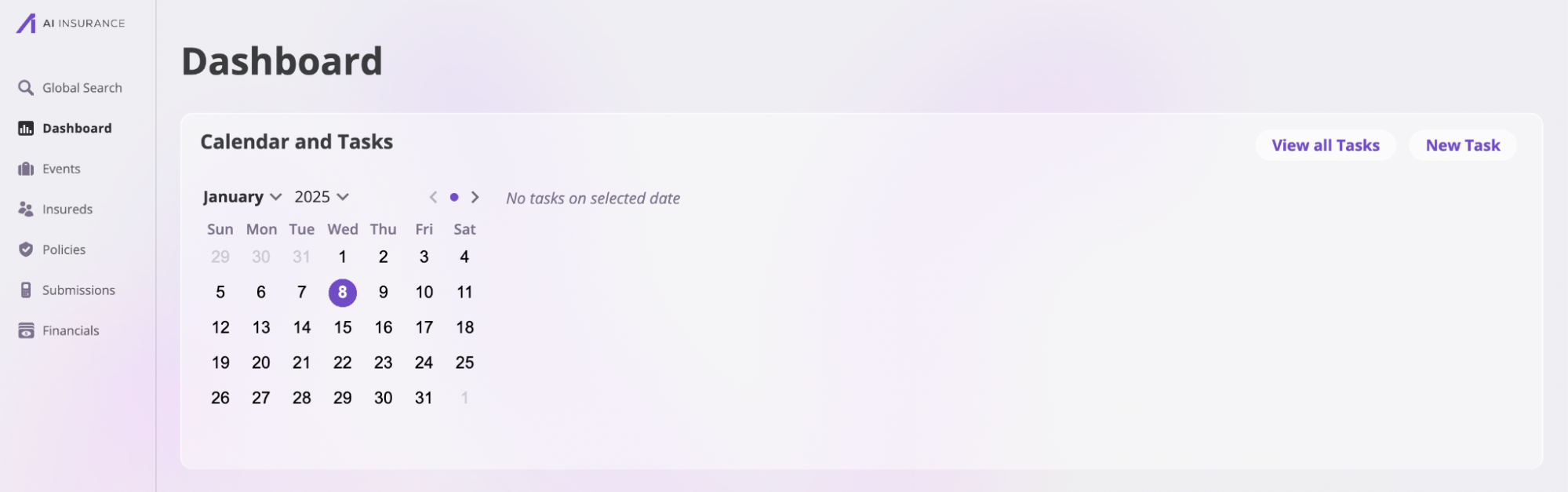 3. Click on the **New Task** button to open the task creation modal.
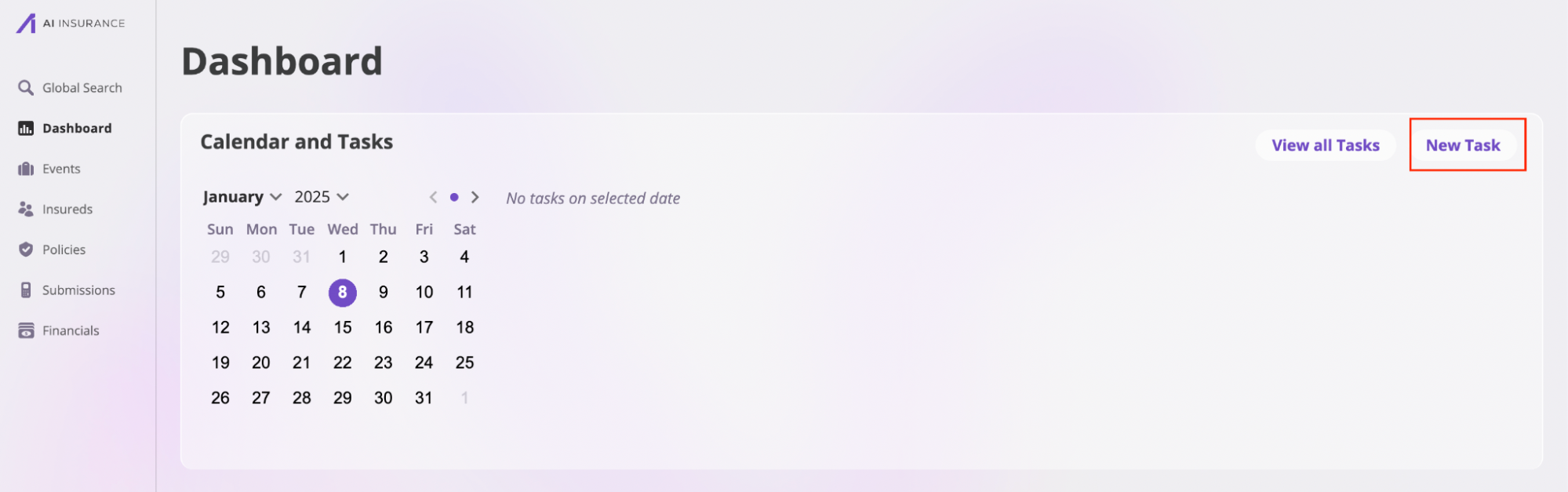 4. Fill out the following details for your task:
* **Task Name:** The title of the task.
* **Description:** (Optional) Any additional details about the task.
* **Task Date:** The date when you want to be alerted about the task, ideally before it’s due.
* **Task Time:** The time when you'd like to receive the alert.
* **Assignee:** The person responsible for this task.
5. Click **Create** to save the task.
4. Fill out the following details for your task:
* **Task Name:** The title of the task.
* **Description:** (Optional) Any additional details about the task.
* **Task Date:** The date when you want to be alerted about the task, ideally before it’s due.
* **Task Time:** The time when you'd like to receive the alert.
* **Assignee:** The person responsible for this task.
5. Click **Create** to save the task.
 Once the date and time you’ve set for the task arrives, you’ll receive an alert reminding you about the task.
## View tasks
To view all the tasks you’ve created:
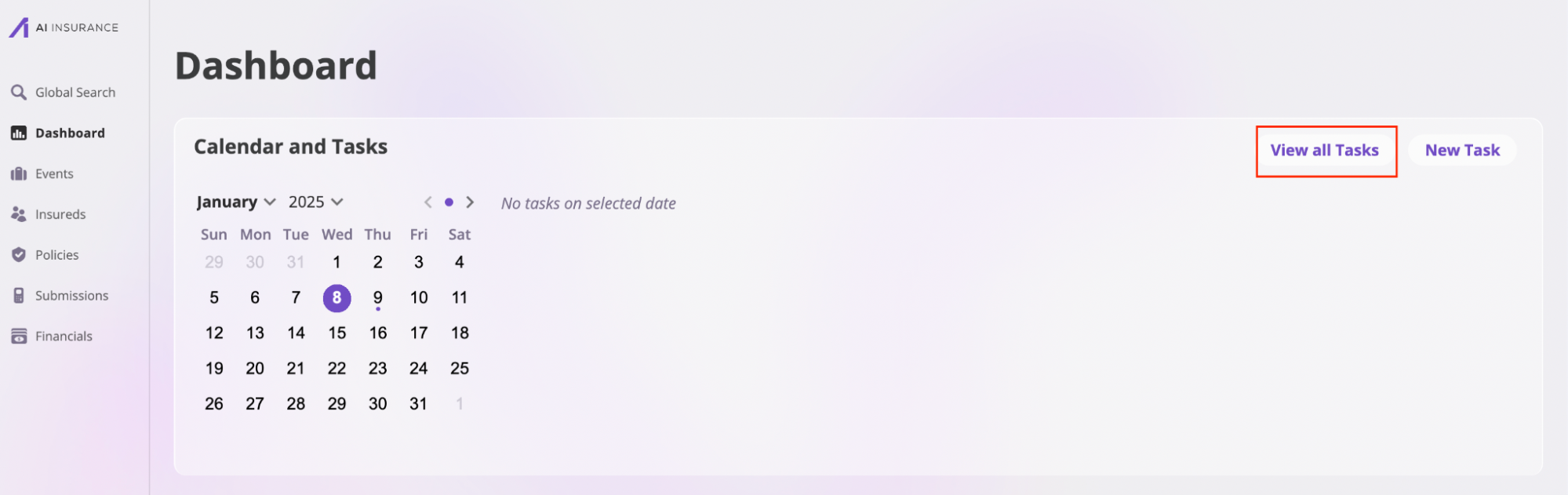
1. In the **Calendar and Tasks** section, click on the **View All Tasks** button. This action will take you to a page where you can see all your tasks.
Once the date and time you’ve set for the task arrives, you’ll receive an alert reminding you about the task.
## View tasks
To view all the tasks you’ve created:
1. In the **Calendar and Tasks** section, click on the **View All Tasks** button. This action will take you to a page where you can see all your tasks.
 2. There are two task view options:
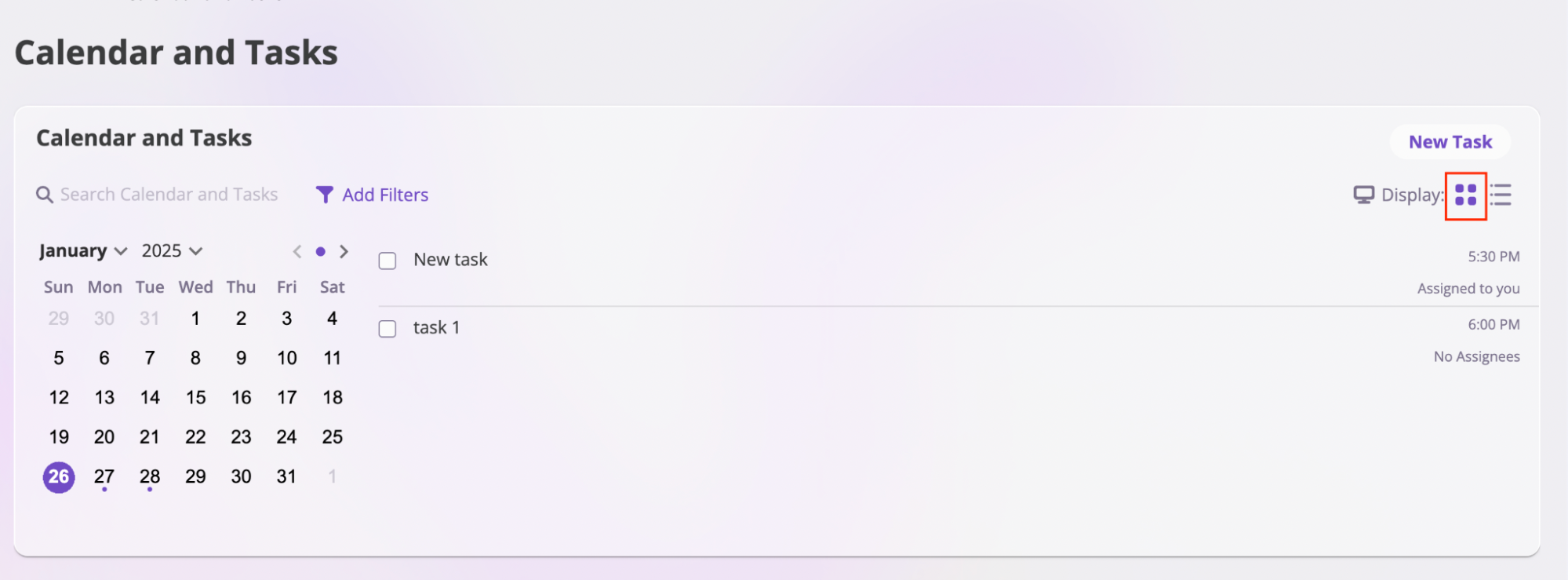
* **Calendar view**: Displays tasks based on the selected date on the calendar. Click this button to switch to the calendar view.
2. There are two task view options:
* **Calendar view**: Displays tasks based on the selected date on the calendar. Click this button to switch to the calendar view.
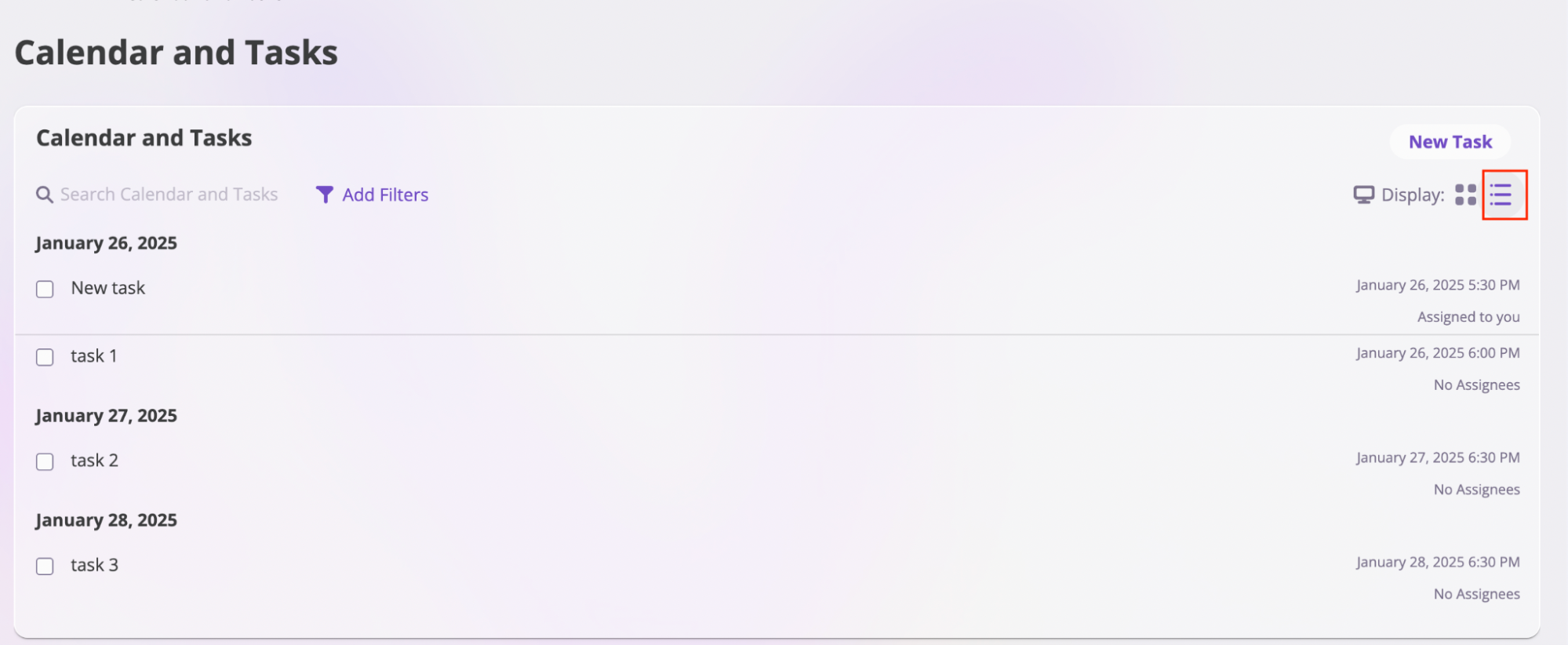
 * **List view**: Displays all tasks in a simple list format. Click this button to switch to the list view.
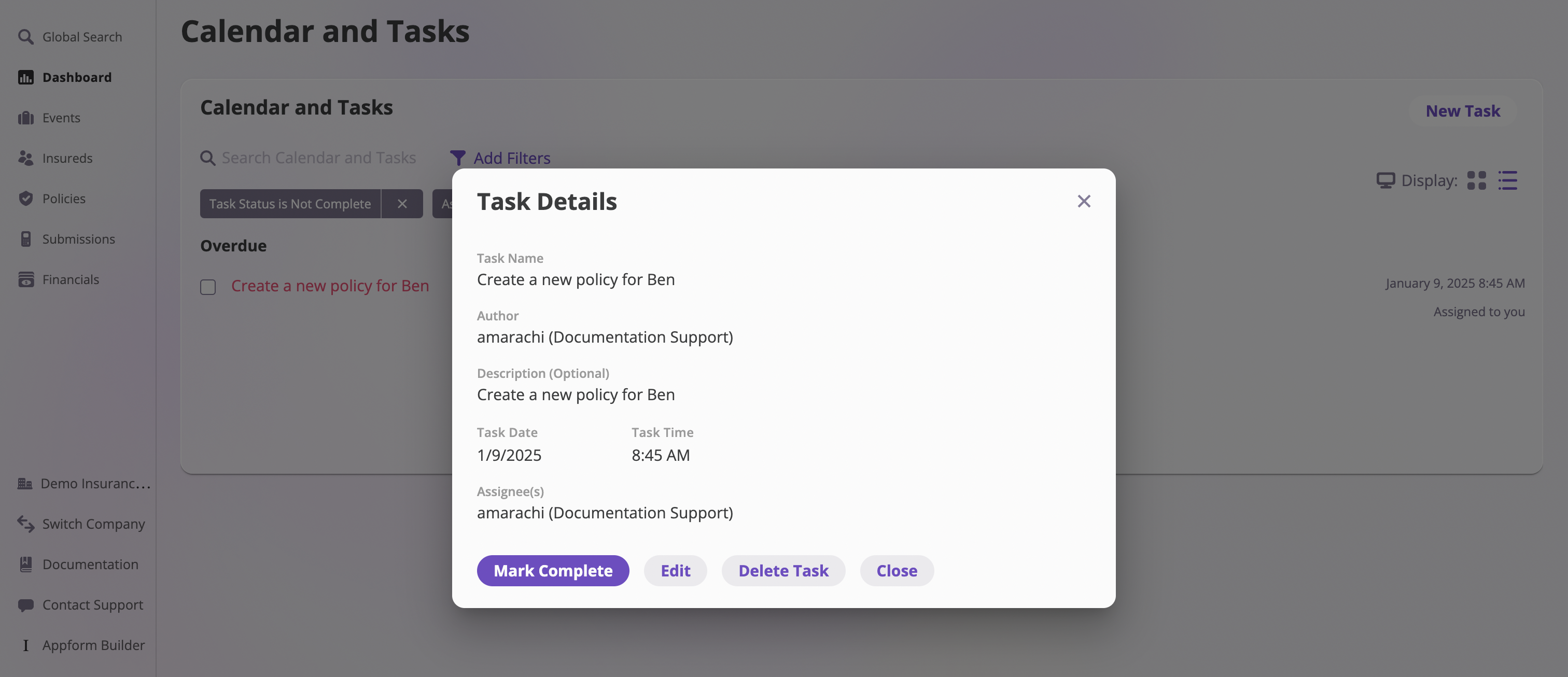
 3. You can click on a specific task to:
* **Mark as Complete**
* **Edit** the task
* **Delete** the task
3. You can click on a specific task to:
* **Mark as Complete**
* **Edit** the task
* **Delete** the task
 You can also **search** for tasks and use filters to narrow down the list. To apply filters, click on **Add Filters**, then choose the criteria you’d like to use.