> ## Documentation Index
> Fetch the complete documentation index at: https://docs.aiinsurance.io/llms.txt
> Use this file to discover all available pages before exploring further.
# Files
The Files section in AI Insurance allows you to easily upload, store, retrieve, and view files associated with entities such as policies, insureds, and events.
## View Files
You can access files related to Events, Insureds, and Policies. Follow these steps to view files:
1. Select the specific Event, Insured, or Policy you want to view.
2. Click the **Files** tab to see the files associated with your selection.
 3. To preview a file in your browser, simply click on it. You can preview PDFs, images, Word documents ( `.doc` and `.docx` ), and email files ( `.msg `and `.eml` ) that were dragged in from Outlook.
## Download Files
To download a file:
1. Select the file you wish to download.
2. Click the **Download** icon on the file, or click the **Download** button at the top of the Files section.
3. To preview a file in your browser, simply click on it. You can preview PDFs, images, Word documents ( `.doc` and `.docx` ), and email files ( `.msg `and `.eml` ) that were dragged in from Outlook.
## Download Files
To download a file:
1. Select the file you wish to download.
2. Click the **Download** icon on the file, or click the **Download** button at the top of the Files section.
 ## Upload Files
You can upload files either by dragging and dropping them into the Files section, or by clicking the **Upload File** button.
## Upload Files
You can upload files either by dragging and dropping them into the Files section, or by clicking the **Upload File** button.
 ## Create Folders
1. Create a folder:
* Click the **Create Folder** button.
## Create Folders
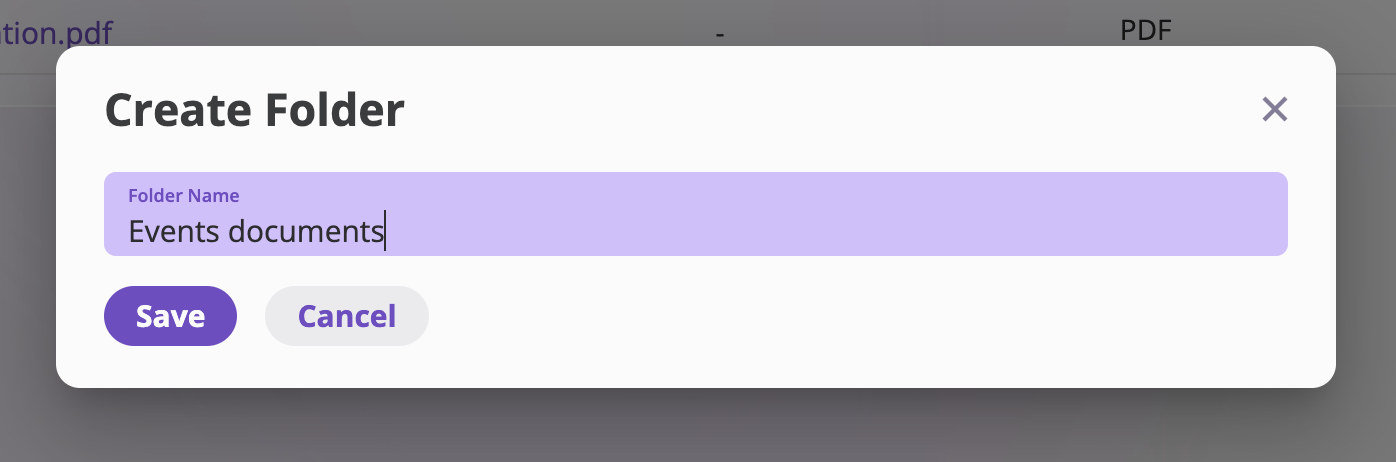
1. Create a folder:
* Click the **Create Folder** button.
 * Enter the folder name and click **Create**.
 2. Open the folder by clicking on it.
3. Clicking "Upload Files" or dragging and dropping files into the folder will upload the files to the folder.
## Categories
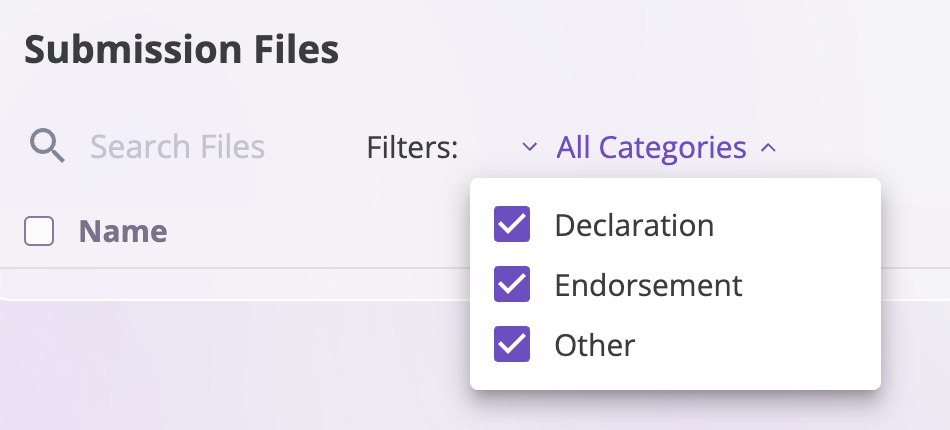
While you can create folders to organize your files, you can also categorize files by adding a category to a file. A category allows you to quickly search for all files with that category without needing to click into folders, so is much faster. Often users start by using folders and then switch to categories once they become power users.
2. Open the folder by clicking on it.
3. Clicking "Upload Files" or dragging and dropping files into the folder will upload the files to the folder.
## Categories
While you can create folders to organize your files, you can also categorize files by adding a category to a file. A category allows you to quickly search for all files with that category without needing to click into folders, so is much faster. Often users start by using folders and then switch to categories once they become power users.
 **Customizing Categories**
You can customize the categories that appear on your Events, Submissions, Policies, and Insureds, and Companies by contacting [support@aiinsurance.io](mailto:support@aiinsurance.io)
## Edit Files
You can edit file details using either of these methods:
* **Using the Edit Icon:** Edit
* Select the file.
* Click the **Edit** icon.
**Customizing Categories**
You can customize the categories that appear on your Events, Submissions, Policies, and Insureds, and Companies by contacting [support@aiinsurance.io](mailto:support@aiinsurance.io)
## Edit Files
You can edit file details using either of these methods:
* **Using the Edit Icon:** Edit
* Select the file.
* Click the **Edit** icon.
 * Modify the file details in the **Edit File Details** modal.
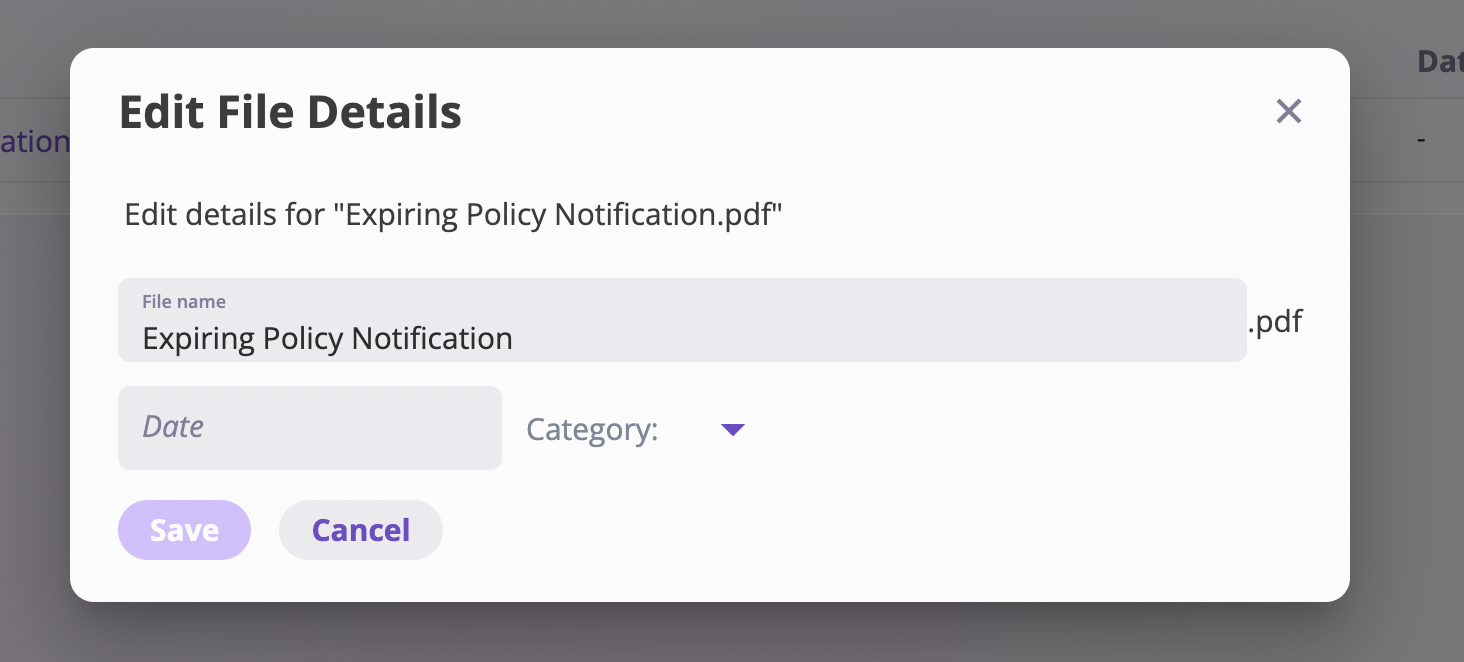 * Click **Save** to apply changes.
* **Using the More Button:**
* Select the file.
* Click the **More** button at the top of the Files section.
* Choose the specific edits you wish to make.
* Click **Save** to apply changes.
* **Using the More Button:**
* Select the file.
* Click the **More** button at the top of the Files section.
* Choose the specific edits you wish to make.
 ## Delete Files
To delete a file or folder:
1. Select the file or folder you wish to delete.
2. Click the **Delete** icon on the selected item.
## Delete Files
To delete a file or folder:
1. Select the file or folder you wish to delete.
2. Click the **Delete** icon on the selected item.
 This docs is constantly improving, if you find anything you would like to correct, please email us at [support@aiinsurance.io](mailto:support@aiinsurance.io)