> ## Documentation Index
> Fetch the complete documentation index at: https://docs.aiinsurance.io/llms.txt
> Use this file to discover all available pages before exploring further.
# Assignees
## Overview
Submissions, policies, insureds, and events can have "assignees": users who have been assigned responsibility for that particular item.
Since the assignee information is generally not relevant to those outside the organization, the feature is not currently enabled in portal mode.
## Viewing Assignees
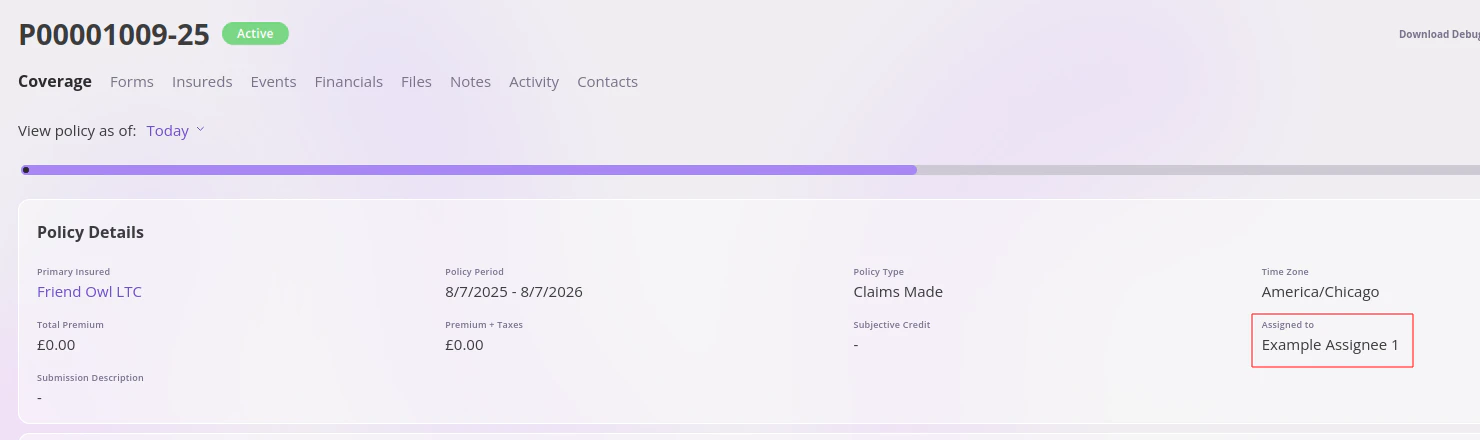
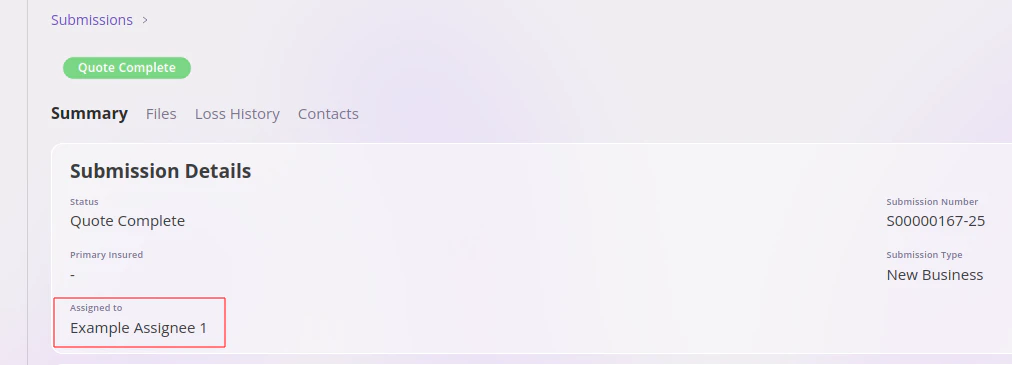
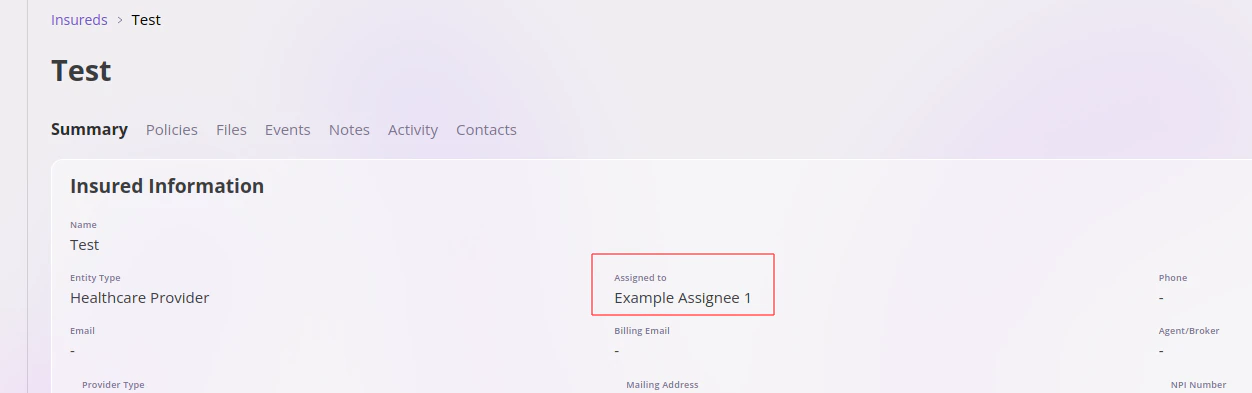
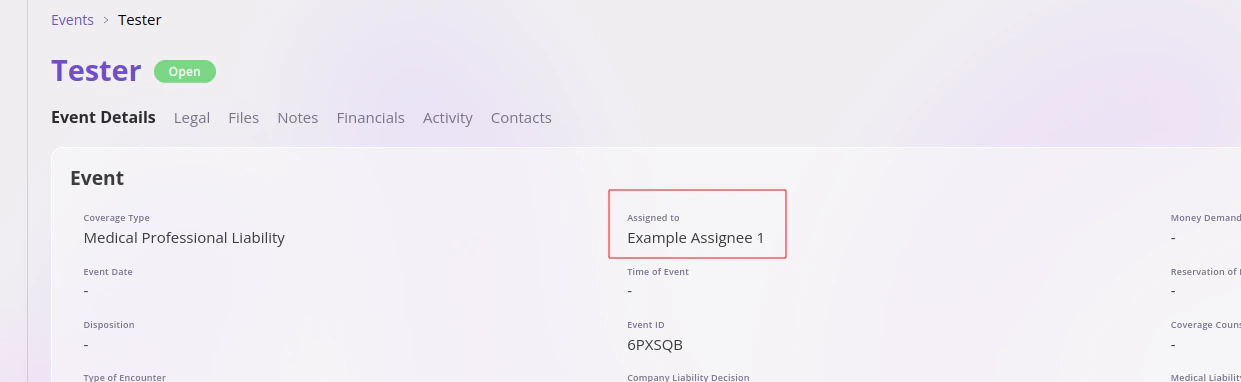
The assignees appear in the "Assigned To" field in the item. The location of this field varies by entity type.
* Policies: Toward the end of the "Policy Details" card, before the "Submission Description"
 * Submissions: At the end of the "Submission Details" card
 * Insureds: In the "Insured Information" card, after "Entity Type"
 * Events: In the "Event" card, after "Coverage Type"
 ## Adding/Removing Assignees
1. Navigate to the item that needs to have assignees added/removed
2. Click **Actions** in the top right to open a list of possible actions
3. Click **Assign to User**
4. In the **Assign \ to User(s)** modal that pops up, modify, as needed, the list of assigned users (which appears as a series of chips below the *Search Users* dropdown)
* New assignees can be added by selecting them in the dropdown
* The current user can be assigned by clicking **Assign to myself**
* Assignees can be removed by clicking the **X** button on their chips
5. Click **Save** on the modal
## Filtering by Assignees
It is also possible to filter by assignees when searching for an item; this can be done by creating an "Assignee" filter through the **Add Filter** mechanism. The assignee filter works in the following way:
* It provides a checkbox list of all users, as well as the "Unassigned" keyword
* An item will match the filter if at least one of its assignees was selected in the filter
* An item will also match the filter if it has no assignees and the "Unassigned" keyword was selected in the filter
## Adding/Removing Assignees
1. Navigate to the item that needs to have assignees added/removed
2. Click **Actions** in the top right to open a list of possible actions
3. Click **Assign to User**
4. In the **Assign \ to User(s)** modal that pops up, modify, as needed, the list of assigned users (which appears as a series of chips below the *Search Users* dropdown)
* New assignees can be added by selecting them in the dropdown
* The current user can be assigned by clicking **Assign to myself**
* Assignees can be removed by clicking the **X** button on their chips
5. Click **Save** on the modal
## Filtering by Assignees
It is also possible to filter by assignees when searching for an item; this can be done by creating an "Assignee" filter through the **Add Filter** mechanism. The assignee filter works in the following way:
* It provides a checkbox list of all users, as well as the "Unassigned" keyword
* An item will match the filter if at least one of its assignees was selected in the filter
* An item will also match the filter if it has no assignees and the "Unassigned" keyword was selected in the filter