> ## Documentation Index
> Fetch the complete documentation index at: https://docs.aiinsurance.io/llms.txt
> Use this file to discover all available pages before exploring further.
# User Roles and Permissions
The **Users and Permissions** feature is critical for maintaining data security by effectively managing user roles and permissions. By assigning specific roles to team members, you can control their actions and the information they can access in the system.
## Overview of the available user roles and their scope
AI Insurance offers various user roles, each with its own permissions. The available roles are:
* **Carrier Admin**: This role provides full read/write access to all carrier data. A **Carrier Admin** can also add new carrier members and modify their roles.
* **Manager**: A **Manager** has full read/write access to all carrier data, similar to the **Carrier Admin**, but without the ability to manage carrier members.
* **UW/Ops Team Member**: Full read/write access to all company data, except write access to forms and templates.
* **Policy Administrator**: Full access to create and edit submissions, quotes, policies, insureds, and forms; no access to claims or incidents.
* **Event Manager**: The **Event Manager** role grants complete read/write access to carrier events (claims and incidents) but only read and export access to submissions and applications. It is focused on managing events within the platform.
* **MGA (Managing General Agent)**: An **MGA** has full read/write access to carrier incidents and claims, with read-only access to brokers, brokerages, and form templates.
* **Claims Manager**: Full read/write/export access for claims and incidents, with read-only access to policies and insureds.
* **Accounts Payable**: Full read and export access on all carrier data. Write access limited to Financials transactions only.
* **Captive Manager**: Full read and export access on all carrier data. Write access to company‑level files only.
* **Viewer/Exporter**: This role is similar to the **Viewer** role but with added export access. A **Viewer/Exporter** can view and export all carrier data.
* **Viewer/Exporter - Insured Forms**: Full read and export access on all carrier data and access to insured forms.
* **Viewer**: A **Viewer** has full read access to all carrier data but no permissions to modify or interact with the data beyond viewing.
* **Broker**: A third party selected by the carrier to help applicants with their applications. A **Broker** can only work with applications and submissions.
* **Client Member**: Full read and download access to company files.
* **Configuration Manager**: Can export and import company configuration via the onboarding spreadsheet; no access to company data.
For a detailed breakdown of what each role can access, see the [Roles Reference](/platform/companies/user-roles-and-permissions/roles-reference).
For tailored role configurations, please contact our Support team at [support@aiinsurance.io](mailto:support@aiinsurance.io).
## View Users and Permissions
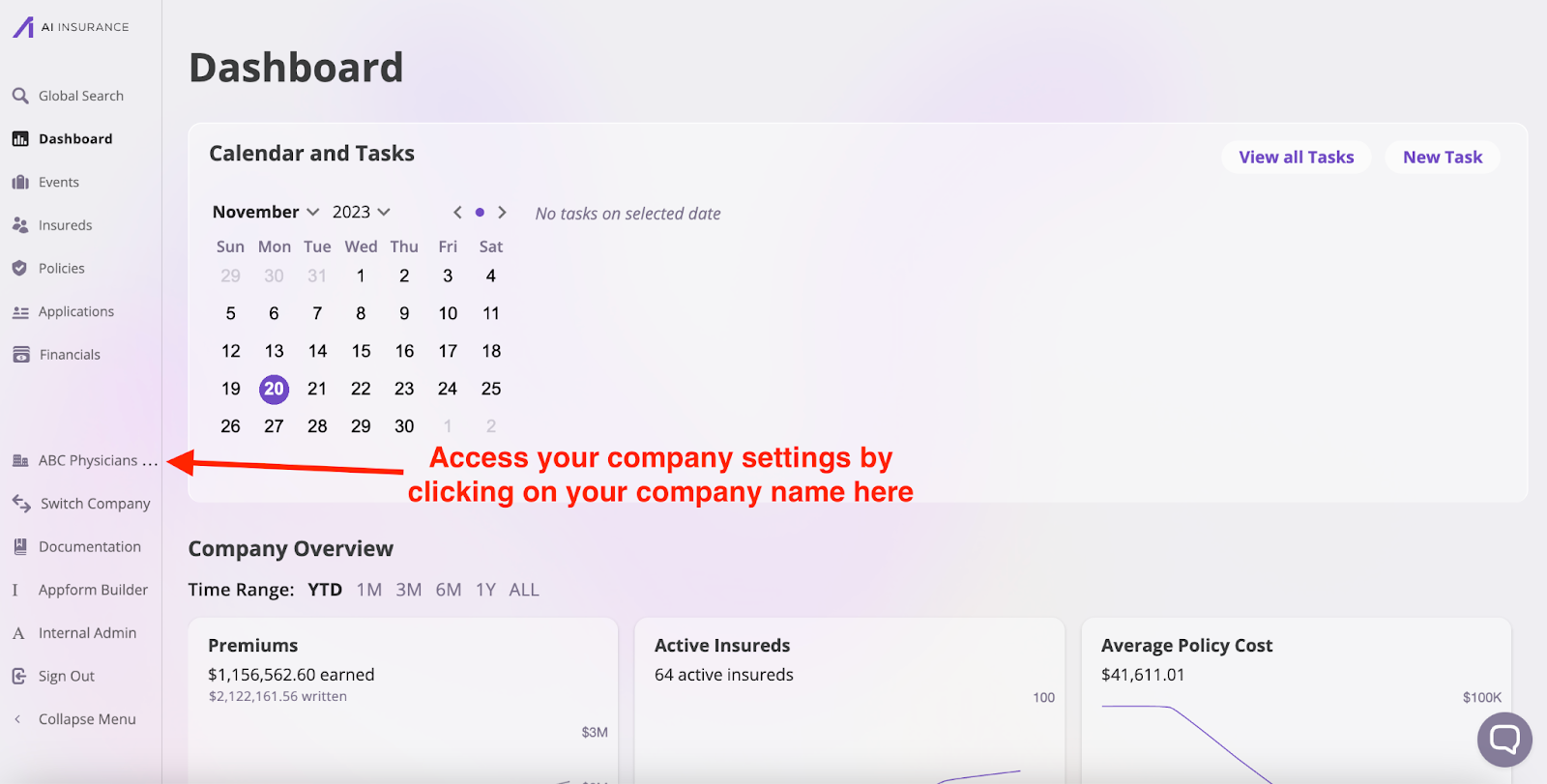
To see your company's current users and their permissions, navigate to the **Users** page by clicking your company’s tab in the sidebar to open the company-level settings and then selecting the **Users** tab.
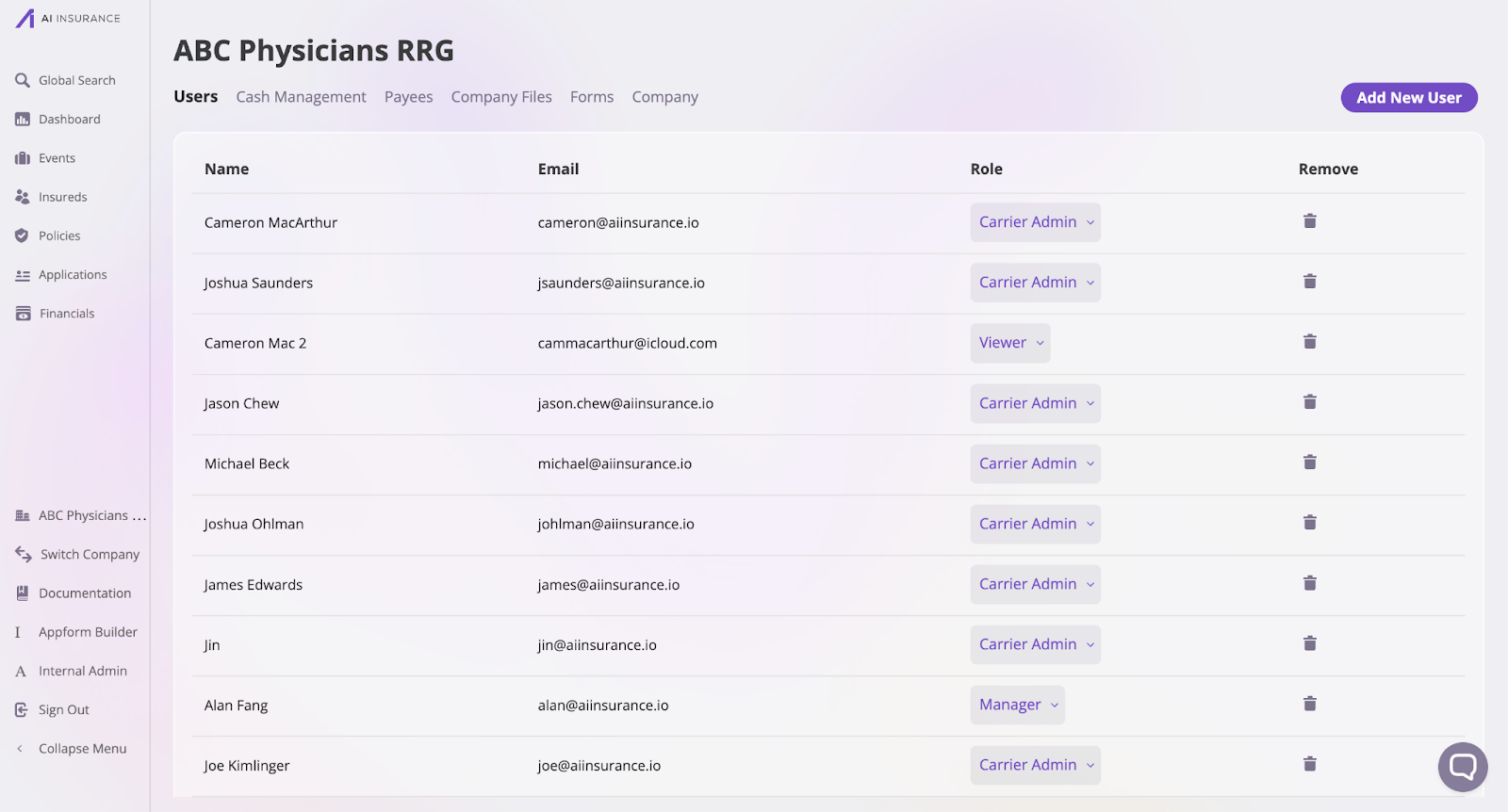
 On the **Users** page, you will see all the AI Insurance users in your company and their different access levels.
 ## Add a User
To add a user:
1. Click the **Add New User** button at the top-right of the page. This action will open the **Add New User** modal.
## Add a User
To add a user:
1. Click the **Add New User** button at the top-right of the page. This action will open the **Add New User** modal.

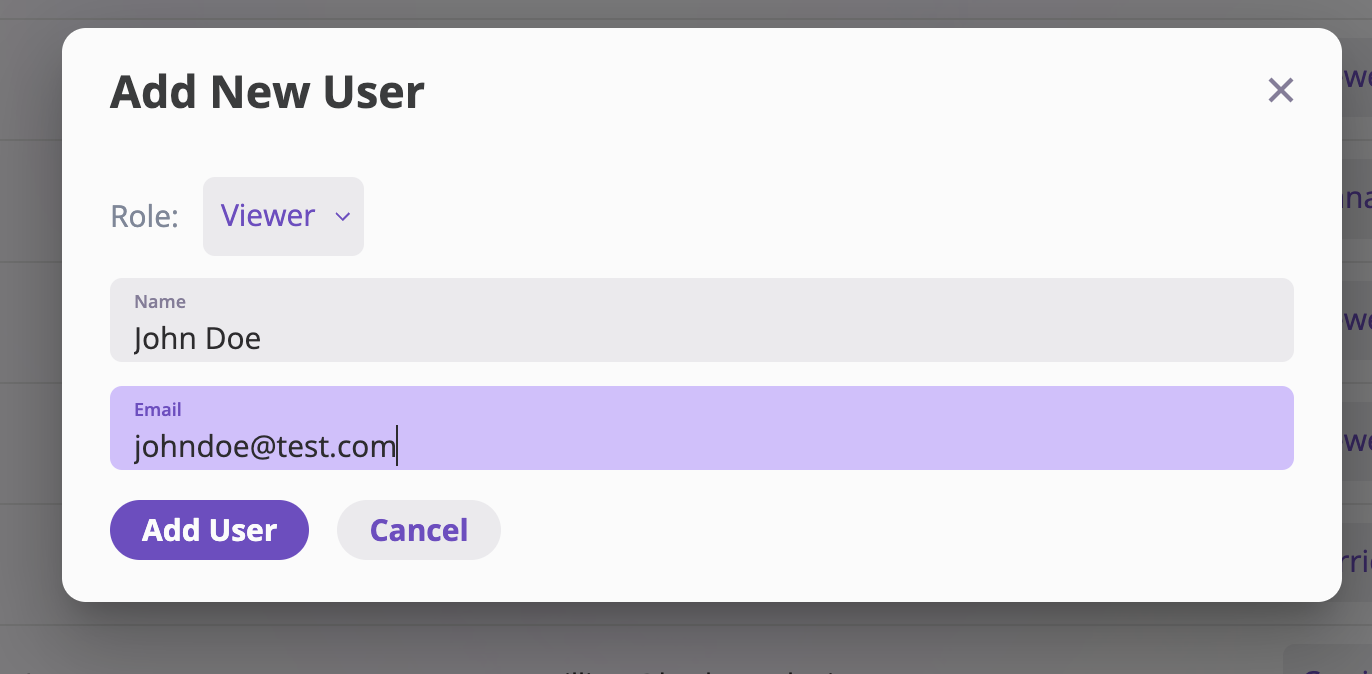
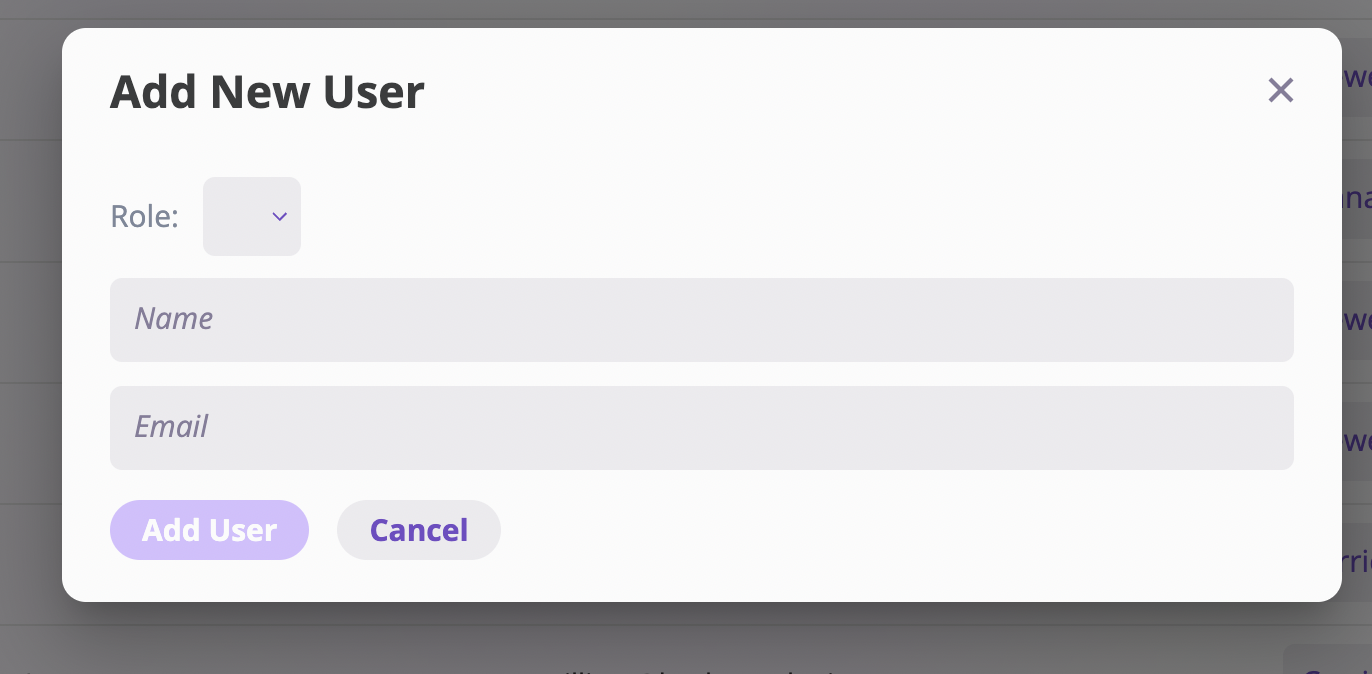 2. Select the appropriate role for the user, enter their name and email, and click **Add User** to save the new user.
 ## Edit a User role
To modify a user's role:
1. On the **Users** page, locate the user whose role you want to edit.
2. Click the dropdown in the **Role** column next to the user’s name.
## Edit a User role
To modify a user's role:
1. On the **Users** page, locate the user whose role you want to edit.
2. Click the dropdown in the **Role** column next to the user’s name.
 3. Select the new role for the user.
## Delete a User
To delete a user and revoke their permissions:
1. On the **Users** page, find the user you wish to remove.
2. Click the trash icon in the **Remove** column of their row.
3. Confirm the deletion by clicking **Remove User** to remove the user and their associated permissions.
3. Select the new role for the user.
## Delete a User
To delete a user and revoke their permissions:
1. On the **Users** page, find the user you wish to remove.
2. Click the trash icon in the **Remove** column of their row.
3. Confirm the deletion by clicking **Remove User** to remove the user and their associated permissions.
 ## Privilege
Roles can optionally contain privileges. Certain objects with the platform, such as [Notes](/platform/components/notes/notes), can be marked as **Privileged**, making them only viewable by users whose roles contain privileges. By default, the following Roles can have privileges:
* Carrier Admin
* Manager
* UW/Ops Team Member
* Event Manager
* MGA
However, [contact support](mailto:support@aiinsurance.io) if you would like to configure Privileges for other roles.
## Custom Roles
AI Insurance offers the option to create custom roles tailored to your needs. Contact [support](mailto:support@aiinsurance.io) to design roles that control access to specific features and data based on your company's unique requirements.
## Privilege
Roles can optionally contain privileges. Certain objects with the platform, such as [Notes](/platform/components/notes/notes), can be marked as **Privileged**, making them only viewable by users whose roles contain privileges. By default, the following Roles can have privileges:
* Carrier Admin
* Manager
* UW/Ops Team Member
* Event Manager
* MGA
However, [contact support](mailto:support@aiinsurance.io) if you would like to configure Privileges for other roles.
## Custom Roles
AI Insurance offers the option to create custom roles tailored to your needs. Contact [support](mailto:support@aiinsurance.io) to design roles that control access to specific features and data based on your company's unique requirements.