> ## Documentation Index
> Fetch the complete documentation index at: https://docs.aiinsurance.io/llms.txt
> Use this file to discover all available pages before exploring further.
# Payees
The Payees feature makes it easy to manage various payment recipients, like law firms, vendors, and experts. You can quickly add, update, and organize payee details, payments, and files. Payees are tracked for easy association with invoices.
## View Payees
To view your Payees, follow these steps :
1. Click your company’s name in the sidebar on the left to open the company-level settings.
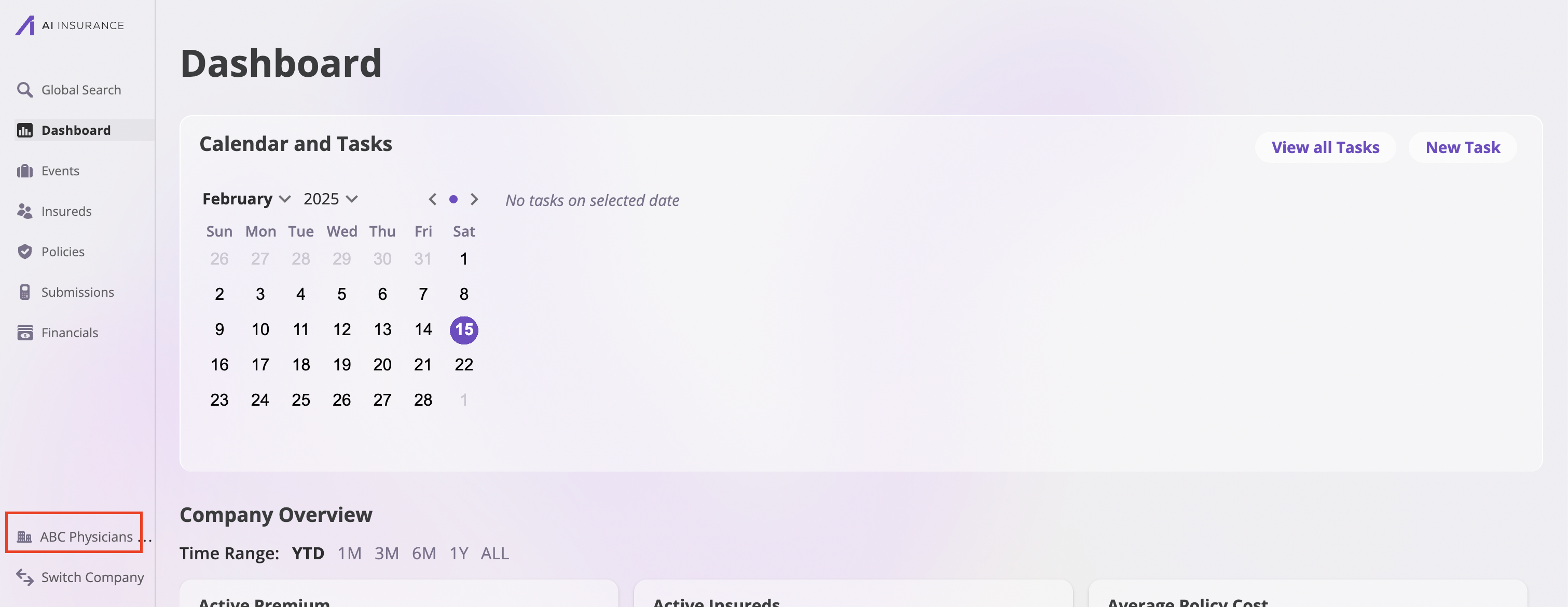 2. Under your Company’s name, locate and click on the **Payees** option to view and manage your payees.
 ## Add a Payee
To add a payee, do the following:
1. Click the **Add Payee** button in the top-right corner of the **Payees** section to open the **Add Payee** modal.
## Add a Payee
To add a payee, do the following:
1. Click the **Add Payee** button in the top-right corner of the **Payees** section to open the **Add Payee** modal.
 2. Fill out the modal with the Payee information.
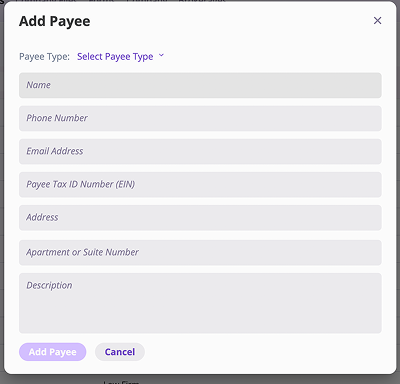 3. Click the **Add Payee** button to save.
The **Add Payee** button will be initially grayed out until you enter **Payee Type** and **Name**.
## Add a Payee with their corresponding invoice
To add a Payee with their respective invoice, do the following:
1. Click the **Financials** tab at the left sidebar to open the **Financials** page.
2. Go to the **Transactions** section, click the **New Transaction** button, and select the transaction type for the payee.
3. Click the **Add Payee** button to save.
The **Add Payee** button will be initially grayed out until you enter **Payee Type** and **Name**.
## Add a Payee with their corresponding invoice
To add a Payee with their respective invoice, do the following:
1. Click the **Financials** tab at the left sidebar to open the **Financials** page.
2. Go to the **Transactions** section, click the **New Transaction** button, and select the transaction type for the payee.
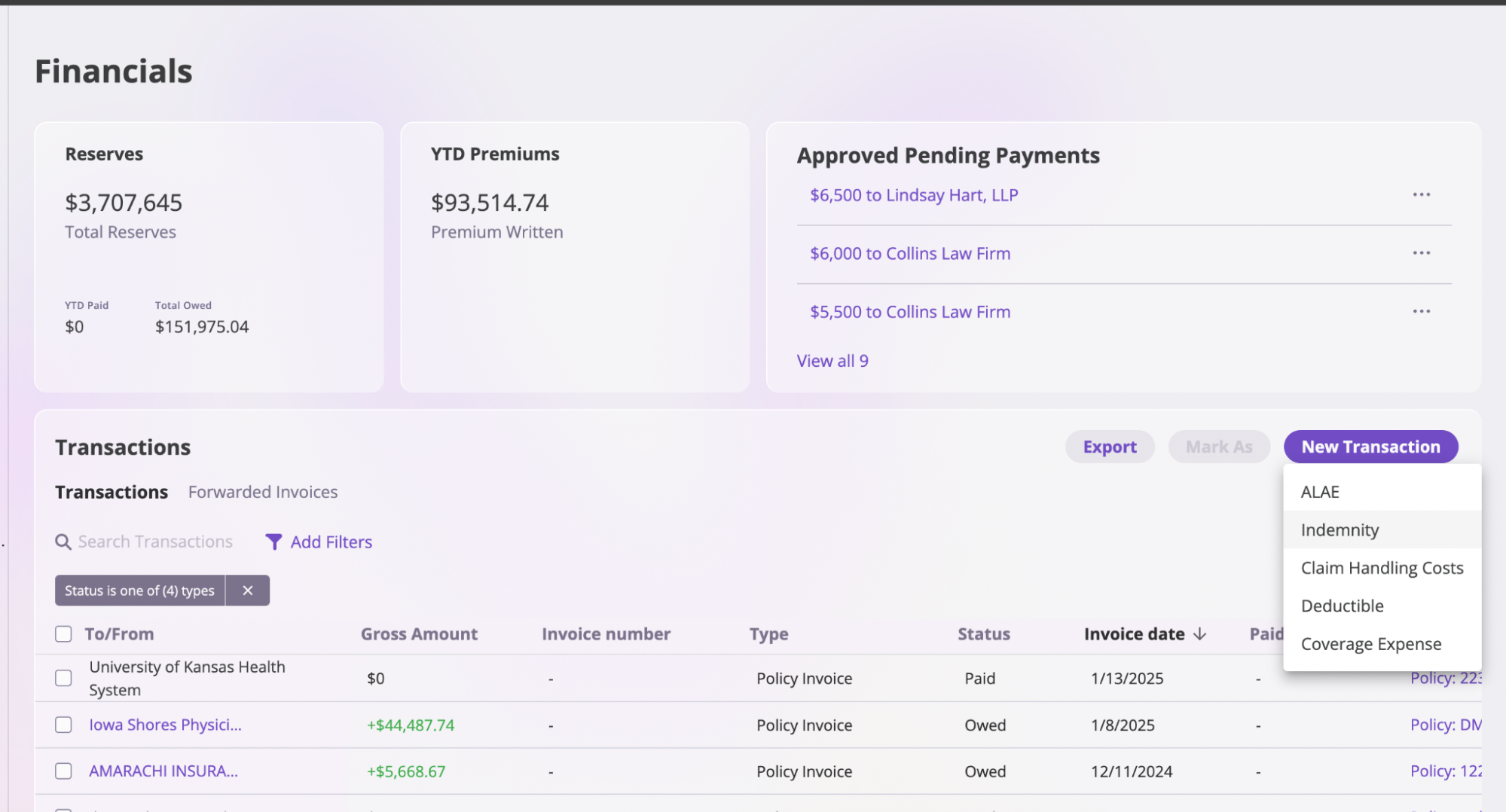 3. On the **New Transaction** page, fill out the **Basic Information** form.
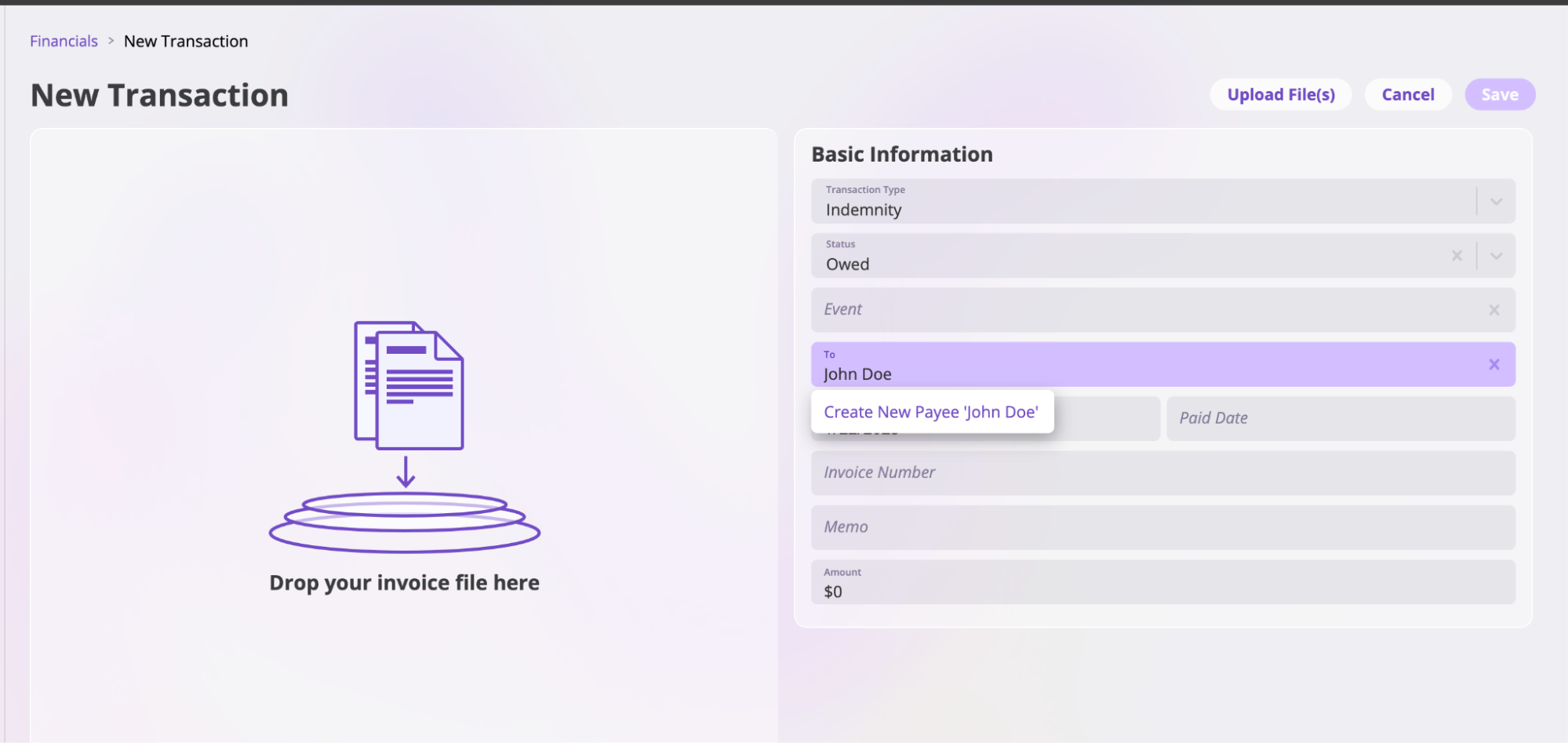
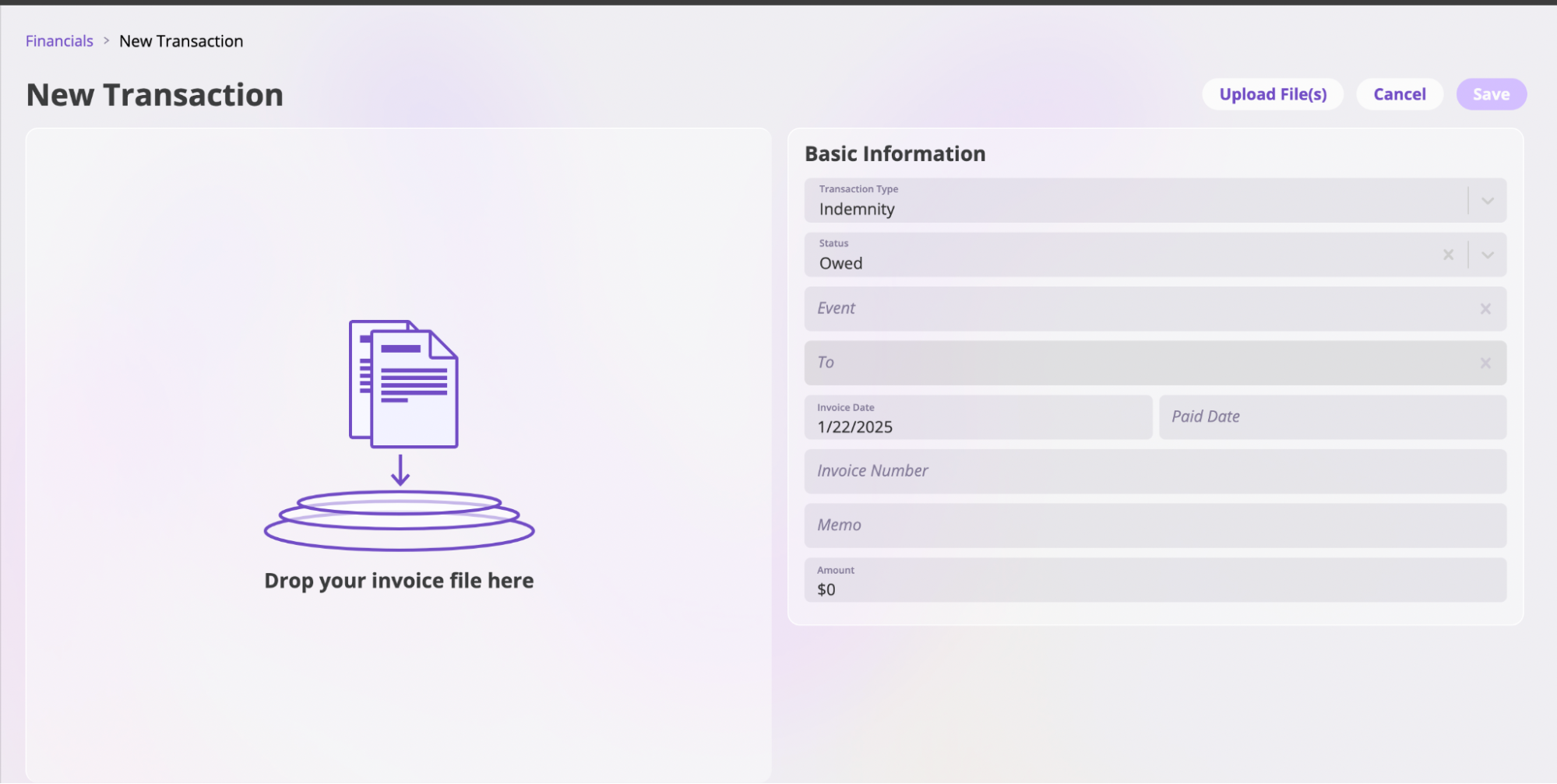 4. Add the **To** field in the **Basic Information** form, which represents the Payee. You can either select an existing Payee or create a new one. To create a new Payee:
a. Enter the Payee's name. If the Payee doesn't exist, click the **Create New Payee \[Payee Name]** option to open the **Add Payee** modal.
4. Add the **To** field in the **Basic Information** form, which represents the Payee. You can either select an existing Payee or create a new one. To create a new Payee:
a. Enter the Payee's name. If the Payee doesn't exist, click the **Create New Payee \[Payee Name]** option to open the **Add Payee** modal.
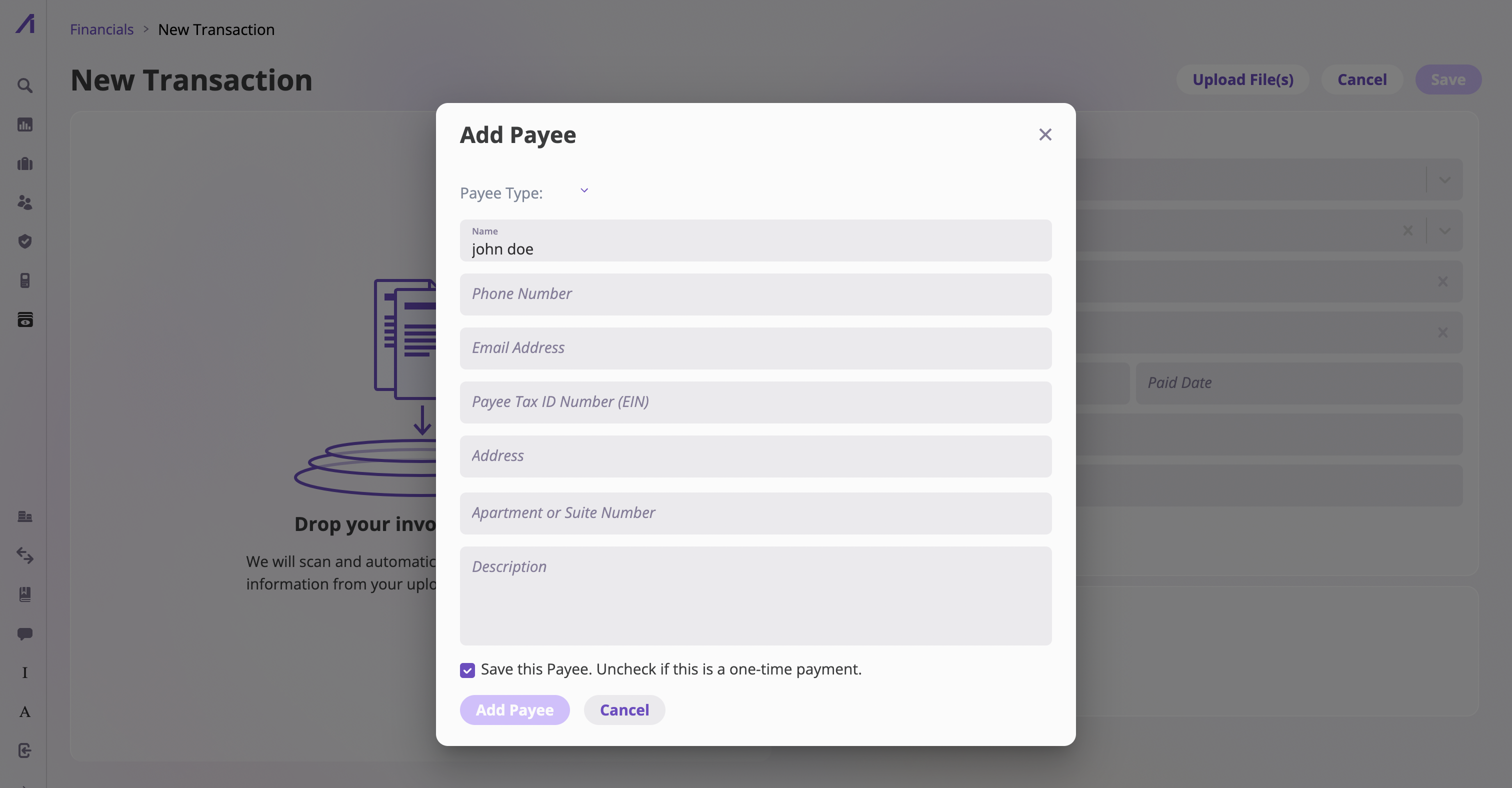 b. Fill out the Payee information in the modal.
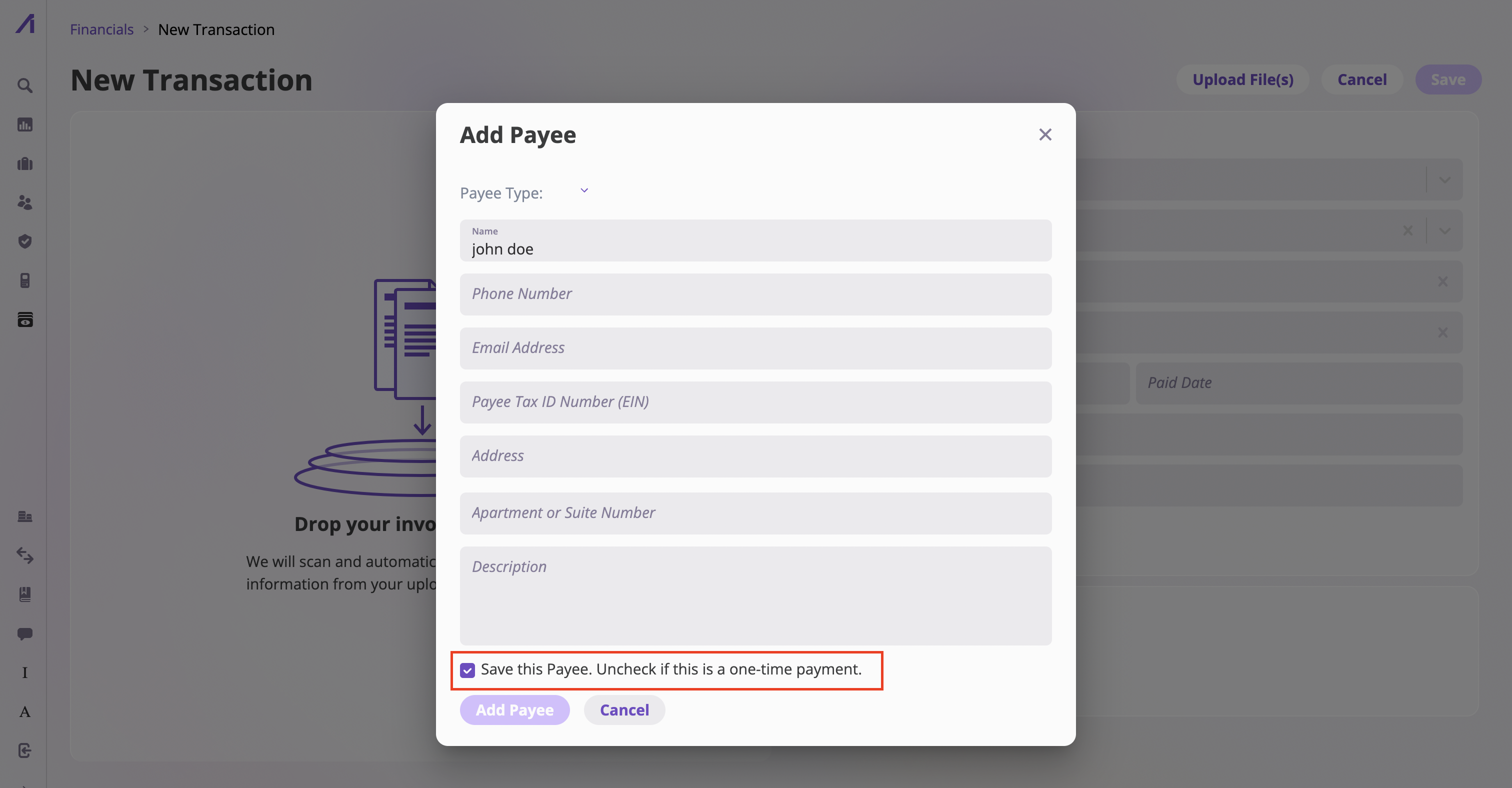
c. If this Payee is a one-time payment (for a single, isolated transaction), uncheck the **Save this Payee** checkbox.
b. Fill out the Payee information in the modal.
c. If this Payee is a one-time payment (for a single, isolated transaction), uncheck the **Save this Payee** checkbox.
 d. Click the **Add Payee** button to save and return to the **Basic Information** form.
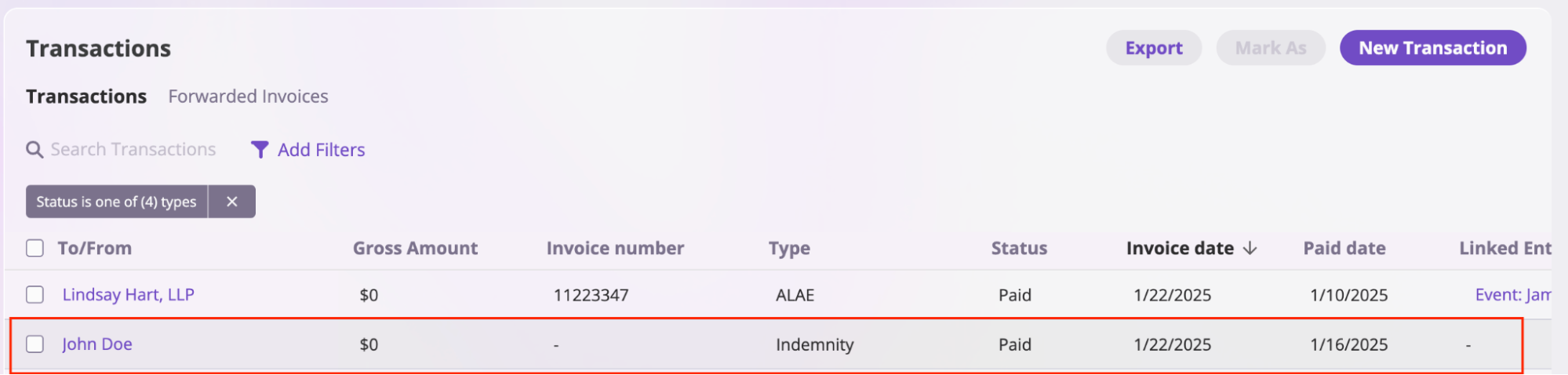
5. Complete the information for the **New Transaction** page and click the **Save** button. The Payee and their transaction will now appear in the Transactions section.
d. Click the **Add Payee** button to save and return to the **Basic Information** form.
5. Complete the information for the **New Transaction** page and click the **Save** button. The Payee and their transaction will now appear in the Transactions section.

 ## Edit Payee information
In the AI Insurance platform, you can edit Payee information by:
1. Navigate to your Company’s page by selecting the Company on the sidebar and selecting the **Payees** tab.
2. Select the Payee whose information you want to update.
3. Click the **Edit** button at the top right on the designated Payees page and update the information as needed.
### **Add an attorney**
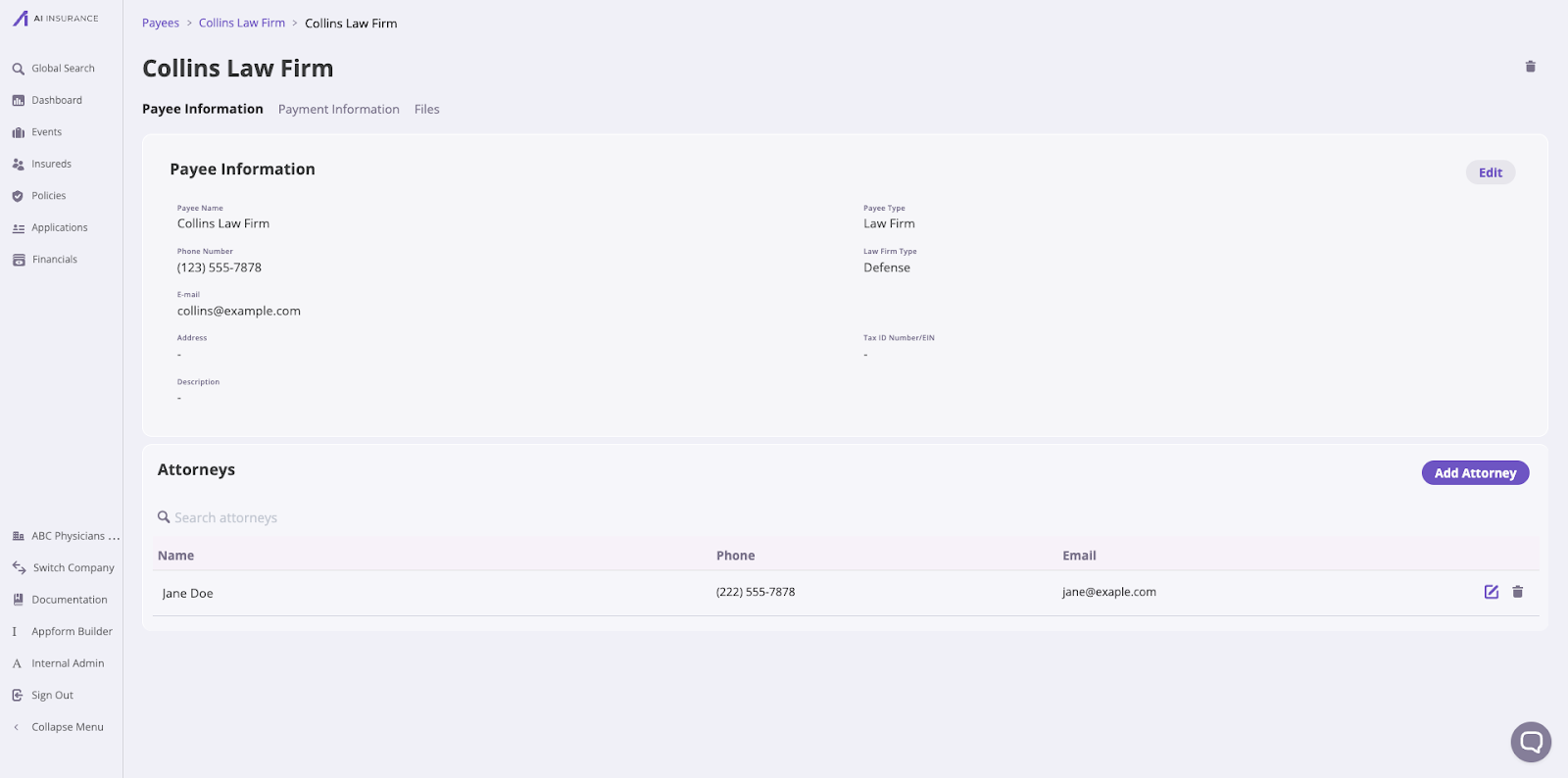
You can add an attorney to a Payee, especially in legal representation cases. Here's how:
1. Click the **Add Attorney** button in the Attorneys section to open the modal.
2. Fill out the attorney's information in the modal.
3. Click the **Add Attorney** button to save.
## Edit Payee information
In the AI Insurance platform, you can edit Payee information by:
1. Navigate to your Company’s page by selecting the Company on the sidebar and selecting the **Payees** tab.
2. Select the Payee whose information you want to update.
3. Click the **Edit** button at the top right on the designated Payees page and update the information as needed.
### **Add an attorney**
You can add an attorney to a Payee, especially in legal representation cases. Here's how:
1. Click the **Add Attorney** button in the Attorneys section to open the modal.
2. Fill out the attorney's information in the modal.
3. Click the **Add Attorney** button to save.
 ### **Uploading Payee Files**
To upload files to payees, follow these steps:
1. Go to your Company's page by selecting the Company from the sidebar, then click the **Payees** tab.
2. Choose the Payee you want to upload a file for.
3. On the Payee's page, select the **Company Files** tab.
4. Click the **Upload File** button on the right side to add a new file.
### **Uploading Payee Files**
To upload files to payees, follow these steps:
1. Go to your Company's page by selecting the Company from the sidebar, then click the **Payees** tab.
2. Choose the Payee you want to upload a file for.
3. On the Payee's page, select the **Company Files** tab.
4. Click the **Upload File** button on the right side to add a new file.
 ## Remove a Payee
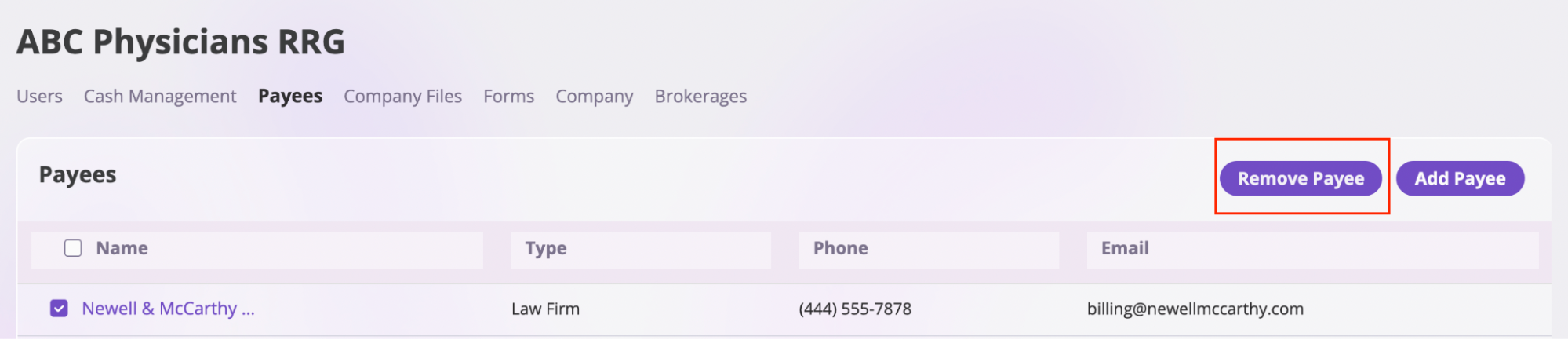
Go to **Company Settings** > **Payee** section, check the Payee you want to remove and click **Remove Payee**.
## Remove a Payee
Go to **Company Settings** > **Payee** section, check the Payee you want to remove and click **Remove Payee**.