> ## Documentation Index
> Fetch the complete documentation index at: https://docs.aiinsurance.io/llms.txt
> Use this file to discover all available pages before exploring further.
# Data Import
The **Data Import** feature allows you to easily manage and track all your historical data import or bordereau import operations in one place.
To access the **Data Import** feature:
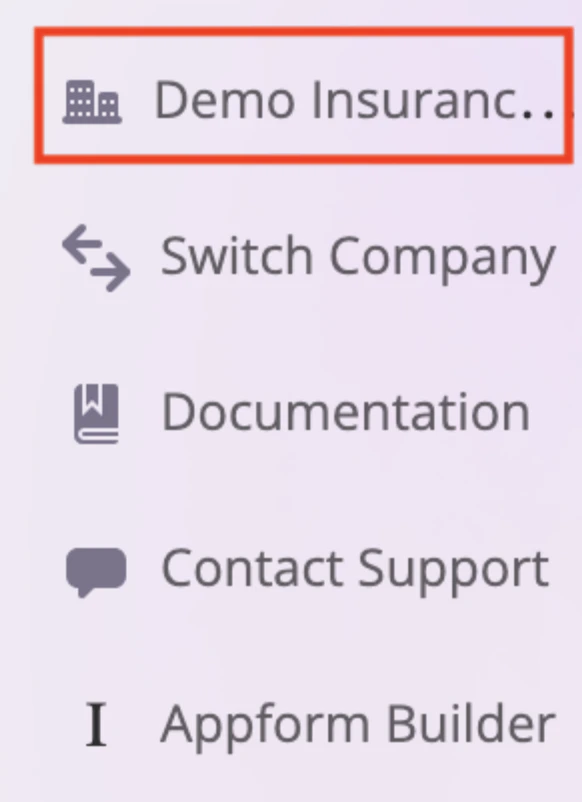
1. Click your company's name in the sidebar on the left to open the company-level settings.
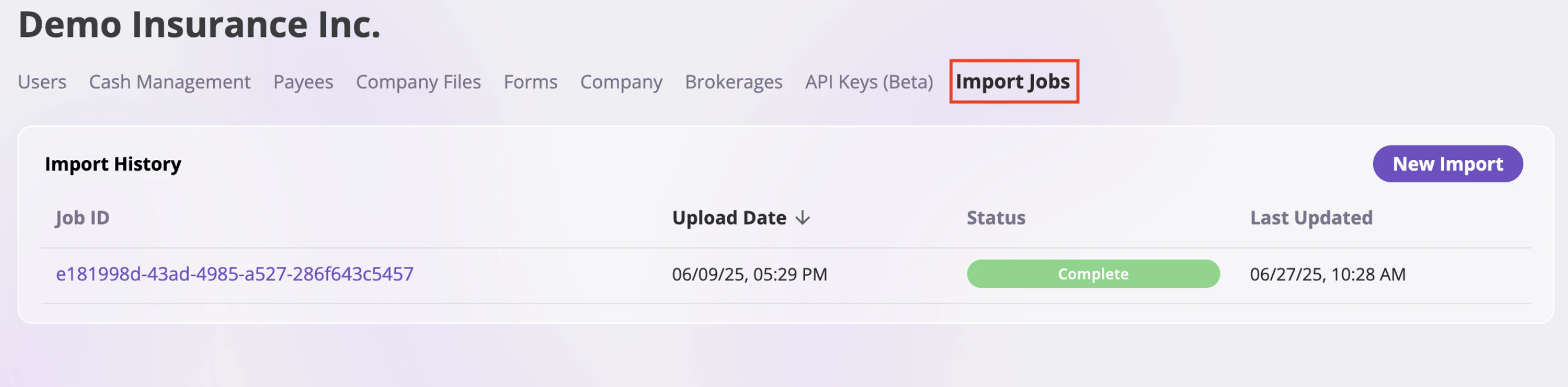
 2. Under your Company's name, locate and click on the **Data Import** tab to view and manage your import operations.
 ## Overview Imported Data Job History
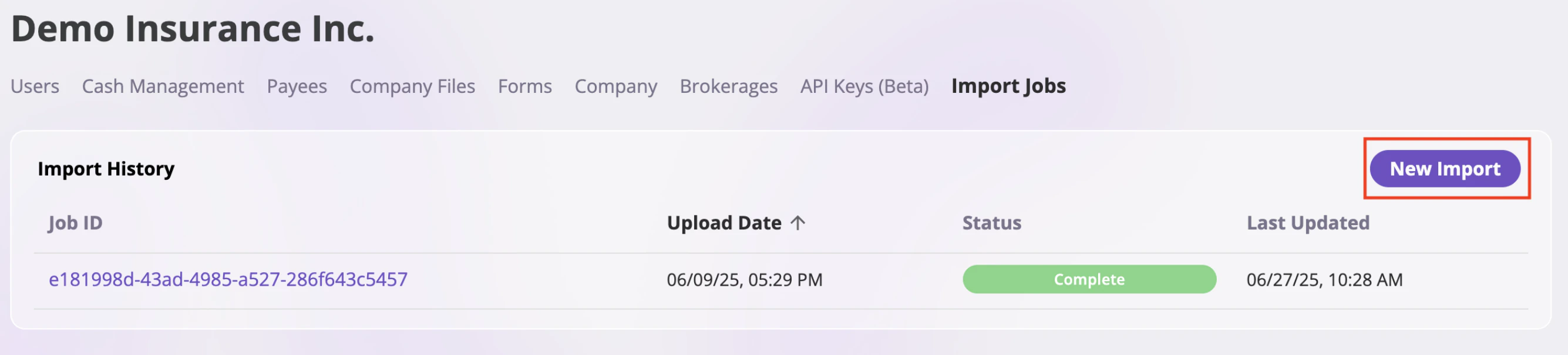
The **Import History** section provides a comprehensive summary of all your imported data jobs. This function includes:
* **Job ID**: A unique identifier for each import job (displayed as a clickable blue link)
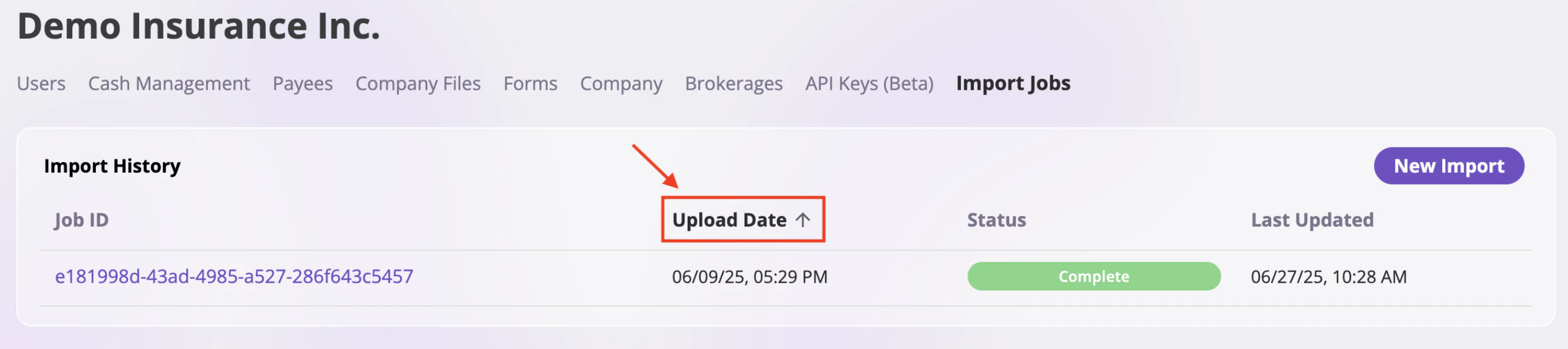
* **Upload Date**: The date and time when the import was initiated (sortable column with down arrow)
* **Status**: The current status of the import job (e.g., "Complete", "In Progress", "Failed")
* **Last Updated**: The most recent update timestamp for the job
The table displays all import jobs in chronological order, with the most recent imports appearing at the top. You can change the chronological order by clicking the **Upload Date** header.
## Overview Imported Data Job History
The **Import History** section provides a comprehensive summary of all your imported data jobs. This function includes:
* **Job ID**: A unique identifier for each import job (displayed as a clickable blue link)
* **Upload Date**: The date and time when the import was initiated (sortable column with down arrow)
* **Status**: The current status of the import job (e.g., "Complete", "In Progress", "Failed")
* **Last Updated**: The most recent update timestamp for the job
The table displays all import jobs in chronological order, with the most recent imports appearing at the top. You can change the chronological order by clicking the **Upload Date** header.
 ## Import New Job Features
To create a new import job:
1. In the **Import History** section, click the **New Import** button located in the top-right corner.
## Import New Job Features
To create a new import job:
1. In the **Import History** section, click the **New Import** button located in the top-right corner.
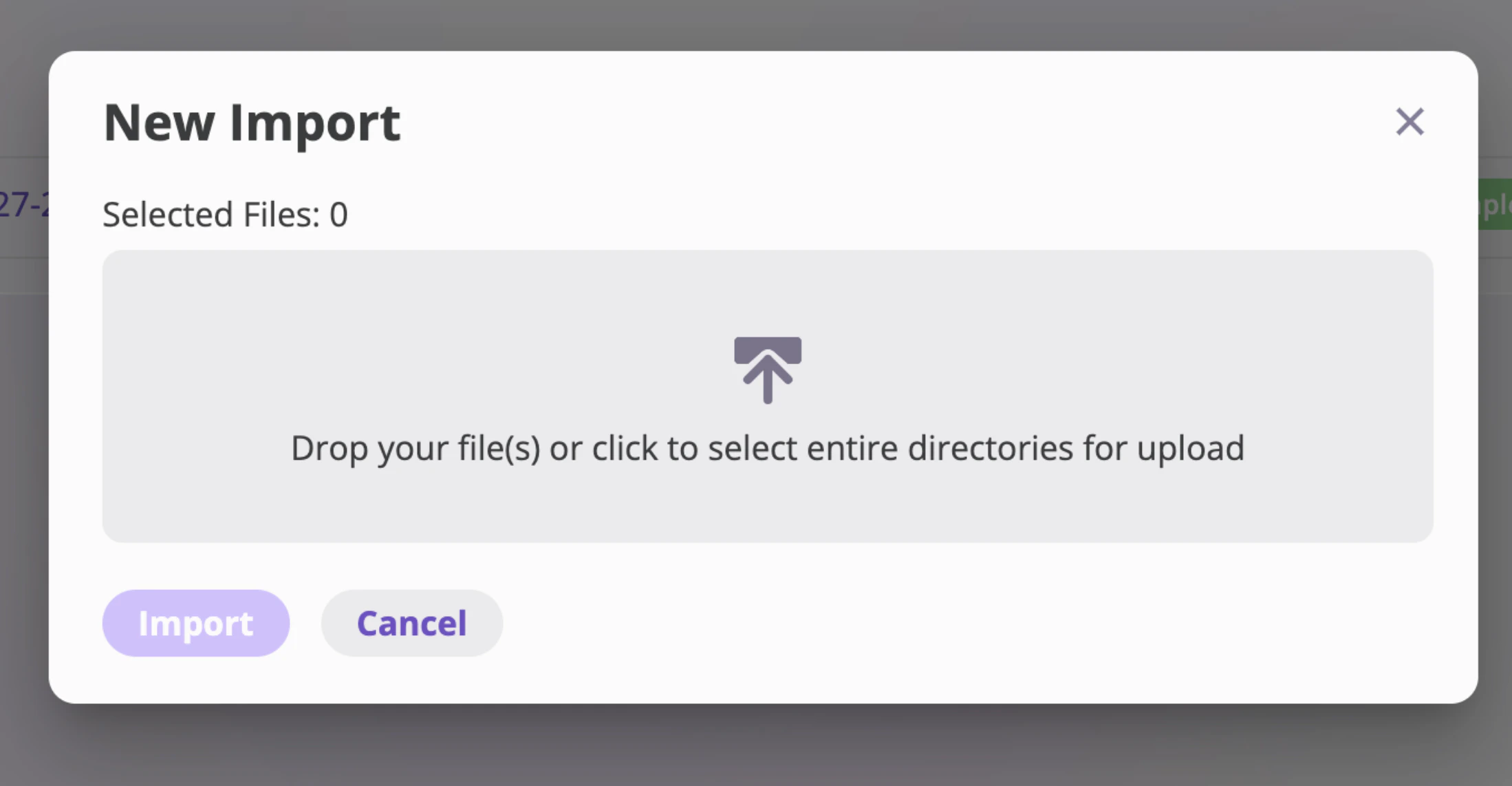
 2. This will open a file upload interface where you can:
* Select the file you want to import
* Choose the appropriate file format
* Configure any import settings
3. Click **Import** to generate a new job ID and begin the import process.
2. This will open a file upload interface where you can:
* Select the file you want to import
* Choose the appropriate file format
* Configure any import settings
3. Click **Import** to generate a new job ID and begin the import process.
 The system will automatically assign a unique Job ID to track your import progress.
## Job Detail Page
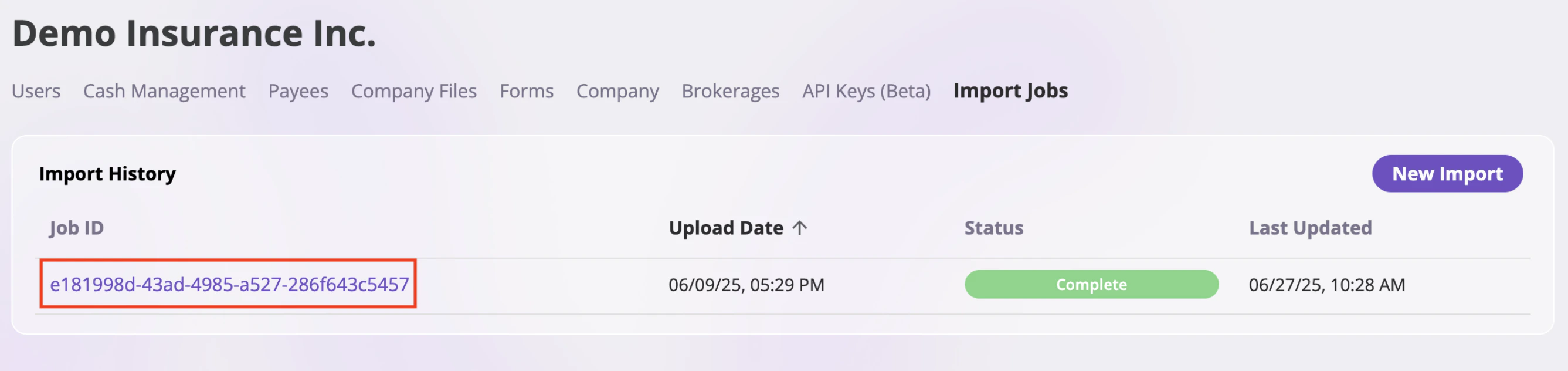
Click on any Job ID in the Import History table to access the detailed view of that specific import job.
The system will automatically assign a unique Job ID to track your import progress.
## Job Detail Page
Click on any Job ID in the Import History table to access the detailed view of that specific import job.
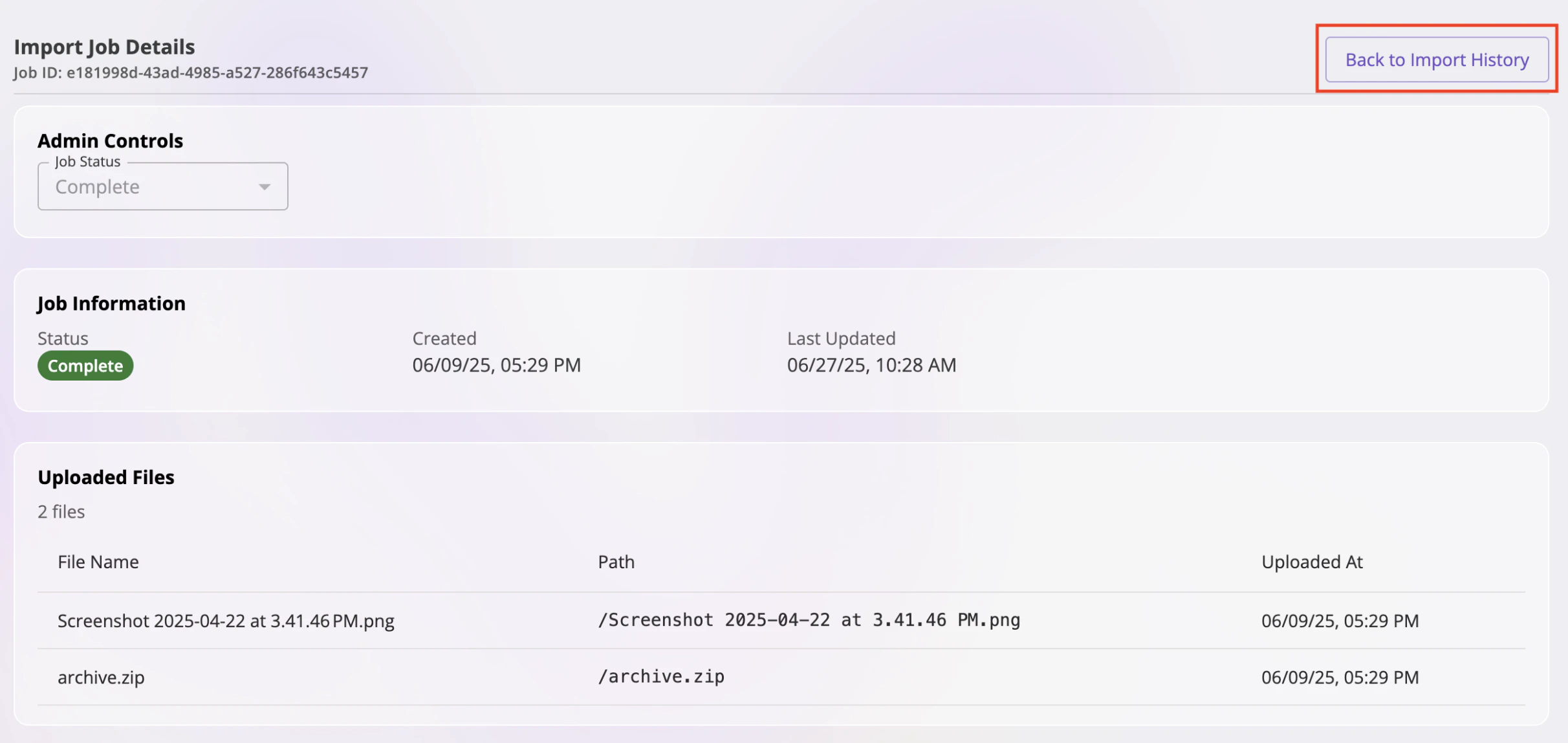
 This function includes:
### Admin Control
* **Status Management**: Change the status of the imported job between "Complete" and "Incomplete"
### Job Information
* **Job Status**: Current status of the import job
* **Created Time**: When the job was initially created
* **Last Updated Time**: The most recent modification timestamp
### Uploaded Files
* **File Management**: View all files uploaded for this specific job
* **File Details**: Access file information, download options, and file status
* **File Processing**: Monitor the processing status of uploaded files
From the job detail page, you can always return to the job history by clicking the button on the top right corner.
This function includes:
### Admin Control
* **Status Management**: Change the status of the imported job between "Complete" and "Incomplete"
### Job Information
* **Job Status**: Current status of the import job
* **Created Time**: When the job was initially created
* **Last Updated Time**: The most recent modification timestamp
### Uploaded Files
* **File Management**: View all files uploaded for this specific job
* **File Details**: Access file information, download options, and file status
* **File Processing**: Monitor the processing status of uploaded files
From the job detail page, you can always return to the job history by clicking the button on the top right corner.