> ## Documentation Index
> Fetch the complete documentation index at: https://docs.aiinsurance.io/llms.txt
> Use this file to discover all available pages before exploring further.
# Run Payout Report
The Run Payout Report feature allows you to generate comprehensive payout reports for brokerages and other payees using custom form templates with smart tags. This workflow combines form creation, smart tag integration, and automated report generation.
## **Step-by-Step Guidance**
### **Step 1: Optionally Edit/Customize the Commission Report Form**
1. Go to **Companies** in the left sidebar
2. Select the **Brokerage** you want to generate a report for
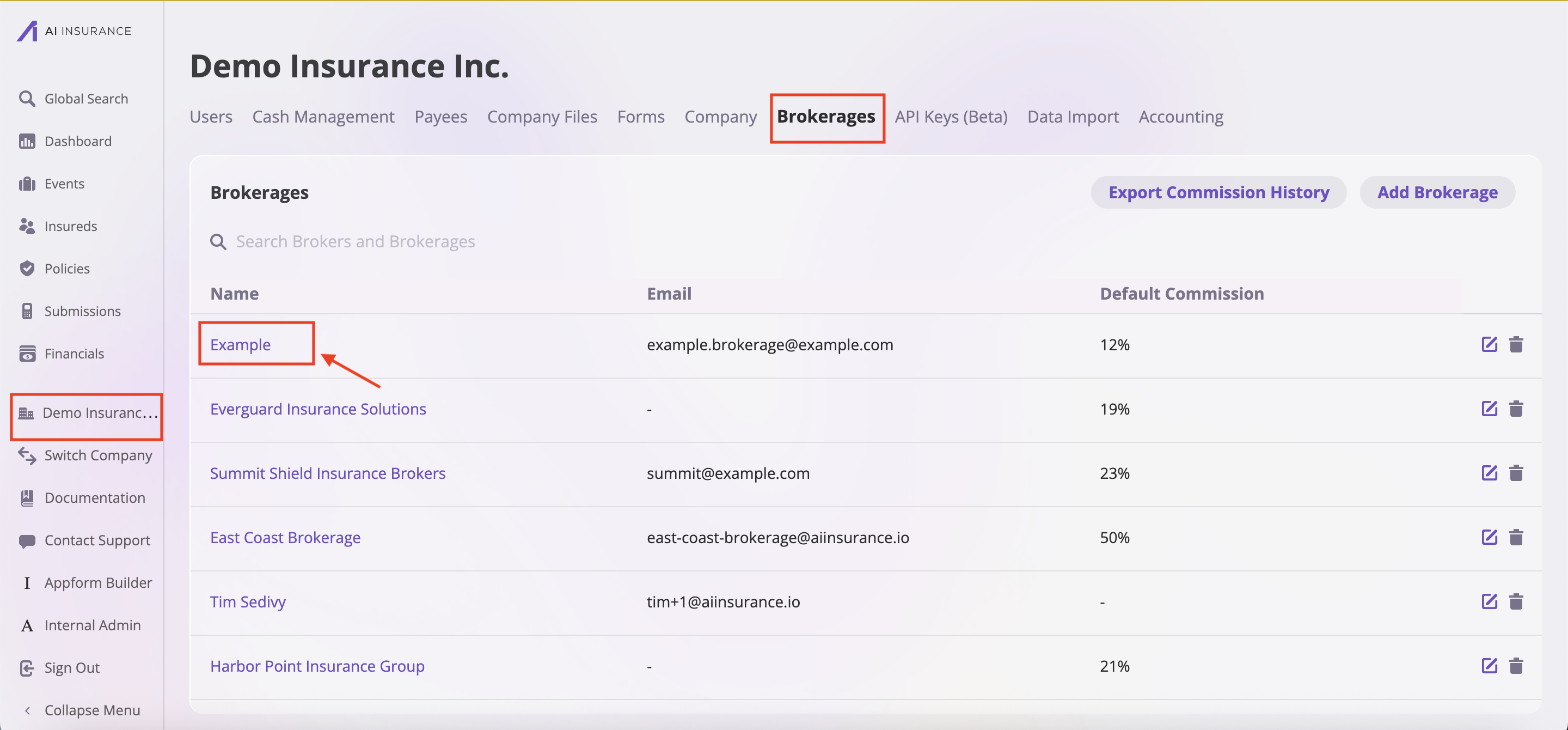 3. Navigate to the **Commission Summary** section
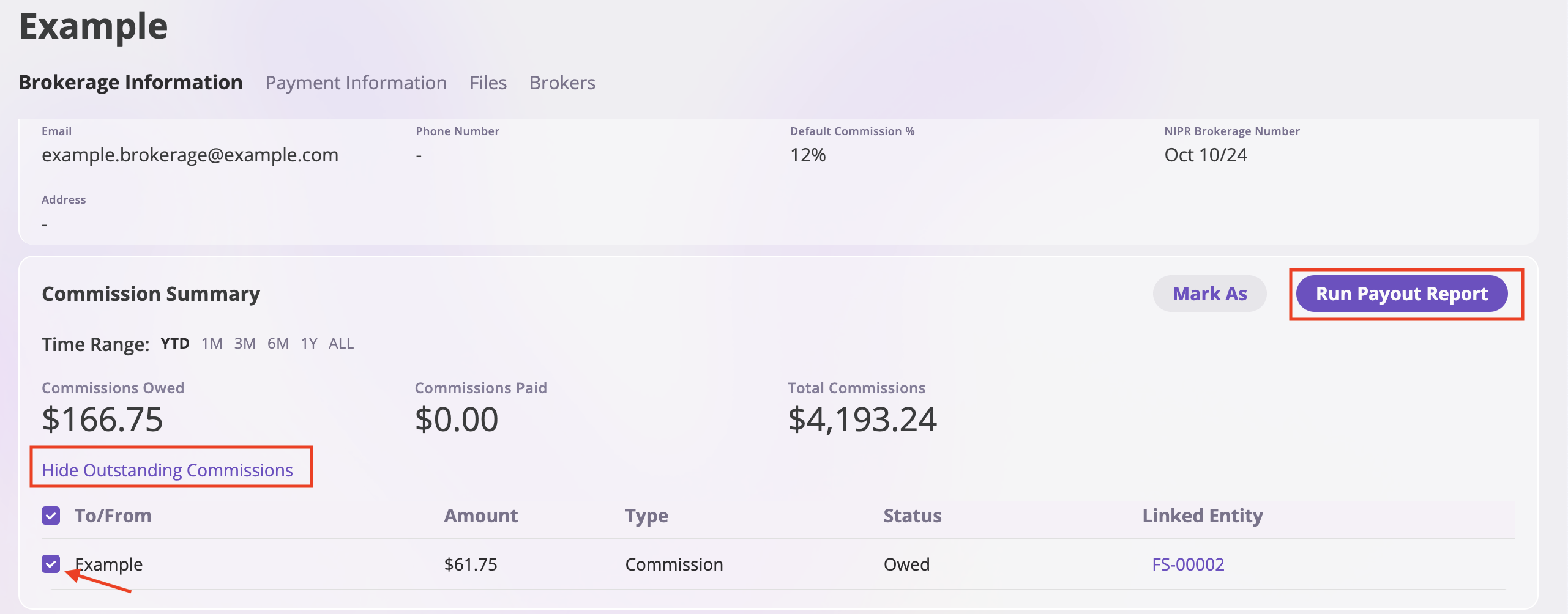
4. Review the outstanding commissions that need to be included in the report
5. Note the commission amounts and details
3. Navigate to the **Commission Summary** section
4. Review the outstanding commissions that need to be included in the report
5. Note the commission amounts and details
 ### **Step 3: Run Payout Report**
1. In the Commission Summary section, click the **"Run Payout Report"** button
2. The system will open the Payout Report Wizard
### **Step 4: Create Report Settings**
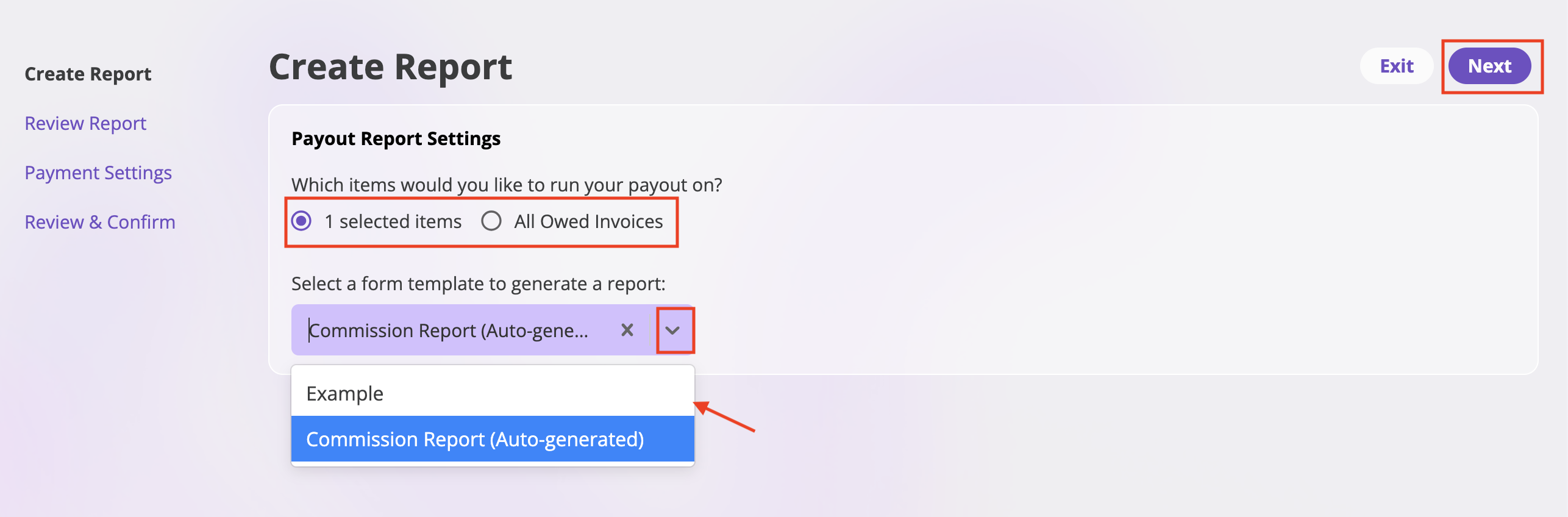
1. In the **"Create Report"** step:
* Select which items to include in your report:
* **"1 selected items"** - For specific commission entries
* **"All Owed Invoices"** - For all outstanding commissions
* Choose your form template from the dropdown menu:
* **Option 1: Use Auto-generated Form** - Select "Commission Report (Auto-generated)" for the standard template (recommended)
* **Option 2: Use Custom Form** - Select any custom form you've created and customized
* Verify the template name appears in the input field
2. Click **"Next"** to proceed
### **Step 3: Run Payout Report**
1. In the Commission Summary section, click the **"Run Payout Report"** button
2. The system will open the Payout Report Wizard
### **Step 4: Create Report Settings**
1. In the **"Create Report"** step:
* Select which items to include in your report:
* **"1 selected items"** - For specific commission entries
* **"All Owed Invoices"** - For all outstanding commissions
* Choose your form template from the dropdown menu:
* **Option 1: Use Auto-generated Form** - Select "Commission Report (Auto-generated)" for the standard template (recommended)
* **Option 2: Use Custom Form** - Select any custom form you've created and customized
* Verify the template name appears in the input field
2. Click **"Next"** to proceed
 ### **Step 5: Review Generated Report**
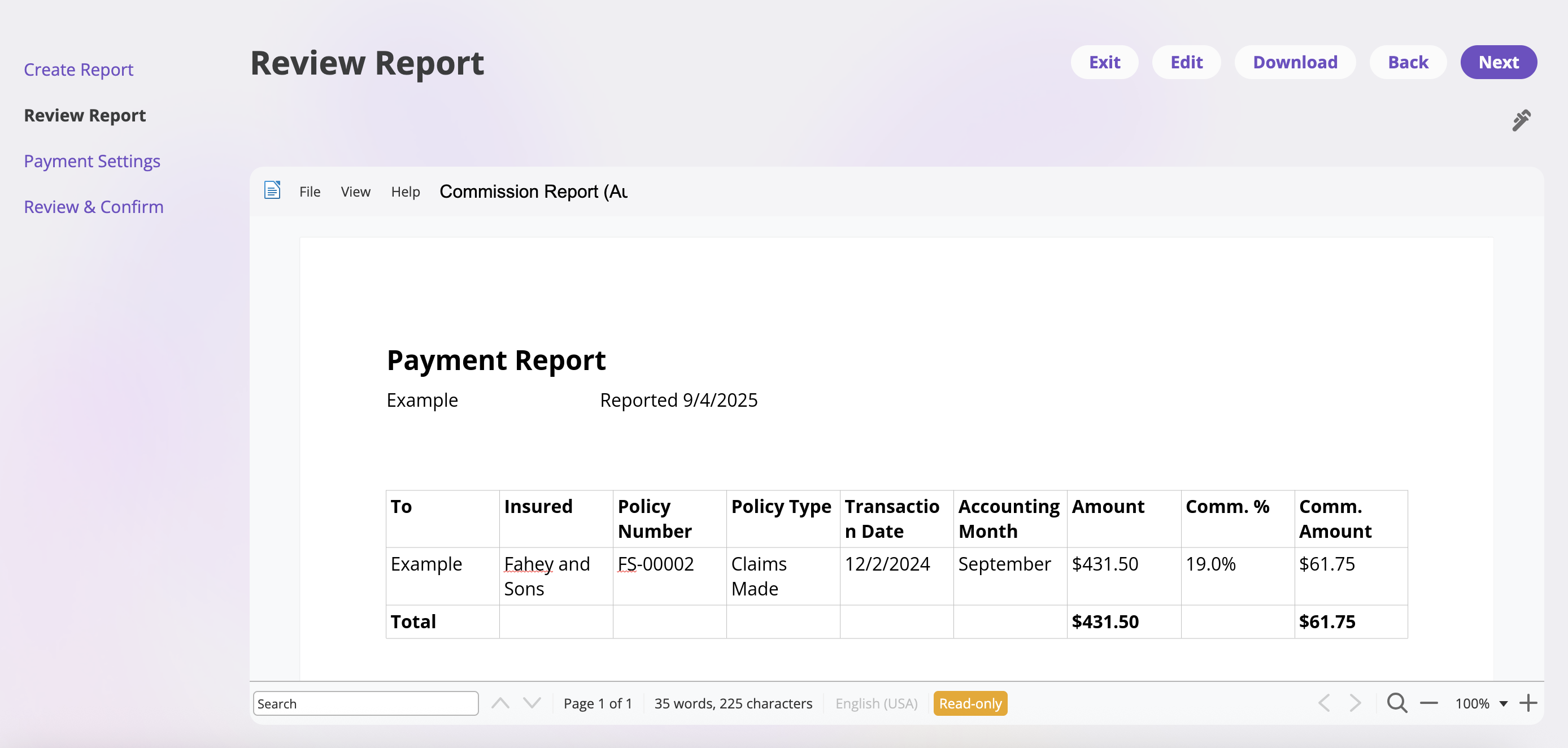
1. In the **"Review Report"** step:
* The system will display your generated report with all smart tags populated
* Review the commission data, payee information, and formatting
* Verify that all smart tags have been replaced with actual data
* Check that the totals and calculations are correct
2. Use the **"Download"** button if you need a copy of the report
3. Click **"Next"** to continue
### **Step 5: Review Generated Report**
1. In the **"Review Report"** step:
* The system will display your generated report with all smart tags populated
* Review the commission data, payee information, and formatting
* Verify that all smart tags have been replaced with actual data
* Check that the totals and calculations are correct
2. Use the **"Download"** button if you need a copy of the report
3. Click **"Next"** to continue
 ### **Step 6: Configure Payment Settings**
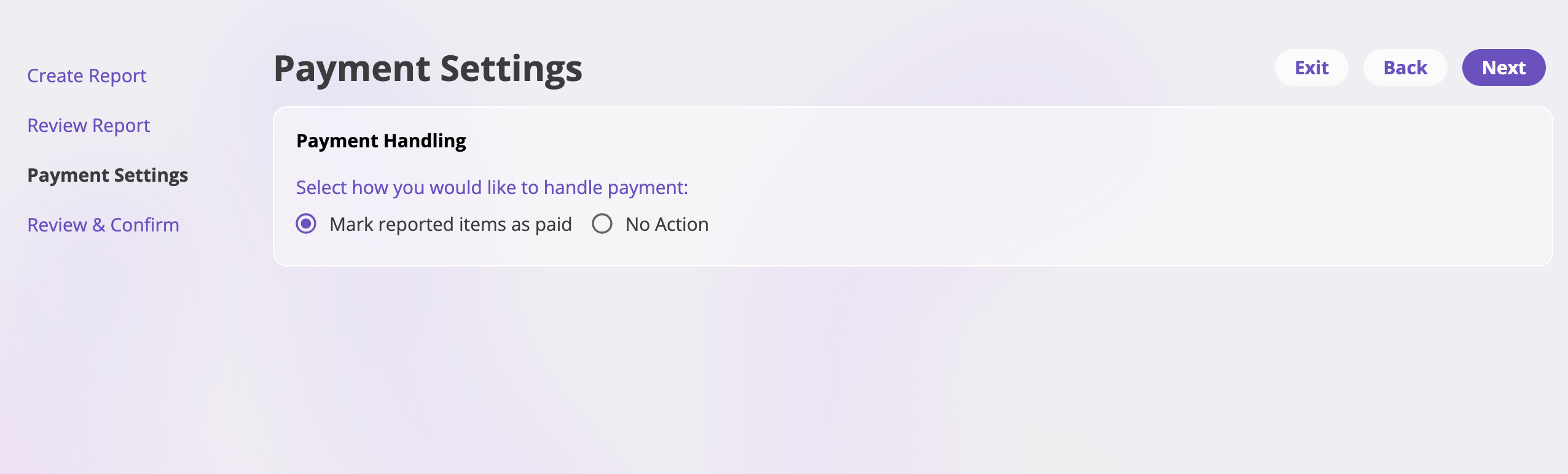
1. In the **"Payment Settings"** step:
* Choose how to handle payment for the reported items:
* **"Mark reported items as paid"** - Updates the status of included commissions
* **"No Action"** - Leaves commission status unchanged
2. Click **"Next"** to proceed
### **Step 6: Configure Payment Settings**
1. In the **"Payment Settings"** step:
* Choose how to handle payment for the reported items:
* **"Mark reported items as paid"** - Updates the status of included commissions
* **"No Action"** - Leaves commission status unchanged
2. Click **"Next"** to proceed
 ### **Step 7: Review and Confirm**
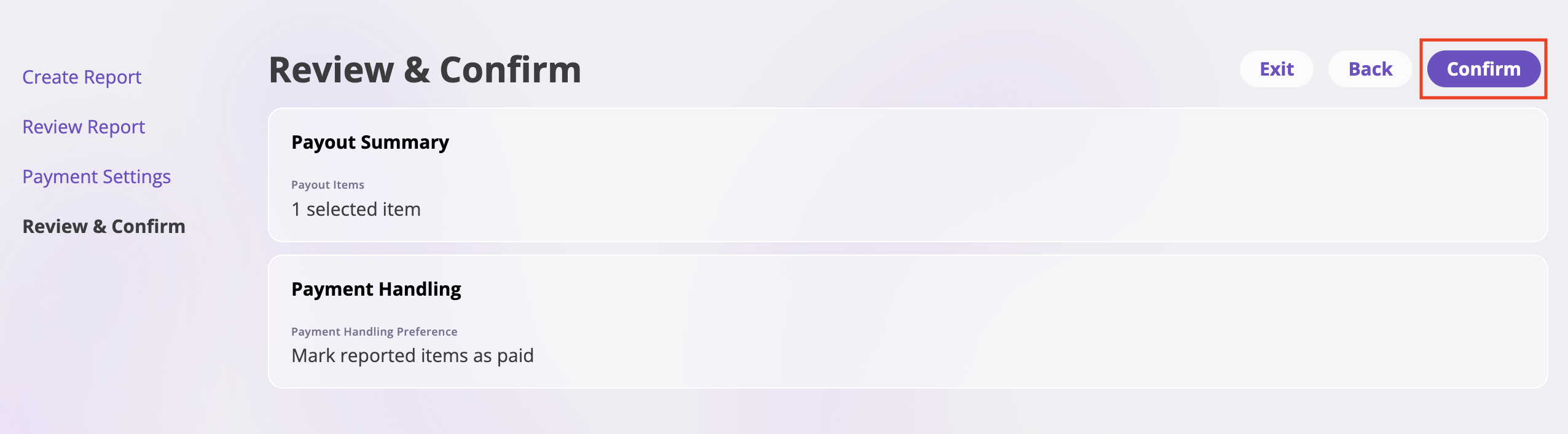
1. In the **"Review & Confirm"** step:
* Review all settings and generated content
* Verify the payment handling selection
* Confirm the report includes all intended commission data
2. Click **"Confirm"** to finalize the payout report
### **Step 7: Review and Confirm**
1. In the **"Review & Confirm"** step:
* Review all settings and generated content
* Verify the payment handling selection
* Confirm the report includes all intended commission data
2. Click **"Confirm"** to finalize the payout report