> ## Documentation Index
> Fetch the complete documentation index at: https://docs.aiinsurance.io/llms.txt
> Use this file to discover all available pages before exploring further.
# Brokerages and Broker Management
You can manage your brokerages and brokers on the platform by doing the following
1. **Document**: Record details about Brokerages and Brokers, like their business information and commission rates.
2. **Track**: Record and report Brokerage and Broker commissions across individual policies and your entire business.
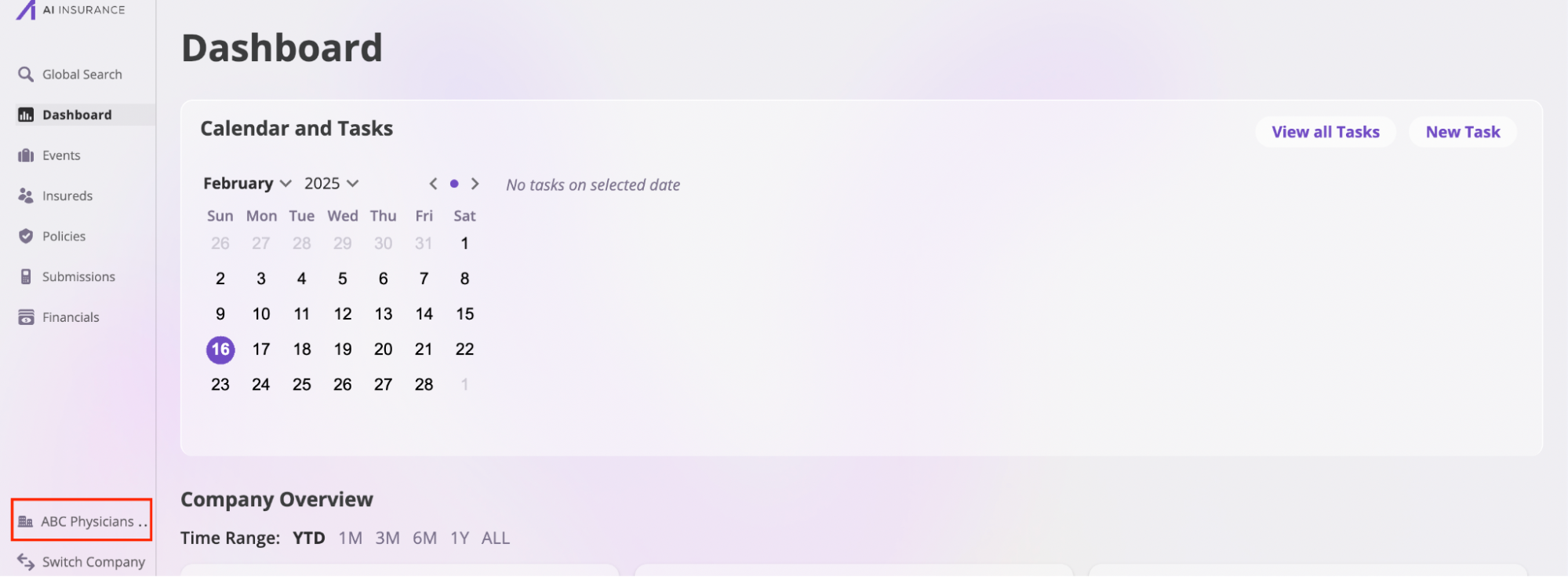
Click on your company's tab in the left sidebar, then select the **Brokerages** tab to open your **Brokerages** page. Here, you can start managing your brokerages and brokers. On this page, you'll see a list of all the brokerages you've created.
 ## Add a Brokerage
Follow these steps to add a brokerage:
1. Navigate to the **Brokerages** page and click the **Add Brokerage** button. This will open the **Add Brokerage** modal.
## Add a Brokerage
Follow these steps to add a brokerage:
1. Navigate to the **Brokerages** page and click the **Add Brokerage** button. This will open the **Add Brokerage** modal.
 2. Enter the brokerage details, including the Name, Email, NIPR Brokerage Number, and other relevant information.
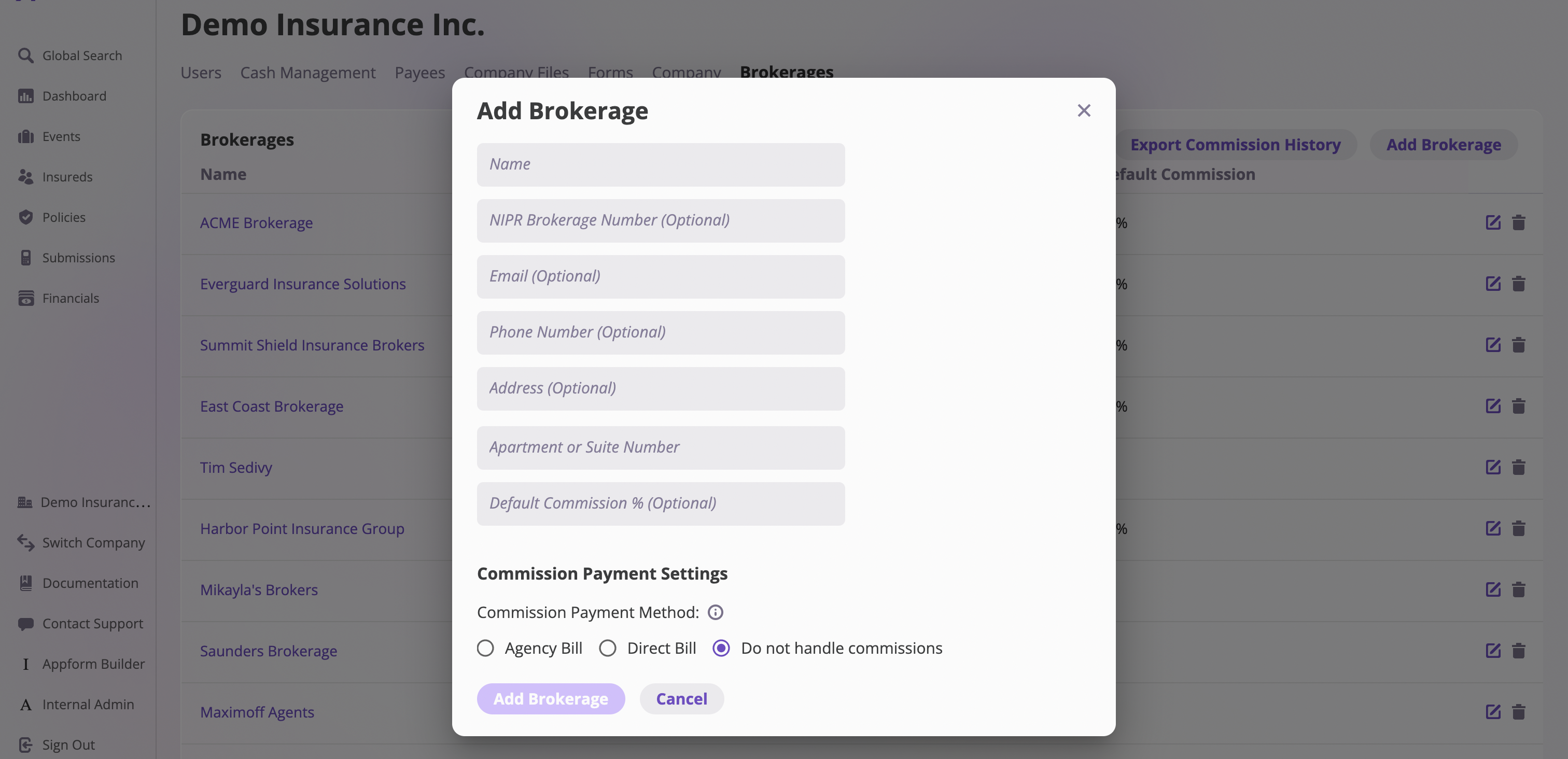 3. Select your **Commission Payment Settings.** There are three options:
* **Agency Bill**: The policy invoice is sent to the broker, and the commission is deducted from the total invoice amount.
* **Direct Bill**: The full policy invoice is sent to the insured, and a separate **Commission Invoice** transaction is created for the broker’s commission.
* **Do Not Handle Commissions**: No additional commission-related transactions will be created, and no commissions will be deducted from outbound policy invoices.
4. Click the **Add Brokerage** button to save the brokerage.
3. Select your **Commission Payment Settings.** There are three options:
* **Agency Bill**: The policy invoice is sent to the broker, and the commission is deducted from the total invoice amount.
* **Direct Bill**: The full policy invoice is sent to the insured, and a separate **Commission Invoice** transaction is created for the broker’s commission.
* **Do Not Handle Commissions**: No additional commission-related transactions will be created, and no commissions will be deducted from outbound policy invoices.
4. Click the **Add Brokerage** button to save the brokerage.
 ## View a Brokerage
On the **Brokerages** page, select a brokerage to open its dedicated page and view detailed information.
## View a Brokerage
On the **Brokerages** page, select a brokerage to open its dedicated page and view detailed information.
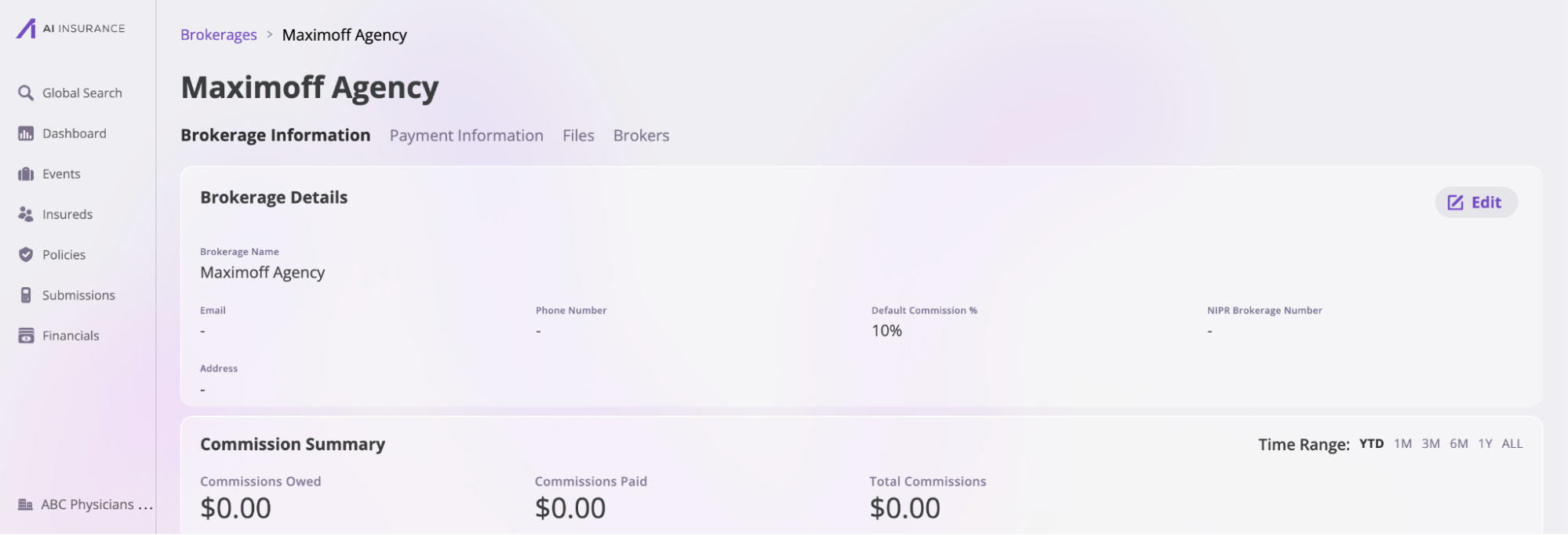 This dedicated page is split into four sections
* **Brokerage information**: This section provides an overview of your brokerage and is further divided into three subsections:
* **Brokerage Details:** Displays key information such as the brokerage name, email, phone number, default commission, and NIPR brokerage number.
* **Commission Summary:** Provides an overview of all commissions paid or owed by the brokerage over a specific period.
* **Commission History:** Shows a detailed record of commission transactions. Click the **Export** button to download this information.
This dedicated page is split into four sections
* **Brokerage information**: This section provides an overview of your brokerage and is further divided into three subsections:
* **Brokerage Details:** Displays key information such as the brokerage name, email, phone number, default commission, and NIPR brokerage number.
* **Commission Summary:** Provides an overview of all commissions paid or owed by the brokerage over a specific period.
* **Commission History:** Shows a detailed record of commission transactions. Click the **Export** button to download this information.
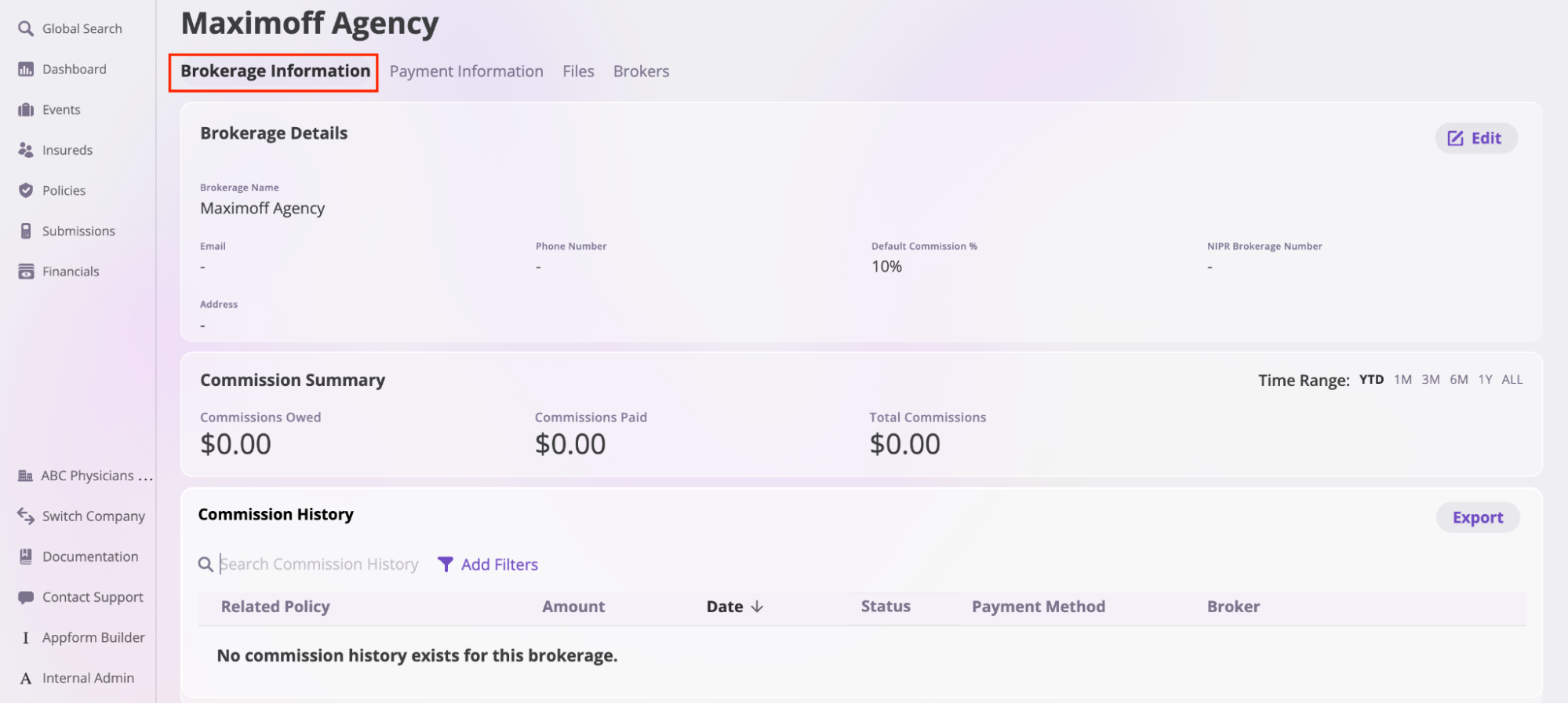 * **Payment Information**: This section contains details about payment methods and commissions, divided into two subsections:
* **Payment Information:** Displays your brokerage’s bank details. Click the **Edit** button to update this information.
* **Commission Payment Settings:** Click the **Edit** button to modify your commission payment settings. Available options include **Agency Bill**, **Direct Bill**, or **Do Not Handle Commissions**.
* **Payment Information**: This section contains details about payment methods and commissions, divided into two subsections:
* **Payment Information:** Displays your brokerage’s bank details. Click the **Edit** button to update this information.
* **Commission Payment Settings:** Click the **Edit** button to modify your commission payment settings. Available options include **Agency Bill**, **Direct Bill**, or **Do Not Handle Commissions**.
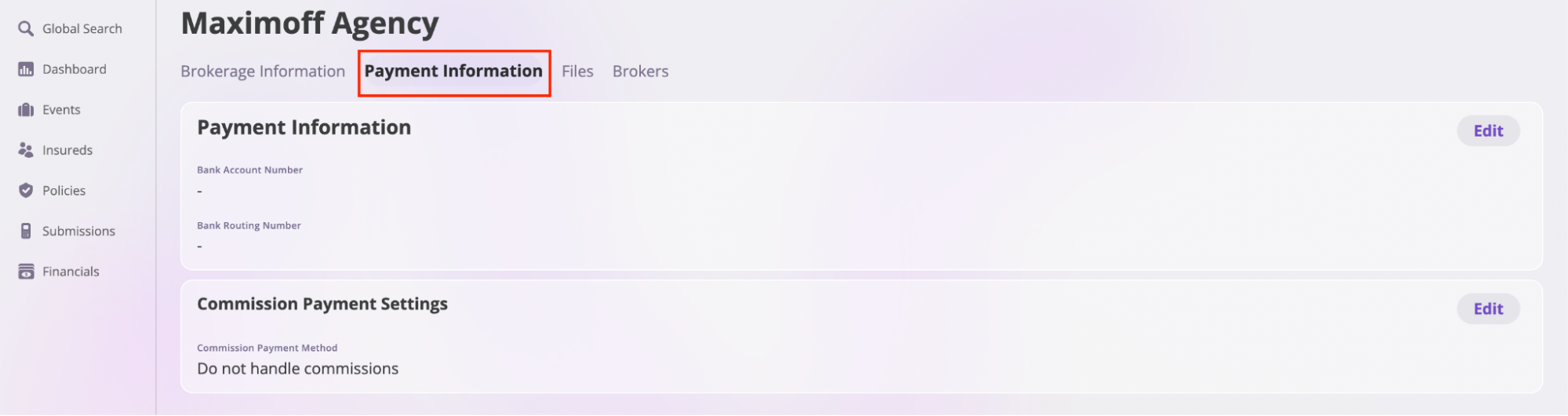 * **Files**: This section stores all files associated with the brokerage and its brokers. Refer to the [Files documentation](/platform/components/files/files) to learn more about uploading and managing files on the platform.
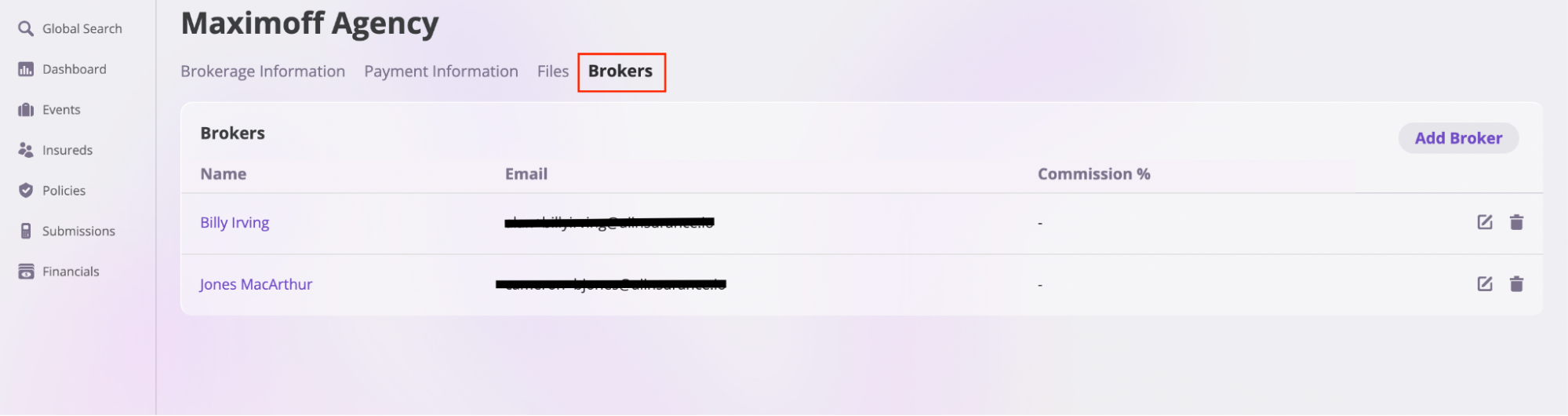
 * **Brokers**: This tab contains information about all brokers working under the brokerage.
 ## Edit a Brokerage
To edit a Brokerage:
1. Search for and locate the Brokerage you want to edit on the **Brokerages** page.
2. Click the edit icon next to the Brokerage to open the **Edit Brokerage** modal.
## Edit a Brokerage
To edit a Brokerage:
1. Search for and locate the Brokerage you want to edit on the **Brokerages** page.
2. Click the edit icon next to the Brokerage to open the **Edit Brokerage** modal.

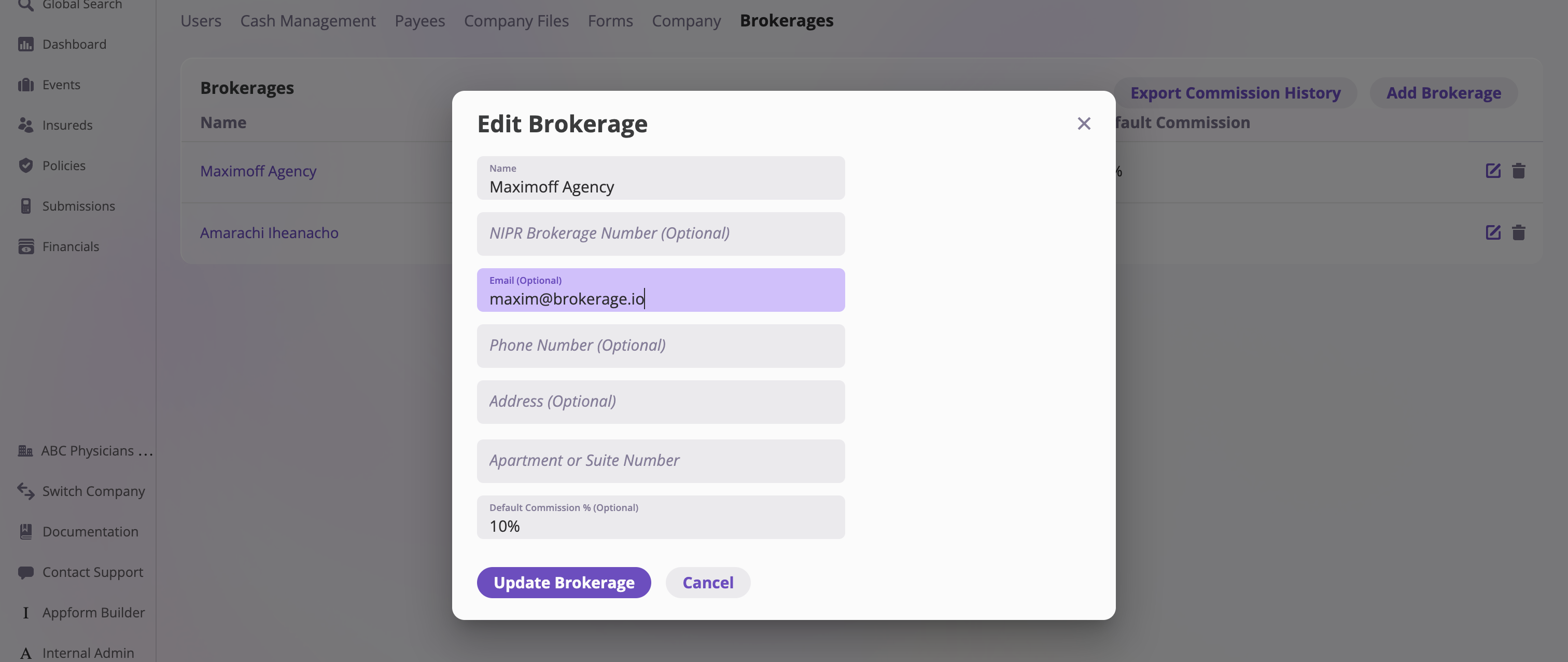
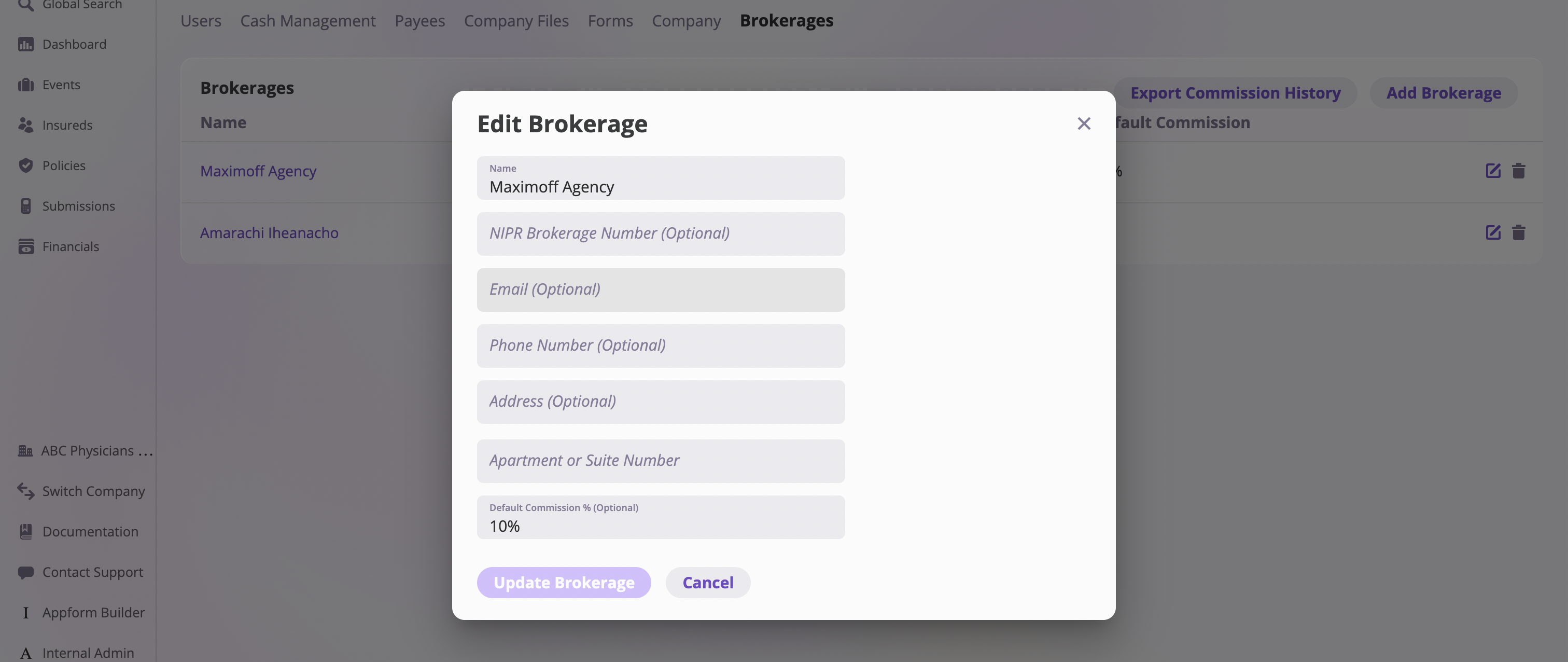 3. Update the necessary information in the form input fields.
4. Click the **Update Brokerage** button to save your changes.
3. Update the necessary information in the form input fields.
4. Click the **Update Brokerage** button to save your changes.
 ## Add a Broker
Follow these steps to add a broker to a brokerage:
1. On the **Brokerages** page, select the brokerage where you want to add a broker.
## Add a Broker
Follow these steps to add a broker to a brokerage:
1. On the **Brokerages** page, select the brokerage where you want to add a broker.
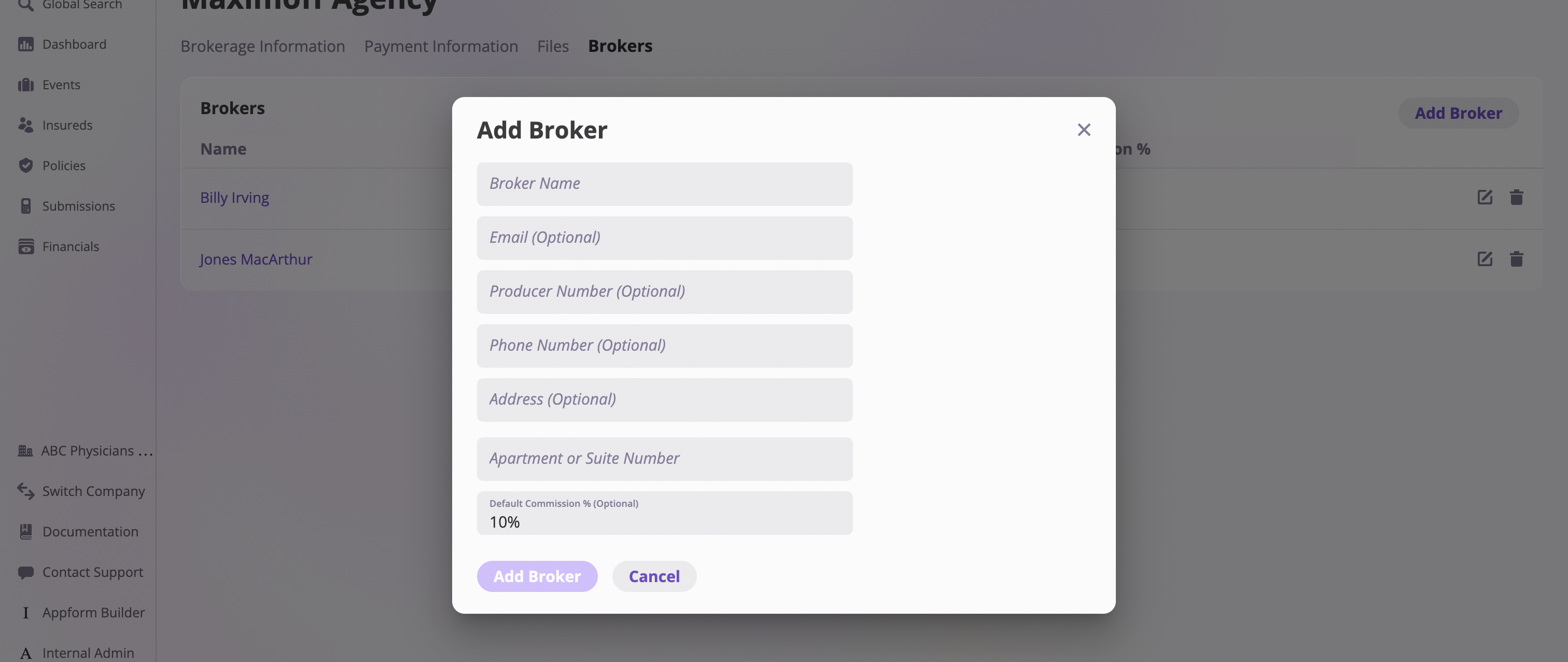
 2. Click the **Broker** tab, then select the **Add Broker** button to open the **Add Broker** modal.
 3. Enter the new broker's information in the modal and click **Add Broker** to complete the process.
\
### How to create multiple users or brokers with the same email address
If you need to create multiple user or broker accounts using the same base email address, insert a "+" followed by a unique identifier before the "@" symbol. Most email providers, such as Gmail, will still deliver all emails to the original inbox.
For example, if your base email is:
`alex@example.com`
You can create variations like:
* `alex+broker1@example.com`
* `alex+user2@example.com`
* `alex+nyoffice@example.com`
This allows you to manage multiple accounts while receiving all emails in one central inbox.
## View a Broker
To view a Broker:
1. On the **Brokerages** page, select the brokerage that employs the broker you want to view.
2. Click the **Broker** tab to see a list of brokers under that brokerage.
3. Enter the new broker's information in the modal and click **Add Broker** to complete the process.
\
### How to create multiple users or brokers with the same email address
If you need to create multiple user or broker accounts using the same base email address, insert a "+" followed by a unique identifier before the "@" symbol. Most email providers, such as Gmail, will still deliver all emails to the original inbox.
For example, if your base email is:
`alex@example.com`
You can create variations like:
* `alex+broker1@example.com`
* `alex+user2@example.com`
* `alex+nyoffice@example.com`
This allows you to manage multiple accounts while receiving all emails in one central inbox.
## View a Broker
To view a Broker:
1. On the **Brokerages** page, select the brokerage that employs the broker you want to view.
2. Click the **Broker** tab to see a list of brokers under that brokerage.
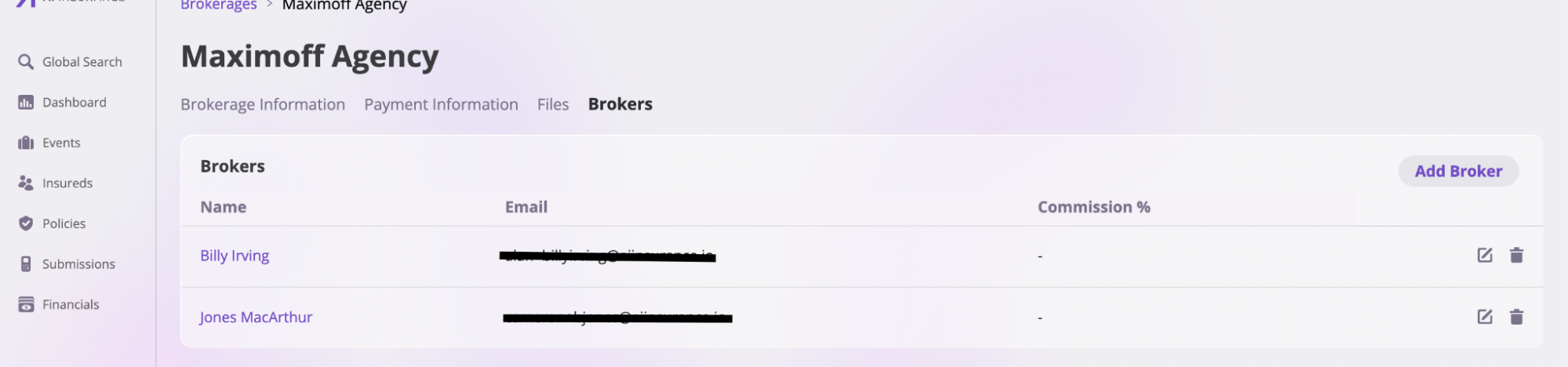 3. Select a broker to open their designated **Broker** page for more details.
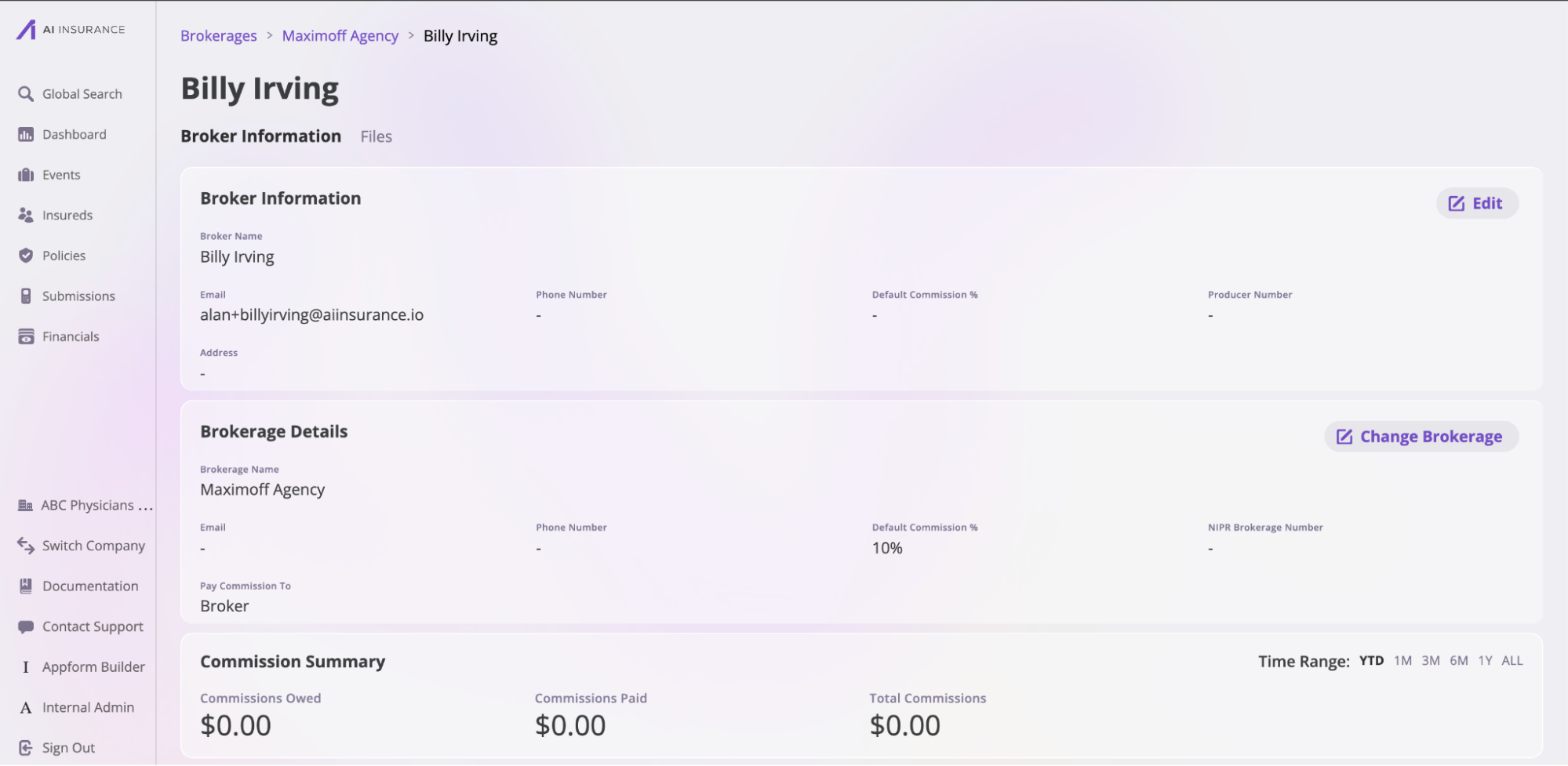 A **Broker** page has two tabs: **Broker Information** and **Files**.
* **Broker Information: This tab contains all details related to a broker, divided into four sections:**
* **Broker Information:** Includes the broker’s name, email, phone number, default commission, and producer number.
* **Brokerage Details:** Displays information about the brokerage the broker works for, such as brokerage name, email, phone number, default commission, NIPR brokerage number, and commission payment details.
* **Commission Summary:** Provides an overview of all commissions paid or owed by the brokerage over a specific time period.
* **Commission History:** A detailed record of commission transactions within the brokerage. Click the **Export** button to download this data.
A **Broker** page has two tabs: **Broker Information** and **Files**.
* **Broker Information: This tab contains all details related to a broker, divided into four sections:**
* **Broker Information:** Includes the broker’s name, email, phone number, default commission, and producer number.
* **Brokerage Details:** Displays information about the brokerage the broker works for, such as brokerage name, email, phone number, default commission, NIPR brokerage number, and commission payment details.
* **Commission Summary:** Provides an overview of all commissions paid or owed by the brokerage over a specific time period.
* **Commission History:** A detailed record of commission transactions within the brokerage. Click the **Export** button to download this data.
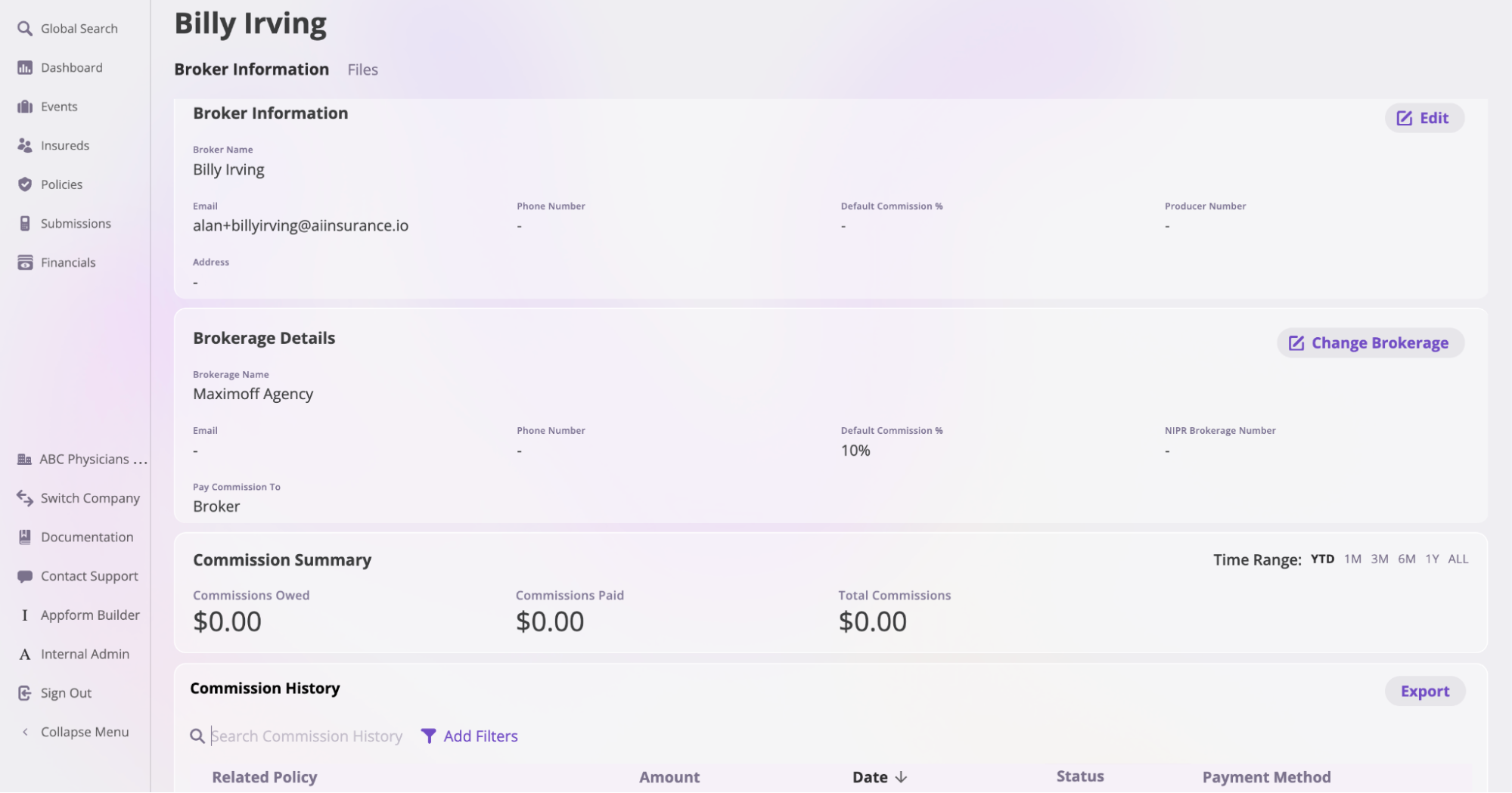 * **File**: This tab contains all files associated with the broker. Refer to the [Files documentation](/platform/components/files/files) to learn more about uploading and managing files on the platform.
 ## Attaching a Broker to a policy
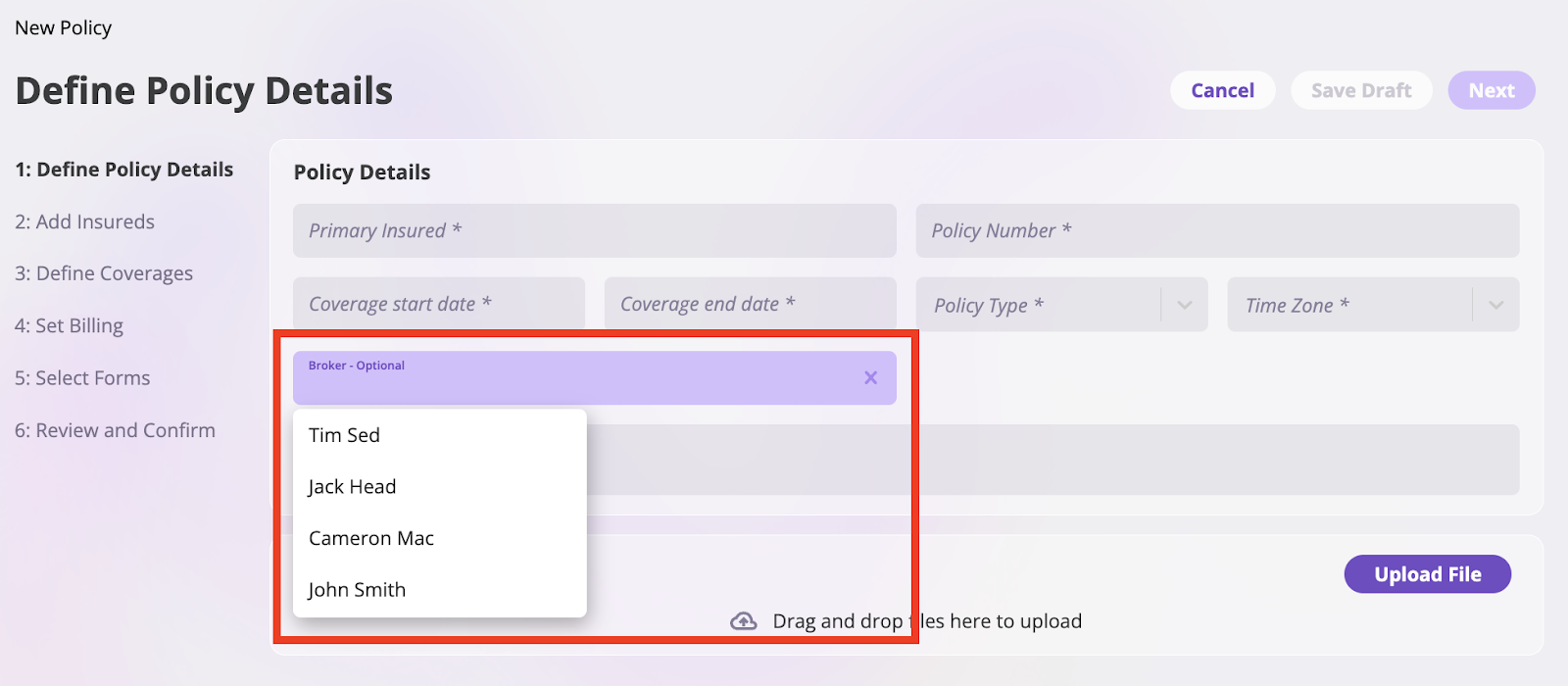
During [policy creation](https://app.aiinsurance.io/docs/policy-management/creating), you can attach an existing Broker or create a new one. When a Broker is linked to a policy, the policy automatically gets the Broker's default commission. However, you can change this commission manually if there's a special agreement for that policy.
## Attaching a Broker to a policy
During [policy creation](https://app.aiinsurance.io/docs/policy-management/creating), you can attach an existing Broker or create a new one. When a Broker is linked to a policy, the policy automatically gets the Broker's default commission. However, you can change this commission manually if there's a special agreement for that policy.