> ## Documentation Index
> Fetch the complete documentation index at: https://docs.aiinsurance.io/llms.txt
> Use this file to discover all available pages before exploring further.
# Filter and Sort Insureds
## Overview
The **Insureds** page allows you to view and manage all insured entities within your organization. With built-in filtering and sorting tools, you can quickly find specific records based on status, relationship type, dates, and more—making it easy to stay organized and efficient.
## How to access the Insured Filters
Follow these steps to find and use the filtering options on the **Insureds** page:
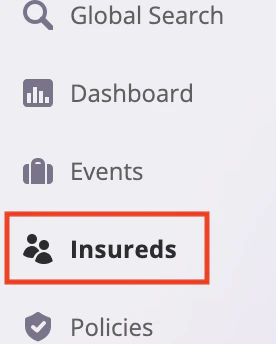
1. On the left-hand sidebar, locate and click on the **Insureds** section.
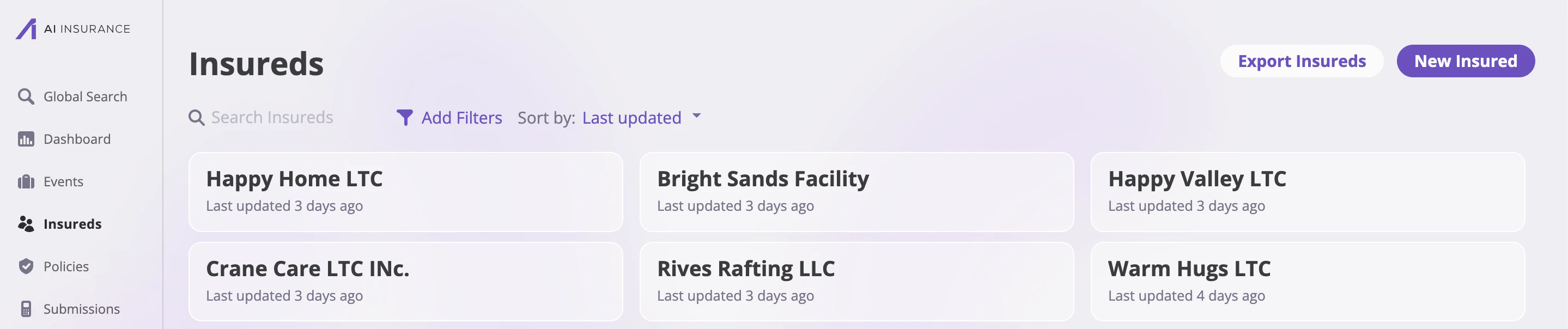
 2. This will bring you to the **Insureds** page, where you can view all existing insured entries.
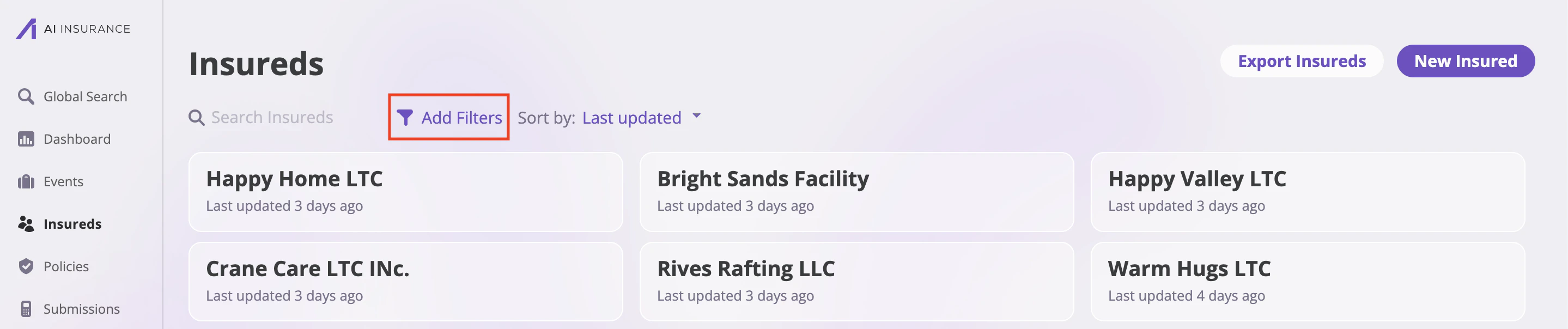
 3. To filter the list, click on the **Add Filters** icon located near the top of the page.
 4. A dropdown menu will appear with filter options such as **Insured Status**, **Relationship Type**, **Policy Number**, **Join Date**, and **Termination Date**.
\
Available filters include:
* **Insured Status**: This filter lets you view insureds based on their current status. Options include: **Active** and **Inactive**.
* **Relationship Type**: This filter helps categorize insureds by their relationship to the policy. Options include: **Primary**, **Named**, **Additional**, and **Related Entity**.
* **Policy Number**: This filter allows you to find insureds by a specific policy number. You can choose from the following conditions: **Matches**, **Contains**, or **Does not Contain**.
* **Join Date**: Use this filter to narrow down insureds based on when they were added. Options include: **On**, **Before**, or **After** a selected date.
* **Termination Date**: This filter works the same way as Join Date, allowing you to filter by **On**, **Before**, or **After** a specified termination date.
5. Select your desired filter, configure the conditions, and click **Add Filter** to apply it.
4. A dropdown menu will appear with filter options such as **Insured Status**, **Relationship Type**, **Policy Number**, **Join Date**, and **Termination Date**.
\
Available filters include:
* **Insured Status**: This filter lets you view insureds based on their current status. Options include: **Active** and **Inactive**.
* **Relationship Type**: This filter helps categorize insureds by their relationship to the policy. Options include: **Primary**, **Named**, **Additional**, and **Related Entity**.
* **Policy Number**: This filter allows you to find insureds by a specific policy number. You can choose from the following conditions: **Matches**, **Contains**, or **Does not Contain**.
* **Join Date**: Use this filter to narrow down insureds based on when they were added. Options include: **On**, **Before**, or **After** a selected date.
* **Termination Date**: This filter works the same way as Join Date, allowing you to filter by **On**, **Before**, or **After** a specified termination date.
5. Select your desired filter, configure the conditions, and click **Add Filter** to apply it.
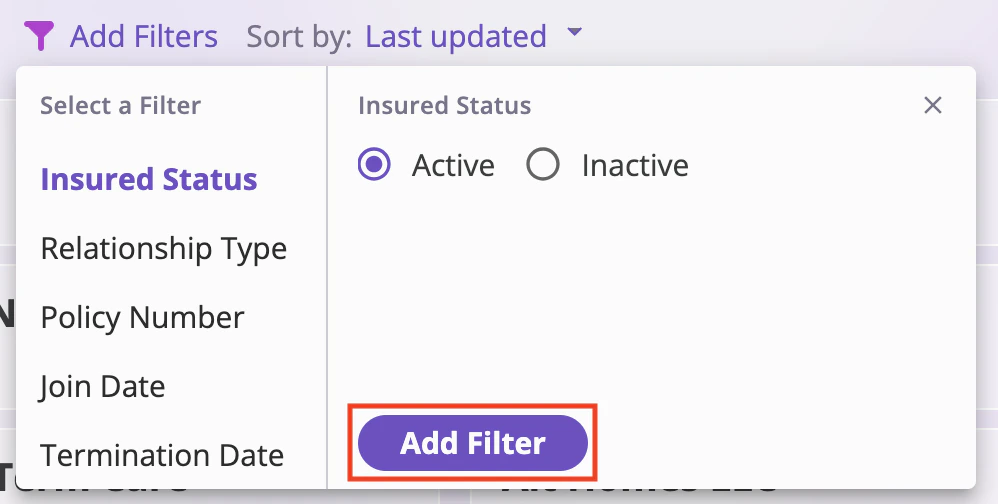 After you click **Add Filter**, the insureds list will automatically update to show only the entries that match your selected criteria.
## Sort filters
On this page, you will see a list of all your insureds. You can search through them using the **search bar** at the top of the page. You can also **sort** the insureds by:
* **Alphabetical**: Sorts insureds by name from A to Z.
* **Last updated** (default): Organizes entries based on the most recent changes made.
* **Days until renewal**: Sorts entries based on how soon each insured’s associated policy is up for renewal.
After you click **Add Filter**, the insureds list will automatically update to show only the entries that match your selected criteria.
## Sort filters
On this page, you will see a list of all your insureds. You can search through them using the **search bar** at the top of the page. You can also **sort** the insureds by:
* **Alphabetical**: Sorts insureds by name from A to Z.
* **Last updated** (default): Organizes entries based on the most recent changes made.
* **Days until renewal**: Sorts entries based on how soon each insured’s associated policy is up for renewal.
 Together, the **filter** and **sort** features make it easy to navigate large lists of insureds, helping you quickly find and organize the information most relevant to your workflow.