> ## Documentation Index
> Fetch the complete documentation index at: https://docs.aiinsurance.io/llms.txt
> Use this file to discover all available pages before exploring further.
# Export Insured Loss Run Report
The Loss Run Report provides a comprehensive summary of claims history for a specific insured. This report can be exported as a PDF and includes detailed information about claims, reserves, and payments.
## How to Export a Loss Run Report
Follow these steps to export a loss run report for a specific insured:
Any filters applied on the Exposures page will carry over to the export. Make sure to apply your desired filters before exporting.
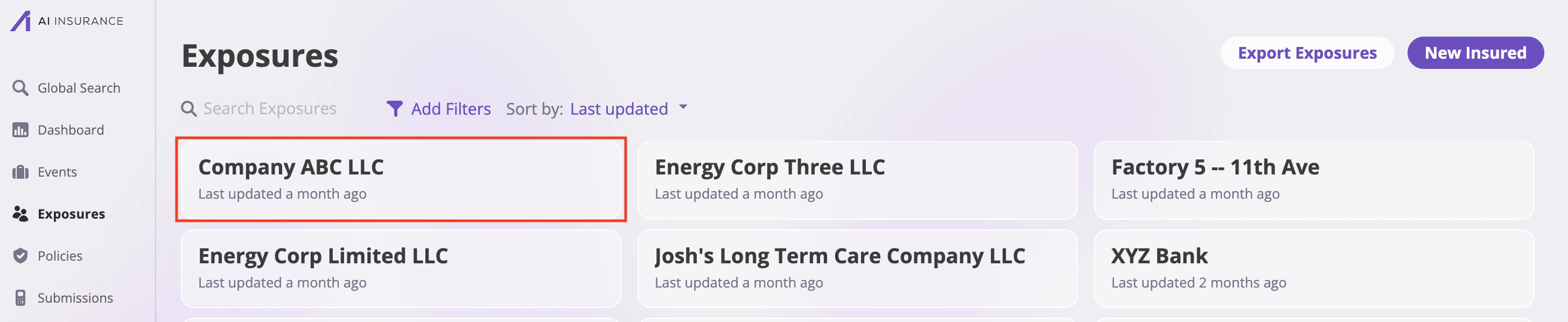
### Step 1: Navigate to Exposures
1. Go to the **Exposures** page by clicking on the **Exposures** tab in the left sidebar
2. Search for and select the insured you want to generate a loss run report for
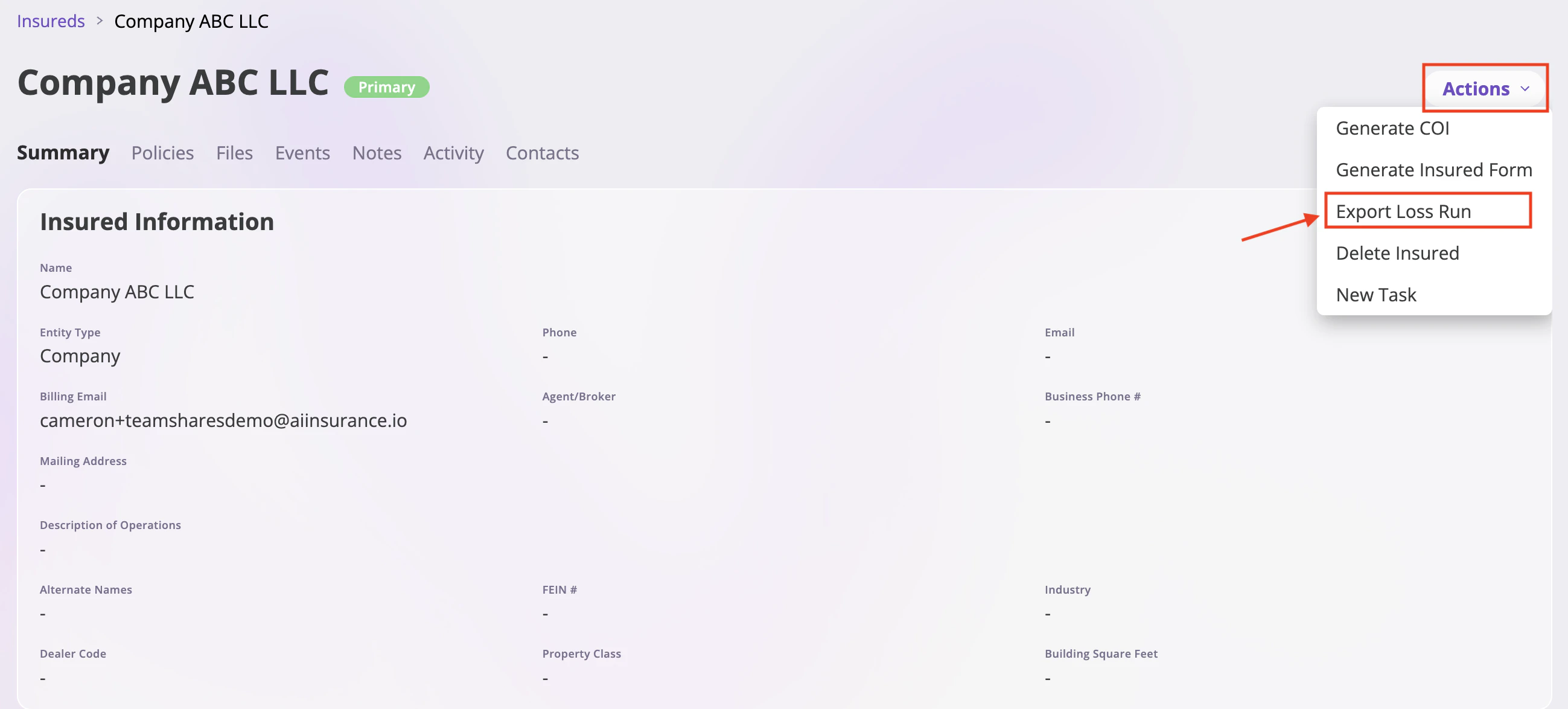
 ### Step 2: Access Export Options
1. Once you've selected the insured, look for the **Actions** dropdown menu
2. Click on the **Actions** dropdown button
3. Select **"Export Loss Run"** from the dropdown options
### Step 2: Access Export Options
1. Once you've selected the insured, look for the **Actions** dropdown menu
2. Click on the **Actions** dropdown button
3. Select **"Export Loss Run"** from the dropdown options
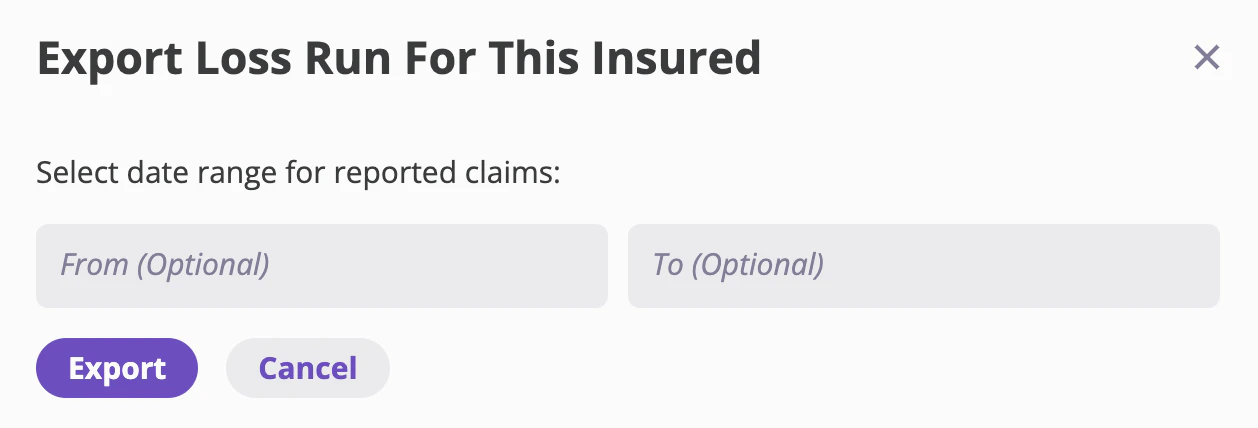
 ### Step 3: Configure Date Range
The "Export Loss Run For This Insured" modal will open with the following options:
1. **Select date range for reported claims**:
* **From (Optional)**: Enter the start date for the report period
* **To (Optional)**: Enter the end date for the report period
2. If no dates are specified, the report will include all available claims data
### Step 3: Configure Date Range
The "Export Loss Run For This Insured" modal will open with the following options:
1. **Select date range for reported claims**:
* **From (Optional)**: Enter the start date for the report period
* **To (Optional)**: Enter the end date for the report period
2. If no dates are specified, the report will include all available claims data
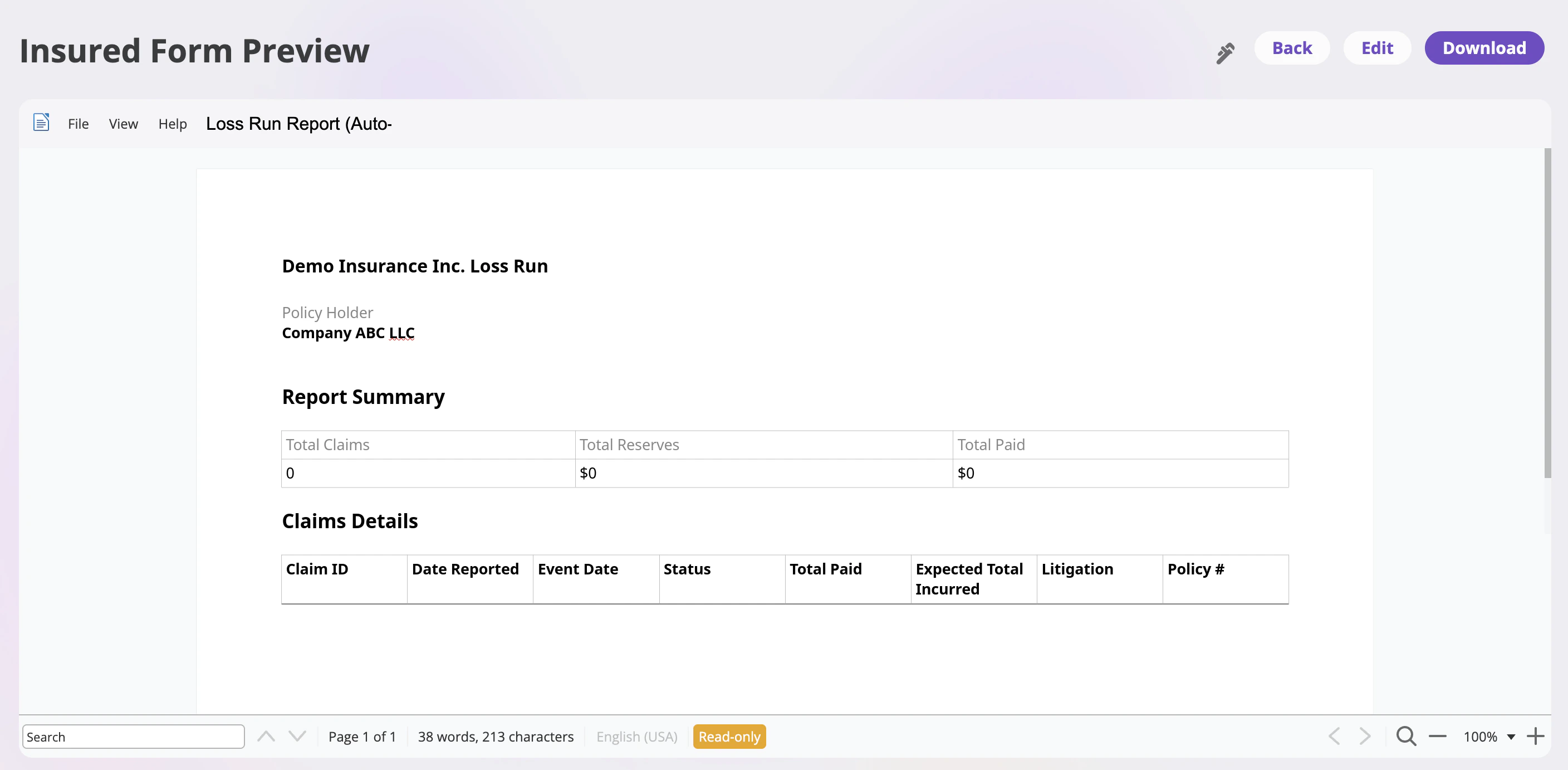
 ### Step 4: Insured Page Review
1. Click the **"Export"** button to generate the report
2. The system will process the data and generate a PDF report
3. The PDF will automatically download to your device
4. You can also click **"Edit"** to make changes to the form before exporting
5. Click **"Cancel"** if you want to close the modal without exporting
### Step 4: Insured Page Review
1. Click the **"Export"** button to generate the report
2. The system will process the data and generate a PDF report
3. The PDF will automatically download to your device
4. You can also click **"Edit"** to make changes to the form before exporting
5. Click **"Cancel"** if you want to close the modal without exporting
 ## Customizing the Loss Run Report Form
If you need to make changes to the loss run report template (such as adding fields, modifying layout, or updating formatting), you can edit the form template:
1. Navigate to your **Company** settings in the left sidebar
2. Go to the **Forms** tab
3. Find and select the **"Loss Run Report"** form
4. Make your desired changes using the form editor
5. Save your updates
For detailed instructions on creating and editing forms, see our [Creating and Validating Forms](/platform/companies/creating-and-validating-forms/creating-and-validating-forms) documentation.
## Customizing the Loss Run Report Form
If you need to make changes to the loss run report template (such as adding fields, modifying layout, or updating formatting), you can edit the form template:
1. Navigate to your **Company** settings in the left sidebar
2. Go to the **Forms** tab
3. Find and select the **"Loss Run Report"** form
4. Make your desired changes using the form editor
5. Save your updates
For detailed instructions on creating and editing forms, see our [Creating and Validating Forms](/platform/companies/creating-and-validating-forms/creating-and-validating-forms) documentation.