> ## Documentation Index
> Fetch the complete documentation index at: https://docs.aiinsurance.io/llms.txt
> Use this file to discover all available pages before exploring further.
# Create and Edit an Insured
Insureds are independent entities within the AI Insurance platform. They can be linked to multiple policies or events. The platform supports nearly 100 entity types, including but not limited to:
* Company
* Healthcare Provider
* Care Facility
* Manufacturer
* Mortgagee
* Contractor
* Dealership, and more.
## Create an Insured
Follow these steps to create a new insured in AI Insurance:
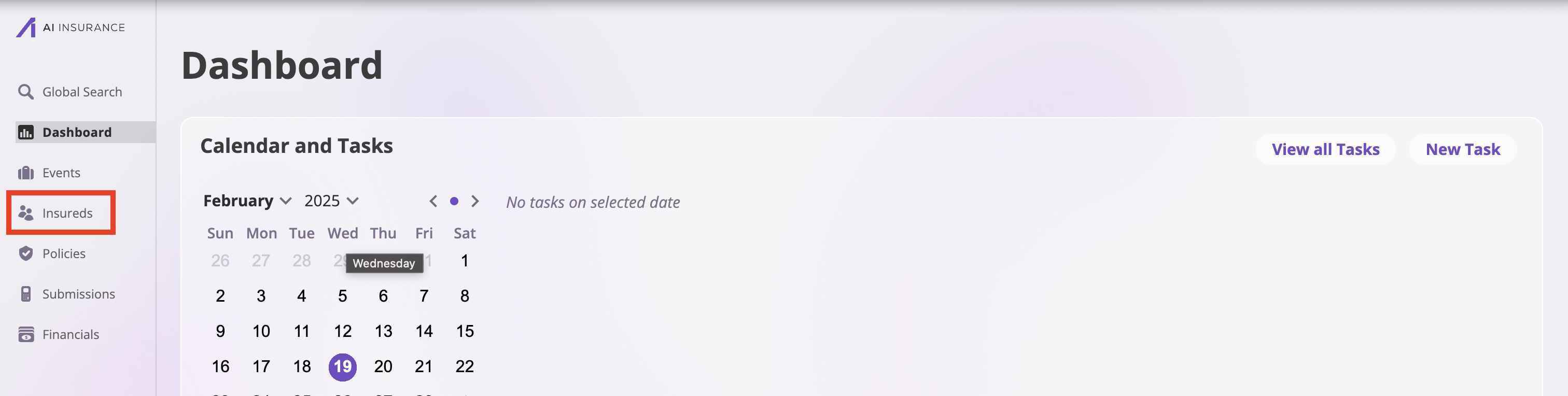
1. Click on the **Insureds** tab in the sidebar to open the Insureds page.
2. On the Insureds page, click the **New Insured** button in the top-right corner to open the **Create New Insured** page.
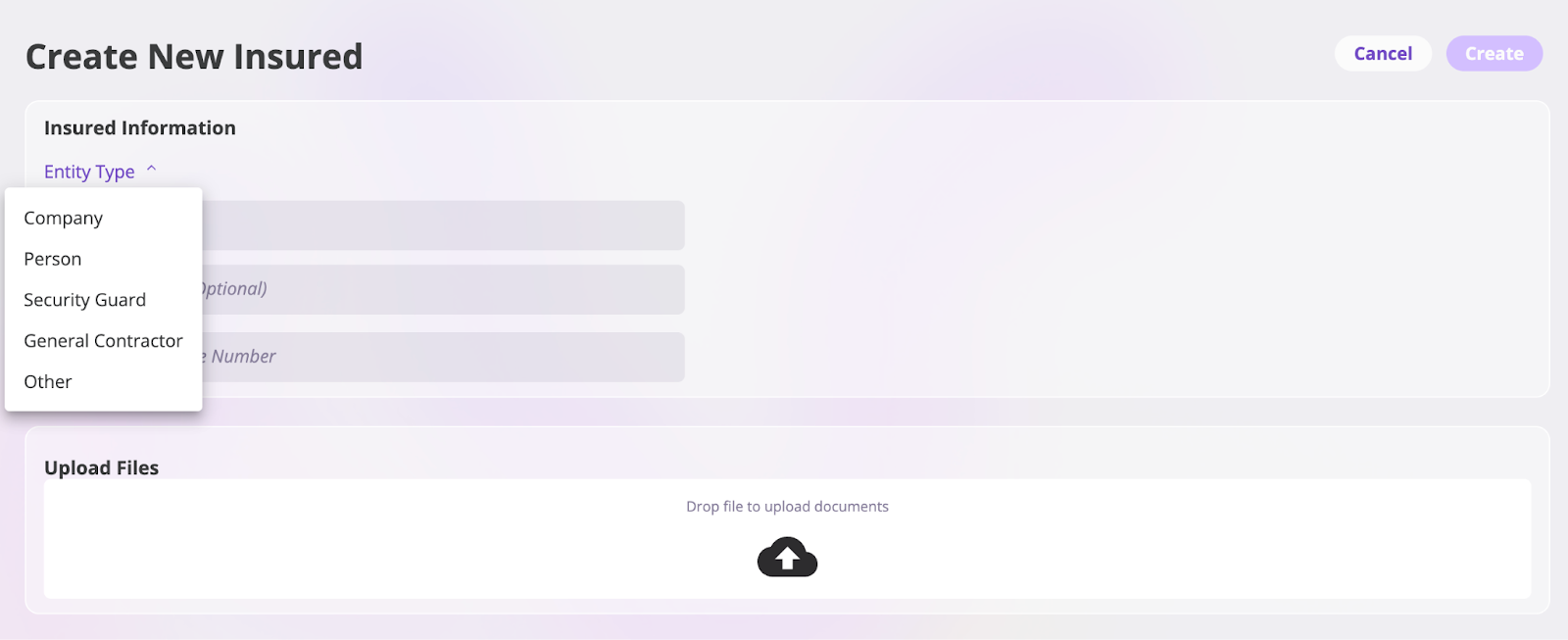
3. The **Create New Insured** page is divided into sections. Depending on your AI Insurance instance, you may see up to three sections:
* **Insured Information**: Enter details about the insured, including: **Entity type**, **Insured Name**, **Insured Address**, and **Apartment** or **Suite Number**.
 * **Rating Information**: This section is available only to users with the **Rating Engine** feature enabled. If you have this feature, use the section to provide details for risk assessment. The questions are based on your organization’s onboarding process.
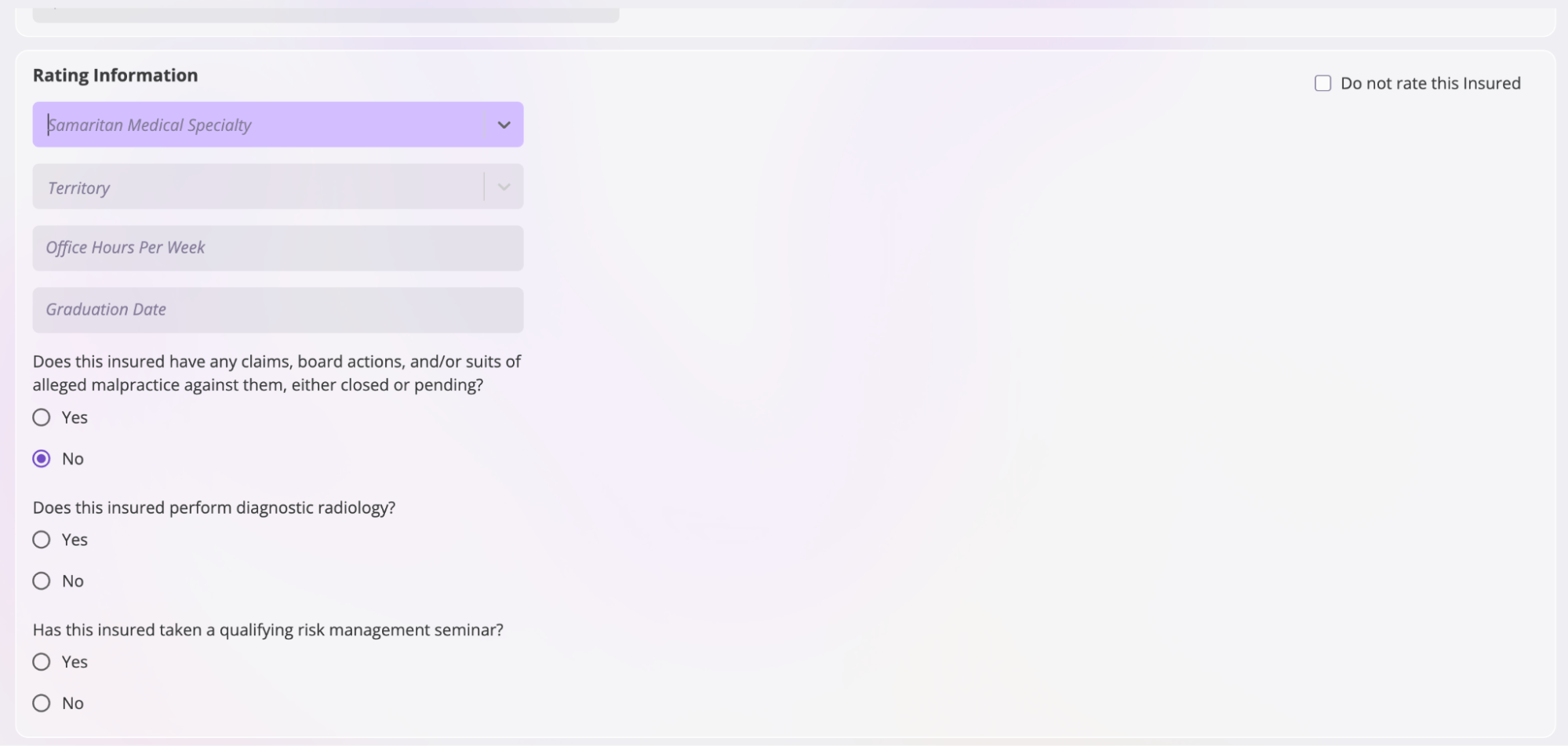 Check the Rating Information section for any missing questions or fields. If you find any, contact our support team through the chat bubble in the lower-right corner or email [**support@aiinsurance.io**](mailto:support@aiinsurance.io).
Check the **Do not rate this Insured** box at the section's top-right corner, to skip the rating process.
Check the Rating Information section for any missing questions or fields. If you find any, contact our support team through the chat bubble in the lower-right corner or email [**support@aiinsurance.io**](mailto:support@aiinsurance.io).
Check the **Do not rate this Insured** box at the section's top-right corner, to skip the rating process.
 * **Upload Files**: You can upload files related to the insured. Simply drag and drop the files onto the upload area, or click the **Upload** button to browse your computer and select the files you want to upload.
 ## Edit an Insured
It's normal for an insured's information to change. Follow these steps, to update an insured's details in the platform:
**Important**: If you're changing an insured's name on a bound policy, this will automatically trigger an endorsement to ensure compliance with state reporting requirements. See the [Changing Insured Names on Bound Policies](#changing-insured-names-on-bound-policies) section below for more details.
1. Click the **Insureds** tab in the sidebar to navigate to the **Insureds** page.
## Edit an Insured
It's normal for an insured's information to change. Follow these steps, to update an insured's details in the platform:
**Important**: If you're changing an insured's name on a bound policy, this will automatically trigger an endorsement to ensure compliance with state reporting requirements. See the [Changing Insured Names on Bound Policies](#changing-insured-names-on-bound-policies) section below for more details.
1. Click the **Insureds** tab in the sidebar to navigate to the **Insureds** page.
 2. Locate the insured whose information you want to edit, and select their profile.
3. Navigate to the **Summary** tab on the insured's profile page.
2. Locate the insured whose information you want to edit, and select their profile.
3. Navigate to the **Summary** tab on the insured's profile page.
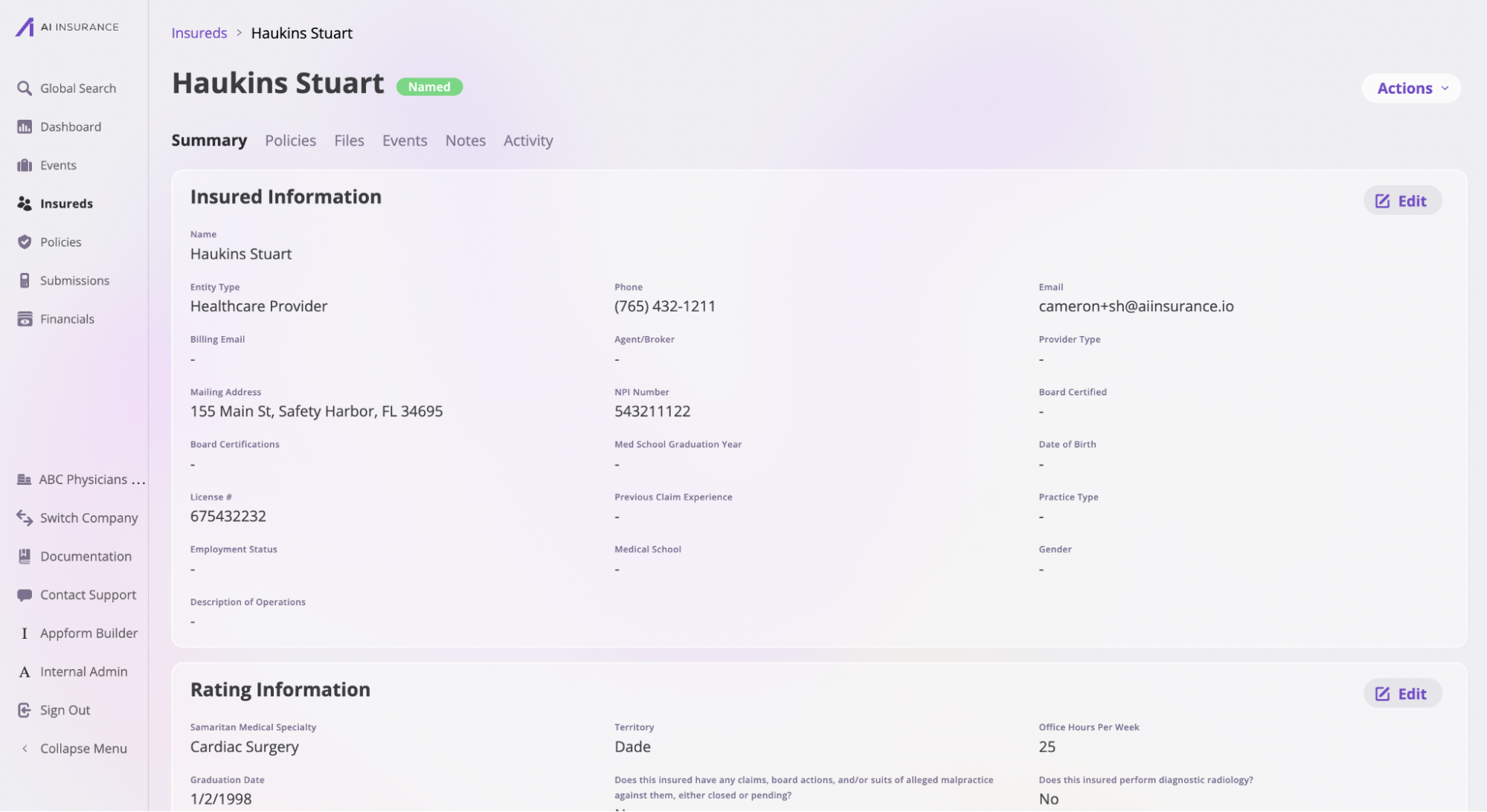 This tab is usually divided into three sections, each with its own **Edit** button. Select the **Edit** button for the section you wish to update, make your changes, and click **Save** to apply them.
You can also upload new files in the **Files** tab or leave notes in the **Notes** tab.
This tab is usually divided into three sections, each with its own **Edit** button. Select the **Edit** button for the section you wish to update, make your changes, and click **Save** to apply them.
You can also upload new files in the **Files** tab or leave notes in the **Notes** tab.

 All changes are automatically tracked and displayed in the **Activity** tab.
 ## Changing Insured Names on Bound Policies
When you change an insured's name on a bound policy, AI Insurance automatically triggers an endorsement to ensure compliance with state reporting requirements. This is particularly important because name changes are considered "reportable" in many states.
### Automatic Endorsement Process
When you update an insured's name through the platform:
1. **Automatic Trigger**: The system automatically recognizes that a name change has occurred on a bound policy
2. **Endorsement Creation**: An endorsement is automatically generated to document the name change
3. **Compliance Compliance**: This ensures your organization meets state reporting requirements for policy changes
### Important Considerations
* **State Requirements**: Many states require name changes on bound policies to be reported through endorsements
* **Audit Trail**: The automatic endorsement process maintains a complete audit trail of all name changes
* **Policy Integrity**: This process ensures the policy remains legally compliant and properly documented
## Changing Insured Names on Bound Policies
When you change an insured's name on a bound policy, AI Insurance automatically triggers an endorsement to ensure compliance with state reporting requirements. This is particularly important because name changes are considered "reportable" in many states.
### Automatic Endorsement Process
When you update an insured's name through the platform:
1. **Automatic Trigger**: The system automatically recognizes that a name change has occurred on a bound policy
2. **Endorsement Creation**: An endorsement is automatically generated to document the name change
3. **Compliance Compliance**: This ensures your organization meets state reporting requirements for policy changes
### Important Considerations
* **State Requirements**: Many states require name changes on bound policies to be reported through endorsements
* **Audit Trail**: The automatic endorsement process maintains a complete audit trail of all name changes
* **Policy Integrity**: This process ensures the policy remains legally compliant and properly documented