> ## Documentation Index
> Fetch the complete documentation index at: https://docs.aiinsurance.io/llms.txt
> Use this file to discover all available pages before exploring further.
# Mark Transaction Status Function
The **Mark Transaction Status** function allows you to update the status of any financial transaction in the system. This function is available across multiple sections of the platform for comprehensive financial transaction management.
## Where to Access Mark Transaction Status
The **Mark Transaction Status** function is available in multiple locations throughout the platform, but you can primarily find it in the **Financial** sidebar by following these steps:
Find **Financials** in the sidebar navigation. Locate and access the **Transactions** section
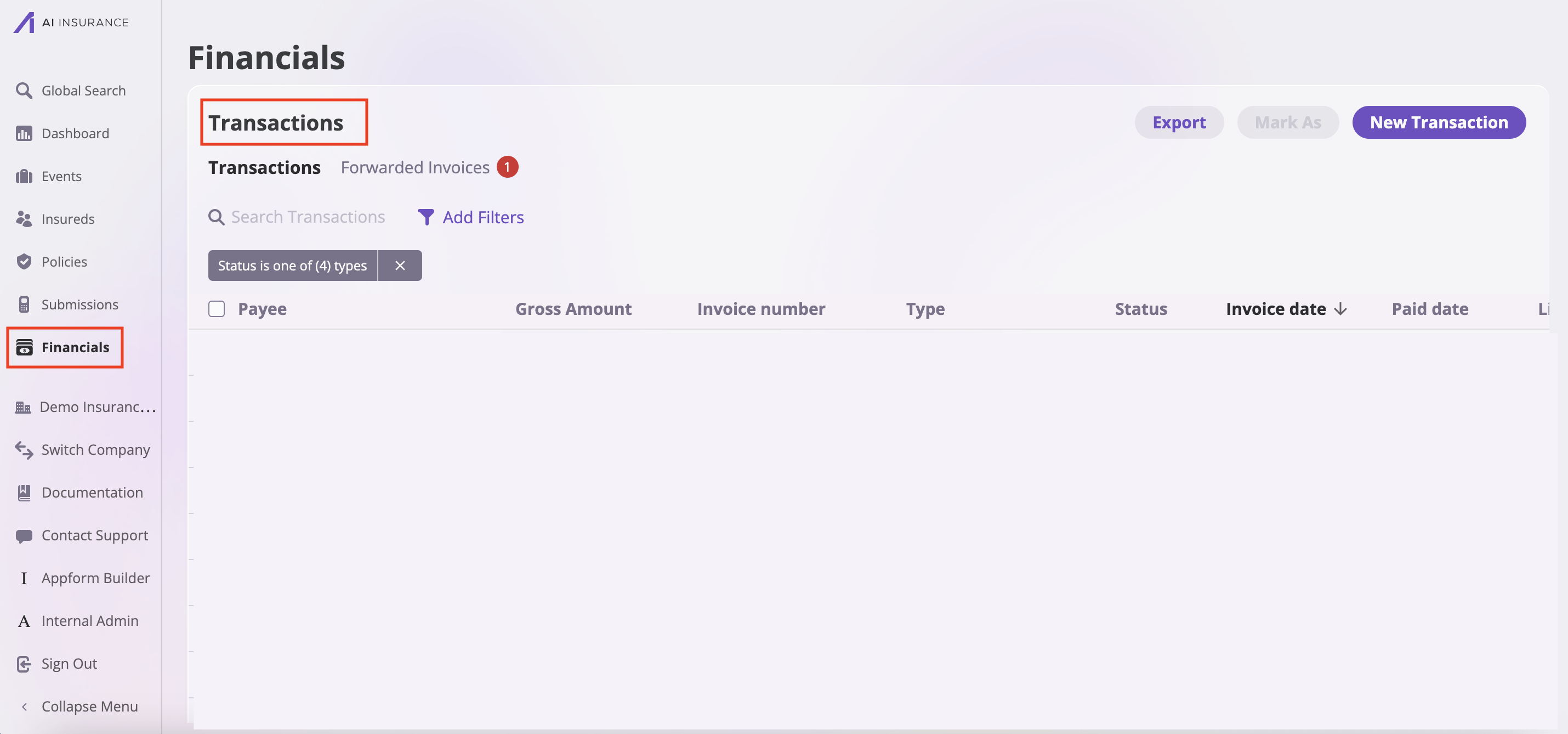 1. Select Transaction: Click on the transaction you want to update
2. Open Status Menu: Click the **Mark As** dropdown button
3. The interface adapts based on your selections and available actions
1. Select Transaction: Click on the transaction you want to update
2. Open Status Menu: Click the **Mark As** dropdown button
3. The interface adapts based on your selections and available actions
 The Mark Transaction Status function enables you to change the status of any financial transaction to one of four available statuses: **Approved**, **Paid**, **Owed**, **Void**
## Other locations
* **Financials Section**: For system-wide transaction management
* **Policy Financials Tab**: For policy-specific transaction updates
* Navigate: [**Policies**](https://aiinsurance-1ef97d09.mintlify.app/policing/policy-management/viewing-a-policy) → Select policy → Financials tab
* **Event Financials Tab**: For event-related transaction changes
* Navigate: [**Events**](https://aiinsurance-1ef97d09.mintlify.app/events/view-events/view-events) → Select event → Financials tab
**Status Change Restrictions:**
* Paid transactions should generally not be changed to Owed (create reversing entry instead)
* Void transactions cannot be reactivated (create new transaction if needed)
* Always verify impact before changing from Paid status
## Understanding All Transaction Statuses
Use the Approved status when an invoice has been reviewed and validated, is ready for payment processing, or is awaiting final payment execution.
Transaction has been successfully completed and payment received. Use it when payment has been confirmed and processed
Transaction is outstanding and awaiting payment. Use it for unpaid invoices that are due for collection
Transaction has been cancelled and is no longer active. For billing errors, cancellations, or corrections.
Voided invoices cannot be adjusted further once their status is set to **"void"**
## Integration with Stripe
For customers with premium billing enabled, invoices issued through Stripe can be updated using the **Mark Transaction Status** function. Any status changes are automatically synchronized with the Stripe dashboard, ensuring consistency across both platforms. This applies to all Stripe transaction types.
The Mark Transaction Status function enables you to change the status of any financial transaction to one of four available statuses: **Approved**, **Paid**, **Owed**, **Void**
## Other locations
* **Financials Section**: For system-wide transaction management
* **Policy Financials Tab**: For policy-specific transaction updates
* Navigate: [**Policies**](https://aiinsurance-1ef97d09.mintlify.app/policing/policy-management/viewing-a-policy) → Select policy → Financials tab
* **Event Financials Tab**: For event-related transaction changes
* Navigate: [**Events**](https://aiinsurance-1ef97d09.mintlify.app/events/view-events/view-events) → Select event → Financials tab
**Status Change Restrictions:**
* Paid transactions should generally not be changed to Owed (create reversing entry instead)
* Void transactions cannot be reactivated (create new transaction if needed)
* Always verify impact before changing from Paid status
## Understanding All Transaction Statuses
Use the Approved status when an invoice has been reviewed and validated, is ready for payment processing, or is awaiting final payment execution.
Transaction has been successfully completed and payment received. Use it when payment has been confirmed and processed
Transaction is outstanding and awaiting payment. Use it for unpaid invoices that are due for collection
Transaction has been cancelled and is no longer active. For billing errors, cancellations, or corrections.
Voided invoices cannot be adjusted further once their status is set to **"void"**
## Integration with Stripe
For customers with premium billing enabled, invoices issued through Stripe can be updated using the **Mark Transaction Status** function. Any status changes are automatically synchronized with the Stripe dashboard, ensuring consistency across both platforms. This applies to all Stripe transaction types.