> ## Documentation Index
> Fetch the complete documentation index at: https://docs.aiinsurance.io/llms.txt
> Use this file to discover all available pages before exploring further.
# Financial Transactions
## Overview
Financial transactions are records of all monetary activities in AI Insurance, including invoices, payments, refunds, and other financial operations. The **Transactions** section in Financials serves as the central hub for managing all financial records.
## What are Financial Transactions?
Financial transactions represent any financial activity related to policies, events, or other business operations. Common transaction types include:
* **Policy Invoices**: Bills sent to insureds for policy premiums
* **Commission Invoices**: Invoices for broker commissions
* **ALAE (Allocated Loss Adjustment Expense)**: Expenses related to claim handling
* **ULAE (Unallocated Loss Adjustment Expense)**: Unallocated expenses related to claim handling
* **Indemnity**: Payments made for claims
* **Claim Handling Costs**: Costs associated with processing claims
* **Retention**: Amounts retained by the carrier
* **Coverage Expense**: Expenses related to coverage
Each transaction includes important details such as:
* **Transaction Type**: The type of financial transaction
* **Status**: Current status (Approved, Paid, Owed, or Void)
* **Event**: Associated event (if applicable)
* **Payee**: The party receiving or making the payment
* **Invoice Date**: Date the invoice was created
* **Invoice Number**: Reference number for the invoice
* **Due Date**: When the transaction is due
* **Paid Date**: Date payment was received (if applicable)
* **Memo**: Additional notes or descriptions
* **Amount**: The transaction amount
## Accessing the Transactions Section
To view and manage financial transactions:
1. Navigate to **Financials** in the sidebar
2. Click on the **Transactions** tab
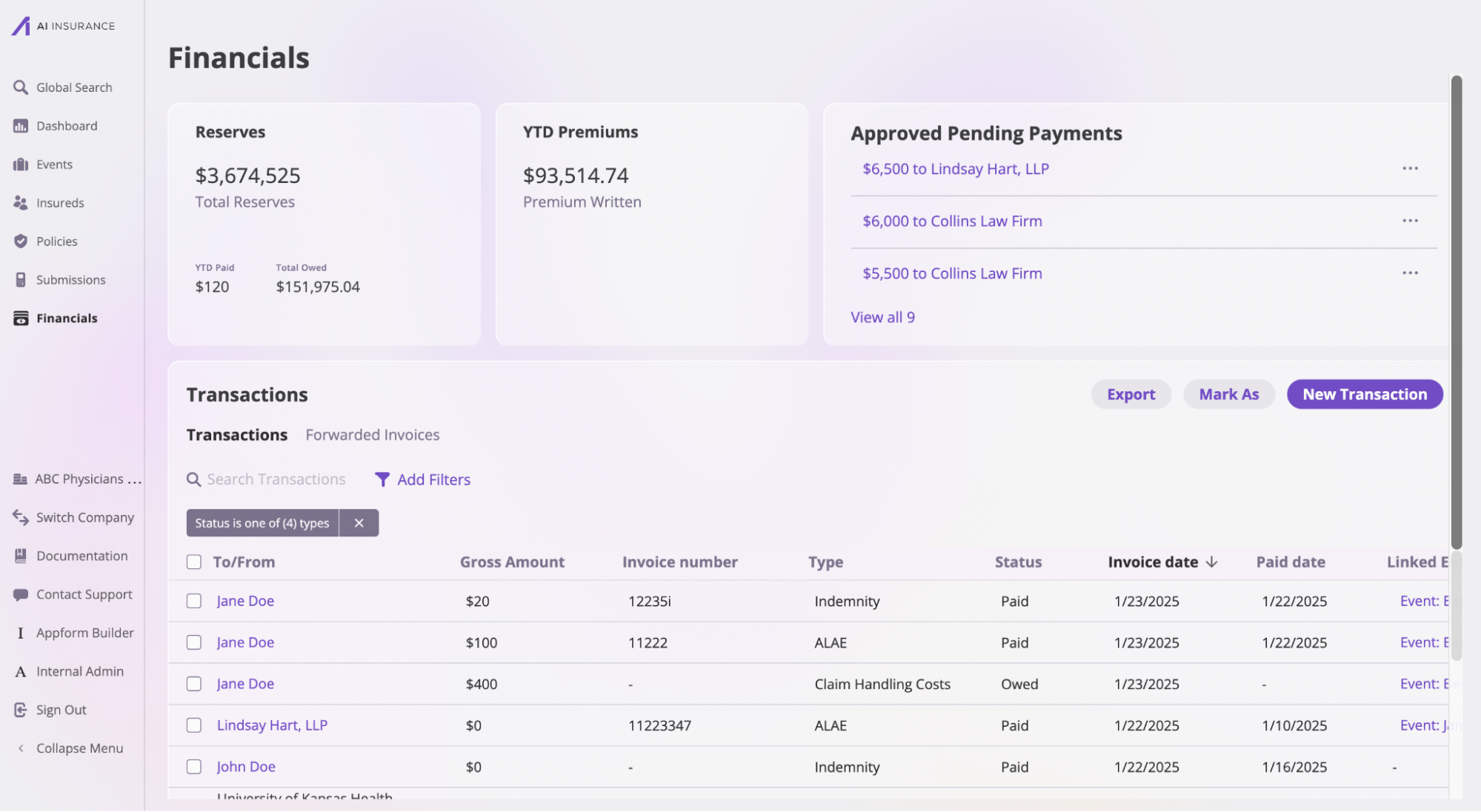 The Transactions page displays all financial transactions in a table format, allowing you to search, filter, and manage your financial records.
## Creating a Manual Financial Transaction
You can manually create financial transactions when you need to record invoices, payments, or other financial activities that aren't automatically generated by the system.
### Step 1: Navigate to Transactions
1. Go to **Financials** in the sidebar
2. Click on the **Transactions** tab
### Step 2: Create a New Transaction
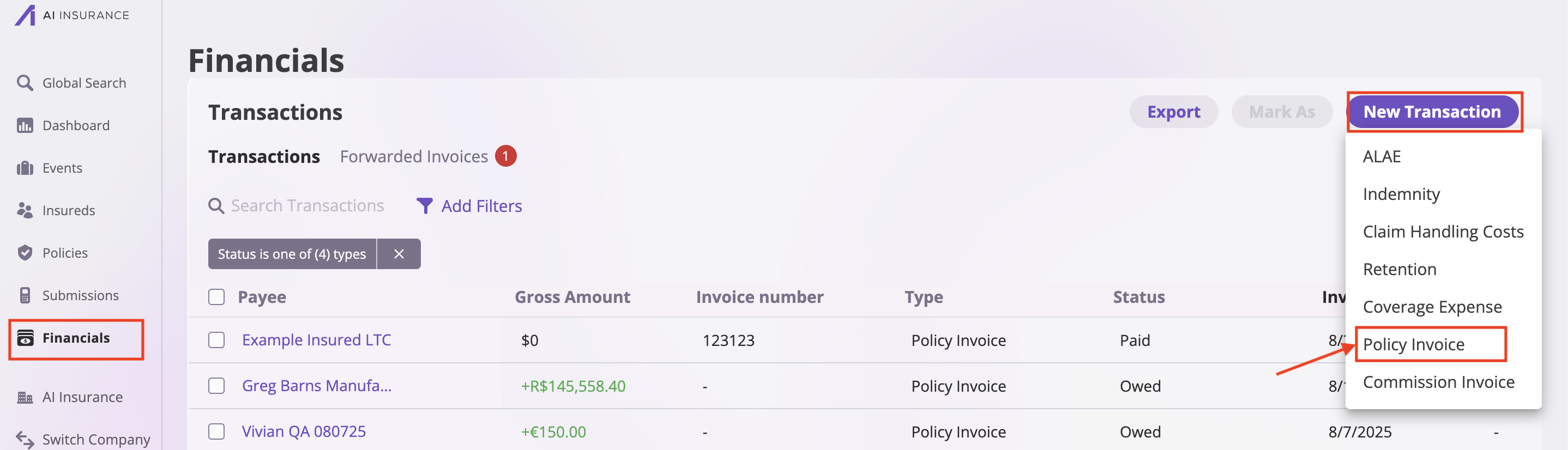
1. Click the **"New Transaction"** button in the top right corner
2. A dropdown menu will appear with available transaction types
The Transactions page displays all financial transactions in a table format, allowing you to search, filter, and manage your financial records.
## Creating a Manual Financial Transaction
You can manually create financial transactions when you need to record invoices, payments, or other financial activities that aren't automatically generated by the system.
### Step 1: Navigate to Transactions
1. Go to **Financials** in the sidebar
2. Click on the **Transactions** tab
### Step 2: Create a New Transaction
1. Click the **"New Transaction"** button in the top right corner
2. A dropdown menu will appear with available transaction types
 ### Step 3: Select Transaction Type
Select the appropriate transaction type from the dropdown menu:
* **Policy Invoice**: For billing insureds for policy premiums
* **Commission Invoice**: For broker commission invoices
* **ALAE**: For allocated loss adjustment expenses
* **ULAE**: For unallocated loss adjustment expenses
* **Indemnity**: For claim indemnity payments
* **Claim Handling Costs**: For claim processing costs
* **Retention**: For retention amounts
* **Coverage Expense**: For coverage-related expenses
### Step 4: Fill in Transaction Details
After selecting a transaction type, a form will open where you can enter the following information:
### Step 3: Select Transaction Type
Select the appropriate transaction type from the dropdown menu:
* **Policy Invoice**: For billing insureds for policy premiums
* **Commission Invoice**: For broker commission invoices
* **ALAE**: For allocated loss adjustment expenses
* **ULAE**: For unallocated loss adjustment expenses
* **Indemnity**: For claim indemnity payments
* **Claim Handling Costs**: For claim processing costs
* **Retention**: For retention amounts
* **Coverage Expense**: For coverage-related expenses
### Step 4: Fill in Transaction Details
After selecting a transaction type, a form will open where you can enter the following information:
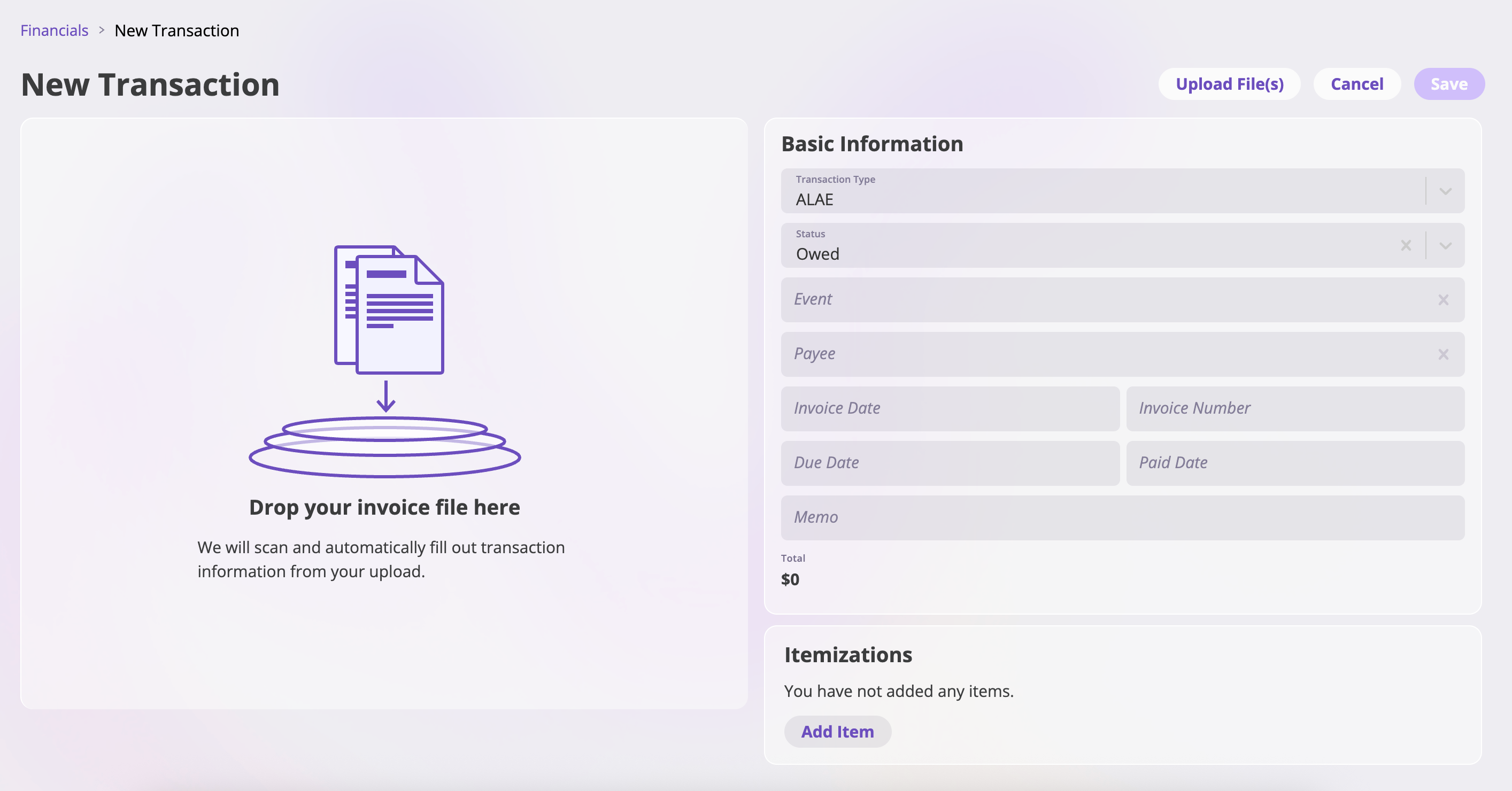 * **Transaction Type**: The type of transaction (pre-selected from Step 3, but can be changed)
* **Status**: The current status of the transaction. Default is typically **"Owed"** for invoices
* Options: Approved, Paid, Owed, or Void
* **Event**: (Optional) Link to an associated event
* **Payee**: The party receiving or making the payment
* **Invoice Date**: The date the invoice was created
* **Invoice Number**: Reference number for the invoice
* **Due Date**: When the transaction is due
* **Paid Date**: (Optional) Date payment was received
* **Memo**: Additional notes, descriptions, or reference information
* **Amount**: The transaction amount (defaults to \$0)
### Step 5: Save the Transaction
1. Review all entered information
2. Click **"Save"** or **"Create Transaction"** to finalize
The new transaction will appear in your Transactions list with a default status (typically **"Owed"** for invoices or **"Approved"** for other transactions).
* **Transaction Type**: The type of transaction (pre-selected from Step 3, but can be changed)
* **Status**: The current status of the transaction. Default is typically **"Owed"** for invoices
* Options: Approved, Paid, Owed, or Void
* **Event**: (Optional) Link to an associated event
* **Payee**: The party receiving or making the payment
* **Invoice Date**: The date the invoice was created
* **Invoice Number**: Reference number for the invoice
* **Due Date**: When the transaction is due
* **Paid Date**: (Optional) Date payment was received
* **Memo**: Additional notes, descriptions, or reference information
* **Amount**: The transaction amount (defaults to \$0)
### Step 5: Save the Transaction
1. Review all entered information
2. Click **"Save"** or **"Create Transaction"** to finalize
The new transaction will appear in your Transactions list with a default status (typically **"Owed"** for invoices or **"Approved"** for other transactions).