> ## Documentation Index
> Fetch the complete documentation index at: https://docs.aiinsurance.io/llms.txt
> Use this file to discover all available pages before exploring further.
# Delete Files from Invoice
This guide explains how to remove files that have been attached to an invoice transaction.
## **Overview**
When you need to remove files from an invoice, you must be in edit mode to access the delete functionality. This ensures that file deletions are intentional and properly tracked.
## **Step-by-Step Process**
### **Step 1: Navigate to the Invoice**
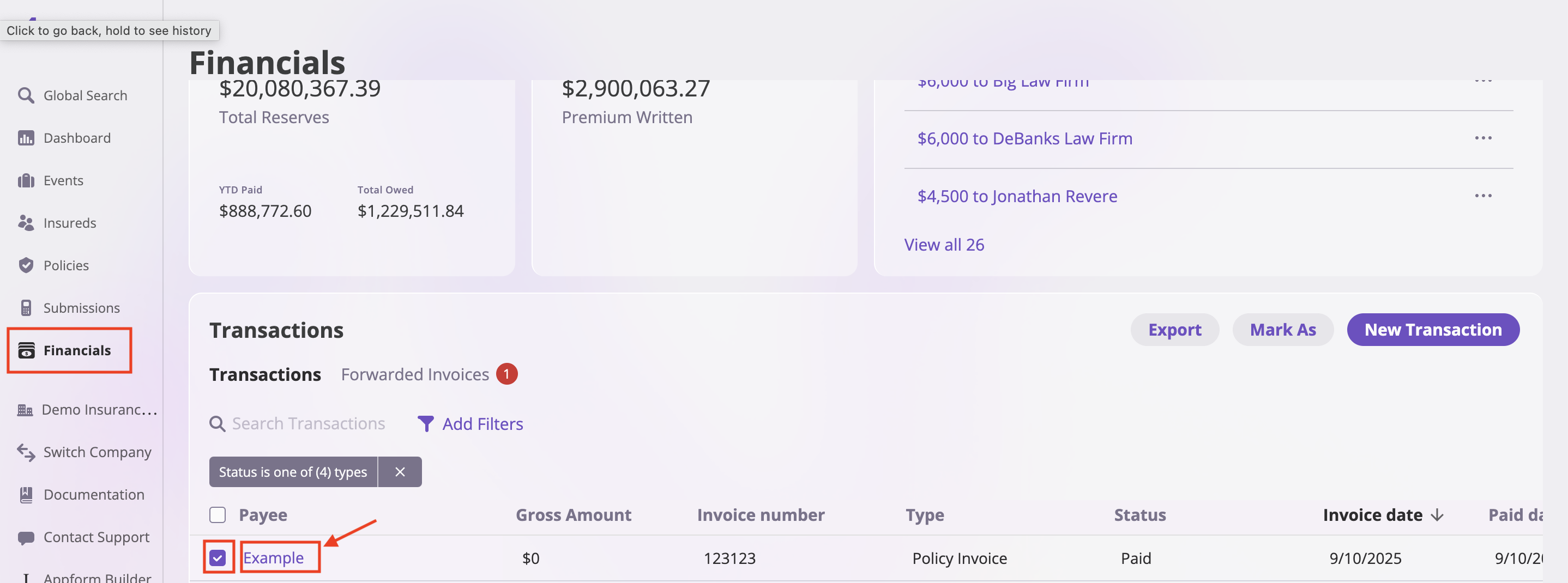
1. Go to **Financials** in the left sidebar
2. Navigate to the **Transactions** section
3. Find the invoice that contains the files you want to delete
 ### **Step 2: Enter Edit Mode**
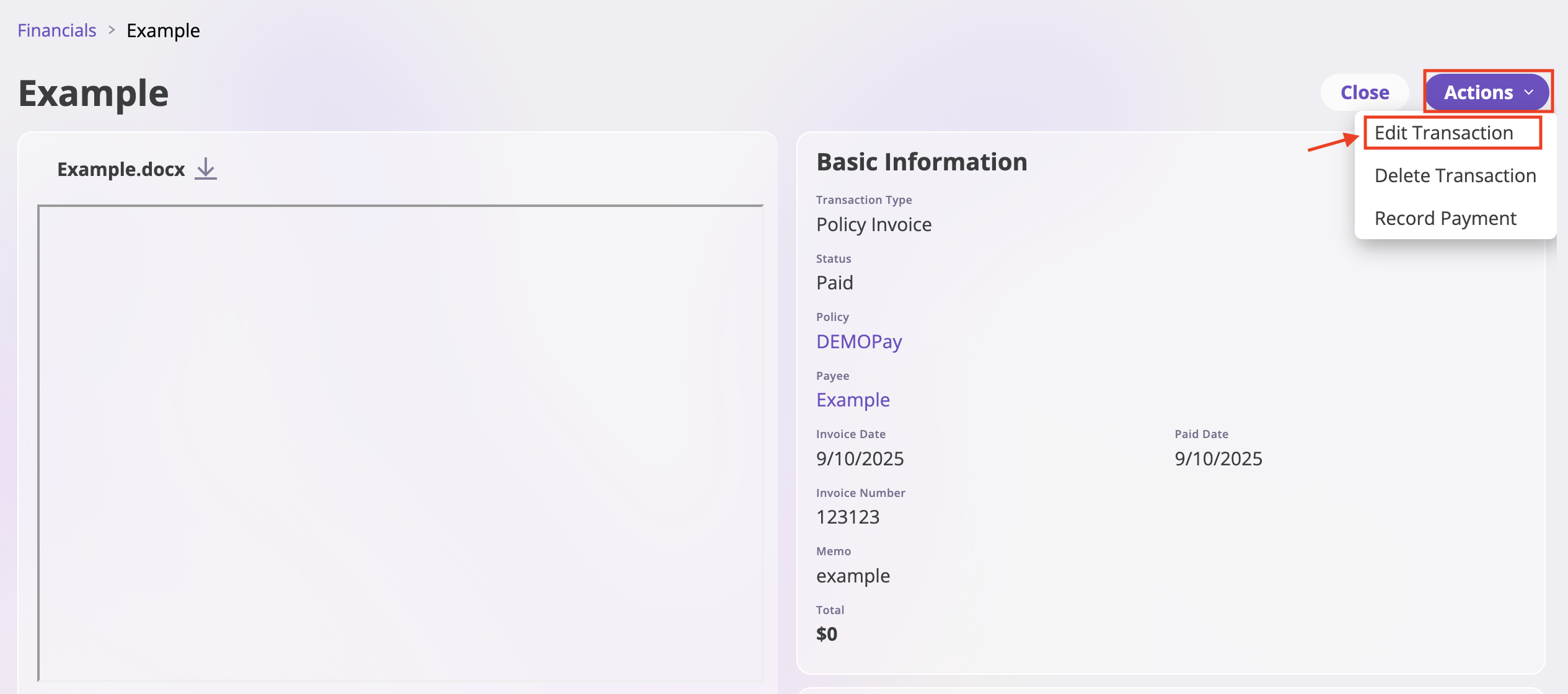
1. Click on the **Actions** dropdown menu for the invoice
2. Select **"Edit Transaction"** from the dropdown options
3. The invoice will now be in edit mode
### **Step 2: Enter Edit Mode**
1. Click on the **Actions** dropdown menu for the invoice
2. Select **"Edit Transaction"** from the dropdown options
3. The invoice will now be in edit mode
 ### **Step 3: Delete Files**
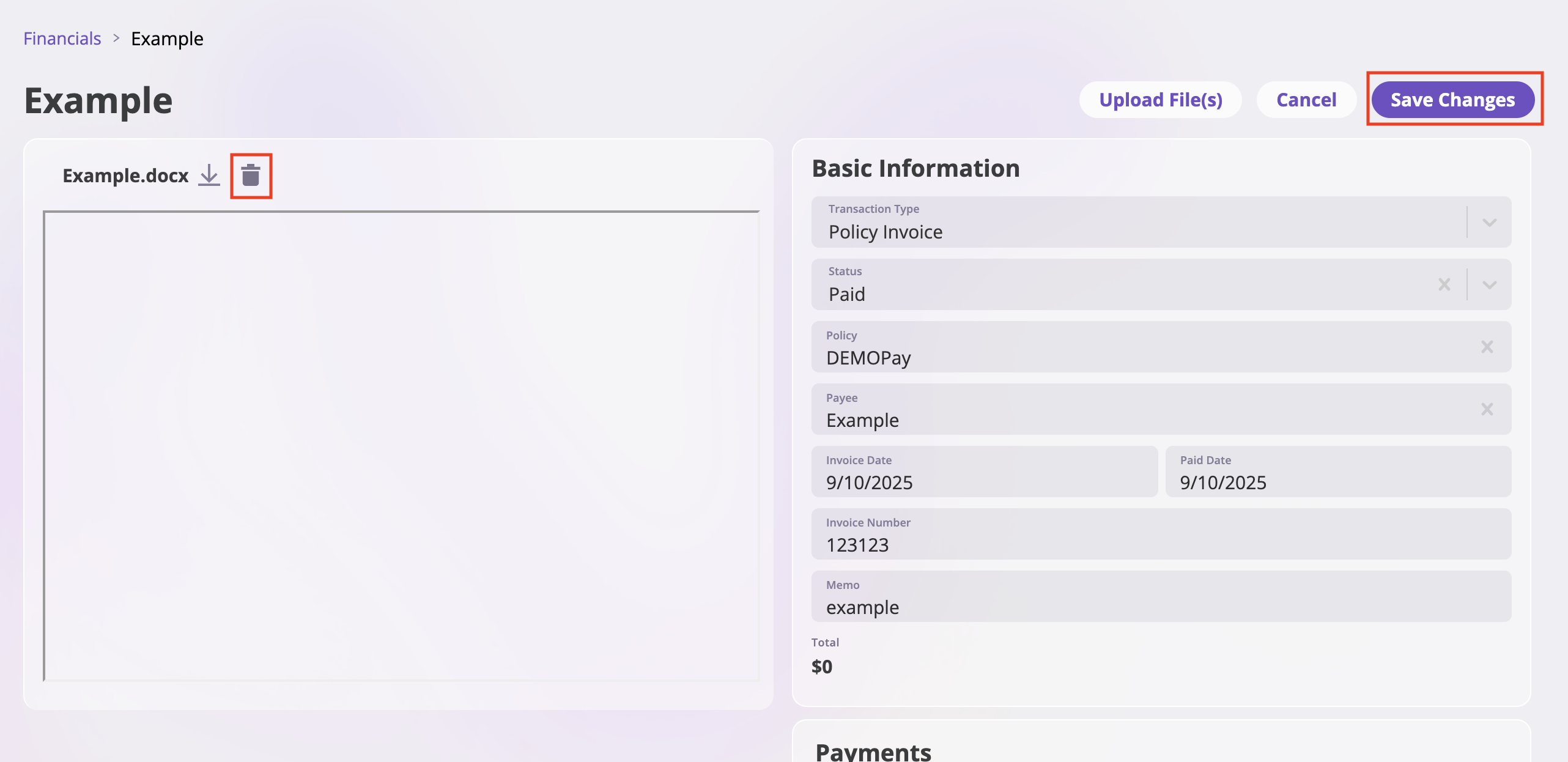
1. Once in edit mode, you'll see a **trash can icon** next to each file name
2. Click the **trash can icon** next to the file you want to delete
3. The file will be removed from the invoice
4. Repeat this process for any additional files you want to delete
### **Step 3: Delete Files**
1. Once in edit mode, you'll see a **trash can icon** next to each file name
2. Click the **trash can icon** next to the file you want to delete
3. The file will be removed from the invoice
4. Repeat this process for any additional files you want to delete
 ### **Step 4: Save Changes**
1. After deleting the desired files, click **"Save Changes"** to confirm your modifications
2. The invoice will be updated and you'll exit edit mode
3. The deleted files will no longer be associated with the invoice
### **Step 4: Save Changes**
1. After deleting the desired files, click **"Save Changes"** to confirm your modifications
2. The invoice will be updated and you'll exit edit mode
3. The deleted files will no longer be associated with the invoice