> ## Documentation Index
> Fetch the complete documentation index at: https://docs.aiinsurance.io/llms.txt
> Use this file to discover all available pages before exploring further.
# Billings
AI Insurance lets you manage billing from the platform. A bill can have one of five statuses:
* Owed
* Approved
* Processing
* Paid
* Void
## Create a Bill
There are two ways to create bills:
* From the **Transaction** section
* From the **Forwarded Invoices** section
### **Create a bill from the Transaction section**
Do the following to create a bill from the **Transaction** section:
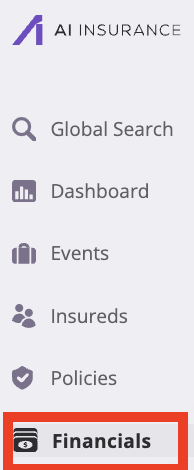
1. Click on the **Financials** tab to open the **Financials** page.
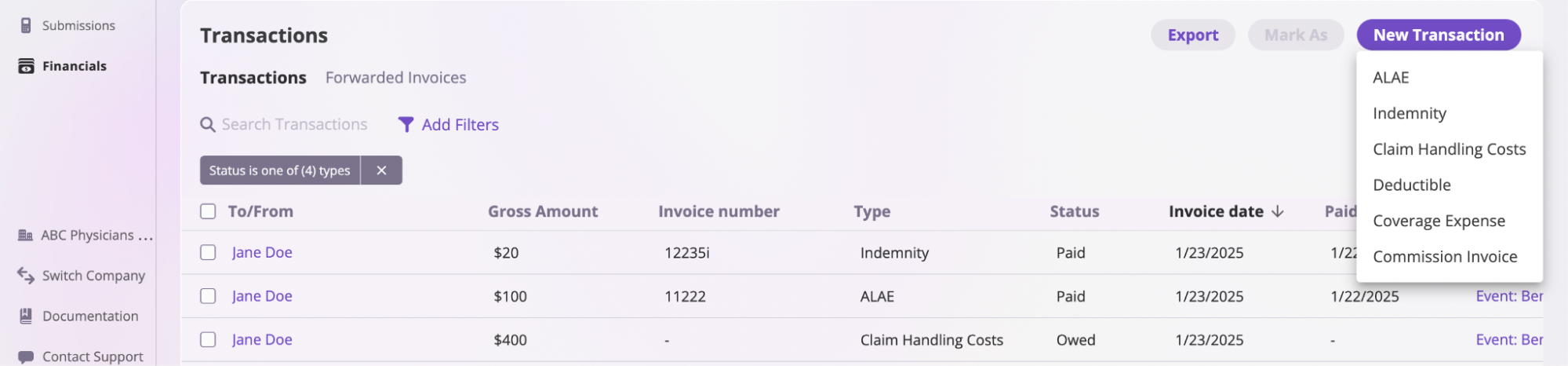
 2. Go to the **Transaction** section, click the **New Transaction** button, and select the type of transaction you want to create. This action opens the **New Transaction** page.
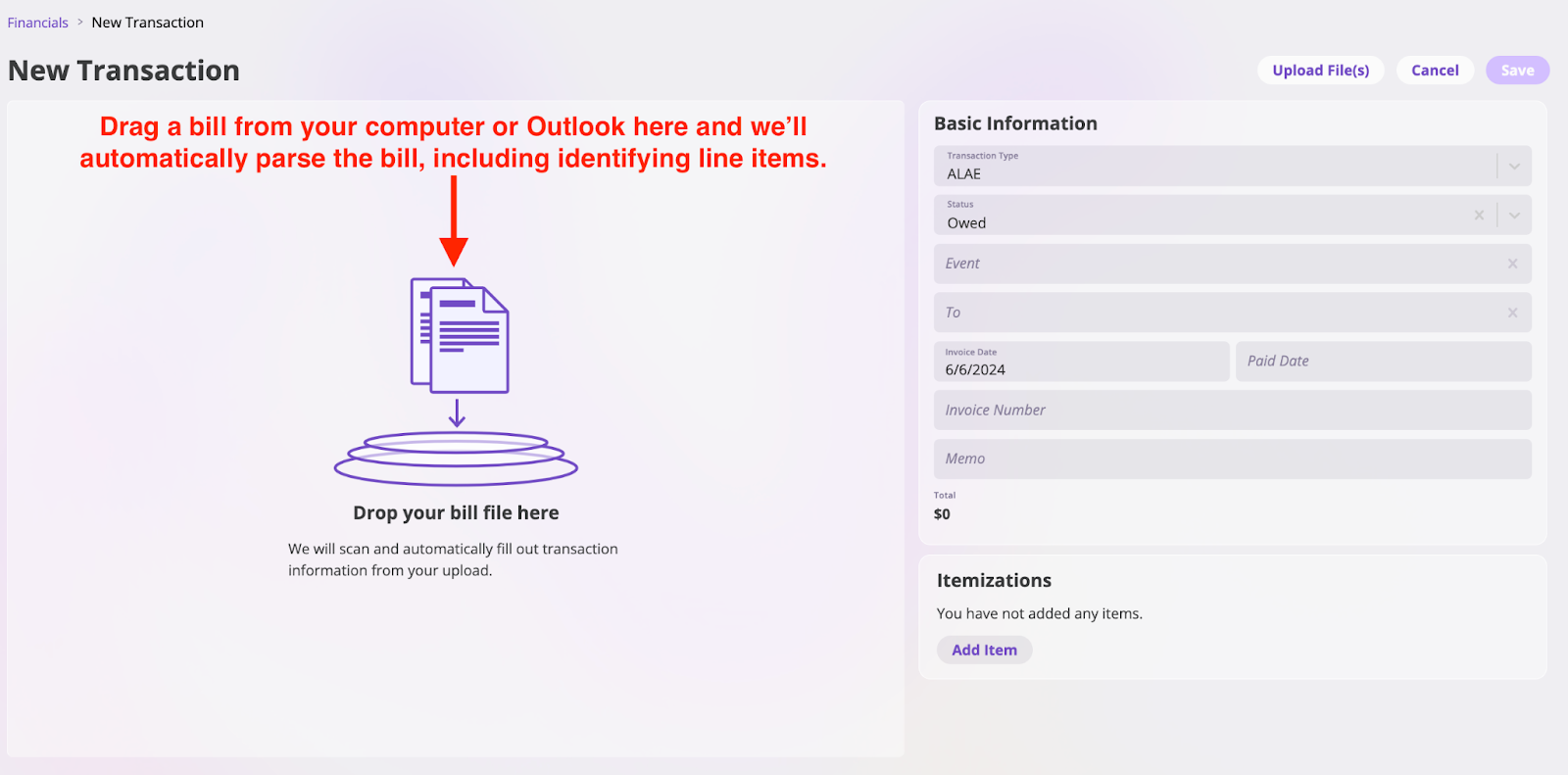
 3. Fill out the **New Transaction** page fields with information on your bill OR drag and drop your bill so the platform automatically parses your data for you.
 4. Click the **Add item** in the **Itemizations** section to add expenses and calculate your total bill.
5. Fill in the following details:
* **Item Name**: Enter the name of the expense.
* **Amount**: Enter the cost of the expense.
* **Type**: Choose the category of the expense. You can select from **Attorney Fees**, **Expert Fees**, or **Other**.
4. Click the **Add item** in the **Itemizations** section to add expenses and calculate your total bill.
5. Fill in the following details:
* **Item Name**: Enter the name of the expense.
* **Amount**: Enter the cost of the expense.
* **Type**: Choose the category of the expense. You can select from **Attorney Fees**, **Expert Fees**, or **Other**.
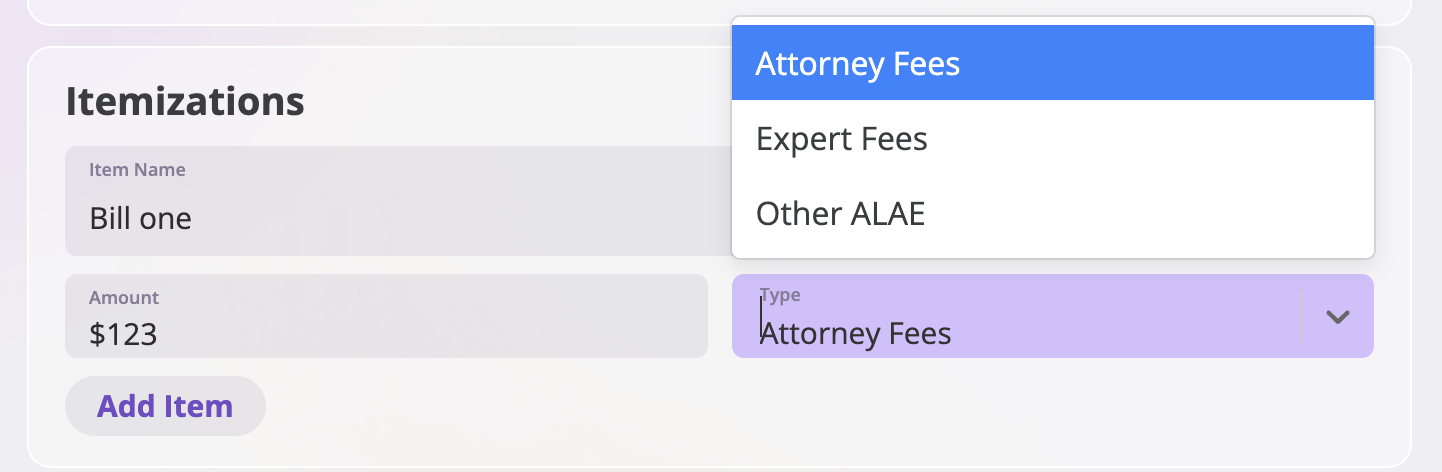 Any item you add will automatically affect the **Total**.
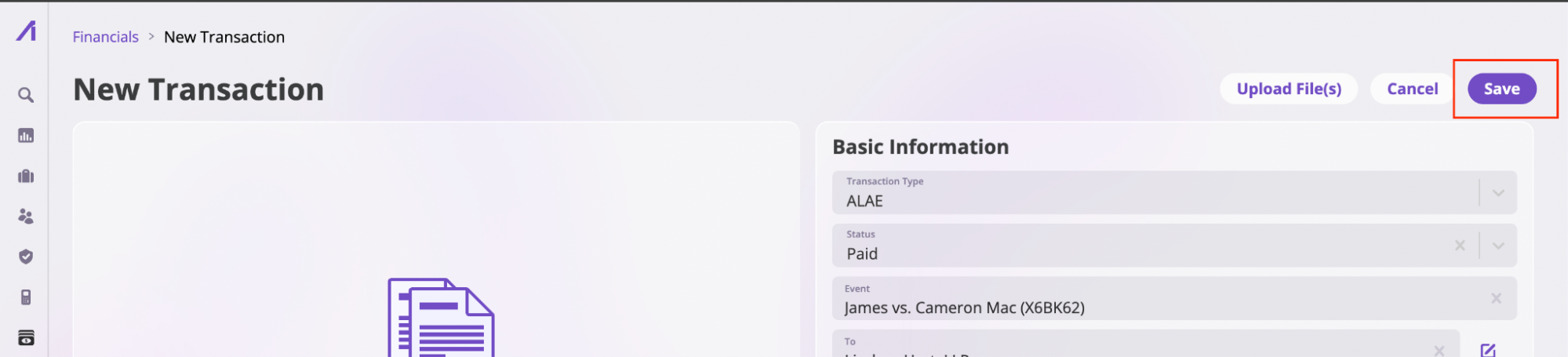
 6. Save the invoice to your instance by clicking the **Save** button.
 ### **Creating a bill from a forwarded email**
The second way to create a bill is by using the **Forwarded Invoices** feature. Take the following steps to create a bill:
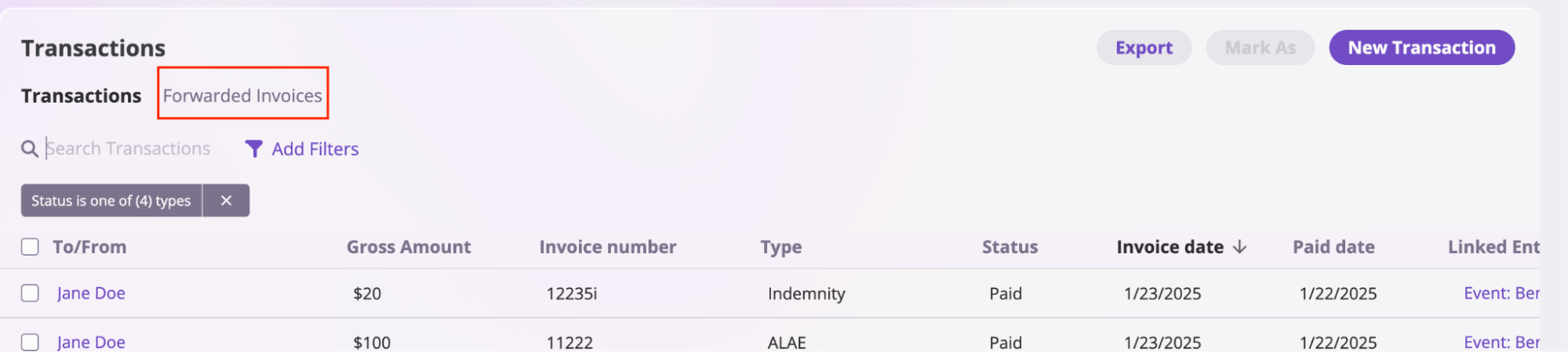
1. Click the **Financials** tab in the sidebar, then select the **Forwarded Invoices** tab as shown below:
### **Creating a bill from a forwarded email**
The second way to create a bill is by using the **Forwarded Invoices** feature. Take the following steps to create a bill:
1. Click the **Financials** tab in the sidebar, then select the **Forwarded Invoices** tab as shown below:
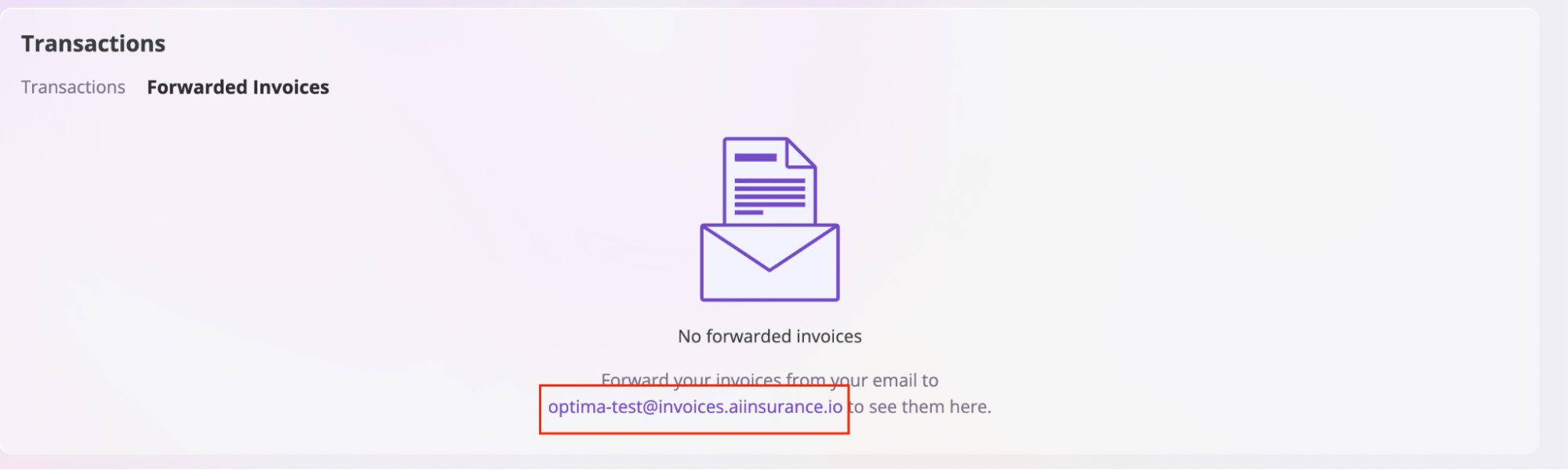
 2. Forward your bills to the email address provided in the tab.
 3. Locate your bill on the **Forwarded Invoices** screen, confirm, and save the bill.
 ## Pay a Bill
Refer to the [Payment documentation](/financials/payments) to learn how to pay a bill from your AI Insurance instance.
## Pay a Bill
Refer to the [Payment documentation](/financials/payments) to learn how to pay a bill from your AI Insurance instance.