> ## Documentation Index
> Fetch the complete documentation index at: https://docs.aiinsurance.io/llms.txt
> Use this file to discover all available pages before exploring further.
# Event Reserve Updates Smart Tag
The **Event Reserve Updates** smart tag automatically summarizes reserve changes on a claim/incident and renders them into your form (e.g., a Claim Report). This guide shows how to add the tag to a form template and how users generate a form from a claim/incident.
For more information about smart tags and how they work, see the [Smart Tags documentation](/platform/components/smart-tags).
## 1. Create (or edit) a Claim/Incident form template
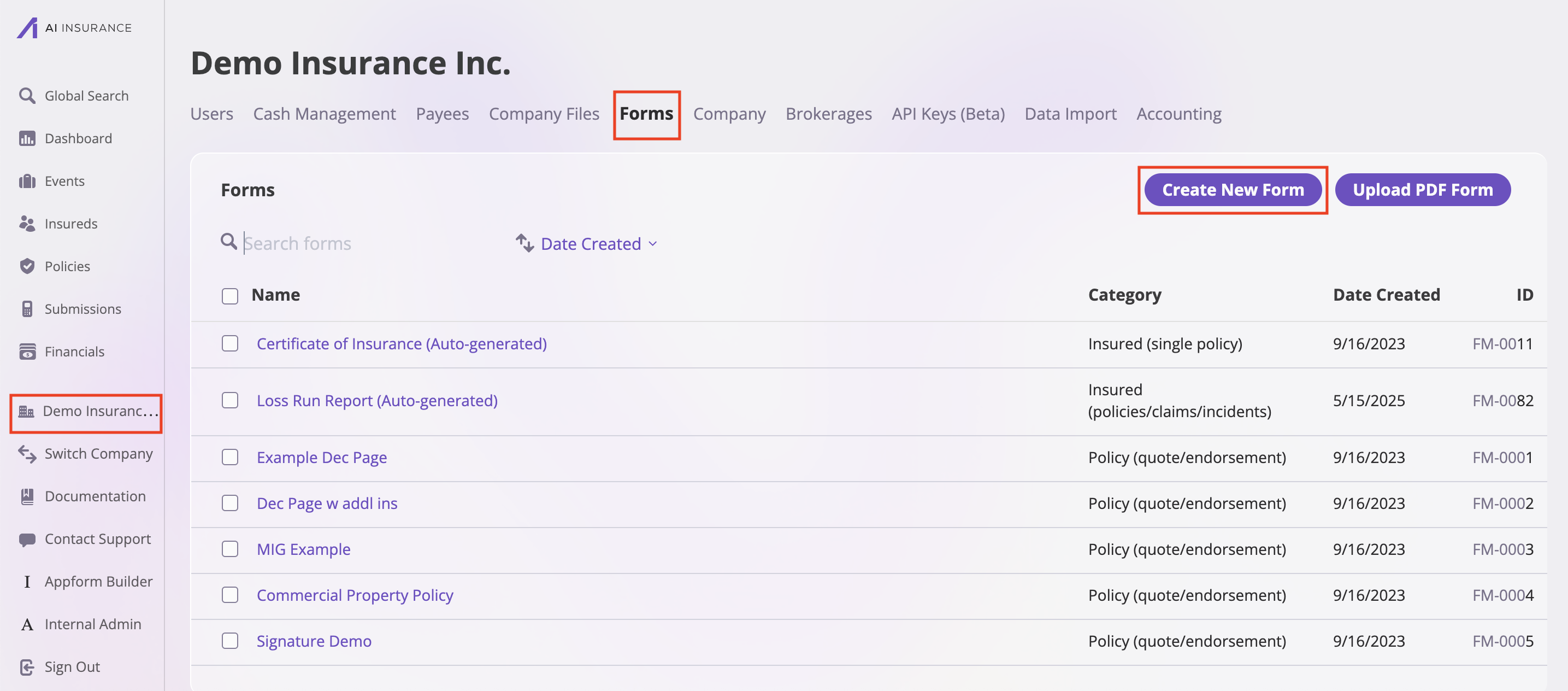
1. Go to **Company Settings** on your side bar. Navigate to **Form**
2. Create a new form (or open an existing one)
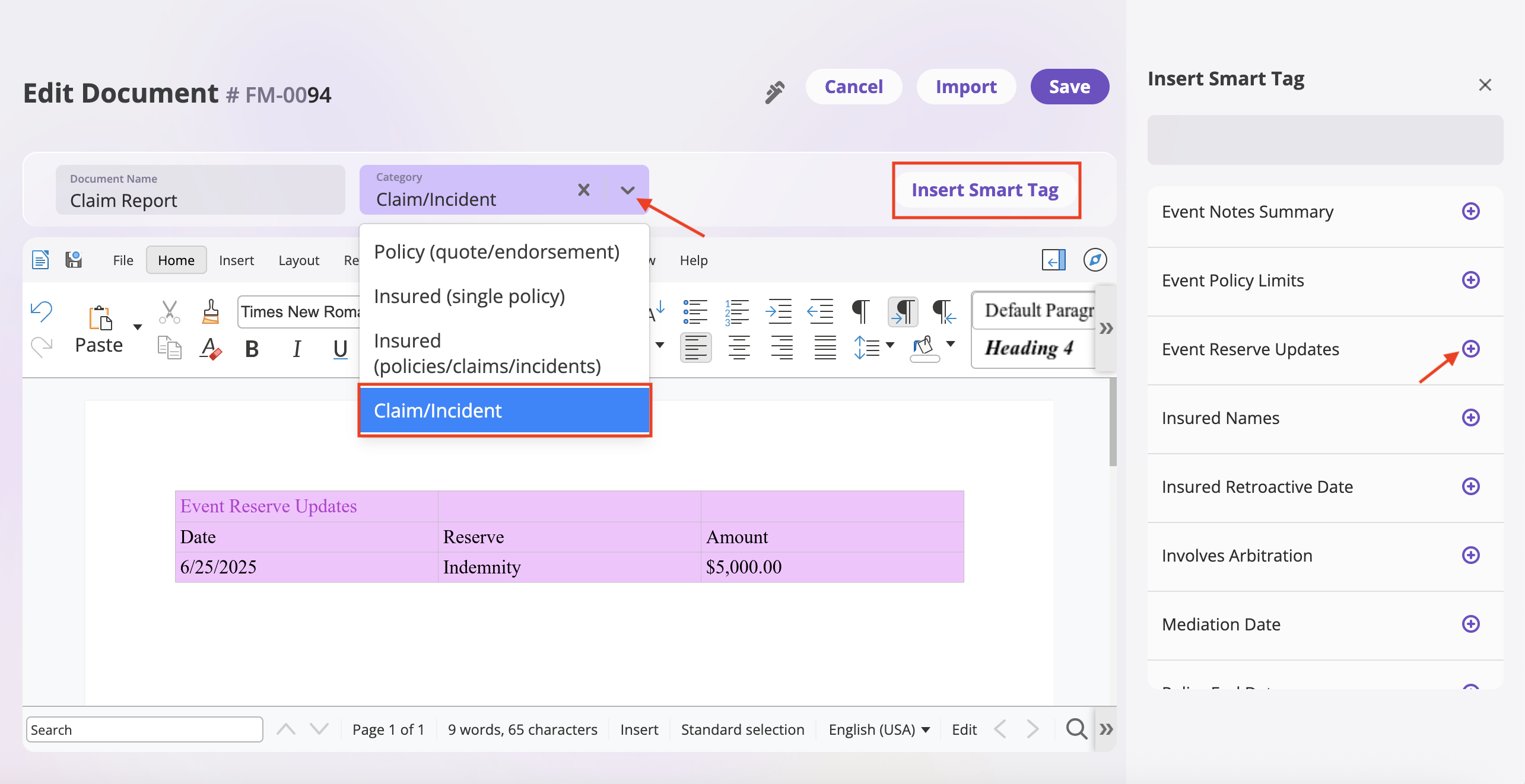
 3. Set **Category** to **Claim/Incident**.
4. In the form editor, click **Insert Smart Tag** (top-right).
5. From the sidebar, select **Event Reserve Updates** to insert the tag where you want the table to appear.
6. Save the template.
3. Set **Category** to **Claim/Incident**.
4. In the form editor, click **Insert Smart Tag** (top-right).
5. From the sidebar, select **Event Reserve Updates** to insert the tag where you want the table to appear.
6. Save the template.
 > The tag can also be inserted later when editing a generated form (see step 3).
## 2. Use the template from a claim/incident
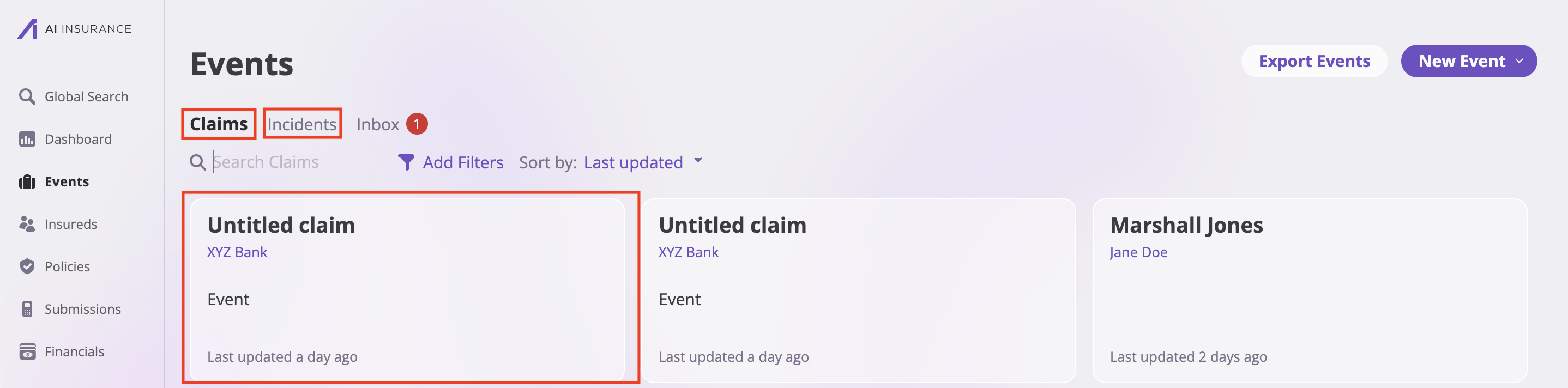
1. Go to the **Events** tab on your sidebar.
2. Select either **Claims** or **Incidents** tab depending on your event type.
3. Find and click on the specific **Event** (claim/incident) record you want to generate a form for.
> The tag can also be inserted later when editing a generated form (see step 3).
## 2. Use the template from a claim/incident
1. Go to the **Events** tab on your sidebar.
2. Select either **Claims** or **Incidents** tab depending on your event type.
3. Find and click on the specific **Event** (claim/incident) record you want to generate a form for.
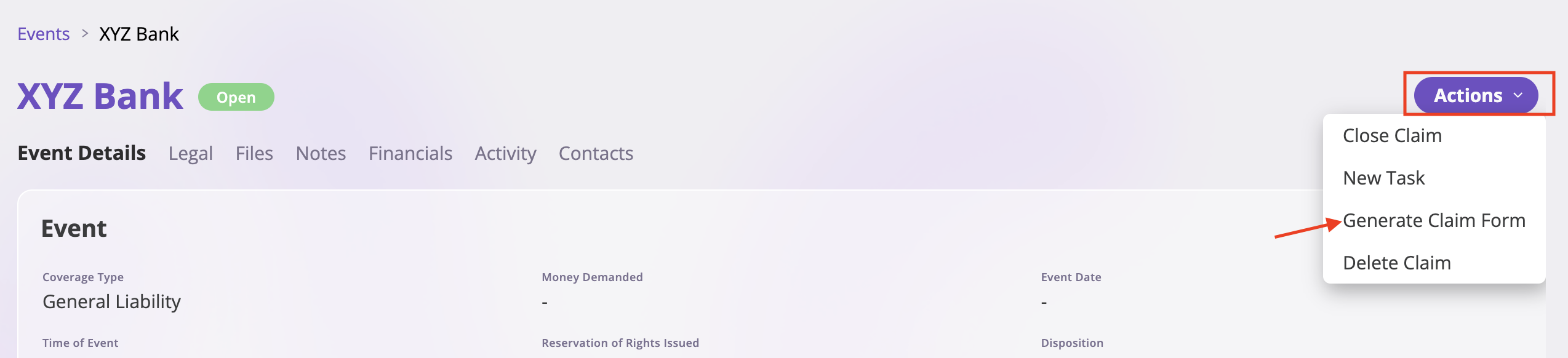
 4. On the event page, click the **Actions** dropdown in the top-right corner.
5. Select **Generate Claim Form** from the dropdown menu.
4. On the event page, click the **Actions** dropdown in the top-right corner.
5. Select **Generate Claim Form** from the dropdown menu.
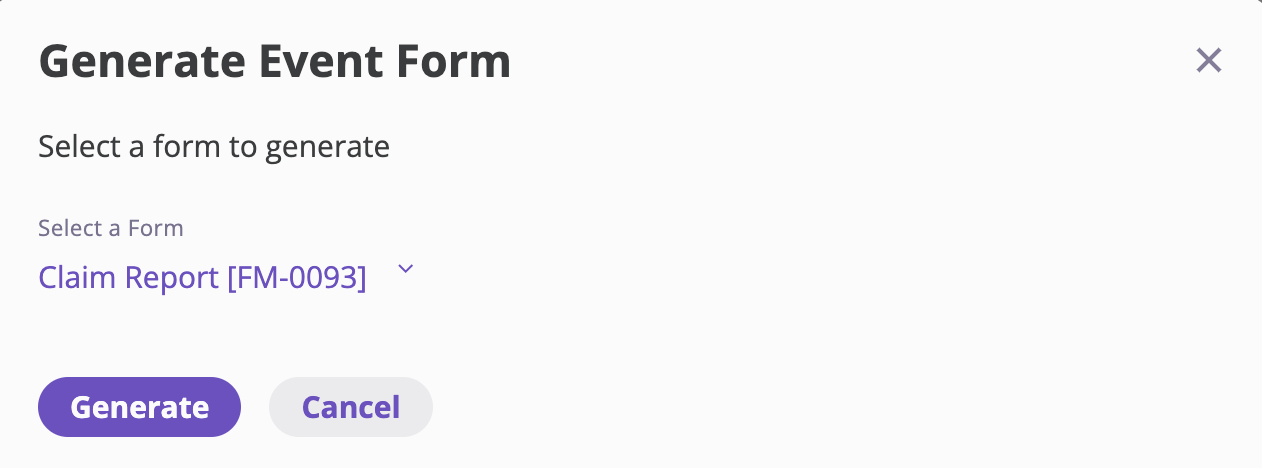
 6. Choose your **Claim/Incident** template that includes the **Event Reserve Updates** tag.
7. Click **Generate**. The system generates a document and populates the smart tag from the event's reserve data.
6. Choose your **Claim/Incident** template that includes the **Event Reserve Updates** tag.
7. Click **Generate**. The system generates a document and populates the smart tag from the event's reserve data.
 ## 3. Edit a generated form
* If you need to tweak the output or add the tag after generation:
1. Open the **generated form** you created before. Click **Edit**
## 3. Edit a generated form
* If you need to tweak the output or add the tag after generation:
1. Open the **generated form** you created before. Click **Edit**
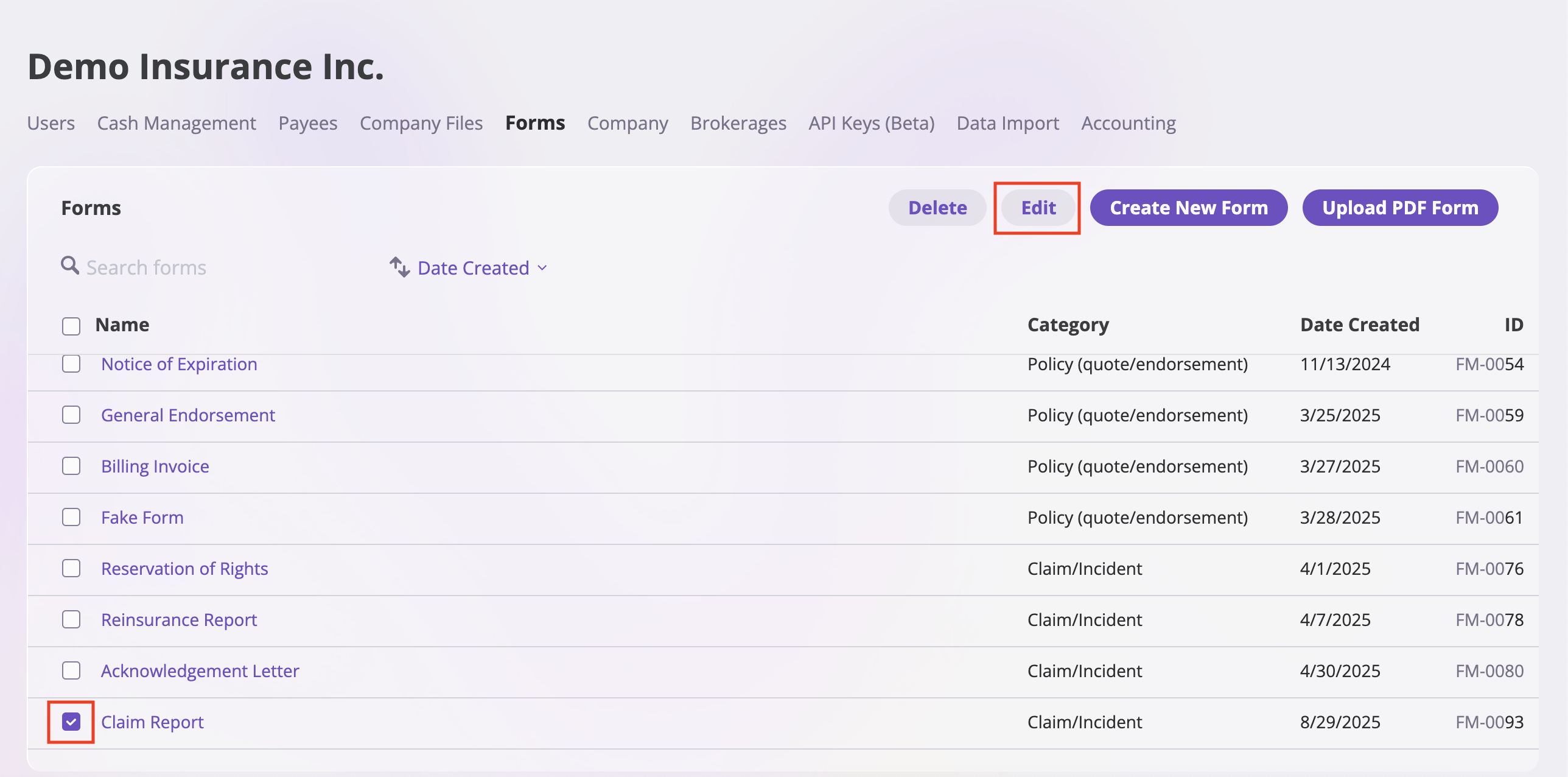 2. Click **Insert Smart Tag** and pick **Event Reserve Updates** (if it wasn't already in the template).
3. Save or download as needed.
2. Click **Insert Smart Tag** and pick **Event Reserve Updates** (if it wasn't already in the template).
3. Save or download as needed.