> ## Documentation Index
> Fetch the complete documentation index at: https://docs.aiinsurance.io/llms.txt
> Use this file to discover all available pages before exploring further.
# Generating API Keys
## How to Generate API Keys
API keys allow you to programmatically access your AI Insurance data and integrate with external systems. This guide shows you how to generate API keys from your company settings.
## Step-by-Step Instructions
### Step 1: Access Company Settings
1. Log into your AI Insurance account at [https://app.aiinsurance.io](https://app.aiinsurance.io)
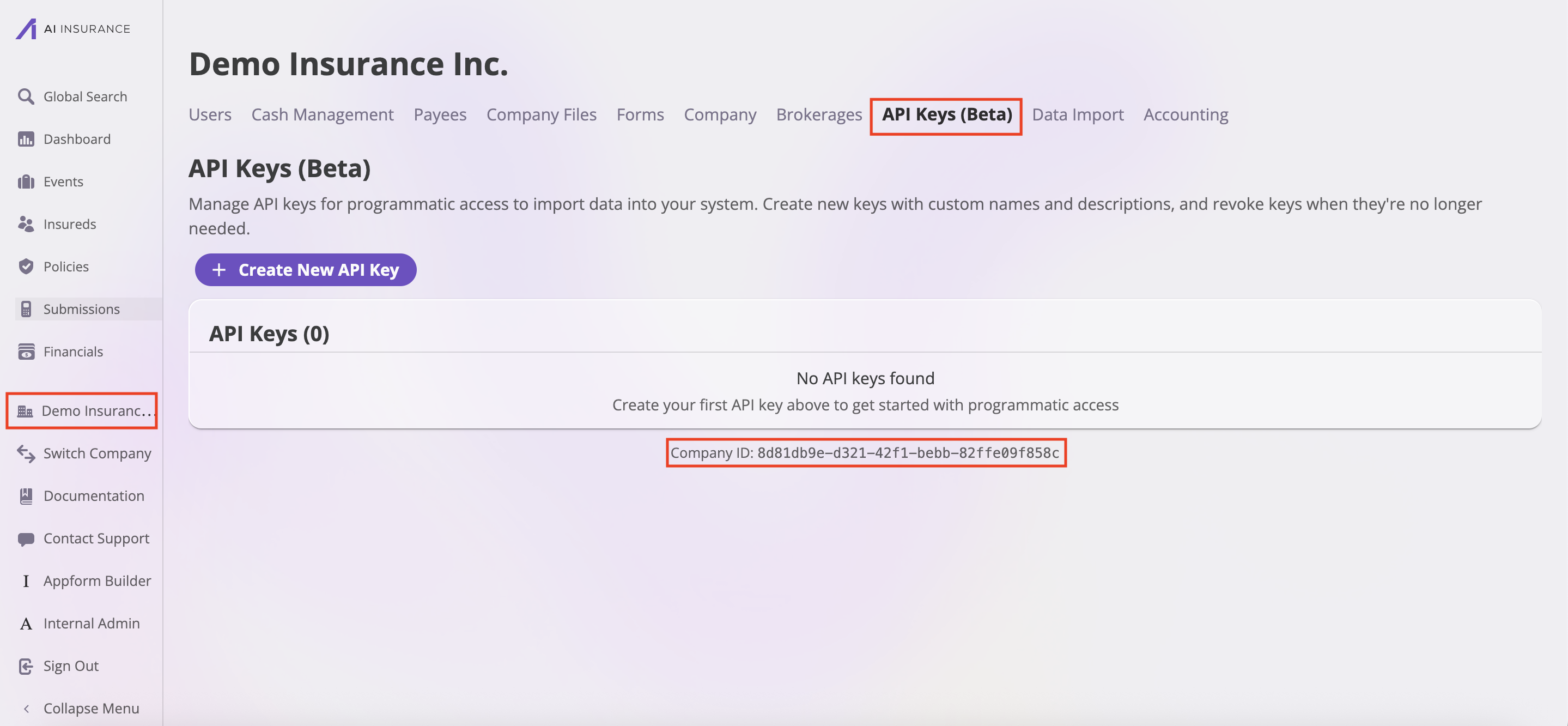
2. In the left sidebar, find and click on your company name (e.g., "Demo Insurance Inc.")
3. This will open the company settings page
### Step 2: Navigate to API Keys
1. In the company settings, look for the navigation bar
2. Click on the **"API Keys"** tab
3. Once you're on the **API Keys** page, you will see:
* A table of any existing API keys
* A button to create a new API key
* Your **Company ID** at the bottom of the page (this ID is required in most API requests)
 ### Step 3: Create Your API Key
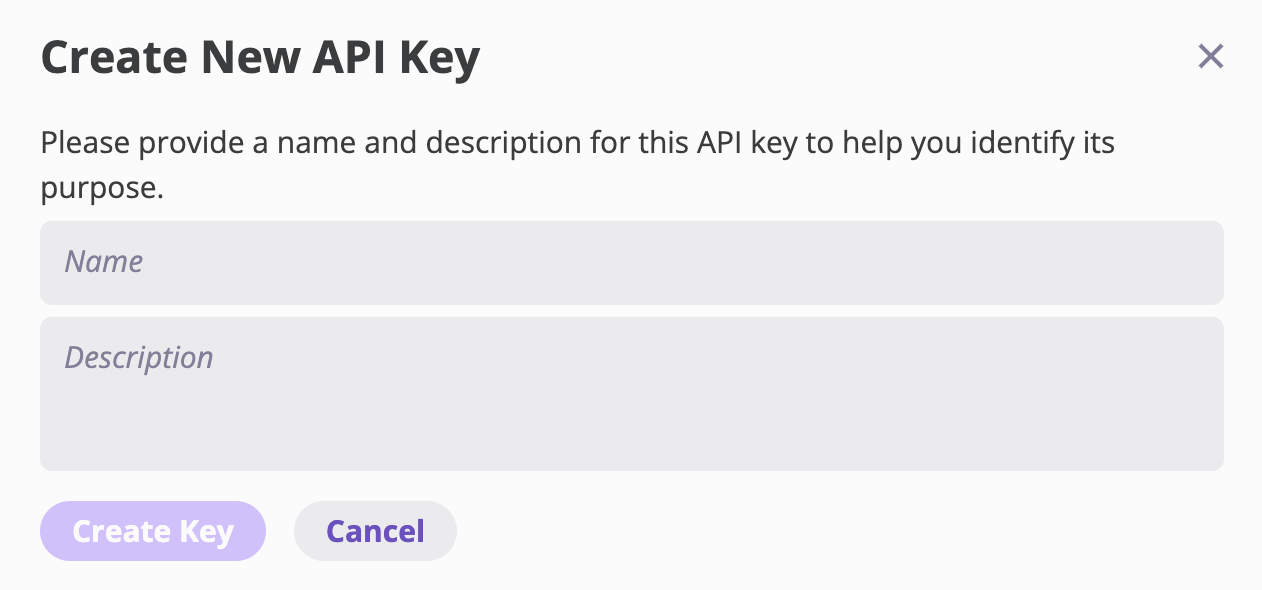
1. Click the purple **"+ Create New API Key"** button
2. You'll be prompted to enter:
* **Key Name**: A descriptive name for your API key (e.g., "Production Integration", "Testing API")
* **Description**: Optional description of what this key will be used for
### Step 3: Create Your API Key
1. Click the purple **"+ Create New API Key"** button
2. You'll be prompted to enter:
* **Key Name**: A descriptive name for your API key (e.g., "Production Integration", "Testing API")
* **Description**: Optional description of what this key will be used for
 ### Step 4: Save Your API Key
1. After creating the key, you'll receive your API key
2. **Store it securely** - API keys grant access to your company's data
**Authentication Header Format**
When making API requests, include your API key in the Authorization header:
```
Authorization: YOUR-API-KEY
```
**Correct:**
```bash theme={null}
-H "Authorization: abc123xyz789"
```
**Incorrect:**
```bash theme={null}
-H "Authorization: Bearer abc123xyz789" ❌
-H "X-API-Key: abc123xyz789" ❌
```
***
## Using Your API Key
Now that you have your API key, you can use it to access the AI Insurance V1 API.
### Example: Using Your API Key
```bash theme={null}
curl -X GET \
"https://app.aiinsurance.io/api/v1/external/companies/YOUR-COMPANY-ID/exposures" \
-H "Authorization: YOUR-API-KEY"
```
### Step 4: Save Your API Key
1. After creating the key, you'll receive your API key
2. **Store it securely** - API keys grant access to your company's data
**Authentication Header Format**
When making API requests, include your API key in the Authorization header:
```
Authorization: YOUR-API-KEY
```
**Correct:**
```bash theme={null}
-H "Authorization: abc123xyz789"
```
**Incorrect:**
```bash theme={null}
-H "Authorization: Bearer abc123xyz789" ❌
-H "X-API-Key: abc123xyz789" ❌
```
***
## Using Your API Key
Now that you have your API key, you can use it to access the AI Insurance V1 API.
### Example: Using Your API Key
```bash theme={null}
curl -X GET \
"https://app.aiinsurance.io/api/v1/external/companies/YOUR-COMPANY-ID/exposures" \
-H "Authorization: YOUR-API-KEY"
```